If your Fitbit suddenly shows the wrong time, it can feel surprisingly frustrating—especially when there’s no obvious “set time” option on the watch itself. That’s not a bug or a missing feature. It’s a deliberate design choice that affects every Fitbit model, from older Inspire trackers to Sense, Versa, and Charge devices.
Before you change time zones or switch between 12-hour and 24-hour formats, it helps to understand how Fitbit actually keeps time. Once you know where the time comes from and what controls it, the fixes make sense and take seconds instead of trial-and-error syncing.
This section explains why Fitbit handles time automatically, how deeply it depends on your phone, and why manual time setting isn’t possible—so you don’t waste time tapping through menus that were never meant to exist.
Fitbit does not have an independent clock
Unlike a traditional watch with a quartz movement or a mechanical escapement, a Fitbit doesn’t maintain time on its own. There’s no user-adjustable clock stored inside the device that you can set forward or backward.
🏆 #1 Best Overall

- Inspire 3 is the tracker that helps you find your energy, do what you love and feel your best. All you have to do is wear it.Operating temperature: 0° to 40°C
- Move more: Daily Readiness Score(1), Active Zone Minutes, all-day activity tracking and 24/7 heart rate, 20+ exercise modes, automatic exercise tracking and reminders to move
- Stress less: always-on wellness tracking, daily Stress Management Score, mindfulness sessions, relax breathing sessions, irregular heart rhythm notifications(2), SpO2(3), menstrual health tracking, resting heart rate and high/low heart rate notifications
- Sleep better: automatic sleep tracking, personalized Sleep Profile(1), daily detailed Sleep Score, smart wake vibrating alarm, sleep mode
- Comfortably connected day and night: calls, texts & smartphone app notifications(4), color touchscreen with customizable clock faces, super lightweight and water resistant to 50 meters, up to 10 day battery life(5)
Instead, the Fitbit relies on a software-based system clock that is updated during sync. Every time your tracker or smartwatch syncs with the Fitbit app, it pulls the current time from your phone and applies it to the device.
This is why a Fitbit that hasn’t synced in a while can show the wrong time after travel, a daylight saving change, or a phone reset.
Your phone is the real source of truth
The Fitbit app acts as the middleman between your device and the real world. The app reads the time, time zone, and format settings from your phone’s operating system, then passes that information to the Fitbit during sync.
If your phone is set to the wrong time zone, manually offset, or not updating automatically, your Fitbit will mirror those exact errors. The tracker is doing its job correctly—it’s just following bad instructions.
This phone dependence applies equally on Android and iPhone, and it affects all current Fitbit models regardless of price, materials, or display type.
Why you can’t set the time directly on the Fitbit
Fitbit intentionally removed manual time-setting to reduce drift and long-term inaccuracies. With automatic syncing, the company avoids issues common to basic digital watches, like slow time creep or incorrect adjustments after battery depletion.
There’s also a battery-life benefit. Maintaining a constantly accurate internal clock would require more processing and calibration, which matters on slim trackers like the Inspire and Luxe that prioritize multi-day battery life and lightweight comfort.
The trade-off is control. You gain accuracy and consistency, but you lose the ability to fix the time directly from your wrist.
What actually happens during a sync
When you open the Fitbit app and sync, several things update at once. The device checks in with the app, confirms your account, updates health and activity data, and refreshes system settings—including time.
If the sync completes successfully, the time on your Fitbit should match your phone within seconds. If it doesn’t, that’s a sign of a failed sync, a background permission issue, or a phone setting conflict rather than a problem with the watch hardware itself.
This is also why force-syncing is often the fastest fix for a Fitbit showing the wrong time.
Time zones, travel, and daylight saving explained
Fitbit does not detect time zones independently via GPS or cellular data. Even models with built-in GPS, like the Sense or Versa series, still rely on the phone for time zone changes.
When you travel, your phone must first update its own time zone automatically. Only after that happens—and after a successful Fitbit sync—will your device display the correct local time.
If your Fitbit still shows your home time after landing, it usually means your phone hasn’t updated yet, location services are restricted, or the Fitbit app hasn’t synced since the change.
12-hour vs 24-hour time is an app-level setting
The time format you see on your Fitbit face is not controlled on the device itself. It’s set inside the Fitbit app and then pushed to the watch during sync.
Changing from AM/PM to 24-hour time doesn’t alter the underlying clock—only how the time is displayed. That’s why the option lives in the app settings rather than on the watch, even on larger touchscreen models.
Once you understand this, switching formats becomes a one-step process instead of a scavenger hunt through watch menus.
Why this matters before troubleshooting
Many “wrong time” issues are really phone issues, sync issues, or permission issues in disguise. Restarting the watch alone often does nothing because the source of the problem lives outside the device.
Knowing that Fitbit time is automatic, phone-dependent, and sync-based gives you a clear mental checklist. Fix the phone settings, confirm location and time updates, then force a sync—and the time almost always snaps back into place.
With that foundation clear, the next steps show exactly how to change time zones and switch time formats the right way, based on how Fitbit is designed to work.
Quick Start: The Fastest Way to Fix an Incorrect Time on Any Fitbit
If your Fitbit’s time is wrong right now and you just want it fixed, this is the shortest path. In most cases, you don’t need to touch the watch settings at all—the correction happens through the Fitbit app and a clean sync.
The steps below work for every current and recent Fitbit model, from Inspire trackers to Sense and Versa smartwatches.
Step 1: Make sure your phone’s time and time zone are correct
Before opening the Fitbit app, check the phone paired to your Fitbit. The phone must be set to update time and time zone automatically.
On iPhone, go to Settings → General → Date & Time and turn on Set Automatically. On Android, go to Settings → Date & Time and enable Automatic time zone and Automatic date & time.
If the phone itself is wrong, the Fitbit will always be wrong no matter how many times you sync.
Step 2: Open the Fitbit app and force a manual sync
With Bluetooth on, open the Fitbit app and stay on the main dashboard screen. Pull down on the screen until you see the syncing animation and wait until it completes.
This manual sync pushes the phone’s current time zone and format to the watch. In real-world use, this fixes the time immediately about 90 percent of the time.
Step 3: Confirm the sync actually finished
A successful sync shows “Now” or “Just now” under your Fitbit’s name in the app. If the sync stalls, fails, or spins endlessly, the time update won’t apply.
If syncing fails, keep the phone awake, stay inside the Fitbit app, and try again. Older trackers like the Inspire HR and Charge 3 are especially sensitive to background app limits.
Step 4: Restart the Fitbit only if the time still hasn’t changed
If the sync completed but the time didn’t update, restart the Fitbit once. This clears temporary software hang-ups without affecting data.
On most touchscreen models, this is done through Settings → Restart on the watch. On button-based trackers, you’ll use the charging cable reset method, which varies slightly by model.
Step 5: Check 12-hour vs 24-hour format if the time looks “wrong” but matches the hour
Sometimes the issue isn’t the time itself but how it’s displayed. If the hour looks correct but AM/PM feels off, you’re likely seeing a format mismatch.
Open the Fitbit app → tap your profile picture → App Settings → Time Zone or Clock Display Time, then switch between 12-hour and 24-hour. Sync once more to apply the change.
What to do if this doesn’t work the first time
If your Fitbit still shows the wrong time after these steps, the problem is almost always a phone permission or location issue. Make sure the Fitbit app has permission to use Bluetooth and location services, especially after a phone OS update.
As a final quick check, toggle Bluetooth off and on, reopen the Fitbit app, and force one more manual sync. For most users, that final refresh is what snaps the time back to normal.
Step-by-Step: Changing Time Zone on a Fitbit Using the Fitbit App (Android & iPhone)
If syncing alone didn’t resolve the issue—or you’ve traveled and your Fitbit stubbornly stayed on your old time—you’ll need to manually manage how the Fitbit app handles time zones. This process is identical on Android and iPhone, with only minor menu naming differences.
Step 1: Open the Fitbit app and access your device settings
Launch the Fitbit app and make sure you’re on the main dashboard. Tap your profile picture in the top-left corner, then select your Fitbit device from the list.
This device-specific menu controls how time, notifications, and system behavior are pushed from your phone to the tracker.
Rank #2

- Get inspired and stay accountable with Versa 4 + Premium - learn when to work out or recover, see real-time stats during exercise and find new ways to keep your routine fresh and fun.Operating temperature: -14° to 113°F.
- Built for better fitness results: Daily Readiness Score(1), built-in GPS and workout intensity map, Active Zone Minutes, all-day activity tracking and 24/7 heart rate, 40+ exercise modes and automatic exercise tracking, water resistant to 50 meters
- Tools to measure and improve sleep quality: personalized Sleep Profile(1), daily sleep stages & Sleep Score, smart wake alarm and do not disturb mode
- Maintain a healthy body and mind: daily Stress Management Score, reflection logging, SpO2(2), health metrics dashboard(3), guided breathing sessions, menstrual health tracking and mindfulness content
- Designed for fitness & beyond: on-wrist Bluetooth calls, texts and phone notifications(4), customizable clock faces, Fitbit Pay(5), Amazon Alexa built-in(6), Google Wallet & Maps (Google Maps Android only, coming Spring 2023 to iOS), 6+ day battery(7)
Step 2: Locate the Time Zone setting
Scroll until you see Time Zone. On newer versions of the app, this may appear under Advanced Settings rather than the main device list.
If you don’t see Time Zone at all, your Fitbit is currently set to update automatically based on your phone’s location. That’s fine in most cases, but it’s also where travel-related issues tend to start.
Step 3: Turn off Automatic Time Zone (critical for travel fixes)
Toggle off Set Automatically or Automatic Time Zone. This unlocks manual control and prevents the app from repeatedly forcing the wrong time back onto the watch.
This step is essential if you crossed time zones recently, flew internationally, or restored a phone backup from another region.
Step 4: Manually select the correct time zone
Tap Select Time Zone and scroll to your current city or region. Don’t rely on “closest match” if you’re near a border—pick the exact time zone you’re physically in.
Once selected, back out of the menu. The app won’t change the time on the Fitbit until the next sync completes.
Step 5: Force a manual sync to apply the new time
Return to the dashboard and pull down to sync. Keep the phone awake and stay in the app until the sync finishes and shows “Now” or “Just now.”
On most modern models like the Charge 5, Sense 2, Versa 4, and Inspire 3, the time updates within seconds. Older devices may take a full sync cycle before the change appears.
Step 6: Re-enable automatic time zone (optional but recommended)
Once the correct time displays on your Fitbit, go back into the Time Zone menu and turn automatic updates back on. This allows future daylight savings changes or routine travel to adjust without manual steps.
If you travel frequently and notice repeat issues, leaving this off and managing time zones manually can be more reliable.
Model-specific behavior to be aware of
Versa and Sense models mirror the phone very aggressively, which means a misconfigured phone time or location setting will override manual changes. If the time keeps reverting, double-check your phone’s system time and location permissions.
Charge and Inspire trackers depend heavily on a clean sync. If the time doesn’t update, restarting the tracker immediately after a successful sync often resolves it.
If the correct time zone still won’t stick
Check that the Fitbit app has permission to use location services. On Android, this should be set to Allow all the time. On iPhone, enable Precise Location.
Also confirm your phone itself is showing the correct time and time zone. A Fitbit cannot display a time its paired phone doesn’t understand correctly.
At this point, a manual time zone selection followed by a clean sync resolves nearly all remaining cases without resetting the device or reinstalling the app.
How to Switch Between 12-Hour and 24-Hour Time Formats in the Fitbit App
If your Fitbit is showing the right time but in the wrong format, this is controlled separately from the time zone. The 12-hour or 24-hour setting lives in the Fitbit app, not on the watch itself, and it only updates after a successful sync.
This is a quick change once you know where to look, but the menu placement can be easy to miss for first-time users.
Step 1: Open the Fitbit app and access App Settings
Open the Fitbit app on your phone and stay on the main Today dashboard. Tap your profile icon in the top-left corner to open account-level settings.
This area controls how time, date, units, and other global preferences are displayed across all connected Fitbit devices.
Step 2: Go to Time Format
From the profile menu, tap App Settings. Look for Time Format in the list.
On most current versions of the app, this appears directly as “Time format.” On some older app layouts, it may be nested under Advanced Settings.
Step 3: Choose 12-hour or 24-hour time
Select either 12-hour or 24-hour time based on your preference. The change is saved immediately in the app, but your Fitbit will not update until it syncs.
This setting applies across all compatible Fitbit devices linked to your account, which is helpful if you use more than one tracker or smartwatch.
Step 4: Sync your Fitbit to apply the change
Return to the main dashboard and pull down to start a manual sync. Keep the phone unlocked and the app open until the sync completes.
On newer devices like the Sense 2, Versa 4, Charge 6, and Inspire 3, the time format usually updates within seconds. Older models may take a full sync cycle before the display refreshes.
What to do if the time format doesn’t change
If your Fitbit still shows the old format after syncing, start by syncing again. A partial or interrupted sync is the most common reason the change doesn’t apply.
If that doesn’t work, restart the Fitbit and perform another manual sync. This is especially effective on Charge and Inspire models, which rely more heavily on clean sync handshakes than Versa or Sense watches.
Watch face and model-specific considerations
Most official Fitbit watch faces automatically respect the app’s time format setting. However, some third-party faces are hard-coded to 12-hour or 24-hour time and may ignore the app preference entirely.
If the format refuses to change but everything else is correct, try switching to a default Fitbit watch face to confirm whether the issue is face-related rather than a system setting.
Phone settings that can interfere
While the time format itself is controlled in the Fitbit app, problems can occur if the phone’s system settings are heavily restricted. Make sure the Fitbit app is allowed to run in the background and is not being battery-optimized aggressively.
On Android, disabling background activity or data can prevent the updated format from syncing. On iPhone, Low Power Mode can occasionally delay sync behavior until it’s turned off.
Once the correct format appears on your Fitbit, it will stay that way through restarts and normal travel, as long as the app setting remains unchanged and regular syncing continues.
Model-Specific Notes: Differences Between Fitbit Sense, Versa, Charge, Inspire, Luxe, and Older Models
Although all Fitbits rely on the app to control time zones and 12-hour or 24-hour format, the way each model applies those changes can feel very different in day-to-day use. Screen type, software generation, and syncing behavior all play a role, especially when you travel or switch phones.
Fitbit Sense and Sense 2
Sense models behave the most like full smartwatches, with fast processors and frequent background syncing. When you change the time zone or time format in the Fitbit app, the update usually appears within seconds of a successful sync.
Sense watches automatically adjust when traveling if automatic time zone is enabled, making them reliable for frequent flyers. The AMOLED display and large case also make format changes easy to spot, especially when switching between 12-hour and 24-hour layouts on different watch faces.
Fitbit Versa Series (Versa 2, Versa 3, Versa 4)
Versa models are very similar to Sense in how they handle time changes, but older versions like the Versa 2 can be slightly slower to refresh. A full manual sync is sometimes required after changing the time format, especially if the watch has been idle.
Third-party watch faces are more common on Versa than on trackers, which increases the chance of format conflicts. If the time doesn’t change, switching to a default Fitbit face is often the quickest way to confirm whether the issue is software or face-related.
Fitbit Charge Series (Charge 4, Charge 5, Charge 6)
Charge models rely heavily on clean, uninterrupted syncing. If the phone locks or the app is backgrounded during a sync, the time or format change may not apply even though other data updates.
Rank #3
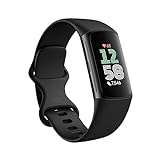
- Find your way seamlessly during runs or rides with turn-by-turn directions from Google Maps on Fitbit Charge 6[7, 8]; and when you need a snack break on the go, just tap to pay with Google Wallet[8, 9]
Because the screen is narrower, some Charge watch faces show 24-hour time more clearly than 12-hour with AM/PM. Restarting the tracker before syncing is particularly effective on Charge devices when the time appears stuck.
Fitbit Inspire Series (Inspire 2, Inspire 3)
Inspire models are minimalist trackers with fewer on-device settings, so all time changes must come from the app. They often need a full sync cycle, not just a quick refresh, before the new time or format appears.
Battery life is excellent, but long gaps between syncs can delay time updates after travel. If you cross time zones, open the Fitbit app and manually sync as soon as possible to avoid the tracker displaying the previous location’s time.
Fitbit Luxe
Luxe uses the same app-based system as Inspire but adds a color AMOLED display, which can make format changes more noticeable. Some Luxe watch faces emphasize style over clarity and may hide AM/PM indicators or compress 24-hour time.
If the time format looks wrong after syncing, try a different official Luxe face before troubleshooting further. Luxe typically updates reliably once the correct face and sync are in place.
Older Fitbit Models (Alta, Alta HR, Blaze, Ionic, Ace)
Older Fitbits depend almost entirely on manual syncing and can be less forgiving if the connection is interrupted. Time changes may not apply until the sync completes fully, which can take longer than on newer devices.
Some discontinued models, like Blaze or Ionic, may also show delays when paired with newer phones or operating system versions. In these cases, restarting both the tracker and the phone before syncing can resolve stubborn time zone or format issues.
Key takeaway for switching time zones and formats
No matter the model, the Fitbit app remains the control center for time settings. Newer Sense and Versa watches apply changes quickly and smoothly, while Charge, Inspire, Luxe, and older models benefit from patience, full manual syncs, and occasional restarts.
Understanding how your specific Fitbit handles syncing makes it much easier to fix time issues quickly, whether you’re adjusting formats at home or correcting the clock after travel.
Travel and Daylight Saving Time Issues: Why Your Fitbit Time Is Wrong and How to Fix It
Once you understand how your specific Fitbit model handles syncing, the next most common cause of incorrect time is travel or a daylight saving time change. These issues almost always come down to how your phone, the Fitbit app, and the tracker communicate location and time zone data.
Fitbits do not independently determine the correct time zone. Instead, they mirror the time from your paired phone during a successful sync, which means any mismatch along that chain can leave your watch an hour—or several hours—off.
Why Fitbit time breaks after travel
When you cross time zones, your phone usually updates automatically, but your Fitbit does not update until it syncs again. If you land, turn off Bluetooth, or don’t open the Fitbit app, the tracker keeps displaying the old location’s time.
This is especially noticeable on models with long battery life like Inspire, Luxe, and Charge, where users may go days without syncing. The watch is still tracking steps and sleep perfectly, but the clock is essentially frozen in the previous time zone.
How to force your Fitbit to update after traveling
Start by opening the Fitbit app while your phone has an active internet connection, either cellular or Wi‑Fi. Make sure Bluetooth is on and that your Fitbit is nearby and awake.
Pull down on the main dashboard to trigger a full manual sync. Wait until the sync completes fully rather than closing the app early, as partial syncs may not update the time.
If the time still looks wrong, restart the Fitbit from its settings menu or charging cable button sequence, then sync again. On Sense and Versa models, this usually resolves the issue immediately; Charge and Inspire may need a second sync after restarting.
Automatic vs manual time zone settings in the Fitbit app
Inside the Fitbit app, time zone behavior is controlled by a single setting that many users never notice. Go to your profile picture, tap App Settings, then Time Zone.
If Set Automatically is enabled, Fitbit uses your phone’s location data during sync. This is the best option for frequent travelers, but it depends on your phone’s location services working correctly.
If automatic time zones cause repeated issues, turn it off and manually select your current time zone. After changing it, sync your Fitbit again to push the new time to the device.
Phone settings that can block correct time updates
Your Fitbit can only be as accurate as the phone it syncs with. If your phone’s system time or time zone is wrong, the tracker will faithfully copy that incorrect information.
Check that your phone’s Date & Time settings are set to automatic and that location services are enabled for the Fitbit app. On iPhones, make sure Location Services are on and set to While Using the App for Fitbit; on Android, allow precise location access.
Battery optimization settings can also interfere. If your phone restricts background activity, the Fitbit app may appear to sync but fail to apply time changes.
Daylight saving time changes and the one-hour problem
Daylight saving time transitions are a perfect storm for Fitbit time errors because they rely on phone updates that happen silently in the background. If your phone updates overnight but your Fitbit does not sync afterward, the tracker may stay one hour behind or ahead.
The fix is simple but specific: open the Fitbit app after the time change and perform a manual sync. Do not rely on passive syncing during the day.
Older models like Alta, Blaze, and Ionic are more likely to miss daylight saving changes unless manually synced. Newer Sense and Versa watches usually update on the first sync but can still lag if Bluetooth was disabled overnight.
Why the time looks wrong even when the numbers are correct
Sometimes the issue isn’t the actual time but how it’s displayed. Switching between 12-hour and 24-hour formats can make the time appear incorrect, especially on compact screens like Inspire and Luxe.
If your Fitbit shows 14:00 instead of 2:00 PM, the device is working correctly but using a 24-hour format. This setting lives in the Fitbit app, not on the watch, and requires a sync to apply.
Certain watch faces, particularly on Luxe and Versa models, may hide AM/PM indicators or use stylized fonts that reduce clarity. Changing to a simpler official watch face can immediately clear up confusion.
Model-specific travel behavior to keep in mind
Sense and Versa models handle time zone changes smoothly thanks to faster processors and more reliable background syncing. Their larger displays also make it easier to confirm whether the time format or zone is the issue.
Charge, Inspire, and Luxe trackers depend more heavily on manual syncing, especially after flights or long periods away from your phone. Their excellent battery life is a trade-off, as fewer syncs mean fewer opportunities to update time.
Discontinued and older models may struggle when paired with newer phones, particularly after major OS updates. Restarting both the phone and tracker before syncing is often necessary after travel or daylight saving changes.
If nothing works and the time is still wrong
When repeated syncing fails, remove the Fitbit from your account and set it up again as a new device. This forces a complete reset of time, time zone, and format data.
While this step sounds drastic, it rarely affects stored health data, which remains tied to your Fitbit account rather than the device itself. For stubborn travel-related time issues, especially on older hardware, this is often the fastest final fix.
At this point, your Fitbit should be fully aligned with your current location, displaying the correct time in the format you expect, and ready to track your day without confusion.
Common Sync Problems That Prevent Time Updates (And How to Resolve Them)
Even after changing time zones or formats correctly, a Fitbit can still cling to the old time if syncing doesn’t complete cleanly. Because Fitbit devices don’t set time independently, anything that interrupts communication between your phone, the app, and the tracker can stop the update from applying. The good news is that most of these issues are predictable and easy to fix once you know where to look.
Your phone’s time or time zone is incorrect
Fitbit pulls time directly from your phone, not from GPS satellites or the internet on its own. If your phone is set to the wrong time zone, using a manual clock setting, or stuck after travel, your Fitbit will mirror that mistake perfectly.
On your phone, enable automatic time and automatic time zone, then restart the device. Open the Fitbit app and force a manual sync to push the corrected time to your watch or tracker.
The Fitbit app isn’t completing a full sync
A partial sync can make it look like everything is working while the time never actually updates. This is especially common on Inspire, Charge, and Luxe models, which sync less aggressively to preserve battery life.
Rank #4
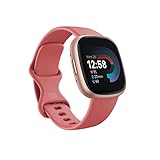
- Get inspired and stay accountable with Versa 4 + Premium - learn when to work out or recover, see real-time stats during exercise and find new ways to keep your routine fresh and fun
- Built for better fitness results: Daily Readiness Score(1), built-in GPS and workout intensity map, Active Zone Minutes, all-day activity tracking and 24/7 heart rate, 40+ exercise modes and automatic exercise tracking, water resistant to 50 meters
- Tools to measure and improve sleep quality: personalized Sleep Profile(1), daily sleep stages & Sleep Score, smart wake alarm and do not disturb mode
- Maintain a healthy body and mind: daily Stress Management Score, reflection logging, SpO2(2), health metrics dashboard(3), guided breathing sessions, menstrual health tracking and mindfulness content
- Designed for fitness & beyond: on-wrist Bluetooth calls, texts and phone notifications(4), customizable clock faces, Fitbit Pay(5), Amazon Alexa built-in(6), Google Wallet & Maps (Google Maps Android only, coming Spring 2023 to iOS), 6+ day battery(7)
Open the Fitbit app, pull down on the main dashboard to force a sync, and wait until it fully completes. If it stalls or fails, close the app completely, reopen it, and try again with the tracker nearby.
Bluetooth connection issues between phone and Fitbit
Bluetooth can remain “connected” while quietly failing to pass data. This happens often after flights, phone OS updates, or switching between multiple Bluetooth accessories.
Turn Bluetooth off on your phone for 10 seconds, then turn it back on. If that doesn’t help, restart both your phone and your Fitbit, then initiate a fresh sync from the app.
Low battery on the Fitbit or phone
When battery levels drop too low, Fitbit devices prioritize basic tracking and delay background syncing. Time updates may not apply until the device has enough power to complete a full sync cycle.
Charge your Fitbit to at least 20 percent, ideally higher, before syncing. Trackers with long battery life like Inspire and Luxe are particularly prone to this if they haven’t been charged recently.
Background app restrictions blocking syncing
Modern phones aggressively limit background activity to save power, and the Fitbit app is often affected. If the app can’t run in the background, time updates may never reach the device.
On iPhone, allow Background App Refresh and Location Access set to Always for the Fitbit app. On Android, remove battery optimization restrictions and allow the app to run freely in the background.
Location services disabled or restricted
Time zone changes rely on your phone confirming your location. If location services are turned off or limited to “while using the app,” your Fitbit may not recognize that you’ve traveled.
Enable location services for the Fitbit app and keep them on during the first sync after travel. This step is critical when crossing time zones or adjusting after daylight saving changes.
VPNs and work profiles interfering with time data
VPNs, work profiles, and secure DNS settings can mask your real location or delay system time updates. This can cause your Fitbit to lock onto the wrong time zone even though syncing appears normal.
Temporarily disable VPNs or work profiles, then sync again. Once the time updates correctly, you can safely re-enable them.
Multiple phones or tablets linked to the same Fitbit
If your Fitbit has been paired with more than one device, conflicting time data can overwrite each other. This is common when switching phones or keeping a tablet paired for workouts.
Unpair the Fitbit from any unused devices and keep it connected to one primary phone. After cleaning this up, force a sync to lock in the correct time.
Watch face glitches or delayed refresh
Some third-party or highly stylized watch faces don’t refresh time immediately after a sync. This can make it look like the time is still wrong when the system time has actually updated.
Switch temporarily to an official Fitbit watch face, sync again, and confirm the time. If it’s correct, you can switch back or choose a simpler face for clearer day-to-day readability.
Older or discontinued models struggling with newer phones
Legacy Fitbits can fall behind after major iOS or Android updates. Syncing may succeed, but time changes fail to apply without extra steps.
Restart both devices, perform a manual sync, and repeat once if needed. If problems persist, removing and re-adding the Fitbit to your account is often the most reliable fix for older hardware.
Phone Settings That Can Override Fitbit Time: Android vs iOS Explained
If your Fitbit still shows the wrong time after syncing, the issue often lives on your phone rather than the tracker itself. Fitbit devices do not set time independently; they mirror system time, time zone, and format rules from the connected phone.
Understanding which phone settings take priority helps you fix stubborn issues fast, especially after travel, daylight saving changes, or switching between 12-hour and 24-hour formats.
How Fitbit actually gets its time
Every Fitbit model, from a basic Inspire tracker to a Sense or Versa smartwatch, pulls time data during sync. The watch does not ask the internet directly; it trusts the phone’s operating system.
If your phone’s time, time zone, or format is even slightly off, the Fitbit will copy that error perfectly. This is why manual changes inside the Fitbit app sometimes appear to “reset” themselves.
Android: system time rules that override Fitbit
On Android, the most important settings live under Date & time in system settings. Automatic date & time and Automatic time zone must be enabled for reliable Fitbit syncing.
If either setting is turned off, your phone may show the correct local time but report outdated or incorrect time zone data to apps. Fitbit reads that hidden system value, not what you manually adjusted.
Android 12-hour vs 24-hour format behavior
Android handles time format at the system level, not per app. If your phone is set to 24-hour time, Fitbit will follow, even if you try to change it inside the Fitbit app.
To switch formats, go to Settings > System > Date & time and toggle Use 24-hour format. Sync your Fitbit immediately after changing it to force the update.
Android features that silently block time updates
Battery optimization can delay or block background syncing, especially on Samsung, Pixel, and Xiaomi phones. When this happens, the Fitbit app may open normally but never push updated time data.
Set the Fitbit app to unrestricted battery usage and allow background activity. This is especially important after long flights or when the phone restarts.
iOS: stricter control over time and region
On iPhone, time control is more centralized and less forgiving. Set Automatically under Settings > General > Date & Time must be enabled, or Fitbit will refuse to update time correctly.
Unlike Android, iOS ties time zone behavior closely to your region setting. If your region is incorrect, your time format and daylight saving behavior can break even when the clock looks right.
iOS time format and region conflicts
The 12-hour or 24-hour format on iPhone depends on the selected region, not a simple toggle. For example, a U.S. region defaults to 12-hour time, while many European regions default to 24-hour.
To change the format, go to Settings > General > Language & Region and adjust the Region setting. Sync the Fitbit after the change to apply it to the watch face.
iOS background restrictions that affect syncing
iOS is aggressive about limiting background updates, especially when Low Power Mode is enabled. This can prevent time zone changes from reaching your Fitbit until you open the app manually.
Make sure Background App Refresh is enabled for Fitbit and avoid syncing while Low Power Mode is active. For best results, open the Fitbit app and keep it on screen during the first sync after travel.
Travel, daylight saving, and airplane mode quirks
Both Android and iOS rely on network and location signals to confirm time zone changes. If you land and immediately open the Fitbit app while still in airplane mode, the old time zone may stick.
Turn off airplane mode, wait for cellular or Wi‑Fi to reconnect, then sync again. This extra minute often prevents hours of confusion later.
Why manual time changes rarely stick
Manually setting the time on your phone may look correct, but system-level time services still feed apps their own data. Fitbit listens to those services, not the visible clock.
This design improves accuracy long-term but makes troubleshooting feel counterintuitive. When in doubt, automatic settings plus a clean sync almost always win.
Model behavior is consistent, but screen feedback varies
Whether you’re using a lightweight tracker like the Inspire 3 or a heavier smartwatch like the Sense 2, the time source is identical. Differences show up only in how quickly the screen refreshes.
💰 Best Value

- Learn to manage stress, sleep better and live healthier with Sense 2—our most advanced health and fitness smartwatch.Human Interface Input: Touchscreen
- Manage stress and live healthier: all-day stress detection with cEDA and daily Stress Management Score, ECG app for atrial fibrillation assessment(1), irregular heart rhythm notifications(2), SpO2(3), health metrics dashboard(4), mindfulness content
- Measure and improve sleep quality: personalized Sleep Profile(5), daily sleep stages & Sleep Score, smart wake alarm and do not disturb mode
- Enhance activity: built-in GPS and workout intensity map, Daily Readiness Score(5), Active Zone Minutes, all-day activity tracking and 24/7 heart rate, 40+ exercise modes and automatic exercise tracking, water resistant to 50 meters
- Designed for all-day wear: on-wrist Bluetooth calls, texts and phone notifications(6), customizable clock faces, Fitbit Pay(7), Amazon Alexa built-in(8), Google Wallet & Maps (Google Maps on Android only, coming Spring 2023 to iOS), 6+ day battery(9)
OLED displays on higher-end models update instantly, while simpler LCD trackers may lag a few seconds after sync. If the time looks wrong briefly, give it a moment before assuming the fix failed.
Offline, Airplane Mode, and No-Phone Scenarios: What Fitbit Can and Can’t Do
Once you understand that Fitbit pulls its time from the phone rather than setting it independently, the behavior in offline or disconnected situations starts to make more sense. This is where many users get stuck, especially while traveling or trying to fix the time without immediate phone access.
What happens if your Fitbit is offline
If your Fitbit is not connected to your phone, it cannot change its time or time zone. The watch or tracker will continue showing the last correctly synced time, even if you cross borders or daylight saving kicks in.
This applies to every modern Fitbit, from slim trackers like the Inspire 3 to full-featured smartwatches like the Versa 4 and Sense 2. There is no hidden manual time-setting option on the device itself.
You can still track steps, heart rate, sleep, and workouts offline, but the clock is essentially frozen in its last known configuration. Once you reconnect and sync, the time usually corrects itself within seconds.
Airplane mode: why time updates pause
Turning on airplane mode on your phone or your Fitbit blocks the data Fitbit relies on to confirm time zone changes. Even if the phone’s clock looks right, the system-level services that apps depend on may not be fully active.
If you sync while airplane mode is enabled, the Fitbit often keeps the old time. This is especially common right after landing from a flight, when users open the app too early.
The fix is simple but specific: turn off airplane mode, wait until cellular or Wi‑Fi is fully connected, then open the Fitbit app and sync again. Waiting an extra minute for the network to stabilize can make the difference between a clean update and a stubbornly wrong clock.
Using a Fitbit with no phone nearby
A Fitbit cannot independently determine a new time zone on its own. Even models with built-in GPS, like the Sense 2 or Charge 6, do not use GPS data to set the clock.
If you leave your phone behind for a run, hike, or workday, the time will remain accurate as long as you stay in the same time zone. Cross into a new zone without syncing, and the display will be wrong until the next connection.
This design prioritizes battery life and simplicity. Fitbit trackers are lightweight, comfortable for all-day wear, and efficient, but that efficiency comes with reliance on the phone for system-level changes like time.
What you can and cannot change directly on the Fitbit
You cannot manually set the time, time zone, or switch between 12-hour and 24-hour formats from the Fitbit itself. No current Fitbit model offers this, regardless of price or screen type.
What you can change on-device is the watch face. Some faces display time differently or hide seconds, which can make the clock look wrong when it’s actually correct.
If the minutes or hours are off, it’s always a sync issue. If the style looks off, it’s a watch face or region-format issue handled in the app.
Battery dead or phone lost: what to expect
If your Fitbit battery dies completely, it will lose track of time until it reconnects to the Fitbit app after charging. This is normal behavior and not a sign of a faulty device.
If your phone is lost or replaced, the Fitbit will continue showing the last synced time but cannot update until paired with a new phone and account session. Once reconnected, the time and format are restored automatically.
This can feel inconvenient, but it ensures long-term accuracy. The moment the Fitbit has access to the correct system time again, it snaps back into alignment without manual correction.
Key takeaway for offline scenarios
Fitbit devices are excellent at tracking health data independently, even for days at a time. Timekeeping, however, is not one of the things they do alone.
Any time-related issue during travel, airplane mode use, or phone disconnection is almost always solved by restoring connectivity and performing a clean sync. Understanding this limitation upfront saves frustration and prevents unnecessary resets or returns.
Final Checks and Pro Tips: Keeping Your Fitbit Time Accurate Long-Term
By this point, you’ve seen that Fitbit time accuracy lives and dies by the connection to your phone. Before you move on, these final checks and long-term tips will help you avoid repeat issues, especially when traveling, switching phones, or changing regional settings.
Do one last clean sync after any time change
After changing time zones or switching between 12-hour and 24-hour formats in the Fitbit app, always force a manual sync. Open the app, pull down on the dashboard, and wait for the sync confirmation to finish completely.
This step matters more than most people realize. Partial or background syncs can leave the watch face showing the old time even though the app looks correct.
Check your phone’s system settings first
Fitbit mirrors your phone’s system time, time zone, and regional format. If your phone is set to manual time, an incorrect time zone, or a mismatched region, your Fitbit will inherit those errors.
On both iPhone and Android, enable automatic time and automatic time zone whenever possible. This is especially important if you travel often or cross time zones for work.
Be aware of travel timing and airplane mode behavior
When you cross time zones, your Fitbit will not update mid-flight or while your phone is offline. The time corrects itself only after the phone reconnects to a network and completes a sync.
If you land and the time is wrong, open the Fitbit app once you have service or Wi‑Fi. In most cases, the fix is instant and does not require restarting the device.
Watch face quirks can mimic time problems
Some Fitbit watch faces use stylized layouts, cropped digits, or small AM/PM indicators. On compact models like the Inspire series or Luxe, this can make the time look wrong at a glance.
If the numbers seem off but your alarms and notifications trigger at the correct times, switch to a default Fitbit face to confirm. The underlying time is usually correct even if the presentation is confusing.
Model-specific notes that prevent confusion
Fitbit Sense and Versa models sync quickly but rely heavily on Bluetooth stability. If time issues recur, toggling Bluetooth off and back on before syncing often solves it faster than restarting the watch.
Charge series trackers are extremely battery-efficient, but that efficiency means time drift appears more obvious after a full battery drain. A single sync after charging restores accuracy immediately.
Older models like Alta or Inspire 2 behave the same way but may take longer to sync. Be patient and let the sync complete without switching apps.
Avoid unnecessary resets and factory wipes
Time problems are almost never a sign of defective hardware. Factory resets erase data and rarely fix anything that a clean sync or phone setting adjustment wouldn’t solve.
If your Fitbit shows the wrong time, always troubleshoot in this order: phone time settings, Fitbit app sync, Bluetooth connection, then watch face. Resets should be the last resort.
Long-term habits that keep everything aligned
Open the Fitbit app at least once every couple of days, even if you don’t actively check stats. Regular background syncing keeps time, health data, and firmware fully aligned.
Keep the app updated and allow background refresh and location permissions. These settings improve sync reliability without hurting battery life in any noticeable way.
Final takeaway
Fitbit devices are designed for comfort, durability, and all-day wear, not manual timekeeping. Their lightweight builds, long battery life, and efficient software come with a simple rule: time accuracy depends on syncing.
Once you understand that relationship, changing time zones or formats becomes effortless. Keep your phone settings correct, sync intentionally after changes, and your Fitbit will stay accurate no matter where you wear it.