Quick wins for a faster PC:
Scan for outdated or missing drivers - takes under a minuteDriver Scan →Repair Windows errors before they cause bigger problemsFix Now →Fix the driver behind crashes, sound loss and screen glitchesFind Drivers →Some links on this page are affiliate links: if you buy through them we may earn a commission, at no extra cost to you.
Dexcom G7 Direct to Watch works with Apple Watch Series 6 and later, selected Apple Watch SE and Ultra models, watchOS 10 or later, an iPhone running iOS 17 or later, and a sufficiently current Dexcom G7 app. It lets the G7 sensor communicate directly with the watch, so the iPhone does not have to remain nearby for glucose readings.
That is different from ordinary smartwatch display mode, where the watch receives Dexcom data through the iPhone. In that mode, Dexcom says the iPhone should remain within approximately 20 feet (6 meters). The requirements below reflect Dexcom’s current U.S. documentation; check its live compatibility page before buying hardware or updating software.
Which Apple Watch models work with Dexcom G7 Direct to Watch?
| Apple Watch model | Direct to Watch compatibility |
|---|---|
| Series 6 | Yes, with watchOS 10 or later |
| Series 7 | Yes, with watchOS 10 or later |
| Series 8 | Yes, with watchOS 10 or later |
| Series 9 | Yes, with watchOS 10 or later |
| Series 10 | Yes, with watchOS 10 or later |
| Series 11 | Yes, with watchOS 10 or later |
| Apple Watch SE (2nd generation) | Yes, with watchOS 10 or later |
| Apple Watch SE (3rd generation) | Yes, with watchOS 10 or later |
| Apple Watch Ultra | Yes, with watchOS 10 or later |
| Apple Watch Ultra 2 | Yes, with watchOS 10 or later |
| Apple Watch Ultra 3 | Yes, with watchOS 10 or later |
Dexcom’s current U.S. list begins with Series 6. Series 5 and earlier—including Series 4, 3, 2, 1, and the first-generation Apple Watch—are not listed as compatible with Direct to Watch. See Dexcom’s model-specific compatibility FAQ for the latest regional list.
Check these requirements before setup
- A compatible Apple Watch running watchOS 10 or later.
- An iPhone running iOS 17 or later.
- The Dexcom G7 iPhone app meeting Dexcom’s current minimum version; the cited U.S. requirement is version 2.2.1 or later.
- The Apple Watch paired with the intended iPhone.
- An active G7 sensor and Bluetooth enabled.
Apple’s watch–iPhone pairing requirements are separate from Dexcom’s requirements. For example, Apple lists Series 11, SE 3, and Ultra 3 as requiring an iPhone 11 or later with iOS 26 or later. Check Apple’s compatibility table for your exact combination. If you are using an insulin pump, AID system, or another diabetes app, verify its compatibility before installing a major iOS or watchOS update.
#1 Best Overall
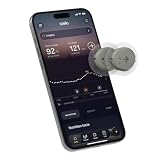
- ✅ For people NOT using insulin, ages 18 years and older
- ❌ Don’t use if: On insulin, on dialysis, if you have problematic hypoglycemia, are modifying medication without HCP consultation, or if you have a history of eating disorders
- YOUR SUCCESS, OUR COMMITMENT: Should you experience an issue with your biosensor before its 15-day wear is up,[2] we’ll replace it for free. [3]
- POWERFUL FEATURES: Get AI-powered coaching, plus discover in-app nutrition & glucose insights, advanced meal and activity logging, trend summaries and deep dives, pattern insights and much more—plus, effortlessly sync your data with Apple Health, Google Health Connect, and Oura.
- PRODUCT SUPPORT: Provided by Stelo through SteloBot, which can be accessed via the Stelo app by going to Settings > Contact. SteloBot virtual support assistant is available 24/7, and live agent support available during regular business hours.
How to connect Dexcom G7 directly to Apple Watch
- On the iPhone, confirm the Apple Watch model, watchOS version, iPhone model, iOS version, and Dexcom G7 app version.
- Update the iPhone, watch, and Dexcom app if needed, after checking compatibility with your other diabetes-management devices and apps.
- Pair the Apple Watch with the iPhone using Apple’s normal Watch setup if it is not already paired.
- Install the Dexcom watch app. It may install automatically. If it does not, open the iPhone’s Watch app, select My Watch, scroll to Available Apps, find Dexcom, and tap Install.
- Open the Dexcom G7 app on the iPhone.
- Go to Connections → Direct to Watch.
- Follow the on-screen pairing instructions, keeping the iPhone and watch close together during setup.
- Open Dexcom on the Apple Watch and wait for the sensor connection to complete.
- Confirm that the watch shows a current glucose value, trend arrow, graph, and alerts.
Installing the watch app alone does not prove that the sensor is connected directly to the watch. The Direct to Watch connection must be enabled through Connections → Direct to Watch.
Direct to Watch versus regular smartwatch mode
| Direct to Watch | Standard smartwatch mode | |
|---|---|---|
| Sensor connection | Sensor connects directly to the Apple Watch over Bluetooth | Data is relayed through the iPhone |
| iPhone nearby | Not required for ordinary readings once Direct to Watch is working | Required; Dexcom specifies approximately 20 feet/6 meters |
| Cellular plan | Not required | Not required, but the iPhone must relay data |
| Setup | More involved | Usually simpler |
| Best suited to | Running, exercise, or leaving the phone behind | People who normally carry their iPhone |
Both arrangements can show glucose information on the watch. Only Direct to Watch is intended to provide sensor-to-watch independence.
How to tell which connection mode is active
- Gray phone icon: The watch is in standard smartwatch mode and relies on the nearby iPhone.
- Orange phone icon: Direct to Watch is temporarily unavailable. The watch is not currently receiving information directly from the sensor.
- Current readings without the phone icon: This is consistent with Direct to Watch, provided the watch’s displayed connection status confirms it.
A reading appearing on the watch does not automatically mean Direct to Watch is active. Leave the iPhone beyond Bluetooth range only after confirming the direct connection.
What’s actually slowing this PC down?
Pick the symptom - the matching free tool is one click away.
Rank #2

- HSA/FSA eligible. No prescription needed.
- 24/7 GLUCOSE TRACKING. See your glucose response to food, exercise, sleep, and other lifestyle factors via the Lingo app.
- OPTIMIZE YOUR NUTRITION. Discover which foods work for you and those that don't. The Lingo app shows you how specific meals and other factors impact your glucose, so you can learn from your insights and build healthier habits.
- NAVIGATE PREDIABETES WITH A NEW VIEW OF YOU. More time in healthy glucose range is linked to lower diabetes risk. Three out of four users with prediabetes say Lingo was effective in helping to achieve their health goals¹.
- HEALTHY GLUCOSE SUPPORTS HEART HEALTH. What you eat matters to your glucose and your heart. Keeping your glucose in a healthy range (70–140 mg/dL) more often can help protect your heart from heart disease²⁻⁴.
What can Dexcom G7 show on Apple Watch?
Direct to Watch can display the current glucose reading, trend arrow, trend graph, and alerts. Dexcom also says that, beginning with the G7 app 2.7 release, Share can be available from a compatible watch when the watch has an internet connection over Wi-Fi. Ordinary on-watch glucose display and internet-dependent follower sharing are separate functions.
Dexcom says G7 can display glucose on multiple devices—including a phone, watch, receiver, or connected AID system—simultaneously and independently. Direct to Watch does not replace or alter pump compatibility.
Does Apple Watch cellular service matter?
No. A cellular plan is not required for Direct to Watch because the G7 sensor communicates with the watch over Bluetooth. Cellular or Wi-Fi may still matter for internet-dependent features such as certain Share functions and for general Apple Watch connectivity.
Rank #3

- HSA/FSA eligible. No prescription needed.
- 24/7 GLUCOSE TRACKING. See your glucose response to food, exercise, sleep, and other lifestyle factors via the Lingo app.
- OPTIMIZE YOUR NUTRITION. Discover which foods work for you and those that don't. The Lingo app shows you how specific meals and other factors impact your glucose, so you can learn from your insights and build healthier habits
- NAVIGATE PREDIABETES WITH A NEW VIEW OF YOU. More time in healthy glucose range is linked to lower diabetes risk. Three out of four users with prediabetes say Lingo was effective in helping to achieve their health goals¹.
- HEALTHY GLUCOSE SUPPORTS HEART HEALTH. What you eat matters to your glucose and your heart. Keeping your glucose in a healthy range (70–140 mg/dL) more often can help protect your heart from heart disease²⁻⁴.
Can you leave the iPhone behind?
Yes, in Direct to Watch mode, the iPhone does not need to stay within Bluetooth range for glucose readings. The watch must remain within the sensor’s usable Bluetooth range, have sufficient battery, and remain operational. Water exposure can also interrupt readings; Dexcom warns that readings may not be available while swimming or bathing.
Do these 3 things before closing this tab:
1Fix the driver behind crashes, sound loss and screen glitches2Clear out junk files and repair common Windows errors3Scan for outdated or missing drivers - takes under a minuteTroubleshooting Dexcom G7 on Apple Watch
The Dexcom app is missing from the watch
Confirm that the watch is paired with the intended iPhone, meets the model and watchOS requirements, and is running the current software. Then open iPhone Watch app → My Watch → Available Apps and install Dexcom from there.
The watch only shows readings when the iPhone is nearby
This usually indicates standard smartwatch mode or a Direct to Watch interruption. Check the icon: a gray phone indicates standard relay mode; an orange phone indicates that Direct to Watch is temporarily unavailable.
Rank #4

- Advanced Glucometer Kit: metene TD-4116 diabetes testing kit is equipped with advanced technologies, brings more accurate and reliable results and better experience for your blood sugar control; a control solution is included for checking the glucometer and strips
- Easy to Use: The blood glucose monitor is with code-free design, ready for testing once insert the strip correctly; the quick guide inside the package lists the steps to do a test clearly, easy to follow; any problem about operation, we are here ready to answer and provide glucose monitoring system instructional videos
- 7 Seconds And 0.7µl Blood: This blood glucose meter kit just needs 0.7 microliter blood sample and 7 seconds to get you blood glucose value; Fast, minimizes wound and less painful
- More Clearly Glucose Trend: 4 modes to record your glucose value according to different time, shows your glucose trend more clearly; 450 blood sugar values storage, continuous 14/21/28/60/90 day average, which brings more convenient Diabetes management for you and your health provider
- User-friendly for The Aged: 4 reminder alarms could be set everyday to remind the aged to do a test in time, considerate; the display is larger than most glucose monitors, showing the results more clearly, easier to read for the aged
An orange phone icon appears
- Bring the iPhone near the watch.
- Confirm Bluetooth is enabled.
- Open the Dexcom G7 app on the iPhone and the Dexcom app on the watch.
- Check that the sensor is active and displaying current data on the iPhone.
- Confirm that the watch has not been removed, reset, unpaired, or replaced.
- As a practical fallback, restart the iPhone and watch, then check the connection again.
Alerts do not appear
Check that alerts are enabled in the Dexcom G7 iPhone app, Dexcom notifications are allowed on the iPhone, and Apple Watch notification settings permit Dexcom alerts. Review Mirror iPhone Alerts, Focus modes, silent settings, battery level, and the watch’s connection state. Dexcom advises allowing Dexcom notifications during Focus mode, but system settings and connection interruptions can still affect delivery; no watch alert should be treated as guaranteed.
Phone settings changed but the watch still shows old settings
Dexcom says the watch app copies settings from the phone app. After changing CGM settings on the iPhone, keep the devices nearby and open and display the Dexcom watch app so the settings can synchronize.
You are switching to another Apple Watch
Dexcom says one G7 sensor can be paired with only one smartwatch at a time. Follow the transition or pairing instructions shown in the Dexcom app rather than trying to connect two watches simultaneously.
Best Value

- Long-lasting:Onida dexcom g7 over patches are made with a strong durable adhesive designed to provide extended wear time.Please press carefully around the edges after pasting to make it stick more firmly.
- Waterproof & Sweatproof:Our Dexcom g7 adhesive patches are waterproof and sweatproof,Dexcom patches use the highly breathable woven fabric that will never fray or trap moisture.
- Hypoallergenic:Onida g7 dexcom over patches are hypoallergenic, latex-free and breathable with innovative woven fabric material. Virtually painless removal and no sticky residue on your skin.
- Easy to ues:The design of the back ear allows you to use it independently with one hand, without unnecessary waste.Stabilize and fix your sensor on your skin without moving.
- No-Hole design:Our Dexcom g7 patches are designed no-hole, no-adhesive to protect your sensor,this design does not interfere with sensor readings and makes it easier to replace the adhesive patches.
Readings stop during swimming or bathing
This can be expected. Dexcom specifically warns that Direct to Watch readings may not be available while swimming or bathing. Wait for the connection to recover and follow Dexcom’s instructions if readings remain unavailable.
If your Apple Watch is not compatible
You can continue using the Dexcom G7 iPhone app, use a compatible Dexcom receiver where appropriate and available, or use standard smartwatch display mode if your setup supports it. Standard mode requires the iPhone to remain nearby.
Do not assume an unofficial watch face or third-party app creates an equivalent sensor-to-watch connection. Dexcom distinguishes Direct to Watch from Health app partners such as Sugarmate and Happy Bob, and says Direct to Watch cannot share real-time data with those partners. Direct to Watch is documented as an Apple Watch feature and should not be assumed to work with Android phones.
Free tools Windows power users keep installed
One-click scans. No signup required.
Buying an Apple Watch for Dexcom G7
- Budget direction: Apple Watch SE (2nd or 3rd generation), or a supported used Series 6–9 with adequate battery health.
- Mainstream direction: Series 10 or Series 11.
- Outdoor and endurance direction: Ultra, Ultra 2, or Ultra 3.
For a used or refurbished watch, verify the exact model, watchOS 10 capability, iPhone pairing requirements, battery health, Activation Lock status, and ability to update normally. A more expensive Apple Watch does not automatically improve CGM measurement accuracy. GPS-only models can use Direct to Watch; Dexcom does not require cellular service for the Bluetooth sensor connection.
Safety and limitations
The Apple Watch is a display and alert endpoint for Dexcom data, not a replacement for the Dexcom system’s instructions or your diabetes-care plan. If a reading is stale, missing, unexpected, or inconsistent with how you feel, follow Dexcom’s guidance for confirmation and treatment decisions and contact your healthcare professional for individualized advice.
Quick Recap
Product prices and availability are accurate as of the date/time indicated and are subject to change. Any price and availability information displayed on Amazon at the time of purchase will apply.

