Quick wins for a faster PC:
Scan for outdated or missing drivers - takes under a minuteDriver Scan →Repair Windows errors before they cause bigger problemsFix Now →Some links on this page are affiliate links: if you buy through them we may earn a commission, at no extra cost to you.
Yes—the Galaxy Watch Ultra lets you customize shortcuts for its Quick, Home, and Back buttons, but it does not offer unrestricted remapping of every press. You can change the settings on the watch at Settings → Buttons and gestures, or in the phone app at Galaxy Wearable → Watch settings → Buttons and gestures. The available actions depend on the button, press type, software version, and supported apps.
What each Galaxy Watch Ultra button can do
The Ultra has three physical controls: the upper Home button, the distinctive center Quick button, and the lower Back button. Samsung’s design overview describes the Quick button as a customizable shortcut for workouts and outdoor features. Each control has different options; “customizable” does not mean every short press, double press, long press, or in-app action can be reassigned.
| Button | Press behavior you can configure | Examples |
|---|---|---|
| Quick button | Action shortcut; Siren is a separate hold function | Samsung Health workout, flashlight, stopwatch, Water Lock, or another supported feature |
| Home button | Double press and, where offered, press and hold | App or feature shortcut; Bixby or power menu for press and hold |
| Back button | Short press | Return to the previous screen or show recent apps |
Samsung’s button and gesture support guide documents these controls. Exact labels and choices may vary with watch software, region, installed apps, and paired phone.
Do these 3 things before closing this tab:
1Clear out junk files and repair common Windows errors2Fix the driver behind crashes, sound loss and screen glitches3Repair Windows errors before they cause bigger problemsChange the buttons on the watch
- Wake the Galaxy Watch Ultra and open Settings.
- Tap Buttons and gestures.
- Choose Quick button, Home button, or Back button.
- Select the press behavior you want to change.
- Choose an available action or feature and follow any on-screen prompts.
If your labels differ, look for the same controls under the Buttons and gestures section. Samsung’s watch manual covers the original Ultra’s button settings.
#1 Best Overall
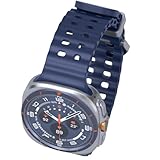
- 47mm - 1.5" Super AMOLED, 480x480px, 590mAh Battery, MIL-STD 810H certified, IP68/10ATM 100m water resistant, ECG certified
- 64GB, 2GB RAM, Exynos W1000 (3nm), Penta-core, Mali-G68 GPU, Android Wear OS 5, One UI Watch 8 with AI Assistant
- Unlock your full potential with Galaxy AI: Track and improve your fitness performance, monitor heart health with precision, get personalized wellness tips, optimize your sleep for better health, stay connected with smart replies, and enjoy music or podcasts on the go—all from your Galaxy Watch.
- Compatible with Android devices Only. Supports Google Pay. 3G: 850/900/1700/2100/1900/2100MHz, 4G LTE: 1/2/3/4/5/7/8/12/13/18/19/20/25/26/28/40/66/71 - eSIM.
- International Model - No Warranty. 100% Unlocked but Most US carriers may not allow International models. Will still work as Bluetooth Watch. Works outside US with all carriers. (Country selection may not be available during setup. Select Any, as Country will updated later after Connecting to WIFI in Settings.)
Change them from your Android phone
- Make sure the watch is paired and connected to your phone.
- Open Galaxy Wearable.
- Tap Watch settings → Buttons and gestures.
- Choose the button and press type, then select an available action.
Samsung documents this companion-app route as well as the on-watch route. If the phone app does not show the controls, use Settings → Buttons and gestures on the watch instead.
Choose a Quick button action that suits you
The Quick button’s Action setting is the Ultra’s most distinctive shortcut. It can launch a Samsung Health exercise or another supported feature. Samsung’s Quick Button video demonstrates workout selection, flashlight, Water Lock, stopwatch, and the separate Siren function. The menu offers Samsung-supported choices; do not assume it is a general picker for any app on the watch.
Rank #2

- YOUR TRAIL GUIDE ON YOUR WRIST: Navigate challenging trails on your run with path, elevation and pace guidance on your Galaxy Watch Ultra2¹. The smart watch gives you personalized hydration alerts² along the way so you can run and feel your best.
- ONE PERSONALIZED SCORE TO KNOW YOUR HEART BETTER: Get an easy-to-understand view of your overall heart health³ with a single personalized score⁴ and guidance, so you can avoid the guesswork.
- INSTANT AI ASSISTANCE. NO SLOWING DOWN: Every second can be crucial when you're outdoors. With Galaxy Watch Ultra2, you can just raise your wrist, start talking naturally and get instant AI assistance⁵—no wake phrase needed, no slowing down.
- GREAT DURABILITY FOR THE GREAT OUTDOORS: From rugged trails to under water, take this fitness watch anywhere as your dependable adventure partner. IP69K and 10ATM rated, it’s dust-tight⁶ and water resistant⁷ up to 100m so you can take on any challenge.
- YOUR BODY SPEAKS. LISTEN WITH VITALS: Understand your body better with Vitals⁹–it’s built to track 5 different health metrics while you sleep, catch shifts from your usual patterns, and also provide tailored guidance based on the insights.⁸
- If you train often: Set the action to the Samsung Health workout you start most. This preserves quick physical access while running, cycling, hiking, or training. The available workout and in-workout controls can depend on the selected activity and software.
- If you reach for a light often: Assign flashlight or torch, if it appears in your Action list. This is convenient, but trades away the fastest workout-start shortcut.
- If you want a utility: Stopwatch or Water Lock may be a better fit if those are more useful in your routine.
For a practical setup, keep the Quick button on a workout if you use it regularly, set Home double press to a frequently used app if available, and choose recent apps for the Back button if you prefer switching between open apps. If you rarely exercise, a flashlight or stopwatch may make better use of the Quick button.
Free tools Windows power users keep installed
One-click scans. No signup required.
During a workout, the Quick button can also provide activity controls such as pausing or resuming, or other controls depending on the workout mode. Do not assume the same press sequence applies to every Samsung Health activity; follow the prompts shown for the selected workout.
Rank #3

- 47mm - 1.5" Super AMOLED, 480x480px, 590mAh Battery, MIL-STD 810H certified, IP68/10ATM 100m water resistant, ECG certified
- 64GB, 2GB RAM, Exynos W1000 (3nm), Penta-core, Mali-G68 GPU, Android Wear OS 5, One UI Watch 8 with AI Assistant
- Unlock your full potential with Galaxy AI: Track and improve your fitness performance, monitor heart health with precision, get personalized wellness tips, optimize your sleep for better health, stay connected with smart replies, and enjoy music or podcasts on the go—all from your Galaxy Watch.
- Compatible with Android devices Only. Supports Google Pay. 3G: 850/900/1700/2100/1900/2100MHz, 4G LTE: 1/2/3/4/5/7/8/12/13/18/19/20/25/26/28/40/66/71 - eSIM.
- International Model - No Warranty. 100% Unlocked but Most US carriers may not allow International models. Will still work as Bluetooth Watch. Works outside US with all carriers. (Country selection may not be available during setup. Select Any, as Country will updated later after Connecting to WIFI in Settings.)
Home and Back button limits
The Home button’s double press is the main shortcut for opening a chosen app or feature. A press and hold may offer a limited Samsung-defined choice such as Bixby or the power menu. The normal short press retains its core Home or wake role; it is not an unrestricted shortcut slot. Older manual instructions list Samsung Pay and Bixby as defaults, but defaults can change with software updates, so check the options currently shown on your watch rather than relying on an old default.
The Back button’s configurable short press is narrower: Samsung lists returning to the previous screen or showing recent apps. Do not expect a double-press or long-press app shortcut unless your current software explicitly provides one.
Rank #4

- WHY GALAXY WATCH ULTRA: Longest-lasting battery yet.¹* Advanced health and sleep tracking features.* Personalized Running Coach.* Durable titanium casing.* 10ATM Water Resistance.⁹* Dual-frequency GPS.* Personal AI assistant for hands free help.⁶*
- A BATTERY BUILT FOR ENDURANCE: Have the confidence to adventure off-grid with a battery that can keep up with you. Galaxy Watch Ultra features our longest-lasting battery yet,¹ so you can go to the extreme for days on end without needing to recharge.
- YOUR ADVENTURE STARTS THE NIGHT BEFORE: Fuel tomorrow’s performance with a great night’s sleep, thanks to Advanced Sleep Coaching² - now improved with even more ways to help you sleep smarter.
- BUILT FOR THE LONG RUN: Whether you’re on a trail or a track, unleash the winning runner within using Running Coach³ on Galaxy Watch Ultra. It analyzes factors⁴ such as your age, weight, oxygen levels and heart rate to guide you through your run.
- UPDATES THAT GIVE YOU THE EDGE: Navigate the wild more easily with Now Bar⁵ and an improved user experience. Now Bar conveniently puts the info you use the most - like weather, timers, directions and more - right on your main Watch screen.
Likewise, stock settings do not promise that you can assign any app, Google Assistant, Gemini, or Google Wallet to any press. Third-party remappers are unofficial and may be limited or break with software changes, so they are not a dependable first solution.
The Siren is separate from the Quick button action
The Quick button’s ordinary Action shortcut and the Siren are distinct functions. Samsung’s current support page says to press and hold the Quick button for 5 seconds, while a manual revision describes holding it for more than 3 seconds. Because Samsung’s published timing differs, follow the countdown or instructions displayed by your watch rather than treating one duration as universal. Test the hold behavior carefully, especially if the button could be pressed under clothing or equipment. The Siren is not a substitute for emergency services.
If a setting or app is missing
- Buttons and gestures is not visible: Check the watch directly in Settings, update the watch and Galaxy Wearable, then reconnect the watch. Confirm the device is a Galaxy Watch Ultra; standard Galaxy Watch models do not have the Ultra’s dedicated Quick button.
- Your preferred app is not listed: Install or update that app, reopen Galaxy Wearable, and check the correct button and press type. The stock menu may only show compatible, supported actions. A tile, complication, gesture, or app-launcher shortcut may be a practical alternative.
- The Quick button starts the wrong workout: Reopen its Action setting and check the Samsung Health workout selection.
- The phone app lacks the controls: Configure them on the watch at Settings → Buttons and gestures, then restart Galaxy Wearable and reconnect if needed.
Samsung provides separate documentation for the original Ultra and the 2025 refresh. The original launch documentation covers One UI Watch OS 5.0, while the 2025 product support listing includes an OS 6.0 manual. Menus, defaults, and available actions can therefore differ; Samsung’s Ultra support page lists model-specific resources.
Gestures offer extra shortcuts
If you want another quick control without changing the Quick button, the same settings area includes gestures such as double pinch, shake to dismiss, and knock-knock. Depending on the gesture and its enabled action, these can help answer calls, dismiss alarms or alerts, control music, launch an app, or take a photo. Check the options on your software version before relying on a particular gesture.
Quick Recap
Product prices and availability are accurate as of the date/time indicated and are subject to change. Any price and availability information displayed on Amazon at the time of purchase will apply.
Recommended Free Tools

