If you’re coming from a traditional watch or even a fitness tracker, the way apps work on a Wear OS smartwatch can feel unintuitive at first. Some apps live entirely on the watch, others depend on your phone, and a few quietly install in the background without you ever tapping “install” on the watch itself. Understanding this relationship upfront saves a lot of frustration later.
Wear OS is essentially a smaller, wrist-optimized version of Android, but it doesn’t behave like a standalone phone in your pocket. App availability, features, battery impact, and even performance depend heavily on how an app is designed to work across the watch and your paired Android phone. Before you start downloading apps, it helps to know what actually runs where and why.
Once you grasp how watch apps, phone companion apps, and syncing interact, installing and managing apps becomes far more predictable. This section breaks down the fundamentals so you know exactly what to expect before moving on to the step-by-step installation methods.
Watch apps vs phone companion apps
On Wear OS, there are three common app types you’ll encounter. First are standalone watch apps that run entirely on the smartwatch, like calculators, timers, flashlight apps, or simple games. These install directly onto the watch and don’t require a phone app to function.
🏆 #1 Best Overall
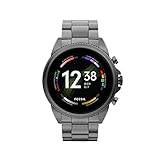
- COMPATIBILITY - Smartwatches with Wear OS by Google are compatible with phones running the latest version of Android or iOS. Qualcomm 4100+ chipset has 30% enhanced performance. Improved power, more reliable connection and up to 4x range with Bluetooth 5.
- ALEXA ENABLED - Get a little extra help with Alexa built-in. Easily access the Amazon Alexa app to get quick news and information, check the weather, set timers and alarms, control smart home devices, and more - all through the sound of your voice.
- HEALTH - Automatically tracks activity goals, steps, sleep, cardio and more. Activity modes with GPS keep you on track with your distance and path. Advanced sensors provide data to power your health and fitness tracker apps. Swimproof.
- PERSONALIZED STYLE - Always-on display now brighter with more colors and higher pixel count. Thousands of watch faces to personalize your look and always see the time. Hundreds of apps from fitness, music, social, news, stop watches and more.
- STAY CONNECTED - Notifications for calls, texts, apps. Automatic time zone and calendar syncing. Answer and make calls directly on your watch when your phone is out of reach. This smart watch features a speaker, microphone, and customizable buttons.
Second are companion-based apps, which are the most common. Apps like Spotify, WhatsApp, Strava, or Google Keep rely on a full Android phone app for account management, data syncing, and advanced settings, while the watch app acts as a streamlined extension. You’ll often install the phone app first, and the watch app appears automatically or becomes available to install from the Play Store on the watch.
Third are phone-only apps with watch support baked in. These don’t show up as standalone watch apps in the Play Store, but they push notifications, controls, or tiles to your watch. Email clients, banking apps, and smart home apps often work this way, offering interaction without a full watch interface.
How compatibility really works on Wear OS
Not every Android app can run on a smartwatch, even if it technically installs. Wear OS apps must be specifically designed for small screens, limited input methods, and lower-power processors. Google enforces this through the Play Store by hiding incompatible apps from your watch.
Compatibility also depends on your Wear OS version and hardware. Newer watches like the Pixel Watch or Galaxy Watch running Wear OS 4 or 5 can access apps that won’t appear on older models with less RAM or older software. Sensors matter too, since apps that rely on GPS, heart rate, NFC, or LTE won’t function properly if your watch lacks that hardware.
Processor efficiency and battery size play a role as well. A heavy app that runs fine on a Snapdragon W5-powered watch may feel sluggish or drain the battery quickly on older Fossil or Mobvoi models. This is why some apps show up for certain watches but not others, even within the same Wear OS ecosystem.
The Google Play Store on your watch vs your phone
Wear OS has its own Play Store interface built into the watch. This store only shows apps optimized for Wear OS and compatible with your specific device, which helps avoid accidental installs that won’t work. Installing directly from the watch is the most straightforward method and doesn’t require touching your phone.
Your Android phone’s Play Store also plays a major role. When browsing on your phone, you may see a dropdown next to the Install button allowing you to choose your smartwatch as the target device. This is especially useful for discovering apps on a larger screen and pushing them to the watch remotely.
Not every app appears in both places. Some apps are easier to find on the phone’s Play Store, while others are discoverable only from the watch itself. Knowing this dual-store setup helps explain why an app you saw online doesn’t immediately appear on your watch.
How app syncing and data sharing works
When a watch app depends on a phone companion app, syncing happens quietly in the background via Bluetooth, Wi‑Fi, or LTE. Health data, messages, playlists, and settings are usually stored on the phone and mirrored to the watch as needed. This keeps the watch fast and conserves storage.
Sync frequency varies by app. Fitness and health apps may sync continuously during workouts, while note or task apps sync periodically to preserve battery life. If syncing seems delayed, it’s often due to background battery restrictions or a lost Bluetooth connection rather than a broken app.
Your Google account ties everything together. Signing into the same Google account on both devices ensures purchases, subscriptions, and app data transfer correctly when switching watches or resetting a device.
Storage, performance, and battery considerations
Smartwatches have far less storage than phones, typically between 16GB and 32GB, and system files already take a chunk of that space. Music downloads, offline maps, and media-heavy apps can fill storage quickly and slow down installs or updates.
Apps running in the background affect battery life more noticeably on a watch. Navigation, fitness tracking, and streaming apps are particularly demanding, especially on smaller watches with compact batteries and lighter cases designed for comfort rather than endurance.
Managing permissions matters. Granting constant location access or background activity to too many apps can reduce daily battery life and cause performance hiccups. Keeping only the apps you actively use installed leads to a smoother, more reliable daily experience.
Why some apps install automatically
You may notice apps appearing on your watch without manually installing them. This usually happens when you install or update a phone app that includes a Wear OS component. Google Play recognizes the paired watch and handles the installation automatically.
This behavior is intentional and designed to reduce setup friction. However, it can feel confusing if you don’t expect it, especially when storage fills up faster than anticipated. You can uninstall watch apps independently without removing the phone app if you don’t need the watch version.
Understanding this automatic behavior makes it easier to control what lives on your wrist. It also sets the stage for learning the different ways to install apps manually, remotely, or through more advanced methods like sideloading, which comes next.
Installing Apps Directly on Your Wear OS Watch Using the Play Store
Once you understand why apps sometimes appear automatically, installing them manually on the watch itself feels much more intuitive. This method mirrors how you install apps on a phone, just optimized for a smaller screen and touch-first interactions.
Installing directly from the watch is often the fastest way to add something new on the fly. It’s especially useful when your phone isn’t nearby, or when you want to browse apps that are specifically designed for wrist-based use.
When installing directly on the watch makes sense
Using the Play Store on your watch is ideal for lightweight apps like timers, calculators, fitness utilities, transit tools, or companion apps for headphones and smart home controls. These are typically designed around quick interactions, low storage usage, and glanceable information.
It’s also the cleanest way to ensure you’re installing a true Wear OS–optimized app. Apps shown in the watch Play Store are filtered for compatibility with your watch’s screen size, processor, and Wear OS version.
Because the app downloads straight to the watch’s internal storage, this method avoids Bluetooth transfer delays. On watches with faster processors and solid Wi‑Fi performance, like Pixel Watch or Galaxy Watch models, installs are usually quick and reliable.
Opening the Play Store on your Wear OS watch
Start by pressing the side button or crown to open the app launcher. Scroll until you find the Play Store icon, which looks identical to the phone version but scaled down for the watch display.
If this is your first time opening it, the watch may take a moment to sync your Google account. Make sure the watch is connected to Wi‑Fi or has a stable Bluetooth connection to your phone, otherwise browsing and downloads can be slow or fail entirely.
Once loaded, you’ll see a homepage with featured apps, categories, and a search icon at the top. Navigation is designed for swipes and taps, and rotating crowns on supported watches can make scrolling much more comfortable during longer browsing sessions.
Finding apps that work well on a small screen
Using search is usually faster than browsing categories. Tap the search icon and either type using the on-screen keyboard, swipe input, or voice dictation, which is often the quickest option on a watch.
Pay close attention to app descriptions and screenshots. Developers who design specifically for Wear OS usually highlight quick actions, tiles, complications, and battery-efficient behavior, all of which matter more on a wrist than on a phone.
Avoid installing apps that clearly rely on dense menus or long-form content unless you already know they’re watch-friendly. Even if an app installs successfully, poor layout or heavy background activity can hurt usability and battery life on smaller cases.
Installing a free or paid app
Once you’ve selected an app, tap Install. For paid apps, you’ll see the price and may be prompted to confirm the purchase using your Google account, often requiring phone verification for security.
Purchases made on the watch are tied to your Google account, not the device itself. This means you can reinstall the app later on a new watch without paying again, as long as you’re signed into the same account.
During installation, keep the watch awake if possible. Letting the screen turn off or moving out of range of your phone mid-download can interrupt the process, particularly on watches without direct Wi‑Fi connections.
Monitoring downloads and managing updates
You can check download progress directly in the Play Store app page. Once installed, the app appears immediately in the app launcher, and in some cases adds a tile or complication option automatically.
Updates usually install in the background when the watch is charging and connected to Wi‑Fi. You can manually check for updates by scrolling to the Play Store settings section and tapping Manage apps.
Keeping apps updated is important for performance and battery optimization. Developers frequently fine-tune Wear OS apps to reduce background usage, improve sensor accuracy, and better support newer processors and displays.
Common issues and how to fix them
If an app won’t install, storage is often the culprit. Check available space in the watch’s settings and remove unused apps, offline music, or old map downloads before trying again.
Slow or stuck downloads are usually connection-related. Turning Wi‑Fi on, placing the watch on its charger, or temporarily disabling Bluetooth and re-enabling it can often kick-start a stalled install.
If the Play Store itself won’t load or crashes, a quick reboot solves most issues. Persistent problems may indicate a Google account sync error, which can usually be fixed by reconnecting the watch to your phone or re-signing into your account through the watch settings.
Installing apps directly from the watch gives you precise control over what lives on your wrist. It also builds a solid foundation before moving on to phone-based installs and more advanced methods like sideloading, where compatibility and resource management matter even more.
Installing Wear OS Apps from Your Android Phone (Remote Install Explained)
Once you’re comfortable installing apps directly on the watch, the next step feels almost effortless. Using your Android phone to remotely install apps on your Wear OS smartwatch is often faster, clearer, and better suited to browsing larger app libraries.
This method relies on Google Play syncing between your phone and watch. As long as both devices are signed into the same Google account and properly paired, app installation happens in the background with minimal input on the watch itself.
How remote install actually works behind the scenes
When you install a Wear OS–compatible app from the Play Store on your phone, Google Play checks whether a paired Wear OS device is linked to your account. If it is, you’ll see an option to install the app on your watch alongside the phone install button.
Selecting the watch triggers a cloud-based delivery rather than a direct Bluetooth file transfer. The app downloads to your watch via Wi‑Fi when available, or through a phone-assisted connection if Wi‑Fi isn’t active, which is why charging and connectivity matter.
This system works across most modern Wear OS devices, including Pixel Watch, Samsung Galaxy Watch running Wear OS, and Fossil or Mobvoi models. The exact wording may differ slightly, but the behavior is consistent.
Step-by-step: installing a Wear OS app from your phone
Start by opening the Google Play Store on your Android phone. Make sure you’re logged into the same Google account used on your smartwatch.
Search for the app you want, then scroll down the app’s Play Store page. If the app supports Wear OS, you’ll see a small device selector showing your phone and your watch.
Tap the device dropdown, select your smartwatch, and confirm install. You don’t need to interact with the watch immediately, but keeping it awake and on its charger helps the process complete faster.
Within a minute or two, the app begins downloading to the watch. Once finished, it appears in the app launcher and may add tiles, complications, or background services depending on the app.
Installing phone apps that include watch companions
Many Wear OS apps don’t appear as “watch-only” listings. Instead, they’re standard Android apps that include a smartwatch companion module.
Fitness platforms, navigation tools, messaging apps, and smart home controls often work this way. When you install the phone app, the watch component installs automatically or prompts you to add it.
Rank #2
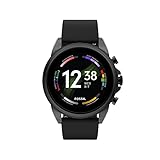
- COMPATIBILITY - Smartwatches with Wear OS by Google are compatible with phones running the latest version of Android or iOS. Qualcomm 4100+ chipset has 30% enhanced performance. Improved power, more reliable connection and up to 4x range with Bluetooth 5.
- ALEXA ENABLED - Get a little extra help with Alexa built-in. Easily access the Amazon Alexa app to get quick news and information, check the weather, set timers and alarms, control smart home devices, and more - all through the sound of your voice.
- HEALTH - Automatically tracks activity goals, steps, sleep, cardio and more. Activity modes with GPS keep you on track with your distance and path. Advanced sensors provide data to power your health and fitness tracker apps. Swimproof.
- PERSONALIZED STYLE - Always-on display now brighter with more colors and higher pixel count. Thousands of watch faces to personalize your look and always see the time. Hundreds of apps from fitness, music, social, news, stop watches and more.
- STAY CONNECTED - Notifications for calls, texts, apps. Automatic time zone and calendar syncing. Answer and make calls directly on your watch when your phone is out of reach. This smart watch features a speaker, microphone, and customizable buttons.
If the watch version doesn’t appear right away, open the Play Store on the watch and check the Installed apps or Available on phone section. This is a common place where companion apps quietly wait for manual confirmation.
Why remote install is often the better option
Browsing on a phone is simply easier. You get a larger screen, clearer app descriptions, full screenshots, and easier access to reviews and update history.
Remote installs are also more reliable for larger apps like offline maps, music streaming, or fitness platforms with background services. The phone manages the request while the watch focuses on downloading and installing efficiently.
For daily usability, this method reduces friction. You spend less time tapping on a small display and more time actually using the app once it’s installed.
Common issues with phone-based installs and how to fix them
If your watch doesn’t appear as an install option, start with account verification. Both devices must use the same Google account, and the watch must be fully paired through the Wear OS or companion app.
If an install stays stuck on “pending,” check connectivity. Turn Wi‑Fi on for the watch, place it on its charger, and keep it within Bluetooth range of your phone.
Sometimes the Play Store cache on the phone causes issues. Force-closing the Play Store app, reopening it, or restarting both devices usually resolves sync problems.
Managing storage and permissions after install
Remote installs make it easy to add apps quickly, but storage can fill up faster than expected. Entry-level Wear OS watches often have limited internal space, especially once music, maps, and fitness data accumulate.
After installing an app, open it once on the watch to ensure permissions are granted properly. Health access, location, notifications, and background activity controls directly affect battery life and accuracy.
Regularly reviewing installed apps from either the watch or phone helps keep performance smooth. Removing unused apps improves responsiveness, reduces background drain, and keeps updates manageable as your app library grows.
Finding Apps That Actually Support Wear OS (Search Tips and Best Categories)
Once you’re comfortable installing apps remotely or directly on the watch, the next challenge is finding apps that genuinely work well on Wear OS. Not every Android app with a familiar name includes a usable watch version, and some listings can be misleading if you don’t know what to look for.
This is where smart searching and category awareness save time, storage, and frustration.
Use the Play Store’s Wear OS-specific filters
The most reliable way to find compatible apps is through the Play Store when it knows you own a Wear OS device. On your phone, open the Play Store, search for an app, then look for a device selector showing your watch as an install option.
If your watch appears alongside your phone, the app has an official Wear OS component. If it only lists your phone or tablet, the app will not install on the watch, even if the description mentions notifications or basic sync features.
Search directly from the watch for guaranteed compatibility
Searching the Play Store on the watch itself is slower, but it acts as a built-in compatibility filter. Only apps that can actually run on Wear OS will appear, which removes all guesswork.
This method is especially useful for discovering smaller utility apps, watch-first tools, and experimental projects that may not rank well in phone-based searches. It’s also the safest way to avoid installing phone-only apps by mistake.
Look for clear Wear OS indicators on app listings
On the app’s Play Store page, scroll past the screenshots and check the supported devices section. You should see Wear OS explicitly listed, often alongside specific models like Pixel Watch or Galaxy Watch.
Be cautious of vague phrases like “works with smartwatches” or “notification support.” These usually mean the app mirrors alerts from your phone and does not install a native watch app.
Understand the difference between companion apps and standalone watch apps
Some Wear OS apps require a phone companion app to function properly. Fitness platforms, smart home controls, and messaging apps often fall into this category, relying on the phone for account setup, data sync, or cloud access.
Other apps are fully standalone and run entirely on the watch, such as calculators, timers, voice recorders, and simple note tools. These tend to be lighter, faster, and easier on battery life, which matters on watches with smaller batteries and limited storage.
Best app categories that consistently work well on Wear OS
Certain app categories are far better optimized for the smartwatch form factor. These are where you’ll get the most value without compromising comfort, responsiveness, or battery longevity.
Fitness and health apps are the strongest category overall. Activity tracking, guided workouts, heart rate tools, and sleep-related apps are designed around wrist-based interaction and sensor access, making them feel native rather than adapted.
Navigation and travel apps are another standout. Offline maps, turn-by-turn walking directions, and transit alerts work well on circular and square displays, especially when paired with haptic feedback for directions during walks or runs.
Utilities and productivity apps also shine. Timers, alarms, calculators, to-do lists, voice notes, and authentication tools benefit from quick-access Tiles and minimal interaction time.
Media control and audio apps perform best when used as companions rather than full players. Music controllers, podcast remotes, and audiobook playback are practical, but offline downloads and streaming can impact storage and battery on smaller watches.
Be selective with watch faces and customization apps
Watch faces are technically apps, and they vary wildly in quality and efficiency. High-resolution faces with live data, animations, and frequent refresh cycles can drain battery faster, especially on older Wear OS hardware.
Stick to faces that clearly state compatibility with your watch size and resolution. A well-designed face should balance information density with legibility and avoid excessive background activity.
Check update history and recent reviews before installing
Wear OS evolves quickly, and apps that worked well two years ago may not behave correctly on current versions. Always check the last update date and scan recent reviews specifically mentioning Wear OS performance.
Frequent updates and developer responses are good signs. Apps that haven’t been updated since older Wear OS versions may install, but often suffer from sync issues, broken Tiles, or poor battery optimization.
Watch out for regional and hardware limitations
Some apps appear compatible but are restricted by region, account type, or hardware features. LTE features, payments, transit passes, and voice assistants may depend on your country, watch model, or whether your device includes cellular support.
Sensors also matter. Apps that rely on ECG, skin temperature, or advanced GPS tracking may only function fully on newer watches with the required hardware, even if the app installs successfully.
When sideloading becomes the only option
Occasionally, you’ll find useful apps that technically run on Wear OS but are not listed publicly in the Play Store for watches. This is common with open-source tools, developer previews, or discontinued apps.
Sideloading can unlock these options, but it requires more storage awareness and manual permission handling. It’s best reserved for experienced users who understand the trade-offs and are comfortable troubleshooting if something breaks.
Finding good Wear OS apps is less about quantity and more about fit. Apps that respect the watch’s size, battery constraints, and on-wrist usability will always feel better than phone apps squeezed onto a smaller screen.
Managing Installed Apps on Your Watch (Updates, Uninstalling, and Storage Space)
Once you start adding apps, managing them becomes just as important as choosing the right ones in the first place. Wear OS watches have far less storage and battery headroom than phones, so staying on top of updates, removing unused apps, and keeping an eye on space directly affects performance, comfort, and daily reliability.
Think of app management as routine maintenance. A well-tuned watch feels faster on the wrist, lasts longer through the day, and avoids those frustrating moments when an install fails because storage is unexpectedly full.
Keeping apps updated without draining your battery
Wear OS apps can update in three different ways: directly on the watch via the Play Store, automatically through your Google account, or indirectly when you manage apps from your paired phone. Which method is best depends on how hands-on you want to be and how sensitive you are to battery drain.
On the watch itself, open the Play Store, scroll to Manage apps, and you’ll see pending updates. Updating this way gives you full control, which is useful if you want to avoid large updates while you’re away from a charger or on LTE.
Automatic updates are convenient but can quietly impact battery life, especially on older watches with less efficient chipsets. If you notice overnight drain or warm temperatures during charging, it’s often worth disabling auto-updates and checking manually once a week instead.
Using the Play Store on your phone can also trigger watch app updates in the background. This works best when the watch is charging and connected to Wi‑Fi, reducing both heat buildup and sync delays.
Understanding phone apps vs watch apps
One common source of confusion is the difference between a phone companion app and a true standalone watch app. Installing something on your phone does not always mean it installs on the watch, even if they share the same name.
Many Wear OS apps require the phone app for setup, syncing, or permissions, but still need to be installed separately on the watch. The watch version is usually lighter, optimized for smaller screens, and designed for quick interactions rather than deep menus.
If an app isn’t showing up on your watch after installing it on your phone, open the Play Store on the watch and search for it directly. If it appears there, it needs a manual install. If it doesn’t, the developer may not support Wear OS despite having a phone app.
Uninstalling apps directly from the watch
Removing unused apps is one of the easiest ways to free up storage and improve responsiveness. On most Wear OS watches, you can do this entirely from the watch itself.
Open Settings, go to Apps, then App info, and scroll through the list. Tapping an app gives you the option to uninstall it immediately, which removes both the app and its local data.
This is especially helpful for fitness apps, navigation tools, or watch faces you tried once and never used again. Even small apps can leave behind cached data that slowly eats into limited internal storage.
Uninstalling apps from your phone
You can also manage watch apps from your paired Android phone, which is often faster and easier if you’re cleaning house. Open the Play Store on your phone, tap your profile icon, go to Manage apps & devices, and filter by your watch.
From here, you can uninstall watch apps remotely, queue updates, or quickly see which apps are taking up space. This method is ideal if your watch screen feels cramped or you’re managing multiple apps at once.
Be aware that uninstalling a phone companion app may break the watch app’s functionality, even if the watch app remains installed. Health, messaging, and payment apps are especially dependent on their phone counterparts.
Rank #3

- 1.4" Super AMOLED, 450x450px 321ppi, Exynos W920 Dual-core 1.18GHz, 590mAh Battery, Android Wear OS 3.5, One UI Watch 4.5, Bluetooth 5.2, Wi-Fi
- GPS route and Auto Workout Tracking, 2x tougher Sapphire crystal glass face , Water-resistant.
- Advanced Sleep Coaching analyzes your sleep stages, then provides tips, and sleep reports to manage your overall sleep quality.
- Get more accurate wellness readings with the redesigned BioActive Sensor. The improved shape gets closer to your skin to track your heart rate and more.
- Compatible with Android devices. NO Cellular / LTE Compatibility.
Managing storage space on a Wear OS watch
Storage is one of the tightest constraints on any smartwatch. Even premium models with generous internal storage can fill up quickly once you factor in system files, offline music, maps, and cached data.
To check available storage, open Settings on the watch and navigate to Storage. You’ll see a breakdown of apps, system usage, and available space, which helps identify where cleanup will make the biggest difference.
Offline Spotify playlists, downloaded podcasts, and navigation maps are frequent storage hogs. Removing or reducing these often frees more space than uninstalling several small apps.
Clearing cache and app data safely
If you’re running low on storage but don’t want to uninstall an app entirely, clearing its cache can help. This is particularly useful for apps that sync frequently, such as fitness trackers or messaging tools.
From Settings > Apps > App info, select the app and choose Clear cache. This removes temporary files without affecting your account or settings.
Clearing app data is more aggressive and usually resets the app entirely, requiring you to log in again or reconfigure preferences. Only use this if an app is misbehaving or consuming excessive space.
How sideloaded apps affect storage and maintenance
Sideloaded apps don’t benefit from Play Store update management, which means they require more manual attention. They also tend to be less optimized for storage and background usage.
If you sideload apps, keep a mental note of where they came from and how often they’re updated. Old builds can quietly cause sync issues, higher battery drain, or compatibility problems after a Wear OS update.
Because sideloaded apps don’t always uninstall cleanly, it’s a good idea to remove them if you stop using them rather than letting them sit indefinitely.
Signs your watch has too many apps installed
Performance issues are usually the first warning sign. Slower app launches, delayed touch responses, and stuttering animations often point to storage pressure or background app overload.
Battery life can also drop suddenly when too many apps are competing for background access. This is especially noticeable on smaller watches, where compact cases limit battery capacity and heat dissipation.
A lean app setup almost always feels better on the wrist. The goal isn’t to turn your watch into a tiny phone, but to keep the apps that genuinely improve daily usability, comfort, and convenience.
Handling Permissions, Notifications, and Battery Impact After Installation
Once your apps are installed, the real work begins behind the scenes. How an app handles permissions, notifications, and background activity has a bigger impact on daily usability than the install process itself.
This is where many new Wear OS users run into frustration, especially when battery life drops or notifications feel overwhelming. A few careful adjustments can dramatically improve comfort, responsiveness, and all-day reliability.
Understanding app permissions on Wear OS
Wear OS permissions are more granular than they used to be, and they matter more because watches rely on constant sensor access. Location, microphone, body sensors, and background activity permissions directly affect both battery life and data accuracy.
To review permissions on the watch, go to Settings > Privacy > Permission manager, then select a category like Location or Sensors. You’ll see which apps have access and whether that access is always allowed, only while in use, or denied.
Fitness and health apps often need continuous sensor access to track workouts or sleep correctly. Utility apps, watch faces, and casual tools usually don’t, and revoking unnecessary access can reduce background drain without breaking core functionality.
Managing permissions from your paired phone
Some permissions are easier to understand and control from the phone side, especially if your watch screen feels cramped. Open the Wear OS companion app or your phone’s Settings > Apps, select the watch app, and review synced permissions.
This is especially useful for Google Assistant extensions, messaging apps, and voice-enabled tools. If an app feels overly intrusive, limiting microphone or background access on the phone often cascades cleanly to the watch.
After changing permissions, give the app a day or two of normal use. Some apps behave unpredictably immediately after restrictions, but settle once they re-sync data and services.
Fine-tuning notification behavior so your watch doesn’t buzz nonstop
Notifications are one of the biggest quality-of-life factors on a smartwatch. Too many alerts make the watch feel noisy, while too few defeat the purpose of wearing it.
From the Wear OS app on your phone, navigate to Notifications and review which apps are allowed to push alerts to your wrist. Prioritize messaging, calendar, navigation, and health-related notifications, and disable social media or promotional alerts unless you genuinely need them.
On the watch itself, you can also adjust notification previews, vibration strength, and sound behavior. Subtle vibrations are usually more comfortable for all-day wear, especially on heavier stainless steel models where strong haptics can feel abrupt.
Why notification overload drains battery faster than you expect
Every notification wakes the screen, activates the vibration motor, and briefly engages the processor. On compact watches with smaller batteries, dozens of unnecessary notifications per hour add up quickly.
If your battery life suddenly drops after installing new apps, notifications are often the culprit rather than the app itself. Disabling alerts while keeping the app installed is a smarter first step than uninstalling.
This is particularly noticeable on LTE-enabled watches, where cellular wake-ups amplify power usage even further.
Controlling background activity and sync behavior
Many Wear OS apps continue working even when you’re not actively using them. Weather updates, fitness syncing, music downloads, and cloud backups all consume power quietly.
From Settings > Apps > App info > Battery, you can restrict background usage for individual apps. This doesn’t stop the app from working when launched, but prevents constant background checks.
Be cautious with fitness and sleep tracking apps. Restricting background activity can break automatic workout detection or overnight data collection, which defeats their purpose.
Health, fitness, and sensor-heavy apps require special attention
Apps that rely on heart rate, GPS, blood oxygen, or motion sensors are inherently power-hungry. That’s normal, and it’s part of what you’re paying for in a modern smartwatch.
The key is choosing which apps get priority access. Running multiple fitness platforms simultaneously, such as two workout trackers or overlapping sleep apps, increases sensor polling and shortens battery life noticeably.
If your watch supports multi-day battery life on paper but struggles in reality, overlapping health apps are often the reason.
How watch faces and complications influence battery performance
Watch faces behave like apps, and poorly optimized ones can drain battery faster than expected. Faces with frequent refresh rates, animated elements, or live data complications constantly wake the processor.
If you notice faster drain after installing a new face, try switching to a simpler design for a day. Minimalist faces with darker backgrounds tend to perform better, especially on AMOLED displays.
Complications pulling live data from third-party apps can also increase background activity. Limiting the number of active complications improves both performance and visual clarity.
Recognizing warning signs of a misbehaving app
Rapid battery loss, excessive warmth on the wrist, or delayed touch responses are common indicators that an app isn’t behaving properly. These issues often appear shortly after installation or an update.
Check battery usage stats on the watch to see which apps are consuming disproportionate power. If a lightweight app ranks unusually high, it’s worth restricting background access or uninstalling it temporarily.
Sideloaded apps are more prone to this behavior, especially if they weren’t designed specifically for Wear OS or haven’t been updated recently.
When to uninstall instead of adjusting settings
If an app requires excessive permissions, sends constant notifications, and still underdelivers in daily use, it’s probably not worth keeping. Smartwatch real estate is limited, both in storage and battery capacity.
Uninstalling an app you don’t actively use often results in an immediate improvement in responsiveness and endurance. This is especially noticeable on slimmer watches, where comfort and battery size are carefully balanced.
A well-managed Wear OS setup should feel invisible on your wrist. The best apps earn their place by enhancing convenience without demanding constant attention or power.
Installing Watch Apps That Come Bundled With Phone Apps (Fitness, Music, and Messaging)
After trimming misbehaving apps and tightening battery usage, the next place to look is the software you already trust on your phone. Many of the most useful Wear OS apps aren’t installed from scratch on the watch at all, but arrive as part of a companion experience tied to an existing phone app.
This is especially common with fitness tracking, music streaming, and messaging services, where the watch component depends on the phone app for account access, syncing, and background services. Understanding how this relationship works helps you avoid duplicate installs, missing features, and unnecessary battery drain.
How bundled watch apps actually work on Wear OS
A bundled watch app is not a separate download in the traditional sense. When you install or update a compatible Android phone app, Google Play automatically makes the Wear OS version available to your paired watch.
In many cases, the watch app installs silently in the background once the watch is connected, on Wi‑Fi, and charging. On newer watches like the Pixel Watch or Galaxy Watch series, this can happen without any on-screen confirmation.
If the watch component doesn’t install automatically, it usually means one of three things: the watch isn’t connected properly, the phone app doesn’t support your Wear OS version, or the watch app requires manual approval in the Play Store.
Installing fitness apps with watch companions
Fitness apps are the most common example of bundled installations. Google Fit, Samsung Health, Strava, Nike Run Club, and similar apps all rely on a phone app to manage accounts, permissions, and data syncing.
Start by installing and setting up the fitness app on your phone first. Sign in, grant location and health permissions, and confirm that the app recognizes your connected Wear OS watch.
Once that’s done, open the Play Store on your watch, scroll to “Apps on your phone,” and look for the fitness app listed there. Tapping it will install the watch component instantly, even if it didn’t auto-install earlier.
Rank #4

- 【Commpatible Watches】This charger compatible with Fossil Gen 6, Gen 5E, Gen 5 Garrett Hr/ Carlyle/Julianna, Fossil Gen 4 Explorist HR/Venture HR/Sport, Michael Kors Gen 6, Gen 5E MKGO, Gen 5, Gen 4.
- 【Premium & Speedy】The Gen 6/5/4 charging cable is made of premium copper wire provides a original charging speed, about 2.5 hours a full charge. Note: please use the recommend USB adapter (5V/1A)
- 【Ultra Safe Charging】The Gen 6/5/4 charger built-in over-voltage protection, over-current protection, short-circuit protection. Provides stable and safe charging for your smart watch.
- 【More Convenient】With a replacement charger cable will make your smart watch charged more convenient when you are at home, in office or on travel.
- 【Package List】1pcs charger cables (Note: the smart watch is not included!!!). If any problem, please contact us online.
On the watch, the fitness app is usually optimized for short interactions like starting workouts, checking heart rate, or pausing sessions. Deeper analysis and long-term trends stay on the phone, which helps preserve battery life on smaller watches with slimmer cases.
Music and podcast apps: streaming vs offline playback
Music and podcast apps often include a watch app, but their capabilities vary widely depending on the service. Spotify, YouTube Music, Amazon Music, and Pocket Casts all offer Wear OS companions with different levels of independence.
After installing the app on your phone and logging in, check the watch Play Store under “Apps on your phone.” Installing the watch version enables basic controls immediately, like play, pause, skip, and volume adjustment.
Some services support offline downloads directly to the watch, which is ideal for workouts without your phone. This feature usually requires a premium subscription and enough free storage on the watch, which can be limited on smaller or older models.
Offline playback can noticeably impact battery life, especially on watches with compact cases and smaller batteries. For everyday use, many users prefer streaming controls only and let the phone handle audio processing.
Messaging apps and notification mirroring
Messaging apps behave slightly differently because Wear OS already mirrors notifications by default. Installing the watch app adds quick replies, voice dictation, emoji responses, and conversation browsing.
Google Messages, WhatsApp, Telegram, and Signal all offer Wear OS companions, but availability depends on region and app version. Always update the phone app first to ensure watch compatibility appears.
Once installed on the watch, messaging apps usually request microphone access and notification permissions. Granting only what’s necessary keeps the experience responsive without overloading background processes.
On smaller watches with narrow bezels or curved glass, messaging apps are designed for glanceable interactions, not long conversations. Voice replies and preset responses tend to feel more natural than typing on the wrist.
When bundled apps don’t appear on the watch
If a phone app supports Wear OS but doesn’t show up on the watch, force a sync by opening the Play Store on the watch and pulling down to refresh. Make sure the watch is connected to Wi‑Fi and signed into the same Google account as the phone.
You can also open the Play Store on your phone, search for the app, and scroll down to see supported devices. If your watch is listed, select it manually to trigger the installation.
In some cases, battery optimization settings on the phone can block background syncing. Disabling aggressive battery restrictions for Google Play Services and the Wear OS app often resolves this.
Managing permissions and performance after installation
Bundled apps tend to be better optimized than sideloaded ones, but they still benefit from a quick permissions check. On the watch, review sensor access, background activity, and notification behavior after installation.
If a fitness or music app feels sluggish, try restarting the watch after the first sync completes. Initial data transfers and account setup can temporarily tax the processor and warm the watch during setup.
Because these apps are designed to work across devices, they usually offer the best balance of features, comfort, and battery efficiency. When managed properly, bundled watch apps deliver the most seamless Wear OS experience with the least effort.
Advanced Method: Sideloading Apps onto Wear OS (ADB, APKs, and When It Makes Sense)
Once you’ve exhausted what’s officially available through the Play Store, sideloading becomes the next option. This is an advanced technique that lets you manually install apps using APK files, bypassing the normal store-based install flow.
Sideloading isn’t required for most users, but it can be genuinely useful in specific situations. Knowing when it makes sense, and when it doesn’t, is just as important as understanding how it works.
What sideloading actually means on Wear OS
Sideloading is the process of manually installing an Android app package, known as an APK, directly onto your watch. Instead of tapping Install in the Play Store, you use Android Debug Bridge, commonly called ADB, to push the app from a phone or computer to the watch.
Because Wear OS is built on Android, the underlying system supports this natively. Google doesn’t block sideloading, but it also doesn’t optimize the experience for casual users.
When sideloading makes sense
Sideloading is useful when a developer hasn’t published a Wear OS version to the Play Store but the app still works on a small screen. This is common with simple utilities like timers, remote controls, smart home dashboards, or niche fitness tools.
It’s also helpful if an app was removed from the Play Store, is region-locked, or hasn’t yet been updated for a newer Wear OS version. In testing, I’ve seen older watch apps still run smoothly on modern hardware like the Galaxy Watch 6 or Pixel Watch 2 despite no longer being listed.
When sideloading does not make sense
If an app relies heavily on phone-sized layouts, constant background syncing, or complex touch input, sideloading usually leads to frustration. These apps may install successfully but feel cramped, laggy, or unusable in real-world wear.
Battery life can also suffer. Poorly optimized sideloaded apps may keep the processor awake, causing noticeable warmth on the wrist and faster drain, especially on smaller watches with compact batteries.
What you need before you start
To sideload apps, you’ll need your Wear OS watch, a phone or computer, and the APK file you want to install. You’ll also need to enable Developer Options on the watch.
On the watch, go to Settings, then About, and tap Build number repeatedly until developer mode is enabled. After that, open Developer Options and turn on ADB debugging and Debug over Wi‑Fi.
Installing apps using ADB over Wi‑Fi
ADB over Wi‑Fi is the most common method and doesn’t require a cable. Make sure your watch and phone or computer are on the same Wi‑Fi network.
Using an ADB app on your phone or the Android SDK tools on a computer, connect to the watch’s IP address shown in the Developer Options menu. Once connected, you can install the APK with a single install command, and the app will appear in the watch’s app list if compatible.
Using phone-based ADB apps for easier setup
For most users, phone-based ADB tools are easier than using a computer. Apps like Bugjaeger or similar ADB clients let you connect, browse APK files, and install them with minimal command-line knowledge.
This method is especially convenient when traveling or when you don’t have access to a laptop. Performance is identical to computer-based sideloading once the app is installed.
Choosing the right APK for Wear OS
Not all APKs are equal. Ideally, you want a version built specifically for Wear OS or one that supports smaller screen densities and arm-based processors.
Installing a phone-only APK can work, but menus may overflow the screen or require gestures that feel awkward on a curved display. Watches with rotating bezels or crowns help, but they don’t fix poor layout design.
Permissions, storage, and performance checks after sideloading
After installation, open the app once and review its permissions manually. Many sideloaded apps request more access than they need, including sensors, background activity, or constant network access.
Also keep an eye on storage usage. Wear OS watches typically have limited internal space, and sideloaded apps don’t always clean up cached data efficiently.
Keeping sideloaded apps updated
Sideloaded apps do not update automatically through the Play Store. You’ll need to manually install newer APK versions when updates are released.
If an app starts crashing after a Wear OS update, uninstalling and reinstalling a newer APK usually resolves compatibility issues. This is especially common after major platform updates that change background execution limits.
Safety and security considerations
Only download APKs from sources you trust. Because sideloading bypasses Play Store security checks, malicious or poorly coded apps can cause instability or excessive battery drain.
If a sideloaded app causes repeated crashes or abnormal heat during everyday wear, remove it immediately. Comfort, reliability, and all-day usability matter more on a watch than squeezing in experimental features.
How sideloading fits into a balanced Wear OS setup
For most users, sideloading should complement, not replace, Play Store apps. Think of it as a way to extend functionality for specific needs rather than a primary installation method.
Used carefully, sideloading can unlock extra value from your hardware without sacrificing comfort, responsiveness, or battery life. The key is restraint and knowing which apps genuinely belong on your wrist.
Common Problems and Fixes When Apps Won’t Install or Appear on Your Watch
Even when you follow the correct installation steps, Wear OS apps don’t always behave as expected. The good news is that most issues come down to syncing delays, compatibility limits, or background settings that are easy to overlook on a small, battery-conscious device.
This section walks through the most frequent problems I see when testing Samsung Galaxy Watch, Pixel Watch, Fossil, and Mobvoi models, along with practical fixes that work in real-world daily use.
The app installs on your phone but never appears on the watch
This is the single most common complaint from new Wear OS owners. Many Wear OS-compatible apps install the phone component first, then quietly wait for the watch to sync before downloading the watch version.
Start by opening the Play Store directly on the watch and searching for the app by name. If it shows an Install button instead of Open, the watch version hasn’t been installed yet.
If the app still doesn’t appear, make sure the watch is powered on, unlocked, and connected to Wi‑Fi or Bluetooth. Syncing will often pause if the watch is charging, in battery saver mode, or disconnected from the phone.
The app shows “Installed” but you can’t find it in the app list
Some apps don’t place a visible icon in the main app drawer. Instead, they run as background services, tiles, complications, or watch face add-ons.
Check the Tiles menu, complication selector, or watch face customization screen to see if the app appears there. Fitness apps, payment services, and system utilities often work this way to preserve storage and keep the interface clean.
If the app should have a launcher icon, restart the watch. Wear OS occasionally fails to refresh the app drawer after installation, especially on watches with rotating bezels or crown-based navigation.
The Play Store says the app is “Not compatible with your device”
This usually means the developer hasn’t optimized the app for your watch’s screen size, processor, or Wear OS version. Watches vary widely in hardware, from compact Pixel Watch cases to larger Galaxy Watch models with different chipsets and RAM limits.
Double-check that your watch is running a recent Wear OS version by going to Settings > System > About. Older software builds can block newer apps even if the hardware is capable.
💰 Best Value

- Designed with a bright, colorful AMOLED display, get a more complete picture of your health, thanks to battery life of up to 11 days in smartwatch mode (5 days display always-on)
- Body Battery energy monitoring helps you understand when you’re charged up or need to rest, with even more personalized insights based on sleep, naps, stress levels, workouts and more (data presented is intended to be a close estimation of metrics tracked)
- Get a sleep score and personalized sleep coaching for how much sleep you need — and get tips on how to improve plus key metrics such as HRV status to better understand your health (data presented is intended to be a close estimation of metrics tracked)
- Find new ways to keep your body moving with more than 30 built-in indoor and GPS sports apps, including walking, running, cycling, HIIT, swimming, golf and more
- Wheelchair mode tracks pushes — rather than steps — and includes push and handcycle activities with preloaded workouts for strength, cardio, HIIT, Pilates and yoga, challenges specific to wheelchair users and more (data presented is intended to be a close estimation of metrics tracked)
If the app is essential and you’re comfortable with advanced steps, sideloading may work, but expect layout issues or reduced performance. On smaller cases, text may overflow or gestures may feel cramped during daily wear.
The app is stuck downloading or endlessly says “Pending”
A stalled download usually points to a connectivity or storage issue. Wear OS watches rely heavily on stable Bluetooth or Wi‑Fi, and even brief dropouts can interrupt installations.
Make sure the watch has at least several hundred megabytes of free storage. Limited internal space is common, especially after installing offline maps, music, or fitness data-heavy apps.
If the download won’t resume, cancel it, restart both the watch and phone, then try again using the watch’s Play Store while connected to Wi‑Fi.
The app installs but immediately crashes or won’t open
Crashes often happen when an app hasn’t been fully optimized for Wear OS background limits or sensor access rules. This is especially noticeable after major system updates that tighten power and memory usage.
Open Settings > Apps on the watch, select the app, and review permissions. Disable anything unnecessary, such as constant location access or background activity, and try launching it again.
If the app still crashes, uninstall it and reinstall directly from the watch Play Store rather than triggering the install from your phone.
The app drains battery or causes the watch to overheat
Watches have far smaller batteries than phones, and poorly optimized apps can impact comfort and all-day wearability. Excessive heat on the wrist is a sign the app is running too aggressively in the background.
Check battery usage under Settings > Battery > Usage to see if one app stands out. Fitness apps with continuous GPS or heart-rate polling are common culprits.
If battery life drops sharply after installation, remove the app and look for a lighter alternative designed specifically for Wear OS rather than a phone-first port.
The app worked before but disappeared after a system update
Wear OS updates sometimes disable apps that haven’t been updated for the new platform version. This can make apps vanish from the app drawer or fail to launch entirely.
Open the Play Store on the watch and check for updates. Developers often push compatibility fixes shortly after major Wear OS releases.
If no update is available, uninstalling and reinstalling the app can refresh system permissions and restore visibility.
The watch and phone aren’t syncing app changes properly
Wear OS relies on the companion phone for account authentication, app syncing, and background downloads. If syncing breaks, installs may silently fail.
Make sure the Wear OS app or Samsung Wearable app on your phone is updated and allowed to run in the background without battery restrictions.
As a last resort, re-pairing the watch can resolve persistent sync issues, though this should be done carefully since it resets apps, settings, and stored data.
When to accept that an app simply doesn’t belong on a watch
Not every app makes sense on a wrist-sized screen, regardless of installation method. Apps designed around long text input, dense menus, or constant interaction can feel awkward or frustrating in daily use.
A good Wear OS app should respect the watch’s size, controls, and battery constraints. If an app compromises comfort, responsiveness, or reliability, it’s often better left on the phone.
Choosing apps that match the watch’s strengths leads to a smoother experience, better battery life, and a smartwatch that feels helpful rather than demanding.
Best Practices for Keeping Your Wear OS Watch Fast, Clean, and App-Optimized
Once you’ve figured out which apps belong on your wrist and which don’t, the next step is keeping your Wear OS watch running smoothly over the long term. Unlike a phone, a smartwatch has tighter limits on storage, memory, battery capacity, and thermal headroom, so good app hygiene matters more here.
These best practices help ensure your watch stays responsive, comfortable to wear all day, and reliable for health tracking, notifications, and workouts, even months after setup.
Be selective and treat your watch like a purpose-built device
A Wear OS watch works best when it’s treated as a companion, not a miniature phone. Installing every app you use on your handset usually leads to clutter, slower performance, and shorter battery life.
Focus on apps that benefit from quick access, glanceable information, or hands-free use. Fitness tracking, timers, payments, navigation prompts, music controls, and smart notifications are where a watch truly shines.
If an app requires frequent scrolling, long reading sessions, or constant interaction, it’s usually better left on the phone. This approach improves day-to-day usability and keeps the watch feeling light and responsive on the wrist.
Audit installed apps every few months
It’s easy to forget about apps after the initial setup phase, especially those installed automatically through phone syncing. Over time, unused apps still occupy storage and may run background services.
Open Settings on the watch and review your app list periodically. If you haven’t used something in weeks, uninstall it directly from the watch or through the Play Store on your phone.
This simple habit frees up storage, reduces background activity, and often results in smoother animations and faster app launches.
Watch storage space closely, especially on older models
Many Wear OS watches ship with limited internal storage, often between 8GB and 16GB, and system files already take up a significant portion. Apps, offline music, podcasts, maps, and cached data add up faster than most users expect.
Check storage usage under Settings > Storage to see what’s consuming space. Music downloads and navigation apps are common heavy hitters.
If your watch supports it, streaming content instead of storing it locally can help. Otherwise, keep offline files limited to what you actually need during workouts or commutes.
Keep background activity and permissions under control
Some apps request constant access to sensors like GPS, heart rate, or the microphone, even when you’re not actively using them. On a smartwatch, this can dramatically impact battery life and thermal comfort.
Review app permissions under Settings > Privacy or Settings > Apps on the watch. Disable always-on access where it isn’t essential, especially for location and background activity.
A well-behaved Wear OS app should only use intensive sensors when it’s open or during an active workout. Anything more aggressive is a sign to reconsider that app.
Update apps regularly, but don’t ignore system updates
App updates often include performance optimizations, battery fixes, and compatibility improvements for newer Wear OS versions. Keeping apps current helps avoid slowdowns and strange behavior.
Just as important are system updates from Google, Samsung, or your watch manufacturer. These updates frequently improve memory management, background processing, and overall stability.
Install system updates when your watch is fully charged or on the charger, and expect a brief adjustment period afterward as the system re-optimizes apps.
Restart your watch occasionally to clear system clutter
Wear OS is designed to run continuously, but that doesn’t mean it never benefits from a restart. Cached processes and stalled background tasks can accumulate over time.
Restarting the watch every couple of weeks helps clear temporary files and refresh system memory. It’s a simple step that often resolves minor lag or connectivity hiccups.
This is especially helpful if you frequently install and uninstall apps or sideload software.
Be cautious with sideloaded apps and experimental tools
Sideloading can unlock powerful capabilities, especially for advanced users, but it comes with trade-offs. Apps not designed specifically for Wear OS may scale poorly, drain battery, or behave unpredictably.
Only sideload apps from trusted sources, and install them one at a time so you can assess their impact. If performance or battery life drops noticeably afterward, remove the app promptly.
A clean, stable watch experience is usually worth more than squeezing in one extra feature that doesn’t quite fit the platform.
Understand when a reset is the cleanest solution
If your watch feels consistently slow, apps crash frequently, or battery life has degraded sharply despite cleanup efforts, a factory reset can restore it to near-new behavior.
This wipes apps, settings, and locally stored data, so it’s best used as a last resort. However, many long-term Wear OS users find that a reset once a year dramatically improves performance.
After resetting, reinstall only the apps you truly rely on. This fresh start often delivers better responsiveness, longer battery life, and a more enjoyable daily experience.
Bringing it all together
A fast, reliable Wear OS watch isn’t about having the most apps installed, but about having the right ones. Thoughtful app selection, regular cleanup, sensible permission management, and occasional maintenance go a long way.
When your watch is app-optimized, it feels lighter on the wrist, lasts longer through the day, and responds instantly when you need it. That’s when Wear OS stops feeling like another gadget and starts feeling like a genuinely useful extension of your daily routine.