If your Fitbit is frozen, refusing to sync, or draining battery faster than usual, your first instinct might be to “reset it.” That word gets used a lot, but on Fitbit devices it can mean two very different things with very different consequences.
This distinction matters because one option fixes most everyday problems without touching your data, while the other wipes the device clean and sends you back to setup. Understanding which one you need will save you time, frustration, and potentially weeks of health history if done incorrectly.
Before touching any buttons or menus, take a moment to understand what restarting and resetting actually do on a Fitbit, and when each one makes sense for real-world issues like unresponsive screens, syncing failures, or setup loops.
Restarting a Fitbit: the safe first step
A restart is the Fitbit equivalent of turning your phone off and back on. It refreshes the operating system, clears temporary memory glitches, and restarts background services like Bluetooth syncing and heart-rate tracking.
🏆 #1 Best Overall
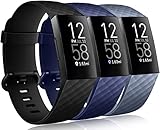
- ✅Compatible Models: Wepro Bands Compatible with Fitbit Charge 4, Compatible with Fitbit Charge 3, Compatible with Fitbit Charge 3 SE, the watch is not included
- ✅Premium Waterproof Material: Wepro bands compatible with Fitbit Charge 4 bands for women is made of flexible elastomer waterproof material. Sweat and water resistant, lightweight and easy to dry, great choice for swimming, sport, exercise, etc. Premium material can prevents skin from irritation. Very soft and comfortable to wear
- ✅Buckle + Notch Design: The buckle is made of stainless steel, easy to assemble and resize. Beside, there is a notch under the ring, can double hold your band securely in place and secure the extra length of bands
- ✅Multi Choices: Various colors can dress up your colorful life. Multipack bands can also be mixed wearing, and create your own unique style
- ✅Two Size Available: Small size for 5.5" - 7.1" wrist, large size for 7.1" -8.7" wrist. Size can be adjustable with buckle
Restarting does not delete any data stored on the device or in your Fitbit account. Your steps, sleep, workouts, heart rate history, watch faces, alarms, and settings all remain intact.
In daily use, a restart is enough to fix the majority of common problems. That includes screens that won’t respond to swipes, devices that won’t sync with the app, trackers that stop recording steps, delayed notifications, or unusually fast battery drain caused by a stuck process.
From a wearability standpoint, restarting also helps when sensors misbehave. Optical heart-rate LEDs, skin temperature sensors, and GPS on models like Charge 6, Versa, and Sense can occasionally hang in the background, impacting comfort and battery life until the device is restarted.
If your Fitbit still turns on, shows anything on the screen, or reacts when plugged into the charger, restarting should always be your first move.
Resetting a Fitbit: a full device wipe
A reset, often called a factory reset, erases the Fitbit and restores it to the same state it was in when you first took it out of the box. The device forgets your account, Bluetooth pairings, Wi‑Fi credentials, apps, clock faces, alarms, and stored health data.
After a reset, you must go through the full setup process again in the Fitbit app. This includes pairing, permissions, firmware checks, and sometimes recalibrating features like on-wrist detection or GPS.
A reset is only necessary when deeper software corruption is involved. Typical scenarios include a Fitbit stuck on the logo screen, endless reboot loops, failed firmware updates, pairing errors that persist across phones, or a device you’re preparing to give away or sell.
It’s worth noting that most of your long-term health data lives in your Fitbit account, not just on the device. If the tracker has synced recently, that data is safe. Unsynced data from the last day or two can be lost during a reset, which is why resetting should never be the first troubleshooting step.
Which one you should choose based on the problem
If your Fitbit screen is frozen, laggy, or not responding correctly, restart it. These issues are almost always caused by temporary software hiccups rather than permanent faults.
If syncing fails sporadically, notifications stop coming through, or battery life suddenly drops despite normal use, restart first. These symptoms are often tied to Bluetooth services or background processes that a restart clears instantly.
If your Fitbit will not pair to any phone, gets stuck during setup, fails a firmware update repeatedly, or shows only the logo for more than several minutes, a reset becomes appropriate.
If you’re switching phones and pairing problems appear, try restarting both the Fitbit and the phone before resetting. Many pairing issues are caused by cached Bluetooth connections rather than the device itself.
Why model differences matter
Not all Fitbit models handle restarting and resetting the same way. Some rely on physical buttons, others use charging cable button sequences, and newer models like Charge 6 integrate more touchscreen-based controls.
Versa and Sense models behave more like smartwatches, with deeper software layers, apps, and background services. This makes restarting especially effective for performance issues, while resets should be reserved for persistent failures.
Slim trackers like Luxe and Inspire prioritize comfort and battery efficiency, but their minimal interfaces mean resets are easier to trigger accidentally if instructions aren’t followed carefully. Knowing the exact method for your model prevents unnecessary data loss.
In the next section, you’ll get precise, model-by-model instructions for safely restarting or resetting the Charge 6, Luxe, Versa, Sense, and Inspire, so you can fix the issue you’re dealing with confidently and without guesswork.
Before You Reset: Quick Checks That Solve Most Fitbit Problems Without Data Loss
Before jumping into a reset, it’s worth slowing down for a few minutes. Many Fitbit problems that feel serious at first are caused by simple connection or software hiccups that a reset won’t fix any better than these safer checks.
Running through the steps below preserves your health data, settings, and watch faces while often restoring normal performance in minutes.
Check battery level and charging behavior
A surprisingly high number of freezes and sync failures come down to low or unstable power. If your Fitbit is under 20 percent, especially on models like Luxe or Inspire with smaller batteries, charge it for at least 15 minutes before doing anything else.
Make sure the charging pins are clean and aligned, and confirm you see the charging icon or percentage increase. A tracker that looks frozen may simply be stuck in a low-power state and will recover once voltage stabilizes.
Force-close and reopen the Fitbit app
If syncing stalls, stats don’t update, or notifications stop, the problem is often the phone app rather than the watch. Fully close the Fitbit app so it’s not running in the background, then reopen it and wait a full minute for services to reconnect.
On Versa and Sense models, which run more complex background processes, this alone often restores sync and notification delivery without touching the watch itself.
Toggle Bluetooth instead of resetting the device
Bluetooth connections can degrade over time, especially if your phone regularly switches between headphones, cars, and other wearables. Turn Bluetooth off on your phone, wait 10 seconds, then turn it back on and open the Fitbit app.
This clears cached connections without breaking the pairing, which is critical for avoiding unnecessary re-setup on Charge 6, Luxe, and Inspire models.
Confirm your Fitbit is still paired correctly
Open the Fitbit app and tap the device icon at the top. If your tracker shows as “disconnected” but still appears in the app, pairing is intact and a reset is rarely needed.
If the device is missing entirely, do not reset yet. Restart the phone first, reopen the app, and let it search again, as resets can complicate recovery if the pairing was only temporarily lost.
Check for pending app or firmware updates
Outdated software can cause lag, battery drain, or random freezes, particularly on Versa and Sense models with apps, watch faces, and Wi‑Fi support. In the Fitbit app, check for updates and install them while the watch is charging and nearby.
Interrupting updates or ignoring them can mimic hardware failure symptoms, leading users to reset unnecessarily when an update would fix the issue cleanly.
Restart your phone before touching the Fitbit
This step is often skipped, but it matters. Phone-level issues with Bluetooth, background permissions, or system memory can block syncing even when the Fitbit itself is working perfectly.
Restarting the phone refreshes those services and frequently resolves problems that seem like tracker faults at first glance.
Review app permissions and background access
If syncing works only when the app is open, or notifications stopped after a phone update, permissions are often the culprit. Make sure the Fitbit app is allowed Bluetooth access, background activity, and notifications.
This is especially important on Android, where aggressive battery optimization can quietly block communication and make a healthy Fitbit appear unresponsive.
Give the tracker a few minutes after charging or updating
After charging, syncing, or updating firmware, Fitbits may run background processes that temporarily slow performance. Touchscreens can feel laggy, stats may appear delayed, and battery percentages may jump around briefly.
Waiting five to ten minutes before restarting or resetting avoids interrupting those processes and prevents accidental data loss.
Know when these checks are enough
If your screen wakes normally, stats update after syncing, and the app recognizes the device, a reset is rarely necessary. Minor glitches that disappear after these checks almost always stay gone.
Only move on to restarting or resetting once you’re sure the issue isn’t power, Bluetooth, app behavior, or phone-side interference, which are by far the most common causes of Fitbit trouble.
How to Restart Fitbit Charge 6 (Step-by-Step Soft Reset)
Once you’ve ruled out phone-side issues, permissions, and post-update slowdowns, restarting the Fitbit itself is the next logical step. On the Charge 6, this process is a soft reset, meaning it refreshes the system without deleting your data, health history, or settings.
A restart is the safest fix for freezes, delayed syncing, touchscreen lag, sudden battery drain, or a Charge 6 that won’t wake reliably during daily wear.
What restarting the Charge 6 actually does
Restarting clears temporary system memory and reloads Fitbit OS, similar to rebooting a phone or laptop. It does not erase workouts, steps, heart rate data, or your Google account connection.
This is especially useful on the Charge 6, which runs a more advanced interface than older Charge models, with onboard GPS, Google Maps, Google Wallet, and a brighter AMOLED display that can occasionally hang after heavy use.
Rank #2
- 【Applicable Model】: Meliya replacement wristbands for Fitbit Charge 4 / Fitbit Charge 3 and Fitbit Charge 3 SE only, NO Fitbit Charge 3 tracker included.
- 【Seamless Match】:Fits as good as original band. Simple to install and remove, NO tools required! The end of the band has a lug, which fit your Fitbit Charge 3 smart watch in place and locked precisely & securely.
- 【Premium Waterproof Material】Made from flexible high-quality elastomer, sweat resistant & water resistant. Prevents skin from irritation, soft, lightweight and durable, very comfortable to wear.
- 【Available in Two Sizes】:Small size: for 5.5"-7.1"wrists Large size: for 7.1"-8.7"wrists
- 【After-sales Service】:If you have any dissatisfaction with replacement bands for Fitbit charge 3 from Meliya Store, please contact us via Amazon e-mail. We will reply to you ASAP.
Before you restart: two quick checks
Make sure your Charge 6 has at least 10 percent battery. Low power can interrupt the restart and make the tracker appear dead even though it isn’t.
If the screen is responsive, take a moment to sync with the Fitbit app first. This ensures all recent health data is safely backed up before the reboot.
Method 1: Restart from the touchscreen (recommended)
This is the easiest and most reliable way to restart a Charge 6 when the screen still responds.
Swipe down from the clock face to open Quick Settings. Tap the Settings icon, then scroll down and select Restart. Confirm when prompted, and the screen will go black.
After about 10 to 20 seconds, the Fitbit logo appears and the tracker boots back to the clock face. Once it does, give it a minute to fully settle before opening apps or starting a workout.
Method 2: Force restart using the charger (for frozen screens)
If the screen is unresponsive, frozen, or won’t wake at all, a forced restart usually brings it back.
Connect the Charge 6 to its charging cable and plug it into a powered USB port or wall adapter. Press and hold the button on the charging cable, not the screen, for about 10 to 15 seconds.
Release the button when you see the Fitbit logo appear on the display. The tracker will restart automatically and return to the clock face shortly after.
What to expect immediately after restarting
Right after the restart, the Charge 6 may feel slightly slower for a minute or two. Background services like heart rate tracking, GPS calibration, and syncing queues need a short moment to stabilize.
Battery percentage can also jump briefly, especially if the restart follows charging. This behavior is normal and typically evens out within one sync cycle.
When a restart is enough—and when it isn’t
If your Charge 6 resumes normal touch response, syncs cleanly, and tracks heart rate and steps correctly, no further action is needed. In most cases, a simple restart resolves the issue completely without touching your data.
If problems return repeatedly, syncing fails entirely, or the tracker won’t complete setup, the issue may require a factory reset or deeper troubleshooting, which is covered in the next sections for Charge, Luxe, Versa, Sense, and Inspire models.
How to Restart Fitbit Luxe and Inspire Series (Inspire 2, Inspire 3)
After working through Charge models, the process changes slightly with Luxe and Inspire trackers. These are slimmer, lighter devices with smaller displays and, in some cases, no physical buttons at all, so restarting them relies more on menus or the charging cable.
The good news is that a restart on Luxe or Inspire is still quick, safe, and does not erase your data. It is the right first step for syncing issues, frozen screens, missed notifications, or sudden battery drain.
Restart vs reset on Luxe and Inspire (important distinction)
A restart simply refreshes the tracker’s software and clears temporary glitches. Your steps, heart rate history, sleep data, and Fitbit account connection remain intact.
A reset, also called a factory reset, wipes the device completely and is only needed if restarting fails or setup cannot complete. This section focuses only on restarting.
How to restart Fitbit Luxe
Fitbit Luxe has no physical button, and while it includes a touchscreen restart option when responsive, the most reliable method uses the charging cable. This approach works even if the screen is frozen.
First, connect the Luxe to its charging cable and plug the cable into a powered USB port or wall adapter. Make sure the pins are fully seated, as the Luxe’s slim metal body can shift slightly if not aligned.
On the charging cable, press and hold the button for about 5 seconds. Release it when the Fitbit logo appears on the Luxe’s display.
The screen will go dark briefly, then the logo will reappear as the tracker restarts. Within 10 to 20 seconds, it should return to the clock face.
Because Luxe uses a small battery and compact internals, give it a full minute before opening apps or syncing. Heart rate tracking and screen brightness may stabilize gradually during that first minute.
How to restart Fitbit Inspire 2
Inspire 2 includes a physical side button, which makes restarting more straightforward when the screen is responsive.
From the clock face, swipe down to open the settings menu. Scroll until you find Restart, then tap to confirm. The screen will turn off, and the Fitbit logo will appear as the device reboots.
If the Inspire 2 screen is frozen or not responding, use the button method. Press and hold the side button for about 5 seconds, then release it when you see the smile icon or Fitbit logo.
The tracker will restart automatically and return to the clock face shortly after. Once it does, wait a moment before starting a workout or forcing a sync.
How to restart Fitbit Inspire 3
Inspire 3 removes the physical button entirely, similar to Luxe, and relies on touch controls or the charging cable.
If the screen responds, swipe down from the clock face to open Settings. Scroll to Restart and confirm when prompted. The display will go black and then show the Fitbit logo as it reboots.
If the screen is frozen or won’t wake, connect the Inspire 3 to its charging cable and plug it into power. On the charging cable, press the button three times within about 8 seconds.
Pause after the third press and wait. When the Fitbit logo appears on the screen, the restart has begun.
Once the Inspire 3 returns to the clock face, allow it a minute to re-establish Bluetooth, heart rate monitoring, and background syncing.
What to expect after restarting Luxe or Inspire
Immediately after a restart, these slim trackers may feel slightly slower to respond. That is normal, especially given their compact processors and long battery optimization.
Battery percentage may briefly jump up or down, particularly if the restart was done while charging. This typically corrects itself after the next sync with the Fitbit app.
If your Luxe or Inspire resumes normal syncing, touch response, and tracking accuracy, no further action is needed. If issues persist or the device refuses to restart at all, a factory reset or deeper troubleshooting may be required, which is covered later for each model.
How to Restart Fitbit Versa Models (Versa 2, Versa 3, Versa 4)
After working through the slimmer Inspire and Luxe trackers, the Versa line feels more like a traditional smartwatch. The larger case, brighter AMOLED display, and longer feature list also mean a restart can solve a wider range of problems, from frozen apps to sudden battery drain.
A restart is always the first step with Versa models. It refreshes the software without deleting workouts, health data, watch faces, or saved settings.
Restarting Fitbit Versa using on-screen settings (recommended)
If your Versa screen is responsive, this is the safest and most straightforward method across Versa 2, Versa 3, and Versa 4.
From the clock face, swipe right to open the Settings app. Scroll down and tap About, then select Shutdown or Restart depending on your model and software version.
Confirm when prompted. The screen will go dark, and after a short pause the Fitbit logo will appear as the watch powers back on.
This method is ideal for minor glitches like delayed notifications, sync errors, or apps failing to load properly.
Restarting Fitbit Versa using the button (when the screen is frozen)
If the touchscreen isn’t responding or the watch appears stuck, the physical button provides a forced restart without wiping data.
Rank #3

- ✅ Waterproof Material: Made of Eco-friendly and scentless TPU, prevents skin from irritation; Soft and lightweight,Very comfortable to wear; Greater durability,LABORATORY TESTED! Sweat resistant and dry-fast, A must have band, especially for daily workout
- ✅ Fit Perfect: No matter what type of wrist you are, from the thick wrist to the tiny one, it dose fit well and look nice, Small for 5.5" - 7.1" (14 cm-18cm) wrist, Large for 7.1" -8.7" (18cm-22cm) wrist
- ✅ No Worry about falling off and Snags clothing: The replacement sport band with Metal buckle and fastener Ring features a stable and reliable performance to keep the band secure.and the smooth edge don't catch on anything
- ✅Various colors: More than 20 fashion and pretty colors available for your Fitbit Charge 3, Add a new look to your favorite tracker, Personalize your tracker from work to workouts. Try on it for an outstanding look
- ✅ 100% SATISFACTION: Friendly and responsibility backing.Any suggestion will be highly appreciated. We will always stand by you all the time. Available 24/ 7.
On Versa 2, press and hold the single button on the left side for about 10 seconds. Release it as soon as you see the Fitbit logo.
On Versa 3 and Versa 4, press and hold the side button for roughly 10 to 12 seconds. Keep holding through the black screen and release only when the Fitbit logo appears.
The watch will reboot automatically and return to the clock face within a minute.
If your Versa won’t restart at all
If holding the button does nothing, connect your Versa to its charging cable and plug it into a power source. Leave it connected for at least 5 minutes, then try the button restart again.
Low battery protection can prevent a restart, especially on older Versa 2 units where battery capacity has naturally declined over time. Charging briefly often resolves this.
If the screen remains completely black even while charging, inspect the charging contacts for dirt or sweat buildup and reseat the cable firmly.
What to expect after restarting a Versa
After the restart, your Versa may take a minute or two to fully settle. Background systems like heart rate tracking, Bluetooth syncing, and third-party apps reload gradually.
You may notice a temporary battery percentage fluctuation, especially if the watch was restarted while charging. This usually stabilizes after the next sync with the Fitbit app.
Comfort, wearability, and materials remain unchanged after a restart, but software smoothness often improves noticeably. Scrolling should feel more fluid, and button response more consistent.
Restart vs factory reset on Versa models
A restart fixes most everyday problems without risk. It does not remove health history, workouts, alarms, or paired phones.
A factory reset is only necessary if the Versa is stuck in a boot loop, cannot pair to a phone, or is being prepared for a new owner. That process erases all data from the watch and requires full setup again.
If restarting your Versa restores normal syncing, battery life, and touch response, there is no reason to reset further. If problems return quickly or the watch refuses to restart, the factory reset steps for each Versa model are covered later in this guide.
How to Restart Fitbit Sense (Sense and Sense 2)
If you’re coming from the Versa line, the Sense and Sense 2 feel familiar on the wrist but behave slightly differently when it comes to restarts. Both models rely on a single physical button combined with on-screen controls, and the process is designed to be safe, quick, and non-destructive.
A restart is the first thing to try if your Sense is freezing, refusing to sync, draining battery unusually fast, or showing delayed touch response. It refreshes the software without touching your health data, workouts, or watch settings.
Quick restart using the on-screen menu (recommended)
If your Sense screen is still responsive, this is the cleanest way to restart. It works the same on Sense and Sense 2.
Swipe right from the clock face to open the quick settings panel. Tap Settings, scroll down to About, then tap Restart and confirm when prompted.
The screen will go black, and the Fitbit logo should appear within 30 to 60 seconds. Once the clock face returns, the watch is ready to use and will quietly reconnect to your phone in the background.
Button restart if the screen is frozen or unresponsive
When touch input stops working, the physical button becomes essential. This method is safe and does not trigger a factory reset.
Press and hold the side button for about 10 seconds. Keep holding even after the screen goes black, and release only when you see the Fitbit logo.
The reboot process usually completes within a minute. Haptic feedback may feel slightly delayed during the first few seconds as system services reload.
If your Sense won’t restart at all
If holding the button produces no response, battery protection is often the cause. Connect your Sense to its magnetic charging cable and plug it into a reliable power source.
Leave it charging for at least 5 minutes, even if nothing appears on the screen. After that, press and hold the side button again until the logo shows.
While charging, check that the stainless steel charging contacts are clean and aligned. Sweat or residue can interrupt power delivery, especially after workouts or sleep tracking.
What to expect after restarting Sense or Sense 2
After the reboot, the Sense may feel slightly sluggish for the first minute. Features like continuous heart rate tracking, SpO2 monitoring, Bluetooth syncing, and third-party apps restart in stages.
Battery percentage can briefly jump or dip, particularly if you restarted while charging. This corrects itself after a short wear period or the next sync with the Fitbit app.
Nothing about the physical experience changes. The aluminum case, curved AMOLED display, soft silicone band, and overall comfort remain the same, but scrolling and swipe gestures are often noticeably smoother after a restart.
Restart vs factory reset on Sense models
A restart is a low-risk maintenance step and should be used whenever the watch behaves oddly. It preserves all health metrics, ECG data, EDA scans, alarms, cards, and paired phone connections.
A factory reset is only needed if the Sense is stuck on the logo screen, cannot complete setup, fails to pair to a new phone, or is being passed on to someone else. That process erases everything on the watch and requires full setup from scratch.
If a simple restart restores syncing, stabilizes battery life, and fixes touch issues, there is no benefit to resetting further. If problems persist or the watch refuses to reboot, the factory reset instructions for Sense and Sense 2 are covered in the next section.
When a Restart Isn’t Enough: Signs You Need a Full Factory Reset
A restart clears temporary glitches, but it does not rewrite the software or remove corrupted data. When problems return immediately after restarting, or the watch cannot complete basic tasks like pairing or syncing, a deeper reset is often the only way forward.
Think of a factory reset as reinstalling the operating system on your Fitbit. It restores the watch to its out-of-the-box state, which is why it solves issues a restart cannot—but it also erases everything stored on the device itself.
The watch is stuck on the logo or a loading screen
If your Fitbit repeatedly boots to the logo and never reaches the clock face, a restart usually won’t break the loop. This is common after interrupted updates, low-battery shutdowns, or failed firmware installs.
On models like Sense, Versa, and Charge 6 with more complex software layers, this behavior often points to corrupted system files. A factory reset forces a clean software reload so the watch can boot normally again.
It won’t pair to your phone, no matter what you try
When Bluetooth pairing fails across multiple attempts, especially after switching phones, restarting both devices may not be enough. If the Fitbit app can’t complete setup or gets stuck at the pairing screen, old pairing credentials are often the cause.
This shows up frequently on Inspire, Luxe, and Charge models after upgrading phones or moving between Android and iPhone. A factory reset clears those stored connections so the watch can establish a fresh, stable link.
Severe syncing failures or missing data after syncing
Occasional sync delays are normal, but persistent failures are not. If workouts, sleep, heart rate, or SpO2 data stop syncing entirely—or only sync partially—despite strong Bluetooth and a healthy battery, the on-device database may be damaged.
Restarting reloads services, but it doesn’t rebuild that database. A factory reset wipes it clean so new health and fitness data can be recorded and transferred correctly again.
Battery drain that doesn’t improve after multiple restarts
All Fitbits experience short-term battery swings after updates or restarts, especially models with AMOLED displays like Sense, Versa, Luxe, and Charge 6. However, if the battery drops dramatically within hours for several days in a row, something deeper is wrong.
Background processes can become stuck in a high-power loop. A factory reset shuts everything down and restarts power management from a clean slate, often restoring normal multi-day battery life.
Touch, buttons, or sensors stop responding reliably
When swipes stop registering, buttons lag or fail, or sensors like heart rate and skin temperature drop out intermittently, software conflicts are often to blame. This is particularly noticeable on watches with richer health tracking, such as Sense and Versa.
Rank #4

- 【Superb Material】--- This replacement sport strap is made of a tighter woven nylon which make it soft, breathable, durable and sturdy. The lightweight material will not let your wrist have any burden even if you are exercising. The straps is reinforced with fastening technology and will not fall off like other straps.
- 【Unique Design】--- The unique nylon weave dense hook-and-loop design let you can adjust the band size as you like. And it will be locked and firmly secured. After hundreds of pull tests, don't worry about falling off. Free size fit for men and women in most occasions.
- 【Ideal Watch Accessory】---Multiple fashionable colors for you to choose. You can select the right color according to different occasions. With a simple change, the replacement strap is very suitable for men and women to sports, parties, business, sleeping or other activities.
- 【Compatible Models】---This nylon watch band is compatible with Charge 4 / Charge 4 Special Edition /Charge 3 /3 SE smart watches. It fits wrist size from 6.5-8.7in(165-220mm), and you can adjust the nylon bands through to find the most suitable size.
- 【Package Included】--- We guarantee a 100% refund if you are not satisfied with the products and we provide 12 months warranty guaranty. Please feel free contact us if you have any problems, our support team is ready to assist you to solve the problem you met.
If a restart briefly improves responsiveness but the problem returns, the software environment is likely unstable. A factory reset is the only way to fully recalibrate those systems together.
Setup cannot be completed after an update
Sometimes a Fitbit restarts correctly but cannot finish setup afterward. You may be asked to update again, accept terms repeatedly, or confirm the same settings over and over.
This loop is a classic sign that setup files didn’t install correctly. Resetting the watch allows the update and setup process to run cleanly from the beginning.
You’re giving the Fitbit to someone else or starting over intentionally
Any time a Fitbit is being sold, gifted, or handed down, a factory reset is required. Personal health metrics, notifications, cards, alarms, and account links remain on the device until it is fully reset.
This applies equally to slim trackers like Inspire and Luxe and to full-featured watches like Sense and Versa. A reset protects your data and ensures the next user gets a smooth setup experience.
Important things to know before resetting
A factory reset deletes everything stored on the watch, but it does not erase data already synced to your Fitbit account. Steps, sleep, workouts, heart rate trends, and long-term health metrics are preserved as long as they’ve synced recently.
Anything not synced—such as very recent workouts or offline data—will be lost. If the watch still syncs at all, it’s worth forcing one final sync in the Fitbit app before resetting.
Restart fixed nothing, and symptoms are getting worse
The clearest signal is simple pattern recognition. If you restart, the issue returns within minutes or hours, and each day the watch becomes harder to use, you’re past the point where light maintenance helps.
At that stage, a factory reset is not an aggressive step—it’s the correct one. The next sections walk through exact reset steps for Charge 6, Luxe, Versa, Sense, and Inspire so you can do it safely and with confidence.
How to Factory Reset Fitbit Charge 6, Luxe, Versa, Sense, and Inspire (Model-by-Model)
With the context above in mind, this is the point where you move from troubleshooting to a clean slate. A factory reset rebuilds the software environment from scratch, clears corrupted setup files, and removes lingering account links that restarts cannot touch.
Follow the instructions for your exact model below. The menus look similar across Fitbit’s lineup, but the reset path is not identical, and using the wrong method can lead to confusion or failed setup afterward.
Fitbit Charge 6 factory reset
The Charge 6 uses Fitbit OS with an AMOLED display, a side button, and deep Google service integration. Because it handles GPS, payments, and continuous health tracking, it’s especially important that the reset completes fully.
On the watch, swipe left from the clock face to open Settings. Scroll to About, then tap Factory reset and confirm.
Keep the Charge 6 on your wrist or connected to its charger during the reset. The screen will go dark, then reboot to the initial language selection screen when finished.
If the screen is unresponsive but the button still works, connect the charger and try again after charging for at least 10 minutes. If it cannot access Settings at all, the reset must be initiated from the Fitbit app.
Fitbit Luxe factory reset
The Luxe is slim and lightweight with a color AMOLED screen and touch-only navigation. Because it has no physical buttons, resets rely on either on-screen menus or the charger method.
On the Luxe itself, swipe down to open Settings. Scroll to Device Info, tap Factory reset, and confirm.
If the screen is frozen or touch input does not register, connect the Luxe to its charging cable. While connected, tap and hold the button on the charging cable three times in quick succession, pausing briefly between presses. The Luxe will vibrate and restart, then proceed with the reset.
Once complete, the Luxe returns to its setup screen and is ready to pair again.
Fitbit Versa factory reset (Versa 2, Versa 3, Versa 4)
Versa models are full-featured smartwatches with larger displays, physical buttons, and stronger processors than trackers. The reset process is consistent across generations.
On the watch, press the side button to wake the screen. Swipe to Settings, then scroll to About and select Factory reset.
Confirm the reset and keep the watch powered until the process finishes. The Versa will reboot and display the initial setup prompt.
If the watch is paired but behaving erratically, you can also reset it from the Fitbit app by selecting the Versa, opening General settings, and choosing Factory reset.
Fitbit Sense factory reset (Sense and Sense 2)
Sense models combine smartwatch features with advanced health sensors, including ECG and skin temperature tracking. These sensors rely heavily on clean calibration data, making a full reset particularly effective when readings become inconsistent.
On the Sense, swipe to open Settings. Go to About, then tap Factory reset and confirm.
Leave the watch connected to Wi‑Fi or on its charger during the reset to avoid interruptions. When finished, the Sense will reboot and prompt for pairing.
After resetting, you will need to re-enable health features like ECG and notifications during setup in the Fitbit app.
Fitbit Inspire factory reset (Inspire 2 and Inspire 3)
Inspire trackers are compact, comfortable for all-day wear, and optimized for battery life rather than heavy processing. Even so, corrupted sync data can still require a full reset.
On the Inspire, swipe to Settings and scroll to Clear User Data. Tap to confirm.
The tracker will restart automatically and return to its setup screen. Pair it again through the Fitbit app as if it were new.
If the screen is unresponsive, connect the Inspire to its charger and repeat the process once it has charged for several minutes.
If you cannot access settings on the watch
When a Fitbit is too frozen to navigate menus, a factory reset can often be triggered through the Fitbit app instead. Open the app, select your device, go to General settings, and look for Factory reset or Clear user data.
If the app cannot communicate with the device at all, charge the Fitbit for at least 15 minutes and try again. Extremely low battery levels can prevent resets from completing correctly.
What to expect immediately after the reset
Once the reset finishes, the watch or tracker will behave like it just came out of the box. You’ll select language, reconnect to Wi‑Fi if applicable, and pair it with your Fitbit account.
Your historical health and fitness data reappears after syncing, assuming it was saved to your account. Any lingering software issues tied to corrupted files or failed updates should be gone at this stage.
What Happens After a Factory Reset: Data, Accounts, and Re‑Setup Explained
At this point, your Fitbit has completed the reset and restarted cleanly. What follows can feel confusing if you are worried about lost data or whether you need to start from scratch, so it helps to understand exactly what changed and what did not.
A factory reset wipes the device itself, not your Fitbit account. Think of it as clearing the watch or tracker’s internal memory while leaving your cloud-stored history untouched.
What data is erased from the Fitbit itself
After a factory reset, everything stored locally on the device is removed. This includes on-device settings, cached sync data, downloaded watch faces, apps, alarms, quick replies, and any unsynced activity.
If your Fitbit had not synced recently before the reset, those unsynced steps, workouts, or sleep sessions cannot be recovered. This is why syncing regularly is so important, especially if you are troubleshooting recurring issues.
Device-specific calibrations are also cleared. This affects things like GPS tuning on the Charge 6, stride calibration on Inspire models, and sensor baselines used for heart rate and SpO2 readings.
💰 Best Value

- ★ Valued Pack: Tobfit 6 pack replacement bands Contrasted with the original fitbit Charge 4 bands / Charge 3 bands, you can save much to purchase our packed fitbit Charge 4 bands without any coupon. A wide range of colours are available of fitbit Charge 4 bands / Charge 3 bands for women & men to choose from. There is always one that suits you, and welcome to share it with your friends or family. It is also an option for gift giving, more youthful, bright & attractive, no color fading
- ★ Enjoy A Comfortable Touch: Made of eco-friendly TPU, our bands for Fitbit Charge 4 bands / Charge 3 / Charge 3 SE are softer and more durable than other ordinary silicone watch bands. skin-friendly, sweat, rain, splash and water resistant, and the light but premium material brings no burden, very comfy to wear. especially suitable for swimming, climbing, and running and other activities, goodbye to skin irritation
- ★ Secure & Easy Installation: Tobfit design for fitbit Charge 4 bands / Charge 3 bands has exquisite connector, locks onto Fitbit Charge 4 interface precisely, securely and seamlessly, which avoid your watch from falling off. One hand assembly and one button removal. More convenient & secure to use, with an exquisite metal buckle and strap holders
- ★ Multiple Combos & Small Large Size: These Charge 4 bands / Charge 3 bands for women men have pretty colors and multiple combos. Can personalize your Fitbit Charge 4 bands / Charge 3 / Charge 3 SE bands to fit your mood and outfit in daily life. Personalize your bands to fit your mood and outfit in every week. Small size for 5.5" - 7.1" (140mm-178mm) wrist, Large Size for 7.1" -8.7"(178mm-220mm) wrist
- ★ Reliable & Professional Support: Making and designing smart watch bands over many years, Tobfit can be your reliable friends and provide the most professional and considerate support if you come cross any question. Therefore, you can count on us and wear these pretty fitbit Charge 4 bands / Charge 3 bands with full confidence
What data stays safe in your Fitbit account
Your Fitbit account retains your long-term health and fitness history. Steps, workouts, sleep trends, heart rate history, stress metrics, and body measurements reappear once the device finishes pairing and syncing again.
Premium subscription status is also tied to your account, not the device. If you use Fitbit Premium, it automatically resumes after setup with no additional action needed.
This separation between device memory and account data is why a factory reset is so effective for fixing software problems without permanently harming your progress.
Account sign-in and pairing after the reset
Once the reset is complete, the Fitbit behaves like a brand-new unit. You will be prompted to pair it again through the Fitbit app on your phone.
Open the Fitbit app, log in with the same account you used previously, and add the device when prompted. Pairing typically takes a few minutes and may include a Bluetooth confirmation code displayed on the watch.
If you use multiple Fitbit devices, make sure you select the correct model during setup. Pairing a Charge, Versa, or Sense incorrectly can cause missing features or sync instability.
Re-enabling features and permissions
After pairing, many features are turned off by default and must be re-enabled manually. Notifications, call alerts, calendar access, and app permissions all require approval again at the phone level.
Health features may also need confirmation. ECG, SpO2 tracking, irregular heart rhythm notifications, and skin temperature tracking on Sense and Charge models require setup steps or regional confirmations.
This is normal behavior and not a sign the reset failed. Fitbit intentionally disables these until the user explicitly opts back in.
Battery life and performance in the first few days
It is common to see slightly higher battery drain during the first 24 to 48 hours after a reset. The device is rebuilding indexes, recalibrating sensors, syncing historical data, and downloading firmware components in the background.
Once this initial phase passes, battery life should stabilize and often improves compared to pre-reset behavior. Many users notice smoother scrolling, faster syncs, and more consistent heart rate readings after a clean reset.
For smaller trackers like Inspire and Luxe, this recalibration period is short. Larger smartwatches like Versa and Sense may take a full day to fully settle.
Differences between a restart and a factory reset
A restart is temporary and does not erase settings or data. It is best for minor freezes, touch lag, or short-term syncing hiccups.
A factory reset is permanent and wipes the device clean. It is the correct choice for persistent sync failures, repeated crashes, setup loops, corrupted updates, or inaccurate sensor readings that do not improve after restarts.
Understanding this distinction helps you avoid unnecessary resets while still knowing when a deeper fix is justified.
What to do if problems continue after resetting
If the issue returns immediately after setup, double-check that your phone’s operating system and the Fitbit app are fully up to date. Outdated software is a frequent cause of repeated sync failures.
Try pairing on a different phone if possible, especially when diagnosing Bluetooth or setup issues. This helps determine whether the problem lies with the Fitbit or the phone itself.
If the device continues to freeze, drain excessively, or fail during setup even after a factory reset, it may indicate a hardware fault. At that stage, contacting Fitbit support with reset details and error behavior gives you the best chance of a replacement or repair option.
If Resetting Doesn’t Fix It: Advanced Troubleshooting and When to Contact Fitbit Support
If you have completed a proper restart or factory reset and the same problems return, it is time to move beyond basic fixes. At this stage, the goal is to determine whether the issue is caused by software conflicts, phone compatibility, or a developing hardware fault.
Working through the steps below helps you rule out common external causes before escalating to Fitbit Support, which can significantly speed up warranty or replacement decisions.
Check phone compatibility and operating system limits
Fitbit devices are tightly tied to phone software, and even a perfectly functioning tracker can struggle if the phone is unsupported or partially compatible. Verify that your phone model and OS version are listed as supported on Fitbit’s official compatibility page.
Older Android versions, beta iOS releases, and heavily customized Android skins can all cause repeated sync failures, delayed notifications, or setup loops. If your phone recently updated, issues that appear “suddenly” often trace back to background permission or Bluetooth changes.
Recheck app permissions and background access
After a reset, some phones quietly restrict background activity again. This can cause the Fitbit to appear connected but fail to sync, drain battery, or miss notifications.
Confirm that Bluetooth, background app refresh, location access, and battery optimization exemptions are enabled for the Fitbit app. On Android, disable aggressive battery-saving modes that pause apps when the screen is off.
Rule out Bluetooth interference and pairing conflicts
Bluetooth instability is a common culprit, especially in homes with many connected devices. Temporarily disable Bluetooth accessories like headphones, car systems, or tablets and test syncing again.
If problems persist, remove the Fitbit from your phone’s Bluetooth settings completely, restart the phone, and pair again through the Fitbit app only. Pairing directly through system Bluetooth menus often creates unstable connections.
Test with a different phone or tablet
Pairing your Fitbit to another compatible phone is one of the most revealing diagnostic steps. If the device works normally on a second phone, the issue is almost always related to the original phone’s software, not the Fitbit itself.
If the same freezing, setup failure, or battery drain occurs on multiple phones, that strongly points to a device-level problem.
Identify signs of hardware failure
Some issues cannot be fixed through resets or software changes. Repeated overheating, screens that flicker or fail to wake, sensors that stop reading heart rate entirely, or battery drops of 20 to 30 percent per hour are classic warning signs.
For trackers like Inspire and Luxe, charging failures or a loose charging connection often indicate worn internal contacts. On larger models like Versa and Sense, swollen batteries or unresponsive side buttons are red flags that require support intervention.
Understand what Fitbit Support can and cannot fix
Fitbit Support can walk you through advanced diagnostics, check firmware logs, and confirm whether your device qualifies for a replacement. They cannot repair physical damage or override warranty limits, but they can authorize discounted upgrades in some regions.
Having already completed restarts, factory resets, and phone testing puts you in a stronger position. Support agents typically escalate faster when you can clearly describe what has already been tried.
What to prepare before contacting Fitbit Support
Before reaching out, note your Fitbit model, approximate purchase date, phone model, operating system version, and a clear description of the problem. Mention whether the issue occurs after a factory reset and whether it appears on multiple phones.
If possible, keep the device nearby and charged during the support session. Some steps require real-time testing or syncing attempts.
Replacement expectations and next steps
If your device is under warranty and shows confirmed hardware failure, Fitbit typically offers a replacement of the same model or a close equivalent. Refurbished replacements are common and usually perform like new.
If the warranty has expired, support may offer a loyalty discount toward a newer model. In those cases, weigh the cost against battery health, updated sensors, and longer software support on current-generation devices like Charge 6 or Sense.
Final thoughts
Most Fitbit problems are solved with a restart or factory reset, but persistent issues deserve a methodical approach rather than repeated resets. By checking compatibility, permissions, Bluetooth behavior, and hardware signs, you avoid unnecessary frustration and data loss.
Whether the fix is a simple phone setting or a full replacement, you now know how to move forward confidently. That clarity is the real value of troubleshooting done the right way.