Google Fit sits at the center of Android’s health and fitness experience, but it’s often misunderstood. Some users expect it to behave like a full-blown training platform, while others dismiss it as just a step counter. The reality is more nuanced, and understanding that role early will save you frustration and help you get better data from day one.
If you’re coming from Fitbit, Garmin, or Samsung Health, Google Fit works differently. It’s less about locking you into a single brand and more about quietly collecting, organizing, and sharing health data across your phone, smartwatch, and apps. Once you grasp what it’s designed to do, Google Fit becomes far more useful than it first appears.
This section breaks down exactly what Google Fit is, what it deliberately avoids being, and how it fits into the wider Android fitness ecosystem so you can use it with realistic expectations before moving on to setup and daily use.
What Google Fit actually does
At its core, Google Fit is a health data hub rather than a traditional fitness app. It collects activity, movement, and basic health metrics from your Android phone, Wear OS watch, and supported third‑party apps, then presents that information in a unified timeline. Think of it as a central dashboard rather than a coach shouting instructions.
🏆 #1 Best Overall
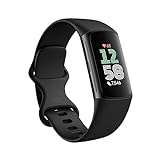
- Find your way seamlessly during runs or rides with turn-by-turn directions from Google Maps on Fitbit Charge 6[7, 8]; and when you need a snack break on the go, just tap to pay with Google Wallet[8, 9]
Google Fit tracks everyday movement exceptionally well. Steps, walking and running distance, active time, calories burned, and heart rate data can all be logged automatically when supported sensors are available. On phones, it relies on motion sensors and GPS; on smartwatches, it pulls from accelerometers, heart rate sensors, and sometimes GPS depending on the device.
The system is built around two simple activity goals: Move Minutes and Heart Points. These are designed to encourage consistent, moderate-to-vigorous activity rather than chase athletic performance. It’s a public-health-first approach, co-developed with the World Health Organization, and it prioritizes long-term habit building over personal records.
What Google Fit is not designed to be
Google Fit is not a full training platform. You won’t find structured workout plans, adaptive coaching, recovery scores, or detailed performance analytics built into the app. Runners looking for advanced pace charts, cyclists wanting power analysis, or strength trainers tracking sets and reps will quickly hit its limits.
It also isn’t a replacement for dedicated brand ecosystems. Fitbit, Garmin Connect, Polar Flow, and Samsung Health all go deeper into their own hardware, offering features like sleep staging analysis, readiness scores, stress tracking, and device-specific metrics. Google Fit intentionally stays lighter to remain compatible across many brands.
Crucially, Google Fit doesn’t try to own your fitness identity. It doesn’t push social challenges, leaderboards, or heavy gamification. For some users this feels barebones, but for others it’s refreshingly distraction-free and private.
Where Google Fit fits in the Android wearable landscape
Google Fit shines when used as a connective layer between devices and apps. Many third-party fitness apps can write data to Google Fit or read from it, allowing your steps, heart rate, or workouts to appear in one place even if they were recorded elsewhere. This makes it especially valuable if you switch devices or use multiple fitness apps.
On Wear OS watches, Google Fit often serves as the default health interface. Whether you’re using a Pixel Watch, Fossil-made Wear OS device, or another compatible smartwatch, Fit handles background activity tracking with minimal impact on battery life. It’s optimized to run quietly, syncing data without constant user interaction.
For Android users who value flexibility, Google Fit acts as a neutral middle ground. It doesn’t lock you into a single watch brand, strap style, or app subscription, and it adapts well to different hardware sizes, comfort preferences, and daily wear habits. That neutrality is its biggest strength, but only if you understand its boundaries before relying on it as your primary fitness tool.
Getting Started: Installing Google Fit and Completing the First‑Time Setup Correctly
Once you understand Google Fit’s role as a neutral hub rather than a deep training platform, the next step is making sure it’s installed and configured properly. A rushed setup can lead to missing data, inaccurate metrics, or background tracking that quietly stops working after a few days.
This section walks through the process step by step, focusing on the decisions that actually affect tracking quality, battery life, and long‑term usability on both phones and Wear OS watches.
Installing Google Fit on your Android phone
Google Fit is free and available directly from the Google Play Store. Search for “Google Fit” and make sure the developer is listed as Google LLC before installing, as there are similarly named apps that are unrelated.
Once installed, launch the app while signed into the Google account you plan to use long term. Google Fit stores data at the account level, so switching accounts later can fragment your history across profiles.
If you already use other Google services like Gmail or Google Photos, this same account will anchor your health data. There is no separate Google Fit login, which simplifies setup but makes account choice important.
Choosing the right permissions from the start
During first launch, Google Fit will request several permissions. These typically include physical activity, location, and access to sensors such as body or heart rate, depending on your device.
Granting activity and sensor permissions is essential for step counting and heart rate tracking. If you deny these initially, Google Fit may still open but will silently fail to collect meaningful data in the background.
Location access deserves a more deliberate choice. For indoor tracking and basic step counts, it isn’t strictly required, but outdoor activities like walking or cycling rely on GPS for distance and pace accuracy. Selecting “Allow while using the app” strikes a good balance for most users.
Battery optimization and background tracking settings
One of the most common setup mistakes happens outside Google Fit itself. Many Android phones apply aggressive battery optimization that limits background activity after a few days.
Go to your phone’s battery settings and exclude Google Fit from optimization or set it to “Unrestricted” or “Don’t optimize,” depending on your manufacturer. This is especially important on phones from brands like Samsung, Xiaomi, OnePlus, and Oppo.
Without this step, you may notice steps suddenly stopping or heart data missing during long periods of the day. The app won’t always warn you when this happens.
Setting up your personal profile correctly
Google Fit will ask for basic personal details such as height, weight, gender, and date of birth. These inputs directly affect calorie estimates, heart point calculations, and distance accuracy.
Take a moment to enter realistic values rather than approximations. Even small errors in height or weight can skew calorie burn figures and make trends harder to interpret over time.
You can update this information later, but changes do not retroactively correct historical data. Getting it right early leads to cleaner long‑term tracking.
Understanding and choosing your activity goals
Instead of traditional step goals, Google Fit emphasizes Move Minutes and Heart Points. During setup, you’ll be prompted to accept default goals or adjust them.
Move Minutes track how long you’re active at any intensity, while Heart Points reward activities that raise your heart rate. This system is designed to encourage movement quality, not just volume.
If you’re new to fitness tracking, stick with the default goals for the first week. They’re intentionally conservative and help establish a baseline before you decide whether to push higher.
Installing and linking Google Fit on a Wear OS smartwatch
If you use a Wear OS watch, Google Fit is often preinstalled. If it isn’t, you can download it directly from the Play Store on the watch itself.
Make sure the watch is paired to the same Google account as your phone. Mismatched accounts are a common cause of missing sync data, especially when switching phones or resetting a watch.
On the watch, open Google Fit and confirm that background tracking is enabled. Some watches allow you to disable passive tracking to save battery, which can unintentionally block step and heart rate data.
Wear OS comfort, fit, and sensor contact
Accurate tracking depends heavily on how the watch is worn. The watch should sit snugly above the wrist bone, with consistent skin contact but without cutting off circulation.
Metal bracelets may look premium but can loosen during activity, affecting heart rate readings. Silicone or fabric straps often provide better stability during workouts and long daily wear.
If your watch feels uncomfortable or leaves marks, adjust the fit rather than tolerating it. Comfort directly affects how often you wear the device, which matters more than any single sensor specification.
Syncing data between phone and watch
Google Fit syncs automatically in the background, but the first sync can take a few minutes. Keep both devices connected to Wi‑Fi or Bluetooth and allow them to remain idle briefly after setup.
You can manually trigger a sync by opening Google Fit on your phone and pulling down on the home screen. If data appears on the watch but not the phone, this usually resolves it.
Consistent syncing is key if you switch between phone‑only tracking and watch‑based tracking throughout the day.
Connecting third‑party apps during setup
Google Fit works best when it’s allowed to act as a central data layer. During initial setup or shortly after, explore the “Settings” and “Manage connected apps” sections.
Fitness apps like Strava, Nike Run Club, MyFitnessPal, and many sleep trackers can read from or write to Google Fit. Decide which app is the primary source for each data type to avoid duplicates.
For example, if your watch tracks steps reliably, let it be the main source and prevent other apps from overwriting that data. This keeps your activity history clean and consistent.
Verifying that tracking is working on day one
After setup, take a short walk and check Google Fit’s home screen. You should see steps, Move Minutes, and possibly Heart Points updating within minutes.
If heart rate data is missing, double‑check sensor permissions and ensure your watch or phone supports continuous heart rate tracking. Not all phones include the necessary hardware.
Catching setup issues on the first day prevents weeks of incomplete data and helps Google Fit quietly do its job in the background, exactly as it’s designed to.
Navigating the Google Fit App: Home, Journal, Browse, and Key Interface Elements Explained
Once you’ve confirmed that tracking and syncing are working, the next step is learning how to read what Google Fit is showing you. The app is deliberately simple, but that simplicity hides a lot of useful detail once you know where to look.
Google Fit is organised around a few core screens that stay consistent whether you’re using it on a phone alone or paired with a Wear OS watch. Understanding what each section is for will save you time and help you trust the data you’re seeing.
The Home screen: your daily fitness dashboard
The Home tab is where you’ll spend most of your time. It acts as a live snapshot of your day, updating automatically as your phone or watch records movement and health data.
At the top, you’ll usually see your Move Minutes and Heart Points rings. These are Google Fit’s primary activity goals, designed to be device‑agnostic so they work equally well with a phone, a basic fitness band, or a full smartwatch.
Scrolling down reveals tiles for steps, calories burned, distance, heart rate, and other metrics depending on what your hardware and connected apps support. These tiles are dynamic, so they’ll change based on the data sources you’ve enabled.
Understanding Move Minutes and Heart Points at a glance
Move Minutes measure how long you’re physically active, not just how many steps you take. Walking briskly, cycling, or doing a workout session will all contribute, while slow movement may not.
Heart Points are intensity‑based. You earn more points when your heart rate is elevated, which makes this metric especially meaningful if you’re using a smartwatch with a reliable optical heart rate sensor and a comfortable strap fit.
Tapping either ring opens a breakdown showing when you earned those minutes or points during the day. This is useful for spotting patterns, like whether most of your activity happens in short bursts or longer sessions.
Customising what appears on the Home screen
Google Fit lets you control which metrics appear on the Home screen. Scroll to the bottom, tap “Edit home,” and you can add or remove tiles based on what you care about most.
If you mainly use Google Fit for walking and general activity, steps, Move Minutes, and distance may be enough. If you train with a smartwatch, heart rate, workout summaries, and calories become more valuable.
This customisation also helps reduce clutter. Removing metrics you don’t track prevents confusion and makes it easier to spot changes in the data that actually matters to you.
The Journal tab: your activity timeline
The Journal tab is where Google Fit becomes a historical record rather than a live dashboard. It shows a chronological list of activities, workouts, and automatically detected movement.
Each entry includes time, duration, and basic stats like distance or calories. Activities logged by third‑party apps or a Wear OS watch are clearly labelled, making it easy to see where each data point came from.
This view is especially helpful if you mix manual workouts, auto‑tracked walks, and synced sessions from apps like Strava or Nike Run Club. You can quickly confirm that everything is being recorded without overlap.
Rank #2

- Inspire 3 is the tracker that helps you find your energy, do what you love and feel your best. All you have to do is wear it.Operating temperature: 0° to 40°C
- Move more: Daily Readiness Score(1), Active Zone Minutes, all-day activity tracking and 24/7 heart rate, 20+ exercise modes, automatic exercise tracking and reminders to move
- Stress less: always-on wellness tracking, daily Stress Management Score, mindfulness sessions, relax breathing sessions, irregular heart rhythm notifications(2), SpO2(3), menstrual health tracking, resting heart rate and high/low heart rate notifications
- Sleep better: automatic sleep tracking, personalized Sleep Profile(1), daily detailed Sleep Score, smart wake vibrating alarm, sleep mode
- Comfortably connected day and night: calls, texts & smartphone app notifications(4), color touchscreen with customizable clock faces, super lightweight and water resistant to 50 meters, up to 10 day battery life(5)
Editing and managing Journal entries
Tapping an entry in the Journal opens its detailed view. From here, you can edit activity type, adjust duration, or delete entries that were logged incorrectly.
This matters more than it sounds. Incorrect activities can inflate calorie estimates or distort weekly trends, especially if your phone misclassifies a commute or a short bike ride.
If you notice frequent misclassification, it’s often a sign that your phone’s location accuracy or motion permissions need adjusting rather than a problem with Google Fit itself.
The Browse tab: deeper health and fitness insights
Browse is where Google Fit stores everything that doesn’t need to be front‑and‑centre on the Home screen. Think of it as a library of your health data rather than a daily dashboard.
Here you’ll find sections for activity, vitals, body measurements, and goals. Depending on your device, this can include resting heart rate, respiratory rate, weight, and sleep data synced from third‑party apps.
Each category opens into trend views that show daily, weekly, and monthly changes. This is where Google Fit becomes more useful for long‑term habits rather than day‑to‑day motivation.
Using trends to judge accuracy and consistency
Trend graphs in Browse are one of the best tools for evaluating whether your setup is working well. Consistent lines and gradual changes usually indicate stable tracking and good device wear.
Sudden gaps or sharp spikes often point to missed wear time, syncing issues, or a change in data source. For example, switching from phone‑only tracking to a smartwatch can noticeably alter step counts.
These patterns are normal, but recognising them helps you avoid overreacting to a single high or low day. Google Fit is most accurate when viewed over time, not in isolation.
Key interface elements you shouldn’t ignore
The profile icon in the top corner leads to settings, connected apps, and account management. This is where you control permissions, data sharing, and which apps are allowed to write to Google Fit.
The floating “+” button, when available, lets you manually log activities or measurements. This is useful for strength training, yoga, or workouts that aren’t automatically detected by your device.
Pull‑to‑refresh on the Home screen forces a sync and is often the quickest fix if something looks out of date. It’s a small gesture that solves a surprising number of data hiccups.
How the phone and watch interfaces differ
On a Wear OS watch, Google Fit is streamlined for quick interactions. You’ll see rings, recent activity, and workout shortcuts designed for short glances rather than deep analysis.
The phone app is where you interpret and manage data. Editing entries, reviewing trends, and managing integrations are all far easier on a larger screen.
Using both together plays to their strengths: the watch handles comfort, continuous tracking, and real‑world wearability, while the phone provides clarity, context, and control over your fitness history.
Core Google Fit Metrics Explained: Steps, Move Minutes, Heart Points, and Activity Goals
Once you understand where Google Fit shows trends and how data flows between your phone and watch, the next step is knowing what those numbers actually mean. Google Fit deliberately keeps its core metrics simple, but each one is calculated in a specific way and serves a different purpose.
These metrics are designed to work whether you’re using phone-only tracking, a Wear OS smartwatch, or a third‑party wearable. The experience changes slightly depending on your hardware, but the underlying logic stays consistent.
Steps: the baseline movement metric
Steps are the most familiar metric in Google Fit and the easiest place to start. They’re counted using motion sensors from your phone, smartwatch, or both, depending on which devices are allowed to write data.
Phone-only step tracking works reasonably well for everyday movement, but it misses steps if your phone isn’t on you. A smartwatch improves accuracy dramatically because it’s worn continuously and captures arm motion more reliably.
If you notice step counts drop or spike after switching devices, that’s normal. Different sensors, wrist placement, watch size, and even strap tightness can influence step detection in real-world wear.
Move Minutes: measuring time spent being active
Move Minutes track how long you’re physically active, rather than how far you go. Any activity that raises your movement above a basic threshold, including brisk walking, chores, or casual cycling, can count.
Unlike steps, Move Minutes reward consistency throughout the day. Short bursts of activity add up, which makes this metric particularly useful for people with desk jobs or irregular workout schedules.
Move Minutes are calculated automatically and don’t require starting a workout. However, wearing a smartwatch improves detection of intensity changes and reduces false positives from hand movement alone.
Heart Points: intensity over quantity
Heart Points are Google Fit’s most distinctive metric and the one many users misunderstand at first. They’re designed to reward activities that raise your heart rate, not just keep you moving.
Moderate activities, like fast walking, usually earn one Heart Point per minute. More intense efforts, such as running or interval training, earn two Heart Points per minute.
This metric works best with a device that has a heart rate sensor. Without one, Google Fit estimates intensity using movement patterns, which is less precise and can undercount higher-effort workouts.
Why Heart Points matter more than steps
Steps tell you how much you move, but Heart Points tell you how hard your body is working. From a health perspective, intensity plays a bigger role in improving cardiovascular fitness.
Google’s default weekly Heart Point goal aligns with World Health Organization guidelines for moderate to vigorous activity. This makes Heart Points a better long-term target than chasing a daily step number alone.
If you’re short on time, focusing on Heart Points often delivers better results with fewer total minutes. A short, challenging workout can be more valuable than a long, slow walk.
Activity Goals: how Google Fit keeps things flexible
Google Fit uses goals rather than rigid daily targets. By default, you’ll see a daily Move Minutes goal and a weekly Heart Points goal, instead of pressure to hit the same number every day.
This structure encourages balance across the week. Missing a day doesn’t break a streak, and stronger days help compensate for quieter ones.
You can adjust these goals in settings to match your fitness level, recovery needs, or lifestyle. Beginners should resist the temptation to set aggressive targets too early.
How goals appear on phone versus watch
On a Wear OS watch, goals are shown as progress rings or bars designed for quick checks. They’re optimized for glanceability, with minimal detail and strong visual feedback.
The phone app provides context behind those rings. You can see exactly which activities contributed to your goals and how today compares to recent trends.
Using both together works best in practice. The watch motivates you in the moment, while the phone helps you understand patterns and make adjustments.
Accuracy tips for core metrics
For the most reliable data, make sure only one primary device is writing steps at a time. Allowing both your phone and watch to record simultaneously can inflate counts.
Wear your watch snugly but comfortably. A loose fit affects heart rate readings, which directly impacts Heart Points and intensity detection.
Battery life also matters more than most people expect. A watch that dies halfway through the day creates gaps that distort trends, even if individual workouts look fine.
Understanding what Google Fit does not measure
Google Fit focuses on general health and activity rather than advanced performance metrics. You won’t see detailed training load, recovery scores, or sport-specific analytics without third‑party apps.
Strength training, yoga, and mobility work often need to be logged manually. These activities still contribute to Move Minutes and sometimes Heart Points, but detection varies by device.
Knowing these limits helps set realistic expectations. Google Fit excels at habit tracking and long-term consistency, not elite training analysis.
Using metrics together, not in isolation
Each metric tells part of the story, but none are meant to stand alone. Steps show volume, Move Minutes show consistency, and Heart Points show intensity.
Looking at them together gives a more accurate picture of your activity level. This approach also makes Google Fit more forgiving and more useful over time.
As you continue through the app, these metrics become the foundation for integrations, insights, and long-term health tracking rather than numbers you chase blindly.
Tracking Workouts and Activities: Using Google Fit on Your Phone vs a Wear OS Smartwatch
Once you understand how steps, Move Minutes, and Heart Points work together, the next decision is how you actually capture activities. Google Fit can track workouts using just your Android phone, a Wear OS smartwatch, or both working in tandem.
Each approach has strengths and trade-offs. The right setup depends on how you exercise, how long you train, and how much detail you want during the workout versus after it ends.
Tracking activities using only your Android phone
Using Google Fit on your phone is the simplest way to get started. As long as your phone is with you, it can log walks, runs, bike rides, and general movement using motion sensors and GPS.
To start a workout manually, open Google Fit, tap the Plus button, and choose Track workout. Select the activity type, wait for GPS to lock if applicable, then tap Start.
Phone-based tracking works best for casual activity and short sessions. Walking the dog, commuting on foot, or doing a spontaneous run all register cleanly without extra hardware.
The main limitation is heart rate. Unless you pair an external Bluetooth heart rate strap, your phone cannot measure heart rate directly, which reduces the accuracy of Heart Points and intensity tracking.
GPS accuracy is usually solid, especially on modern phones with multi-band positioning. Battery drain, however, can be significant during long outdoor workouts, particularly if the screen stays active.
Carrying a phone also affects comfort and form. For runners and gym users, pocket bounce, armbands, or waistband clips can become distracting over time.
Tracking activities on a Wear OS smartwatch
A Wear OS smartwatch is designed for continuous, body-worn tracking. With built-in heart rate sensors, accelerometers, and often GPS, it captures activity with far less friction.
To start a workout, open Google Fit on the watch, scroll to the activity you want, and tap Start. The interface is optimized for quick glances, with live stats like duration, heart rate, and Heart Points updating in real time.
Rank #3

- 【BUILT-IN GPS SMART WATCH – GO FURTHER, FREER, SMARTER】No phone? No problem. This fitness watch for women, featuring the latest 2025 technology, includes an advanced professional-grade GPS chip that precisely tracks every route, distance, pace (real-time & average), and calorie burned—completely phone-free. Whether you're chasing new personal records or exploring off the beaten path, your full journey is automatically mapped and synced in the app. Train smarter. Move with purpose. Own your progress. Own your journey.
- 【BLUETOOTH 5.3 CALLS & SMART NOTIFICATIONS】Stay effortlessly connected with this smart watch for men and women, featuring dual Bluetooth modes (BT 3.0 + BLE 5.3) and a premium microphone for crystal-clear calls right from your wrist—perfect for driving, workouts, or busy days. Receive instant alerts for calls, texts, and popular social apps like WhatsApp and Facebook. Just raise your wrist to view notifications and never miss an important moment.
- 【100+ SPORT MODES & IP68 WATERPROOF & DUSTPROOF】This sport watch is a versatile activity and fitness tracker with 100+ modes including running, cycling, yoga, and more. It features quick-access buttons and automatic running/cycling detection to start workouts instantly. Accurately track heart rate, calories, distance, pace, and more. Set daily goals on your fitness tracker watch and stay motivated with achievement badges. With IP68 waterproof and dustproof rating, it resists rain and sweat for any challenge. Not suitable for showering, swimming, or sauna.
- 【24/7 HEALTH ASSISTANT & SMART REMINDERS】This health watch continuously monitors heart rate, blood oxygen, and stress levels for comprehensive wellness tracking. Sleep monitoring includes deep, light, REM sleep, and naps to give you a full picture of your rest. Stay on track with smart reminders for sedentary breaks, hydration, medication, and hand washing. Women can also monitor menstrual health. Includes guided breathing exercises to help you relax. Your ultimate health watch with event reminders for a healthier life.
- 【ULTRA HD DISPLAY, LIGHTWEIGHT & CUSTOMIZABLE DIALS】This stylish wrist watch features a 1.27-inch (32mm) 360×360 ultra HD color display with a 1.69-inch (43mm) dial, offering vivid details and responsive touch. Its minimalist design fits both business and casual looks. Switch freely among built-in designer dials or create your own DIY watch face using photos, colors, and styles to showcase your unique personality. Perfect as a cool digital watch and fashion wrist watch.
Heart rate data is the biggest upgrade here. Because the sensor sits against your wrist, Google Fit can better estimate intensity, which directly affects Heart Points and active minute detection.
Fit and comfort matter more than specs. A watch worn too loosely will produce erratic heart rate readings, while a well-fitted case with a breathable strap delivers far more reliable data during movement.
Materials and size play a role in long workouts. Lighter aluminum or resin cases and soft silicone or fabric straps tend to be more comfortable than heavier steel cases when sweating or moving constantly.
Battery life varies widely across Wear OS models. Most will handle a day of mixed use, but long GPS workouts can drain smaller batteries quickly, especially on watches with bright displays.
Automatic activity detection: what works and what doesn’t
Google Fit can automatically detect certain activities, regardless of whether you use a phone or a watch. Walking is the most reliable, followed by running and cycling.
Detection works better on a smartwatch because motion patterns and heart rate changes are clearer. On a phone, detection can be delayed or missed if the device is stationary in a bag or pocket.
Auto-detected activities usually log duration and basic movement, but they may not include full GPS routes or accurate intensity scoring. Starting workouts manually is still the best option for clean data.
For gym workouts, strength training, yoga, and classes, auto-detection is inconsistent. These activities are best logged manually, either during or after the session.
Phone and watch together: how Google Fit decides what to trust
When you use both a phone and a Wear OS watch, Google Fit attempts to merge data intelligently. In practice, it prioritizes the most complete data source for each metric.
For example, if your watch records heart rate and movement during a run, Google Fit will usually favor that over phone-only step counts. GPS routes may come from whichever device had the strongest signal.
Problems arise when both devices independently record the same activity. This can inflate steps, distance, or Move Minutes if device priority is not managed.
Inside Google Fit settings, you can review connected devices and data sources. Disabling step tracking on one device often improves accuracy for users who always wear a watch.
Choosing the right setup for different types of workouts
For walking, light activity, and all-day movement, a smartwatch offers the most consistent results with minimal effort. You do not need to think about starting or stopping tracking constantly.
For outdoor running and cycling, a watch with built-in GPS and good battery life is ideal. Phone-only tracking works, but comfort and battery drain become limiting factors over time.
For gym sessions, classes, and mixed workouts, a watch provides better heart rate-based intensity tracking. You may still need to manually select the activity type for accurate logging.
For users without a smartwatch, phone tracking is still valuable. Google Fit’s strength is trend tracking, and even imperfect data becomes meaningful when collected consistently.
Practical tips to improve real-world workout tracking
Start workouts manually whenever possible. This ensures accurate duration, cleaner timelines, and more reliable Heart Point calculations.
Check battery levels before long sessions, especially on watches with smaller batteries. A dead device mid-workout creates gaps that are hard to interpret later.
Keep your watch clean and straps dry. Sweat buildup can affect comfort and sensor contact, particularly on optical heart rate sensors.
Review your activity history occasionally. If you see duplicate workouts or inflated counts, adjust device permissions early before bad data skews long-term trends.
Understanding how Google Fit behaves across devices makes it easier to trust the numbers. Once tracking feels effortless, the app fades into the background and does what it does best: quietly documenting your movement over time.
Connecting Smartwatches and Fitness Devices: Wear OS, Fitbit, and Compatible Wearables
Once you understand how Google Fit handles data sources, the next step is choosing and connecting the right hardware. Watches and fitness devices are where Google Fit becomes truly useful, turning passive phone tracking into consistent, all-day health data.
Google Fit itself does not pair directly with every device. Instead, it acts as a central hub, pulling data from Wear OS watches, Fitbit accounts, and third-party apps through system-level permissions.
Using Google Fit with Wear OS smartwatches
Wear OS watches offer the most seamless Google Fit experience. Many models come with Google Fit preinstalled or deeply integrated at the system level.
To connect a Wear OS watch, pair it with your Android phone using the Wear OS app first. During setup, you will be prompted to sign in with your Google account, which automatically links the watch to Google Fit.
Once connected, the watch can track steps, heart rate, workouts, and sleep depending on its sensors. Data syncs in the background whenever the watch and phone are connected, without manual exports.
Sensor quality varies by model. Watches with tighter case tolerances, lighter materials, and comfortable straps maintain better skin contact, which improves heart rate accuracy during workouts.
Battery life matters more than raw features. A slim, stainless-steel watch with a small battery may struggle through long GPS runs, while thicker sport-focused models with polymer cases often last significantly longer.
Managing Google Fit on Wear OS for accurate tracking
On the watch, Google Fit can automatically detect activities, but manual workout starts are more reliable. This is especially important for interval training, weightlifting, and indoor cardio.
Heart Points are calculated directly from heart rate intensity when supported by the watch. If your watch lacks a heart rate sensor, Google Fit estimates intensity using pace and movement instead.
If your watch includes its own fitness app alongside Google Fit, decide which one you want to lead. Running two trackers at the same time can cause duplicate sessions or inflated metrics.
Comfort plays a role in consistency. A breathable silicone or fluoroelastomer strap is better for daily wear and sweat-heavy workouts than leather or metal bracelets.
Using Fitbit devices with Google Fit
Fitbit devices do not connect directly to Google Fit in the traditional sense. Fitbit data lives inside the Fitbit app, which now syncs with Google Fit primarily through Android’s Health Connect system.
To enable this, open Health Connect on your phone and allow Fitbit to share data such as steps, heart rate, sleep, and workouts with Google Fit. Not all data types are supported equally, and sync timing may vary.
Fitbit watches are excellent for battery life, sleep tracking, and passive health monitoring. Many models last several days on a charge, which improves long-term data completeness.
Fitbit’s strength is its own ecosystem. If you rely heavily on Fitbit features like readiness scores or detailed sleep stages, Google Fit works best as a secondary dashboard rather than your primary analysis tool.
What to expect when syncing Fitbit data
Fitbit data typically appears in Google Fit as summarized entries rather than raw sensor streams. This means fewer granular charts but cleaner daily totals.
Workouts logged in Fitbit may appear later in Google Fit than Wear OS workouts. This delay is normal and depends on background sync permissions.
If you use both a Fitbit and your phone for step tracking, disable phone-based steps in Google Fit. Fitbit devices already track steps accurately, and double counting is common if both are active.
Other compatible wearables and fitness devices
Many third-party fitness apps act as bridges between hardware and Google Fit. Brands like Samsung, Xiaomi, Polar, Garmin, and Withings typically sync through their own apps first.
Look for Google Fit or Health Connect integration inside the companion app’s settings. Once enabled, workouts, steps, and health metrics flow into Google Fit automatically.
Chest straps, smart scales, and cycling sensors often provide more accurate single metrics than watches. When paired through a compatible app, Google Fit can store and trend this data over time.
Material quality and fit still matter, even for accessories. A chest strap with a soft, adjustable band maintains better contact than rigid designs, especially during longer sessions.
Choosing the right wearable setup for your needs
If you want the simplest experience, a Wear OS watch with Google Fit enabled is the most direct option. Setup is quick, and data appears almost instantly.
If battery life, sleep tracking, and comfort matter more than app flexibility, Fitbit hardware works well with Google Fit as a secondary viewer.
If you already use a dedicated sports platform, let that app handle recording and use Google Fit for long-term trends. Google Fit excels at aggregation rather than deep sport-specific analysis.
The best setup is the one you will actually wear every day. Consistent data from a comfortable, reliable device is more valuable than perfect metrics from something left on the charger.
Linking Third‑Party Apps and Services: Strava, Nike Run Club, MyFitnessPal, and More
Once your wearable setup is dialed in, third‑party apps are where Google Fit really becomes useful. Instead of replacing specialized platforms, Google Fit acts as a central hub that pulls together activity, nutrition, and health data into one timeline.
This approach works best when you let each app do what it’s good at. Record workouts in sport‑specific apps, log food where databases are strongest, and use Google Fit to see how everything adds up day to day.
How third‑party app syncing works in Google Fit
Most modern apps connect to Google Fit in one of two ways: direct Google Fit integration or via Health Connect. Health Connect is now Google’s preferred method, offering better control and fewer sync conflicts.
In practice, the flow is simple. You authorize an app to read or write specific data types, such as workouts, steps, heart rate, or calories, and Google Fit stores those entries alongside your other activity.
Google Fit does not usually pull raw sensor data from these apps. Instead, it receives summarized sessions like a completed run, a logged meal, or a daily calorie total.
Connecting an app to Google Fit step by step
Open the third‑party app you want to link and look for Settings, Privacy, or Connected Apps. The wording varies, but Google Fit or Health Connect is usually listed there.
Grant only the permissions you actually need. For example, a running app needs workout and heart rate access, but not body measurements or sleep.
Rank #4

- 24H Accurate Heart Rate Monitoring: Go beyond basic tracking. Our watch automatically monitors your heart rate, blood oxygen (SpO2), and sleep patterns throughout the day and night. Gain deep insights into your body's trends and make informed decisions for a healthier lifestyle.
- Practical Sports Modes & Smart Activity Tracking: From running and swimming to yoga and hiking, track a wide range of activities with precision. It automatically records your steps, distance, calories burned, and duration, helping you analyze your performance and crush your fitness goals.
- 1-Week Battery Life & All-Day Wear: Say goodbye to daily charging. With an incredible up to 7-10 days of battery life on a single charge, you can wear it day and night for uninterrupted sleep tracking and worry-free travel. Stay connected to your data without the hassle.
- Comfortable to Wear & IP68 Waterproof: The lightweight, skin-friendly band is crafted for all-day comfort, even while you sleep. With IP68 waterproof, it withstands rain, sweat, It is not suitable for swimming or showering.
- Ease of Use and Personalized Insights via Powerful App: The display is bright and easy to read, even outdoors. Unlock the full potential of your watch. Sync with our dedicated app to view detailed health reports, customize watch faces, set sedentary reminders, and manage your preferences with ease.
After linking, open Google Fit and check the Journal tab. Newly synced workouts may take a few minutes to appear, especially if background activity is restricted on your phone.
Using Strava with Google Fit
Strava is one of the most common Google Fit companions, especially for runners and cyclists using dedicated GPS watches. When linked, Strava sends completed activities into Google Fit as individual workout sessions.
Distance, duration, calories, and heart rate usually transfer cleanly. Advanced metrics like power, cadence, or lap splits stay in Strava, which is where serious training analysis still belongs.
If you record the same workout on a Wear OS watch and Strava simultaneously, expect duplicates. The cleanest setup is to record in Strava only and let Google Fit act as the viewer.
Nike Run Club integration and limitations
Nike Run Club can write runs into Google Fit, but the integration is more limited than Strava’s. You’ll typically see duration, distance, and calories, with heart rate included only if it was recorded reliably.
Guided runs and coaching plans remain exclusive to Nike’s app. Google Fit simply logs the completed run as an activity, contributing to Move Minutes and Heart Points.
For casual runners, this works well. For structured training, keep Nike Run Club as your primary interface and use Google Fit for long‑term trends across all activities.
Tracking nutrition with MyFitnessPal
MyFitnessPal connects to Google Fit to share calorie intake and, in some cases, calorie burn. This allows Google Fit to display a basic energy balance view across your day.
Food logging accuracy depends entirely on how consistently you use MyFitnessPal. Google Fit does not validate or refine nutrition data once it’s imported.
If you use a smartwatch, calorie burn estimates from wearables can differ significantly from MyFitnessPal’s calculations. Treat these numbers as directional, not absolute.
Other popular apps that work well with Google Fit
Sleep trackers like Sleep as Android can write sleep sessions and duration into Google Fit. This is especially useful if your watch’s native sleep tracking is limited or disabled to save battery.
Strength training apps often log workouts without detailed reps or weights. Google Fit will record the session length and estimated effort but not replace a dedicated lifting log.
Meditation and mindfulness apps may contribute Move Minutes but rarely provide deeper health insights within Google Fit. Their value is more about habit tracking than metrics.
Health Connect versus older Google Fit integrations
Health Connect acts as a shared data layer between apps, reducing duplication and permission confusion. Google Fit can both read from and write to Health Connect, depending on your settings.
If an app supports Health Connect, use that option instead of direct Google Fit linking. Sync reliability is better, and you get finer control over what data is shared.
You can manage Health Connect permissions from Android system settings, which is helpful if you switch apps or want to audit data access later.
Managing permissions and avoiding data conflicts
More integrations are not always better. If two apps write the same data type, such as steps or workouts, Google Fit may show inflated totals.
Choose one primary source per metric whenever possible. Let your watch or main fitness app handle activity tracking, and disable overlapping inputs.
If numbers suddenly look wrong, check Data Sources in Google Fit settings. You can remove or deprioritize specific apps without deleting historical data.
What Google Fit does well with third‑party data
Google Fit excels at showing how different activities contribute to your overall movement. Heart Points and Move Minutes aggregate cleanly across apps.
Long‑term trends, such as monthly activity levels or average daily movement, are easy to understand even when data comes from multiple sources.
As long as you keep syncing simple and intentional, Google Fit becomes a reliable health dashboard rather than another app competing for attention.
Understanding Your Health Data: Trends, Heart Rate, Sleep, and Long‑Term Insights
Once your data sources are cleaned up and syncing reliably, Google Fit shifts from a simple activity log into something more useful: a long‑term health dashboard. This is where daily numbers start forming patterns, and patterns are what actually help you make decisions.
Rather than obsessing over a single workout or night of sleep, Google Fit is designed to show averages, trends, and consistency. Understanding how to read these views is the difference between passive tracking and meaningful insight.
Using trends instead of daily numbers
The Home and Journal tabs surface daily stats, but the real value lives inside the Trends view. Here, Google Fit smooths out fluctuations and shows weekly, monthly, and sometimes yearly averages for steps, Move Minutes, Heart Points, and heart rate.
If one day looks “bad,” Trends often reveals that your overall activity is stable or improving. This perspective is especially helpful if you rotate devices or miss occasional workouts, as it prevents overreacting to gaps in data.
For the most reliable trends, aim for consistency rather than volume. Wearing the same watch daily, keeping your phone with you during walks, and avoiding frequent app switching all help Google Fit build cleaner long‑term charts.
Understanding heart rate data and what it actually means
Heart rate data in Google Fit depends heavily on your hardware. Phone-only users will usually see little or no heart rate data, while smartwatch users benefit from continuous or periodic background tracking.
Resting heart rate is the most useful metric here. When your watch is worn snugly and consistently, Google Fit can show changes over weeks that reflect fitness improvements, stress, illness, or poor recovery.
Spot heart rate readings during workouts should be treated as directional, not clinical. Optical sensors vary by skin tone, wrist movement, strap tightness, and even watch case size, so small spikes or drops are normal.
Workout heart rate zones and effort tracking
During supported workouts, Google Fit estimates effort based on heart rate and movement. This feeds into Heart Points, which are weighted toward moderate to vigorous intensity.
If your watch supports continuous heart rate during exercise, zone accuracy improves significantly. Lightweight watches with good case curvature and breathable straps tend to stay in better contact during movement, improving signal quality.
For users coming from platforms like Fitbit or Garmin, Google Fit’s heart rate analysis is simpler. It focuses on overall effort and consistency rather than granular training load or recovery metrics.
Sleep tracking: what Google Fit shows and what it doesn’t
Google Fit can display sleep duration and basic sleep stages, but only when data is provided by a compatible watch or sleep app. Google Fit itself does not actively track sleep without an external source.
Sleep data is best used for trend awareness, not nightly judgment. Look at average sleep duration over a week or month rather than stressing over a single restless night.
Battery life and comfort matter more here than features. A lightweight watch with a slim case, smooth caseback, and soft strap is far more likely to be worn overnight consistently, which directly improves sleep data quality.
Interpreting sleep trends alongside activity
One of Google Fit’s strengths is showing how sleep and activity interact. Periods of reduced movement often align with shorter sleep, while consistent activity tends to correlate with better sleep duration over time.
Google Fit does not provide sleep coaching or readiness scores. Instead, it gives you raw context, allowing you to notice patterns like late workouts affecting sleep length or inactive weeks reducing overall energy.
If sleep data looks inconsistent, check which app is writing it. Multiple sleep trackers can overwrite or fragment records, leading to confusing charts.
Long‑term insights and habit building
Google Fit quietly excels at long‑term habit tracking. Monthly and yearly views reveal whether you are maintaining baseline activity, slowly improving, or drifting downward during busy periods.
This is where simple metrics shine. Steps, Move Minutes, and Heart Points are easy to understand and hard to game, making them effective for sustainable routines rather than short-term challenges.
Because Google Fit stores data across devices and apps, it remains useful even if you change watches. As long as permissions are managed carefully, your health history stays intact.
Accuracy expectations and realistic limitations
Google Fit prioritizes accessibility and clarity over precision. It is not designed to replace medical-grade monitoring or advanced training platforms.
Step counts may vary between phone and watch, calorie estimates are generalized, and heart rate is optical rather than electrical. These are trade-offs made to keep the platform lightweight and broadly compatible.
Used as intended, Google Fit is best viewed as a consistency tracker. Its real strength lies in helping you stay aware, active, and informed over months and years, not in perfecting individual data points.
Improving Accuracy and Battery Life: Practical Tips for Better Tracking Results
Once you understand Google Fit’s strengths and limitations, the next step is getting cleaner data without sacrificing battery life. Small setup choices and daily habits make a measurable difference, especially if you rely on Fit across both your phone and a smartwatch.
This section focuses on practical adjustments rather than hidden settings. The goal is consistency, reliable trends, and a device that still has charge at the end of the day.
Choose one primary tracking device
Google Fit works best when one device does most of the tracking. If both your phone and watch are counting steps all day, discrepancies and duplicate data are almost guaranteed.
If you wear a smartwatch regularly, let it handle steps, heart rate, workouts, and sleep. Your phone can remain as a backup for occasional movement tracking when the watch is not worn.
You can check this under Google Fit settings by reviewing connected devices and ensuring the watch is the dominant data source.
Wear your watch correctly for better sensor accuracy
Optical heart rate sensors are sensitive to fit and placement. A watch worn too loosely or sliding around on the wrist will produce erratic readings, especially during workouts.
Wear the watch about a finger’s width above the wrist bone, snug but not tight. During exercise, tightening the strap slightly improves contact without affecting comfort.
Strap material matters more than most people expect. Silicone and fluoroelastomer straps tend to provide the most stable readings during movement, while metal bracelets can shift and reduce accuracy.
Calibrate activity tracking with real movement
Google Fit automatically learns your stride length and movement patterns over time. Accuracy improves when it regularly sees intentional walking or running sessions rather than sporadic steps.
💰 Best Value

- 【Superb Visual Experience & Effortless Operation】Diving into the latest 1.58'' ultra high resolution display technology, every interaction on the fitness watch is a visual delight with vibrant colors and crisp clarity. Its always on display clock makes the time conveniently visible. Experience convenience like never before with the intuitive full touch controls and the side button, switch between apps, and customize settings with seamless precision.
- 【Comprehensive 24/7 Health Monitoring】The fitness watches for women and men packs 24/7 heart rate, 24/7 blood pressure and blood oxygen monitors. You could check those real-time health metrics anytime, anywhere on your wrist and view the data record in the App. The heart rate monitor watch also tracks different sleep stages for light and deep sleep,and the time when you wake up, helps you to get a better understanding of your sleep quality.
- 【120+ exercise modes & All-Day Activity Tracking】There are more than 120 exercise modes available in the activity trackers and smartwatches, covering almost all daily sports activities you can imagine, gives you new ways to train and advanced metrics for more information about your workout performance. The all-day activity tracking feature monitors your steps, distance, and calories burned all the day, so you can see how much progress you've made towards your fitness goals.
- 【Messages & Incoming Calls Notification】With this smart watch fitness trackers for iPhone and android phones, you can receive notifications for incoming calls and read messages directly from your wrist without taking out your phone. Never miss a beat, stay in touch with loved ones, and stay informed of important updates wherever you are.
- 【Essential Assistant for Daily Life】The fitness watches for women and men provide you with more features including drinking water and sedentary reminder, women's menstrual period reminder, breath training, real-time weather display, remote camera shooting, music control,timer, stopwatch, finding phone, alarm clock, making it a considerate life assistant. With the GPS connectivity, you could get a map of your workout route in the app for outdoor activity by connecting to your phone GPS.
Occasionally track a short walk or run manually using the Track Workout option. This helps Fit better understand your pace and motion profile.
For treadmill users, expect some variance. Without GPS, pace and distance rely heavily on motion sensors, so consistency matters more than absolute precision.
Manage GPS usage wisely
GPS is one of the biggest battery drains on both phones and watches. Use it when distance and route accuracy matter, such as outdoor runs or cycling, but avoid it for indoor workouts.
On Wear OS watches, start workouts directly from the watch rather than the phone. This reduces background syncing and prevents both devices from recording the same session.
If your watch offers dual-band or high-accuracy GPS modes, reserve them for longer outdoor activities. Standard GPS is usually sufficient for casual workouts and saves significant battery.
Understand heart rate sampling and its impact
Continuous heart rate tracking improves trend data but increases power consumption. Many Wear OS watches dynamically adjust sampling based on activity, which is a good balance for most users.
During workouts, allow higher sampling rates for better calorie and Heart Points estimates. Outside of workouts, background monitoring can remain less frequent without losing long-term insight.
If heart rate charts look fragmented, check whether another app is controlling the sensor. Only one app should have priority access during workouts.
Review app permissions and background restrictions
Android’s battery optimization tools can unintentionally interfere with tracking. If Google Fit or your watch companion app is restricted, background data may stop unexpectedly.
Go to your phone’s battery settings and exclude Google Fit and the watch app from aggressive optimization. This ensures steps, heart rate, and sleep data are recorded consistently.
Location permissions should be set to “Allow while using the app” for most users. Always-on location is unnecessary unless you frequently track outdoor workouts.
Limit third-party app overlap
Google Fit integrates with many fitness platforms, but too many connections can reduce clarity. Multiple apps writing steps or workouts often results in inflated totals or missing data.
Prioritize apps that add unique value, such as strength training logs or advanced sleep analysis. Disable data sharing for apps that duplicate core tracking.
Periodically review the Connected apps list and remove services you no longer use. A cleaner ecosystem produces more reliable charts.
Optimize battery life on Wear OS watches
Display settings have a major impact on battery life. Always-on display is convenient but costly, especially on smaller watches with limited battery capacity.
Reducing screen brightness, shortening screen timeout, and limiting notification previews can add several hours of runtime. These changes rarely affect fitness tracking quality.
If your watch supports battery saver modes, use them overnight. Sleep tracking typically continues while background features are reduced.
Keep software and firmware up to date
Google Fit accuracy often improves quietly through updates. Sensor handling, activity detection, and syncing reliability are refined over time.
The same applies to watch firmware. Manufacturers frequently adjust heart rate algorithms and GPS behavior to improve real-world performance.
Updating both phone apps and watch software ensures you benefit from these improvements without changing any settings manually.
Focus on trends, not single readings
Even with perfect setup, day-to-day fluctuations are normal. Stress, hydration, sleep, and sensor placement all influence readings.
Use weekly and monthly views to judge progress rather than reacting to individual workouts or odd heart rate spikes. This mindset aligns with how Google Fit is designed to be used.
When accuracy and battery life are balanced thoughtfully, Google Fit becomes a reliable long-term companion rather than a source of constant micromanagement.
Privacy, Data Control, and Limitations: Managing Permissions and Knowing When Google Fit Falls Short
Once you’ve optimized accuracy and battery life, the final piece of using Google Fit well is understanding what data it collects, who can access it, and where its capabilities stop short. Google Fit is intentionally lightweight, but that simplicity comes with trade-offs worth knowing up front.
This section helps you stay in control of your health data while setting realistic expectations about what Google Fit can and cannot do.
What data Google Fit actually collects
Google Fit stores activity data such as steps, workouts, calories burned, heart rate, sleep duration, and GPS routes if location tracking is enabled. The exact data collected depends on your phone sensors, your wearable hardware, and which permissions you grant.
On a phone alone, Google Fit typically tracks steps, movement time, and basic activity types. Pairing a Wear OS watch or compatible fitness tracker adds continuous heart rate, sleep stages, workout detail, and more precise motion data.
Google Fit does not record audio, messages, or unrelated personal content. Its focus is strictly on health and activity metrics.
Understanding permissions on Android and Wear OS
Google Fit relies heavily on Android’s permission system, and reviewing these settings is one of the most important privacy steps you can take. You can manage them at any time without breaking core functionality.
Key permissions to review include:
– Physical activity for step counting and workout detection
– Location for GPS-based activities like walking, running, and cycling
– Body sensors for heart rate data on supported devices
– Background activity to allow passive tracking
If you deny location access, workouts will still record time and intensity but without maps or distance accuracy. Disabling body sensor access removes heart rate but does not stop basic step tracking.
On Wear OS, permissions are mirrored between the watch and phone. If heart rate tracking stops unexpectedly, the cause is often a revoked permission rather than a hardware issue.
Managing connected apps and data sharing
Google Fit acts as a hub, meaning third-party apps can both read from and write data to it. This is powerful, but it requires oversight.
In Google Fit, open Settings and review Connected apps. Each app shows whether it can read your data, write new entries, or both. If an app no longer serves a purpose, revoke access rather than leaving it connected indefinitely.
Limiting write access is especially important. Multiple apps writing steps or calories can inflate totals and distort trends, even if each app is accurate on its own.
Using Health Connect for finer-grain control
On newer Android versions, Google Fit works alongside Health Connect, which provides a centralized way to manage health data permissions across apps. Health Connect allows you to control data types individually, such as allowing an app to read workouts but not heart rate.
This system makes it easier to prevent over-sharing without fully disconnecting an app. It is particularly useful if you use specialized apps for sleep, strength training, or nutrition alongside Google Fit.
If Health Connect is available on your phone, it is worth reviewing its settings periodically. It offers clearer visibility than Google Fit alone.
Viewing, exporting, and deleting your data
Google Fit allows you to delete individual workouts, days, or entire data categories directly from the app. This is useful for removing accidental recordings or testing sessions.
For broader control, Google’s account-level tools let you download or delete health data entirely. Using Google Takeout, you can export your Fit data for backup or analysis elsewhere.
Deleting data is permanent once completed, so it’s wise to export first if you think you may want historical records later.
How Google uses Fit data
Google states that Google Fit data is used to provide health features and improve services, not for ad personalization. Fitness data is treated differently from general Google account activity.
That said, Google Fit is still part of a Google account ecosystem. Users who prefer minimal data exposure may want to limit permissions, avoid unnecessary integrations, and periodically clear old records.
Transparency has improved over time, but active management remains the safest approach.
Where Google Fit’s limitations become clear
Google Fit excels at general wellness tracking but falls short for athletes or users with specific training goals. It lacks deep performance metrics such as training load, recovery scores, VO2 max trends, or adaptive coaching plans.
Strength training support is basic, with no native set, rep, or progression tracking. Sleep insights are improving but remain less detailed than those from dedicated platforms like Fitbit, Garmin, or Oura.
Accuracy also depends heavily on hardware. A slim Wear OS watch with a small sensor array may struggle with heart rate stability during interval training compared to larger, sport-focused devices.
When another platform may be a better fit
If your priority is structured training, race preparation, or detailed physiological analysis, Google Fit works best as a secondary hub rather than a primary tool. Many users let specialized apps handle training while Google Fit provides high-level activity summaries.
For casual fitness, daily movement goals, and long-term habit building, Google Fit’s simplicity is a strength. It avoids overwhelming dashboards and focuses on consistency over optimization.
Knowing which role Google Fit plays in your routine helps prevent frustration.
Final thoughts: control, clarity, and realistic expectations
Used thoughtfully, Google Fit offers a clean, privacy-conscious way to track everyday health across phones and wearables. Its real value lies in trend awareness, broad compatibility, and low maintenance.
By managing permissions, curating connected apps, and understanding its limits, you stay in control of both your data and your expectations. Google Fit may not replace a dedicated training platform, but as a long-term wellness companion, it does its job quietly and reliably.
That balance of simplicity, flexibility, and restraint is exactly what many Android users need to stay active without turning fitness tracking into a full-time project.