If your Fitbit used to feel spot-on but now logs extra steps, shaky GPS routes, or heart rate spikes that don’t match how you feel, you’re not imagining it. Accuracy drift is common with wrist-worn trackers, especially as your habits, body, and environment change over weeks and months. The good news is that most accuracy issues are correctable without replacing your tracker.
This guide focuses on what calibration really means in the Fitbit world, because it’s not a single button or hidden reset. Instead, calibration is the process of re-teaching your Fitbit how you move, where you move, and how it should interpret sensor data on your wrist. Once you understand why drift happens, the fixes make far more sense.
By the end of this section, you’ll know why step counts, GPS distance, heart rate, and workout metrics slowly lose precision over time. That understanding sets up the six practical calibration methods that follow, each targeting a specific source of inaccuracy rather than guessing or blindly resetting your device.
Fitbits don’t measure movement directly
Your Fitbit doesn’t actually count steps or distance in a literal way. It estimates them using accelerometers, gyroscopes, optical heart rate sensors, and algorithms trained on averages rather than your unique movement patterns. Those estimates are surprisingly good, but they’re always an interpretation rather than a measurement.
🏆 #1 Best Overall
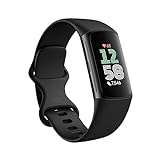
- Find your way seamlessly during runs or rides with turn-by-turn directions from Google Maps on Fitbit Charge 6[7, 8]; and when you need a snack break on the go, just tap to pay with Google Wallet[8, 9]
Because the tracker relies on patterns, anything that changes how you move can throw off its assumptions. New shoes, different walking surfaces, a desk job, or switching from outdoor runs to treadmill workouts all subtly alter the signals your Fitbit sees.
Over time, those small changes add up, and the original assumptions baked into your tracker no longer match reality. That mismatch is the root cause of accuracy drift.
Your body and wear habits change more than you realize
Fitbit accuracy depends heavily on how the device sits on your wrist. Strap tightness, wrist position, skin temperature, sweat, and even body hair can influence heart rate readings and movement detection.
Many users unknowingly change wear habits over time. A band stretches, the tracker slides closer to the hand, or you start wearing it looser for comfort during long days.
These shifts may feel minor, but optical heart rate sensors are sensitive to millimeter-level changes. When the sensor loses consistent skin contact, data quality drops and the algorithms compensate imperfectly.
GPS accuracy drifts due to environment, not just hardware
If your outdoor runs or walks look jagged or short, it’s rarely because the GPS chip is failing. GPS accuracy depends on satellite visibility, signal quality, and how long the tracker has to lock onto satellites before you move.
Urban areas, tree cover, weather, and even how often you sync your Fitbit can influence GPS performance. Firmware updates can also tweak how aggressively the device smooths routes or prioritizes battery life over precision.
When these conditions change and the tracker isn’t given time to adapt, distance and pace metrics begin to drift away from reality.
Calibration is behavioral, not mechanical
Unlike a traditional watch that can be regulated or adjusted internally, Fitbit calibration happens through use. The device learns from GPS walks, logged workouts, stride length settings, and consistent wear patterns.
When you calibrate a Fitbit, you’re essentially feeding it higher-quality reference data. Outdoor GPS walks help it understand your stride, while accurate personal stats like height and dominant hand refine its internal models.
This is why calibration isn’t instant and why resetting your device often doesn’t solve the problem. Real improvement comes from deliberate, repeatable actions that retrain the system.
Software updates can reset assumptions
Fitbit regularly updates its firmware and app algorithms to improve battery life, add features, or refine health metrics. While these updates are usually beneficial, they can temporarily disrupt accuracy.
An update may change how steps are filtered, how heart rate zones are calculated, or how GPS data is smoothed. When that happens, your tracker may need fresh calibration data to realign with your body and habits.
This is normal behavior for modern wearables and not a sign your device is aging poorly. It simply means recalibration is part of long-term ownership.
Accuracy is contextual, not absolute
No wrist-worn tracker is perfectly accurate in all situations. Fitbits are optimized for everyday wear, long battery life, comfort, and broad usability rather than laboratory-grade precision.
Understanding this helps set realistic expectations. Calibration won’t turn your tracker into medical equipment, but it can dramatically tighten consistency and reliability for daily steps, workouts, and heart rate trends.
With that foundation in place, the next sections walk through six specific ways to recalibrate your Fitbit so it works with your body and lifestyle instead of guessing around them.
Before You Start: Models Supported, App Settings to Check, and What Calibration Can & Can’t Fix
Before diving into hands-on calibration, it’s worth making sure your Fitbit model and app setup can actually take advantage of the adjustments you’re about to make. Most accuracy complaints come from small mismatches between hardware capability, software settings, and wear habits rather than a faulty device.
Think of this as clearing the runway. Once these basics are aligned, the six calibration methods that follow will work faster, stick longer, and produce more consistent results.
Fitbit models that benefit most from calibration
Nearly every modern Fitbit improves with calibration, but devices with built-in GPS see the biggest gains. This includes Charge 5 and Charge 6, Sense and Sense 2, Versa 3 and Versa 4, and Google Pixel Watch models that run Fitbit tracking.
Trackers without GPS, such as Inspire 2 and Inspire 3, still adapt stride length and step detection over time. They rely more heavily on motion patterns and user-entered data, which makes correct setup especially important.
Older models like Charge 3 or Versa 2 can still recalibrate, but expect slower learning and less dramatic improvement. Their sensors and algorithms are less advanced, and firmware updates may be limited or discontinued.
Fitbit app settings you should verify first
Open the Fitbit app and confirm your height, weight, age, and sex are accurate. Even small errors here affect stride length estimates, calorie burn, and heart rate zone calculations.
Next, check wrist placement and dominant hand settings. Wearing the tracker on your non-dominant wrist but leaving the app set to dominant can inflate step counts and distort activity intensity.
Finally, review your exercise shortcuts and GPS permissions. If outdoor walks or runs aren’t logged as GPS activities, the tracker loses its most valuable calibration reference.
Why GPS permissions and phone settings matter
For GPS-enabled Fitbits, calibration depends on clean location data. If your phone restricts background location access or battery optimization, GPS tracks can become choppy or incomplete.
Make sure the Fitbit app is allowed to run in the background and access location “all the time,” not just while open. This is especially important on Android phones with aggressive battery management.
Without reliable GPS traces, stride length learning slows down and pace smoothing becomes less accurate over time.
Battery level, firmware, and sync health
Calibration works best when your tracker isn’t constantly power constrained. Low battery states can reduce sensor sampling rates, which affects heart rate tracking and motion detection.
Check that your Fitbit is running the latest firmware and syncing regularly with the app. Missed syncs delay algorithm updates and can make improvements feel inconsistent.
If your device hasn’t synced in days, calibration data may be sitting on the tracker instead of being processed by Fitbit’s cloud models.
What calibration can realistically fix
Calibration can significantly improve step consistency, walking and running pace, distance estimates, and heart rate stability during steady workouts. Over time, it also refines calorie estimates and active zone minutes.
It helps the tracker learn how your arm swing, stride length, and workout habits differ from population averages. This is where everyday users see the biggest accuracy gains.
When done properly, calibration reduces drift rather than chasing perfect numbers.
What calibration cannot fix
Calibration cannot overcome poor sensor contact caused by loose bands, tattoos under the heart rate sensor, or extreme wrist angles. Optical heart rate sensors need stable skin contact to work reliably.
It also won’t fix inaccuracies during activities Fitbit isn’t designed for, such as weightlifting with bent wrists or high-impact sports with rapid arm motion. In those cases, the limitation is physics, not software.
Finally, calibration won’t turn a Fitbit into medical-grade equipment. It improves trends and repeatability, not clinical precision.
Why expectations matter before you begin
Understanding these limits prevents frustration later. Calibration is about aligning the tracker with your real-world movement, not forcing it to hit an exact number every time.
When expectations are realistic and settings are correct, the adjustments you’re about to make compound over days and weeks. That’s when Fitbits quietly become far more reliable companions for daily health tracking.
Rank #2

- Inspire 3 is the tracker that helps you find your energy, do what you love and feel your best. All you have to do is wear it.Operating temperature: 0° to 40°C
- Move more: Daily Readiness Score(1), Active Zone Minutes, all-day activity tracking and 24/7 heart rate, 20+ exercise modes, automatic exercise tracking and reminders to move
- Stress less: always-on wellness tracking, daily Stress Management Score, mindfulness sessions, relax breathing sessions, irregular heart rhythm notifications(2), SpO2(3), menstrual health tracking, resting heart rate and high/low heart rate notifications
- Sleep better: automatic sleep tracking, personalized Sleep Profile(1), daily detailed Sleep Score, smart wake vibrating alarm, sleep mode
- Comfortably connected day and night: calls, texts & smartphone app notifications(4), color touchscreen with customizable clock faces, super lightweight and water resistant to 50 meters, up to 10 day battery life(5)
Calibration Method 1: Reset and Refine Step Counting Through Wear Position and Dominant Hand Settings
The most effective place to start calibration is also the simplest: how and where you wear your Fitbit. Step counting sits at the foundation of distance, calorie burn, and activity minutes, so small setup errors here ripple outward into nearly every metric.
Fitbit’s motion algorithms assume very specific movement patterns based on wrist placement and hand dominance. If those assumptions don’t match your real-world wear habits, the tracker quietly misinterprets your arm swings from the very first day.
Why wear position affects step accuracy more than you think
Fitbits use a 3-axis accelerometer to detect rhythmic arm motion that matches walking or running patterns. The algorithm expects a consistent arc and timing that differs between left and right wrists.
If you wear the tracker on your non-dominant wrist but have it set as dominant (or vice versa), everyday actions like typing, cooking, or brushing your teeth can inflate step counts. The opposite problem also happens: undercounting during steady walks because the expected motion profile doesn’t line up.
This is why two people walking side by side with identical Fitbits can see noticeably different step totals by the end of the day.
Confirming and correcting your dominant hand setting
Open the Fitbit app and go to your device settings, then look for the option labeled Wrist or Wear Location. Make sure it reflects the wrist you actually use every day, not the one you intended to use when you first set it up.
If you switch wrists occasionally for comfort or skin irritation, accuracy will suffer unless you also change this setting. Fitbit does not automatically detect wrist changes.
As a rule of thumb, the non-dominant wrist produces cleaner step data for most people because it experiences fewer erratic movements unrelated to walking.
How band tightness and placement refine step detection
Step accuracy depends on stable sensor orientation. A band that’s too loose allows micro-rotations of the tracker body, which introduce noise into motion data.
Wear the Fitbit snug enough that it doesn’t slide up and down your wrist during normal arm swings, but not so tight that it restricts circulation. You should be able to fit one finger between the band and your skin.
Placement matters as well. The tracker should sit about one finger-width above the wrist bone, not directly on top of it, to reduce false motion spikes from joint flexing.
Resetting step calibration after correcting wear habits
Once wrist position and dominance settings are correct, give the algorithm a clean slate. You don’t need a factory reset, but you do need consistent input.
For the next three to five days, wear your Fitbit all day on the same wrist with the same tightness. Avoid switching wrists, and try to keep wear time consistent from morning through evening.
During this period, the tracker relearns your baseline arm swing cadence, stride rhythm, and daily movement patterns. This gradual recalibration is far more effective than any manual reset option.
What to expect in the first few days
It’s normal for step counts to look slightly lower or higher than usual during the adjustment window. This isn’t a loss of accuracy; it’s the algorithm shedding old assumptions and rebuilding new ones.
Pay attention to consistency rather than daily totals. If your step count aligns more closely with known walks or errands by day three or four, calibration is working.
Once stabilized, this improved step accuracy feeds into better distance estimates, more reliable calorie calculations, and cleaner activity recognition across the entire Fitbit experience.
Special considerations for smaller wrists and lightweight trackers
Slimmer devices like the Inspire series or Luxe are more sensitive to loose fit because of their lighter mass. On smaller wrists, even minor band slack can exaggerate motion signals.
If you’re between band holes, choose the tighter option or switch to a fabric or sport band that offers micro-adjustments. Comfort remains important, but stability directly improves data quality.
A well-fitted tracker doesn’t just feel better over long wear periods. It quietly delivers more believable numbers without you having to think about calibration again.
Calibration Method 2: Improve GPS Accuracy with Outdoor Walk/Run Calibration and Signal Best Practices
Once step accuracy is dialed in, the next place Fitbit data can quietly drift is GPS. Distance, pace, route maps, elevation trends, and even calorie burn all depend on how clean that satellite signal is during outdoor activities.
Fitbit doesn’t offer a manual GPS calibration button, but the system constantly self-corrects based on how and where you use it. The trick is giving the GPS chip high-quality outdoor data so it can refine timing, positioning, and motion matching over time.
Why GPS accuracy degrades over time
GPS accuracy issues usually aren’t hardware failures. They’re the result of inconsistent signal conditions, rushed workout starts, or environments that confuse satellite reception.
Urban buildings, tree cover, hills, and even how quickly you leave the house can all cause the tracker to lock onto a weak or partial signal. Once that happens, the entire activity can end up slightly short, slightly long, or oddly shaped on the map.
Because Fitbit combines GPS data with motion sensors and step cadence, poor GPS input doesn’t just affect distance. It can skew pace charts, split times, and post-workout effort scores.
Use outdoor walk or run modes to retrain GPS accuracy
The most effective way to improve Fitbit GPS accuracy is to regularly record outdoor walks or runs using the dedicated GPS-enabled exercise modes. These modes tell the algorithm to prioritize satellite data and cross-check it against your stride and arm swing.
Choose Outdoor Walk or Outdoor Run rather than generic exercise tracking. This ensures full GPS sampling instead of partial or connected GPS behavior, which relies more heavily on your phone.
Aim for at least three to five outdoor sessions over a week, ideally lasting 20 minutes or longer. Short routes don’t give the system enough data to correct drift patterns.
Wait for a solid GPS lock before moving
One of the most common GPS mistakes happens in the first 30 seconds. Starting to walk or run before the GPS lock stabilizes can throw off the entire route.
After selecting your outdoor activity, stand still with a clear view of the sky until the GPS indicator confirms readiness. On most Fitbits, this takes 10 to 45 seconds depending on surroundings.
That brief pause allows the tracker to lock onto multiple satellites and synchronize timing. Skipping it often results in zigzag maps, clipped starts, or distances that come up short.
Choose calibration-friendly routes
Not all outdoor routes are equal when it comes to GPS training. Open areas with wide skies produce the cleanest data, especially during recalibration periods.
Parks, riverside paths, open suburbs, and coastal routes are ideal. Try to avoid dense city centers, heavy tree cover, tunnels, or narrow streets lined with tall buildings during calibration sessions.
You don’t need to change your regular routine forever. Think of these sessions as training wheels for the GPS system so it performs better everywhere else later.
Maintain consistent pace and natural arm swing
GPS accuracy improves when motion data is predictable. Sudden stops, erratic pacing, or frequent phone checks can confuse how the tracker matches movement to satellite position.
Walk or run at a steady, comfortable pace during calibration workouts. Let your arms swing naturally and avoid holding onto objects or pushing strollers if possible.
This consistency helps Fitbit align stride length, cadence, and positional changes into a cleaner distance model, which improves pace accuracy in future workouts.
Wear placement matters more for GPS than most people realize
Just like step tracking, GPS accuracy benefits from stable wear. A loose tracker can introduce micro-movements that interfere with how motion data supports satellite tracking.
Wear your Fitbit snugly, about one finger-width above the wrist bone, especially during outdoor activities. This reduces vibration and improves sensor fusion between GPS and accelerometers.
Rank #3

- 【BUILT-IN GPS SMART WATCH – GO FURTHER, FREER, SMARTER】No phone? No problem. This fitness watch for women, featuring the latest 2025 technology, includes an advanced professional-grade GPS chip that precisely tracks every route, distance, pace (real-time & average), and calorie burned—completely phone-free. Whether you're chasing new personal records or exploring off the beaten path, your full journey is automatically mapped and synced in the app. Train smarter. Move with purpose. Own your progress. Own your journey.
- 【BLUETOOTH 5.3 CALLS & SMART NOTIFICATIONS】Stay effortlessly connected with this smart watch for men and women, featuring dual Bluetooth modes (BT 3.0 + BLE 5.3) and a premium microphone for crystal-clear calls right from your wrist—perfect for driving, workouts, or busy days. Receive instant alerts for calls, texts, and popular social apps like WhatsApp and Facebook. Just raise your wrist to view notifications and never miss an important moment.
- 【100+ SPORT MODES & IP68 WATERPROOF & DUSTPROOF】This sport watch is a versatile activity and fitness tracker with 100+ modes including running, cycling, yoga, and more. It features quick-access buttons and automatic running/cycling detection to start workouts instantly. Accurately track heart rate, calories, distance, pace, and more. Set daily goals on your fitness tracker watch and stay motivated with achievement badges. With IP68 waterproof and dustproof rating, it resists rain and sweat for any challenge. Not suitable for showering, swimming, or sauna.
- 【24/7 HEALTH ASSISTANT & SMART REMINDERS】This health watch continuously monitors heart rate, blood oxygen, and stress levels for comprehensive wellness tracking. Sleep monitoring includes deep, light, REM sleep, and naps to give you a full picture of your rest. Stay on track with smart reminders for sedentary breaks, hydration, medication, and hand washing. Women can also monitor menstrual health. Includes guided breathing exercises to help you relax. Your ultimate health watch with event reminders for a healthier life.
- 【ULTRA HD DISPLAY, LIGHTWEIGHT & CUSTOMIZABLE DIALS】This stylish wrist watch features a 1.27-inch (32mm) 360×360 ultra HD color display with a 1.69-inch (43mm) dial, offering vivid details and responsive touch. Its minimalist design fits both business and casual looks. Switch freely among built-in designer dials or create your own DIY watch face using photos, colors, and styles to showcase your unique personality. Perfect as a cool digital watch and fashion wrist watch.
Lightweight models like Inspire, Luxe, and Charge benefit the most from a secure fit, while heavier Sense and Versa models still gain consistency from proper placement.
Understand phone GPS vs onboard GPS behavior
Some Fitbit models use onboard GPS, while others rely on connected GPS through your phone. Both can be accurate, but they behave differently.
With connected GPS, keep your phone on you and avoid aggressive battery-saving modes that limit background location access. Poor phone signal management can cause dropouts even if the tracker is worn correctly.
Onboard GPS models benefit from firmware updates and clear sky exposure, but they also consume more battery. Expect faster drain during calibration sessions, which is normal and temporary.
Repeat calibration after software updates or long breaks
Major firmware updates, long periods without outdoor activity, or switching wrists can all subtly reset GPS behavior. If routes suddenly look off, it’s time for a quick recalibration cycle.
Return to outdoor walk or run modes for a few sessions using the best practices above. You’ll usually see route maps clean up within two to three activities.
This isn’t something you need to do often. Once stabilized, Fitbit GPS tends to stay accurate as long as usage remains consistent.
What improved GPS accuracy looks like in daily use
When calibration is working, route maps follow paths cleanly without jagged edges or sudden shortcuts. Distances line up closely with known routes and mile or kilometer markers.
Pace charts feel smoother, with fewer unexplained spikes or drops. Split times become more reliable, especially for steady-state walks and runs.
Perhaps most importantly, improved GPS accuracy feeds back into better calorie estimates, more believable cardio scores, and workout summaries that actually match how the session felt on your body.
Calibration Method 3: Tune Heart Rate Accuracy Through Strap Fit, Skin Contact, and Workout-Specific Modes
Once GPS and motion tracking are behaving, heart rate becomes the next piece of the accuracy puzzle. Fitbit’s optical heart rate system relies on stable contact and clean signal interpretation, so small wear habits can have an outsized impact on your data.
If your heart rate graph looks jumpy, flat, or clearly out of sync with effort, it’s rarely a faulty sensor. Most issues come down to fit, placement, and using the wrong workout mode for the activity you’re doing.
Start with strap fit: snug, not tight
Heart rate accuracy lives or dies by how well the sensor stays in contact with your skin. The tracker should feel secure enough that it doesn’t slide when you move, but never tight enough to leave deep marks or restrict circulation.
As a rule, you should be able to fit one finger between your wrist and the band. Too loose causes light leakage and signal dropouts, while too tight can reduce blood flow and confuse the sensor.
For workouts, tighten the band one notch compared to all-day wear. After you cool down, loosen it again to maintain comfort and avoid irritation.
Dial in placement on your wrist
Fitbit trackers work best when worn slightly higher than most people expect. Position the device about one finger-width above your wrist bone, not directly on top of it.
This area has more consistent blood flow and less joint movement, which improves signal stability. During activities like running or strength training, this alone can dramatically reduce heart rate spikes or drops.
If you switch wrists occasionally, expect a short adjustment period. Dominant wrists often produce noisier data due to extra movement.
Optimize skin contact and sensor conditions
Clean, dry skin matters more than most users realize. Sweat, sunscreen, lotion, or dirt can interfere with the green LED light used for optical heart rate tracking.
Before workouts, quickly wipe both your wrist and the sensor underside. This takes seconds and often improves readings immediately, especially in hot or humid conditions.
If you have tattoos under the sensor area, accuracy may suffer. In that case, try wearing the tracker on the opposite wrist or slightly higher up the arm where skin tone is more uniform.
Use the correct workout mode every time
Workout modes aren’t just labels; they change how Fitbit samples and filters heart rate data. Using the wrong mode can make your heart rate look delayed or artificially smooth.
For steady activities like walking, running, or cycling, always start the dedicated mode instead of relying on SmartTrack. This increases sampling frequency and improves responsiveness.
For interval training, HIIT, or bootcamp-style workouts, choose a mode that expects rapid intensity changes. Generic “Workout” or “Circuit Training” modes tend to handle heart rate spikes better than run or walk modes in these cases.
Allow a short warm-up for sensor stabilization
Optical heart rate sensors often need a few minutes to fully lock onto a clean signal. Early flat lines or low readings at the start of workouts are common and usually resolve on their own.
A brief warm-up helps by increasing blood flow near the skin surface. Even two to three minutes of light movement can stabilize readings faster.
This is especially noticeable in cold weather, where vasoconstriction can delay accurate heart rate detection.
Understand model differences and real-world limits
Lighter trackers like Inspire and Luxe benefit the most from careful fit because they move more easily on the wrist. Heavier models like Versa and Sense tend to stay in place better but still require proper positioning for best results.
Battery level also plays a role. Extremely low battery can reduce sensor performance, so avoid starting workouts below 10 percent if accuracy matters.
Finally, remember that optical heart rate is estimating from the wrist, not reading electrical signals from the chest. With good calibration habits, Fitbit heart rate tracking is very reliable for trends, zones, and effort consistency, even if it doesn’t match medical-grade equipment beat for beat.
Calibration Method 4: Correct Stride Length Automatically and Manually for More Accurate Distance
Once heart rate is behaving as expected, distance accuracy is usually the next thing people notice drifting. If your Fitbit says you walked farther than expected, or treadmill runs never quite match the console, stride length calibration is often the missing piece.
Fitbit estimates distance primarily from step count multiplied by stride length. If that stride length is even slightly off, small errors add up quickly over a long walk, run, or full day of activity.
How Fitbit calculates stride length by default
Out of the box, Fitbit assigns a stride length based on your height, gender, and basic walking patterns. This works reasonably well for average-paced walking but struggles with shorter steps, fast walking, or people whose gait doesn’t match statistical norms.
Over time, Fitbit can automatically refine stride length using GPS-tracked activities. The problem is that this only happens if you regularly record outdoor walks or runs with GPS enabled and good signal quality.
If you mostly walk indoors, use treadmills, or rely on SmartTrack without GPS, automatic calibration may never fully dial in.
Let Fitbit auto-calibrate using GPS (the easiest method)
The most reliable way to improve stride accuracy is to record several outdoor walks or runs using the built-in GPS. Choose a flat route with a clear sky view and walk or run at your natural pace for at least 10 to 15 minutes.
Avoid stopping frequently or weaving through buildings, since GPS noise can confuse the calibration process. Consistency matters more than speed here.
After a few GPS activities, Fitbit quietly updates your stride length in the background. You won’t get a notification, but distance estimates for non-GPS activities usually improve afterward.
Manually set your stride length for maximum control
If your distances are still off, or you want immediate correction, manual stride length entry is the fastest fix. This is especially useful for treadmill users where GPS can’t help.
Rank #4

- 24H Accurate Heart Rate Monitoring: Go beyond basic tracking. Our watch automatically monitors your heart rate, blood oxygen (SpO2), and sleep patterns throughout the day and night. Gain deep insights into your body's trends and make informed decisions for a healthier lifestyle.
- Practical Sports Modes & Smart Activity Tracking: From running and swimming to yoga and hiking, track a wide range of activities with precision. It automatically records your steps, distance, calories burned, and duration, helping you analyze your performance and crush your fitness goals.
- 1-Week Battery Life & All-Day Wear: Say goodbye to daily charging. With an incredible up to 7-10 days of battery life on a single charge, you can wear it day and night for uninterrupted sleep tracking and worry-free travel. Stay connected to your data without the hassle.
- Comfortable to Wear & IP68 Waterproof: The lightweight, skin-friendly band is crafted for all-day comfort, even while you sleep. With IP68 waterproof, it withstands rain, sweat, It is not suitable for swimming or showering.
- Ease of Use and Personalized Insights via Powerful App: The display is bright and easy to read, even outdoors. Unlock the full potential of your watch. Sync with our dedicated app to view detailed health reports, customize watch faces, set sedentary reminders, and manage your preferences with ease.
In the Fitbit app, go to your profile, open your personal settings, and look for stride length under height or advanced settings. Some newer app versions hide this under “Exercise Settings,” so you may need to dig slightly depending on your device and region.
You can set walking and running stride lengths separately. This matters because most people naturally lengthen their stride when running, and using a single value for both will skew results.
How to measure your stride length accurately
For walking, measure a known distance like 20 or 30 steps on a track, sidewalk, or hallway. Divide the total distance by the number of steps to get your average stride length.
For running, repeat the same process at a comfortable running pace. Don’t sprint, and don’t shorten your stride just to hit a number.
Enter these values into the app and give it a few days of normal use before judging the results. Small adjustments of one or two centimeters can make a noticeable difference over long distances.
Treadmill-specific tips for better indoor accuracy
Treadmill distance is where stride calibration matters most, because Fitbit has no external reference to check itself against. Belt speed variations, handrail use, and changes in incline all affect your natural stride.
Try to avoid holding the treadmill rails, as this shortens arm swing and can reduce detected step length. Keep your watch arm moving naturally, even at slower speeds.
If your treadmill consistently reports longer distances than Fitbit, slightly increasing your manually entered stride length often brings them closer together. Aim for consistency rather than perfect matching, since treadmill displays aren’t always perfectly calibrated either.
Why stride length can change over time
Stride length isn’t fixed forever. Weight changes, improved fitness, injury recovery, and even different shoes can subtly alter how you move.
Seasonal changes matter too. Cold weather often shortens stride, while lighter summer footwear can lengthen it.
Revisiting stride length every few months, or after a major change in routine, keeps distance tracking aligned with how you actually move day to day.
Calibration Method 5: Recalibrate Workout Tracking Using Exercise Modes, Warm‑Ups, and Post‑Workout Syncing
Once stride length is dialed in, the next accuracy drift usually comes from how workouts are started, recorded, and finalized. Fitbit doesn’t just track movement continuously; it switches algorithms when you enter an exercise mode, and those modes learn from how consistently you use them.
If workouts feel hit‑or‑miss even with good stride data, recalibrating how you start and end activities often brings the biggest real‑world improvement.
Why exercise modes matter more than most people realize
When you manually start a workout, Fitbit shifts into a higher‑resolution tracking state. Heart rate sampling increases, motion data is weighted differently, and GPS (on supported models) locks in more aggressively.
If you rely only on auto‑detected workouts, Fitbit has to guess when the activity began and what type it is. That uncertainty can skew pace, calorie burn, heart‑rate zones, and even step counts during the session.
Using the correct exercise mode consistently teaches Fitbit how your body moves during that specific activity, which improves future tracking accuracy.
Always choose the closest matching exercise type
Fitbit’s exercise list isn’t cosmetic. Walk, Run, Treadmill, Elliptical, HIIT, and Weights all apply different assumptions about arm movement, cadence, and energy output.
For example, using “Workout” instead of “Weights” can inflate calorie estimates because Fitbit expects continuous motion rather than stop‑start sets. Logging an outdoor run as a walk can soften pace data and undercount intensity minutes.
If your activity isn’t listed, choose the closest movement pattern rather than a generic option. Consistency matters more than perfection.
Use a short warm‑up before starting the workout
One of the simplest calibration tricks is also one of the most overlooked. Before tapping “Start,” give your Fitbit two to five minutes of easy movement.
This allows heart rate sensors to stabilize, skin temperature to normalize, and GPS (if used) to lock cleanly. Starting a workout cold often leads to early heart‑rate spikes, delayed GPS tracks, or inaccurate initial pace.
For outdoor runs and walks, waiting until GPS shows a solid signal before starting improves distance accuracy over the entire route.
Pause instead of ending when you stop briefly
Stopping at traffic lights, water fountains, or between treadmill intervals can confuse workout summaries if you end and restart sessions repeatedly. Fitbit treats each workout as a separate data set, which reduces its ability to smooth trends.
Using the pause function keeps the activity continuous while excluding idle time from pace and calorie calculations. This results in cleaner averages and more believable effort scores.
Over time, Fitbit also learns your typical movement patterns better when workouts aren’t fragmented.
Let workouts sync fully before editing or starting another session
After finishing a workout, give your tracker a moment to sync before editing details or launching a new activity. This is especially important on devices with onboard GPS and smaller batteries.
Interrupting sync can cause partial uploads, missing heart‑rate segments, or mismatched distances between the watch and app. Battery level matters here too; low battery can delay or truncate workout processing.
If you stack multiple workouts back‑to‑back, a quick manual sync between sessions helps maintain data integrity.
Review post‑workout metrics instead of deleting “bad” sessions
It’s tempting to delete workouts that look wrong, but doing so removes valuable learning data. Fitbit refines its models based on completed sessions, even imperfect ones.
Instead of deleting, check where the issue occurred. Was heart rate slow to rise at the start? Did pace drift after a pause? Patterns like these point to warm‑up timing, fit issues, or mode selection rather than sensor failure.
Only delete workouts with clear errors, like accidental recordings or obvious GPS glitches.
Be consistent with which wrist and strap you use for workouts
Workout calibration is influenced by how the tracker sits on your arm. Switching wrists or changing from a loose silicone band to a rigid metal bracelet alters sensor contact and motion detection.
For workouts, wear the tracker slightly higher on the wrist than for daily use and snug enough that it doesn’t slide. Comfort matters, but stability matters more for heart‑rate accuracy during movement.
If you alternate straps for style or comfort, try to keep one dedicated setup for workouts to maintain consistency.
When this method makes the biggest difference
This recalibration approach is most noticeable if your heart‑rate zones feel off, calorie burn seems inflated or deflated, or pace data varies wildly between similar workouts. It’s also critical for interval training, treadmill sessions, and mixed‑intensity classes.
You’re not resetting the device in a technical sense; you’re retraining it through cleaner inputs. Over a few weeks of consistent use, Fitbit’s workout tracking becomes noticeably more stable and believable.
Done alongside stride calibration, this method helps Fitbit reflect how you actually train, not just how you move on paper.
Calibration Method 6: Optimize Daily Wear Habits, Charging Cycles, and Firmware Updates for Long‑Term Accuracy
By this point, you’ve handled the obvious calibration levers: stride length, GPS behavior, workout consistency, and sensor fit during exercise. What often gets overlooked is that Fitbit accuracy also drifts slowly over time, shaped by how you wear the device day to day, how you charge it, and whether its software stays current.
Think of this method as preventative maintenance. You’re not fixing a single bad run or workout, but creating conditions that keep sensors, algorithms, and battery performance stable month after month.
💰 Best Value

- 【Superb Visual Experience & Effortless Operation】Diving into the latest 1.58'' ultra high resolution display technology, every interaction on the fitness watch is a visual delight with vibrant colors and crisp clarity. Its always on display clock makes the time conveniently visible. Experience convenience like never before with the intuitive full touch controls and the side button, switch between apps, and customize settings with seamless precision.
- 【Comprehensive 24/7 Health Monitoring】The fitness watches for women and men packs 24/7 heart rate, 24/7 blood pressure and blood oxygen monitors. You could check those real-time health metrics anytime, anywhere on your wrist and view the data record in the App. The heart rate monitor watch also tracks different sleep stages for light and deep sleep,and the time when you wake up, helps you to get a better understanding of your sleep quality.
- 【120+ exercise modes & All-Day Activity Tracking】There are more than 120 exercise modes available in the activity trackers and smartwatches, covering almost all daily sports activities you can imagine, gives you new ways to train and advanced metrics for more information about your workout performance. The all-day activity tracking feature monitors your steps, distance, and calories burned all the day, so you can see how much progress you've made towards your fitness goals.
- 【Messages & Incoming Calls Notification】With this smart watch fitness trackers for iPhone and android phones, you can receive notifications for incoming calls and read messages directly from your wrist without taking out your phone. Never miss a beat, stay in touch with loved ones, and stay informed of important updates wherever you are.
- 【Essential Assistant for Daily Life】The fitness watches for women and men provide you with more features including drinking water and sedentary reminder, women's menstrual period reminder, breath training, real-time weather display, remote camera shooting, music control,timer, stopwatch, finding phone, alarm clock, making it a considerate life assistant. With the GPS connectivity, you could get a map of your workout route in the app for outdoor activity by connecting to your phone GPS.
Wear consistency matters even outside workouts
Fitbit doesn’t stop learning when you’re not exercising. Your daily steps, idle time, and casual movement feed the same motion models that underpin workout accuracy.
If you constantly switch wrists, wear the tracker loosely some days and tightly others, or slide it up and down your forearm, the accelerometer and optical heart‑rate sensor receive inconsistent signals. Over time, that inconsistency can subtly skew step detection and resting heart‑rate baselines.
For everyday wear, aim for a repeatable position: just below the wrist bone, snug enough to maintain contact without pressure marks. Comfort and consistency beat tightness here, especially for all‑day tracking.
Choose straps with sensor stability in mind
Strap choice isn’t just about style. Soft silicone and woven bands tend to maintain even pressure across the sensor window, while rigid metal bracelets or heavy leather straps can introduce micro‑movement with each arm swing.
That movement matters for optical heart‑rate readings and step detection, particularly during low‑intensity activity like walking or household movement. This is where many users notice inflated or inconsistent step counts.
If you love swapping bands, do it intentionally. Keep one strap that you rely on for most days, and save heavier or looser bands for short periods rather than all‑day wear.
Don’t let the battery live at the extremes
Battery health has a direct but often invisible effect on tracking accuracy. As lithium batteries age or regularly drop to very low charge, power delivery becomes less stable.
When power fluctuates, sensor sampling rates can change, background processing may delay, and GPS locks can take longer to stabilize. You might never see an error message, but your data quality quietly suffers.
Try to keep your Fitbit between roughly 20 and 80 percent charge most of the time. Frequent top‑ups are healthier than letting it drain completely every few days.
Charge strategically, not randomly
Where charging fits into your routine also matters. Charging overnight may be convenient, but it removes sleep data and heart‑rate baselines that Fitbit uses to refine daily metrics.
A better approach is short charging windows during low‑value tracking periods, such as while showering, during desk work, or while watching TV. Many Fitbit models can gain a full day of battery life in under 30 minutes.
This habit keeps your tracker powered without sacrificing the data that helps long‑term accuracy settle and stabilize.
Keep firmware updated, but don’t rush resets
Firmware updates aren’t just about new features. Fitbit regularly adjusts sensor algorithms, GPS filtering, and heart‑rate smoothing to improve accuracy across different body types and activities.
Delaying updates can leave you stuck with older models that misinterpret motion or struggle with newer phone operating systems. On the flip side, repeatedly factory‑resetting your device wipes learned behavior and forces the system to start cold again.
Update when prompted, allow a few days of normal use afterward, and only reset as a last resort if you’re troubleshooting a specific, persistent issue.
Watch for slow accuracy drift, not sudden failure
Most accuracy problems don’t appear overnight. They show up as small changes: resting heart rate creeping higher, step counts drifting from expectations, or GPS tracks looking slightly less clean than before.
When you notice these patterns, check wear habits, strap condition, battery behavior, and update status before assuming the sensors are failing. In many cases, restoring consistency fixes the issue without touching advanced settings.
This method is especially valuable for long‑term Fitbit owners. It’s how you keep a two‑year‑old tracker performing like a newer one, without replacing hardware or chasing one‑off calibration tricks.
How Accurate Can a Fitbit Really Be? Real‑World Expectations, Benchmarks, and When to Troubleshoot Further
After calibrating stride length, tightening wear habits, updating firmware, and charging more intentionally, it’s reasonable to ask a bigger question: what does “accurate” actually look like for a Fitbit in everyday use?
This is where expectations matter. Fitbits are designed to be consistent, not clinical, and understanding their real‑world accuracy range helps you know when your tracker is behaving normally and when something is genuinely off.
Step count accuracy: close enough for daily goals
In controlled tests and long‑term personal use, most modern Fitbits land within about 3 to 8 percent of manual step counts during normal walking. That margin widens slightly with short, shuffling steps or lots of arm‑free movement like pushing a stroller or shopping cart.
What matters more than perfect numbers is consistency. If your Fitbit reliably tracks trends day to day, your step goals, calorie burn estimates, and activity streaks remain meaningful even if the absolute count isn’t exact to the step.
If you’re seeing swings of thousands of steps without changes in routine, that’s a signal to revisit wrist placement, dominant‑hand settings, or stride calibration rather than assuming the sensor is failing.
GPS accuracy: strong outdoors, variable by environment
Fitbit GPS performance is generally solid for consumer wearables, especially on newer Sense, Versa, and Charge models. In open areas, distance accuracy typically falls within 1 to 3 percent of known routes, which is more than adequate for pacing and mileage tracking.
Where GPS struggles is predictable: dense trees, tall buildings, tunnels, or starting an activity before the signal fully locks. Those factors can create jagged routes or slightly short distances, even when everything else is set up correctly.
If your GPS tracks are consistently off by large margins in open environments, that’s when syncing issues, phone permissions, or a lingering firmware bug may be worth investigating.
Heart rate accuracy: best at rest, weaker at intensity peaks
Fitbit’s optical heart‑rate sensors perform very well for resting heart rate, sleep tracking, and steady‑state cardio. For most users, resting values are typically within a few beats per minute of chest‑strap readings over time.
During high‑intensity intervals, rapid pace changes, or strength training, accuracy can dip. Wrist movement, muscle tension, and sweat all interfere with optical readings, which is normal for this type of sensor.
If your heart‑rate graph looks smooth at rest but erratic only during intense workouts, that’s expected behavior, not a calibration failure.
Calories, workouts, and why precision isn’t the point
Calorie burn estimates combine heart rate, movement, body metrics, and historical data. Even when all inputs are dialed in, these numbers are approximations rather than exact measurements.
The value lies in comparison, not absolutes. If similar workouts show similar calorie ranges and effort levels, your Fitbit is doing its job, even if the number doesn’t match a treadmill display or gym machine.
Large inconsistencies between identical workouts are a stronger reason to troubleshoot than a single “high” or “low” calorie figure.
When accuracy drift is normal and when it’s not
Small changes over months are normal as your fitness level, gait, and daily habits evolve. A slightly lower resting heart rate, longer stride length, or improved pacing can all shift how data looks without indicating a problem.
What’s less normal is abrupt change. Sudden drops in recorded distance, wildly inflated step counts, or heart‑rate readings that clearly don’t match perceived effort usually point to wear issues, loose straps, depleted batteries, or corrupted sync data.
Before resetting or replacing anything, work through the calibration steps covered earlier. Most accuracy problems resolve with consistency rather than drastic fixes.
The realistic accuracy goal for everyday Fitbit users
A well‑set‑up Fitbit should deliver repeatable, trustworthy trends across steps, distance, heart rate, and workouts. It won’t match medical equipment or elite sports tools, but it doesn’t need to in order to be useful.
When your tracker reflects how your body feels, how hard you worked, and how your habits change over time, it’s accurate where it counts. That’s the level of performance these devices are built for, and with the right calibration habits, it’s achievable for most users.
If you’ve applied the six calibration methods in this guide and your data now feels stable and believable, you’ve already reached the sweet spot. At that point, the best upgrade isn’t new hardware, it’s simply using the data with confidence.