The Tool Desk
Outbyte PC Repair FREEClear out junk files and repair common Windows errorsFree Scan →Outbyte Driver Updater FREEFix the driver behind crashes, sound loss and screen glitchesFind Drivers →Some links on this page are affiliate links: if you buy through them we may earn a commission, at no extra cost to you.
A blinking red light on a Samsung Galaxy Buds case does not have one universal meaning. Depending on your Buds model, the LED’s location, and whether the case is charging, it can indicate a very low case battery, a charging interruption, abnormal temperature, or an earbud charging or synchronization problem.
First identify which light is flashing: the LED outside the case usually reports the case, while the LED inside generally reports the earbuds. Then note whether the lid is open or closed, whether the case is plugged in, and whether the flashing is rapid or slow.
Quick diagnosis: what the red flashing usually means
Samsung’s LED behavior varies between Galaxy Buds generations and regional support documents, so treat this table as a starting point rather than a universal code.
Recommended Free Tools
| What you see | Most likely meaning | First action |
|---|---|---|
| Outside LED flashes after you close the case | Very low case battery; on Buds3 and Buds3 Pro, Samsung identifies this as below 10% | Connect the case to wired power |
| LED flashes rapidly while charging | Charging error or abnormal temperature | Disconnect power and let the case cool |
| LED flashes slowly | Low battery in some older or regional Samsung guidance | Charge the case and check its battery level |
| LED flashes after you disconnect the cable | External charging power may have been interrupted | Reconnect the charger and inspect the cable |
| Inside LED flashes red | One or both earbuds may not be charging; on compatible models, the earbuds may also be out of sync | Clean and reseat both earbuds |
Samsung’s general indicator-light guidance and Buds3/Buds3 Pro documentation do not describe every model in exactly the same way. Flashing speed is therefore a useful clue, not a definitive diagnosis.
#1 Best Overall
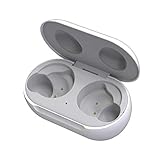
- ▶Compatibility: This wireless charging case compatible with Galaxy Buds (SM-R170), Galaxy Buds Plus (SM-R175)【Not for Galaxy Buds 3/Buds 2/Buds Pro/Buds Live】
- ▶430mAh Capacity: The galaxy buds charging case build-in 430mAh capacity which could full charge earbuds about 3 times. You can carry it very convenience and charge headphone at home, in office, in car or on travel.
- ▶2-Way Input with Safe Protection: The charging case supports wireless charging (5W) and wired Type-C Input (5V/500mah). And with overcharge/overcurrent/discharge protection, protecting your earubds in all directions.
- ▶LED Function: The indicator let you know the earbuds charging status (Red light-earbuds in charging; Green light-earbuds full charge). Charging case indicator let know the charging case status (During charging: Red-charging case in charging; Green-charging case full charge). As the battery percentage of the charging case will not be displayed on phone, you can get it from the outside Led status (Flashing Red: 0~30%; Yellow: 30~80%; Green: 80~100%)
- ▶Package Includes: 1 x for Galaxy Buds/Buds+ charging case, 1 x usb c charging cable, 1 x manual, and with sincerely after-sales services. If you have any question, please contact us online.
Outside case light or inside case light?
The LED on the outside or front of the case generally shows the charging case’s status. The LED inside the case generally shows whether the earbuds are charging.
This distinction matters. A flashing outside light after the lid closes may simply mean the case battery is very low. A flashing inside light is more likely to involve an earbud that is dirty, incorrectly seated, too hot, or unable to make contact with its charging terminals.
On some compatible Galaxy Buds models, a flashing earbud indicator can also mean that the two earbuds have lost synchronization. Samsung discusses this separately from ordinary case-battery warnings in its earbud synchronization instructions.
What’s actually slowing this PC down?
Pick the symptom - the matching free tool is one click away.
Rank #2

- Compatibility: This charging case compatible with Samsung Galaxy Buds Live SM-R180 (wireless bluetooth earbuds is not included). 【NOT Compatible with Galaxy Buds / Galaxy Buds+ / Galaxy Buds Pro / Galaxy Buds 2 / Galaxy Buds 2 Pro】
- Large Capacity: The charging case build--in a 600mAh capacity battery, it can full charge Galaxy Buds Live about 3 times. Very convenience to charge at home, in office, in car or on travel.
- Wired Charging & Safe Protection: The charging case is not support wireless charging, it only capable of USB Type C wired charging. with over-charge/over-current/discharge protection, protecting your earbuds in all directions.
- LED Function Let You Know: The earbuds indicator let you know the earbuds charging status (Red-earbuds in charging; Light off-earbuds full charge). Charging case indicator let know the charging case status (During charging: Red-charging case in charging; Green-charging case full charge). As the battery percentage of the charging case will not be displayed on phone, you can get it from the outside Led status (Red: 0~30%; Orange: 30~60%; Green: 60~100%).
- Package Includes: 1 x charging case for Galaxy Buds Live, 1 x USB-C cable. and with sincerely after-sales services. If you have any question, please contact us online.
How to fix a blinking red Galaxy Buds case light
- Check for excessive heat. If the case or earbuds feel unusually hot, remove the case from power. Let everything return to normal room temperature before charging again. Do not charge in direct sunlight, inside a hot vehicle, or beside another heat source.
- Use wired charging first. Connect the case with a known-good USB cable and a Samsung-approved or otherwise compatible charging adapter. Wired charging removes wireless-pad alignment and case-cover interference from the diagnosis.
- Wait at least 10–15 minutes. Samsung’s general troubleshooting guidance says to charge for at least 10 minutes when the indicators behave abnormally. Waiting 15 minutes is a cautious recovery attempt, especially if the case or earbuds were completely discharged.
- Check the cable, adapter, and port. Try another cable and wall adapter. Look for debris or damage in the USB port, and make sure the cable and port are completely dry.
- Inspect and clean the earbud contacts. Remove both earbuds and check their metal charging contacts and the matching contacts in the case. Sweat, moisture, dust, earwax, or debris can prevent a reliable connection. Use an appropriate dry, soft cleaning method; do not place wet earbuds or a wet cable in the case.
- Reseat both earbuds. Put each bud into its matching left or right slot. Confirm that it sits fully down and that an ear tip or wingtip is not preventing contact. Close and reopen the lid to see whether the LED behavior changes.
- Check battery readings. Open the Galaxy Wearable app and confirm whether the case and both earbuds appear and whether their battery levels increase. If one bud remains at the same level while the other charges, the problem is probably localized to that bud, its contacts, or its slot.
For Buds3 and Buds3 Pro, Samsung warns against using alcohol, acetone, solvents, or other chemical substances on the earbuds or case. Samsung also warns that moisture on charging terminals can cause corrosion. See its charging and indicator guidance and charging precautions.
If the case itself will not charge
A flashing red LED does not prove that the case battery has failed. Rule out the charging equipment and setup first:
- Try a different known-good USB cable and wall adapter.
- Inspect the charging port for lint, moisture, corrosion, or physical damage.
- If using a wireless pad, center the case on the pad.
- Remove a protective case cover that may interfere with wireless charging.
- Try wired charging even if wireless charging normally works.
- Confirm that the charging adapter or pad is actually supplying power.
Samsung recommends checking the cable, adapter, case position, contacts, and physical condition before seeking service. Its earbuds charging troubleshooting guide is the appropriate model-specific next step.
Rank #3

- ▶Compatibility: This wireless charging case compatible with Galaxy Buds (SM-R170), Galaxy Buds Plus (SM-R175)【Not for Galaxy Buds 3/Buds 2/Buds Pro/Buds Live】
- ▶430mAh Capacity: The galaxy buds charging case build-in 430mAh capacity which could full charge earbuds about 3 times. You can carry it very convenience and charge headphone at home, in office, in car or on travel.
- ▶2-Way Input with Safe Protection: The charging case supports wireless charging (5W) and wired Type-C Input (5V/500mah). And with overcharge/overcurrent/discharge protection, protecting your earubds in all directions.
- ▶LED Function: The indicator let you know the earbuds charging status (Red light-earbuds in charging; Green light-earbuds full charge). Charging case indicator let know the charging case status (During charging: Red-charging case in charging; Green-charging case full charge). As the battery percentage of the charging case will not be displayed on phone, you can get it from the outside Led status (Flashing Red: 0~30%; Yellow: 30~80%; Green: 80~100%)
- ▶Package Includes: 1 x for Galaxy Buds/Buds+ charging case, 1 x usb c charging cable, 1 x manual, and with sincerely after-sales services. If you have any question, please contact us online.
If only one earbud is affected
Remove and reinsert both earbuds, even if only one appears faulty. Check that the affected bud is in the correct slot, that its contacts are clean, and that its ear tip or wingtip is not stopping it from sitting fully down. Then compare the left and right battery readings in Galaxy Wearable.
Free tools Windows power users keep installed
One-click scans. No signup required.
If the unaffected earbud charges normally but the same earbud repeatedly fails after these checks, the likely causes include a damaged contact, a faulty case slot, a depleted earbud battery, or liquid damage. Resetting the earbuds will not repair those physical problems.
Independent reader supportYour contribution helps us test, update, and keep practical guides available for everyone.If the earbuds are out of sync
Consider synchronization if one earbud fails to connect or work correctly and the inside indicator is flashing red. On compatible Galaxy Buds models, Samsung’s case-based procedure is:
Rank #4
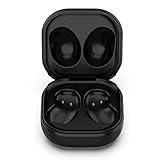
- Compatible Buds: This case is only for charging Galaxy Buds Live SM-R180. the earbuds is not included. 【Note for Galaxy Buds/Buds+ Plus】
- Replacement: It is a third-party charging case for your Galaxy Buds Live. If you have lost or damaged your original charging case or wanna a backup charging case, the charging case will be a good choice.
- Large Capacity: This charging case built-in a 600mAh battery. It can fully charge your Galaxy Buds Live for 3 times. With the charging case, you will never worry about low-power notice.
- Portable & Conventience: It is very lightweight and compact easy to carry around in your pocket, bag and very convenience to charge earbuds at home, in office, in car or on travel.
- Package includes: 1 x Charging case for Galaxy Buds Live, 1 x USB-C Cable, with in time after-sales services. If you have any question, please contact us online.
- Remove both earbuds from the case.
- Reinsert them together.
- With both earbuds in the case, touch and hold both touchpads for seven seconds or more.
- Look for the indicator to flash green and return to its initial color.
- Check Galaxy Wearable and follow any on-screen instructions if only one earbud appears.
This is a model-dependent synchronization procedure, not a universal fix for every red-light condition. Use Samsung’s official compatibility and synchronization guidance for your Buds model.
Special behavior on Galaxy Buds3 and Buds3 Pro
Samsung’s model-specific Buds3 and Buds3 Pro table gives the following examples:
Do these 3 things before closing this tab:
1Clear out junk files and repair common Windows errors2Fix the driver behind crashes, sound loss and screen glitches3Repair Windows errors before they cause bigger problems- Continuously red: the case and inserted earbuds are charging.
- Continuously green: charging is complete.
- Flashing red while charging: charging is blocked because of abnormal temperature.
- Flashing red after closing the case: the case battery is below 10%.
- Red for five seconds after closing: approximately 10–29% battery.
- Yellow for five seconds after closing: approximately 30–59% battery.
- Green for five seconds after closing: 60% or more.
If a Buds3 or Buds3 Pro case has an LED problem after a firmware update or power interruption, Samsung’s dedicated recovery procedure is to put the earbuds in the case, close the cover, charge by cable for at least 15 minutes, open Galaxy Wearable, and check that the case and earbuds are above 20%. Disconnect the charger, put the earbuds back in the case, and leave the cover closed for at least 10 minutes. This procedure is specifically for Buds3 and Buds3 Pro; it is not a universal reset method. See Samsung’s Buds3 LED recovery guide.
When to stop troubleshooting
Contact Samsung Support or an authorized service center if the red light persists after cooling, wired charging, contact cleaning, and accessory checks—especially if:
- neither earbud gains battery;
- the case accepts neither wired nor wireless power;
- one earbud repeatedly fails while the other charges;
- there is swelling, cracking, corrosion, liquid damage, or unusual heat; or
- the LED behavior does not match the manual or support page for your exact model.
Stop using the case or earbuds immediately if you notice swelling, burning heat, smoke, or a damaged battery. A blinking red light is a symptom, not proof that replacing the entire pair is necessary.
Quick Recap
Product prices and availability are accurate as of the date/time indicated and are subject to change. Any price and availability information displayed on Amazon at the time of purchase will apply.

