Recommended Free Tools
Some links on this page are affiliate links: if you buy through them we may earn a commission, at no extra cost to you.
An Oura Ring that keeps disappearing from the app usually has a Bluetooth, permission, power-saving, charging, or app-communication problem—not necessarily a dead ring or lost health data. Start with the ring on its powered charger, update the Oura app and phone, check permissions, remove interference, and then reset the Bluetooth pairing if necessary.
Quick fix checklist
- Check that Ring airplane mode is off.
- Update your phone’s operating system and the Oura app.
- Put the ring on its powered charger and place the phone directly beside it.
- Charge the phone as well.
- Temporarily turn off Wi-Fi and move other Bluetooth devices away.
- Confirm that Bluetooth and Oura’s required permissions are enabled.
- Restart the phone and reopen the Oura app.
- If the ring is still stuck, forget its Bluetooth entry and pair it again through the Oura app.
- Try Oura’s hardware reset while the ring remains on its charger.
- Contact Oura if it repeatedly reconnects only while charging or shows battery and charging problems.
These steps follow Oura’s current connection troubleshooting guidance.
What “disconnecting” can mean
Not every connection failure has the same cause. The app may show a temporary sync delay, the ring may appear in the phone’s Bluetooth list but fail to connect to Oura, or it may connect for a few seconds before dropping out. Other patterns are more revealing:
| Symptom | Areas to investigate first |
|---|---|
| Reconnects when placed on the charger | Battery level, charger seating, cable or power source, low-power state, or ring hardware |
| Visible in Bluetooth but unavailable in the app | Stale pairing, app permissions, or corrupted app state |
| Absent from Bluetooth entirely | Charge, Ring Airplane Mode, permissions, compatibility, or hardware |
| Disconnects every few seconds | Pairing corruption, battery instability, interference, background restrictions, app, firmware, or hardware |
| Only Android is affected | Nearby devices or Location permission, battery optimization, scanning, or background data |
| Started after an update | App, firmware, phone-OS compatibility, or a listed known issue |
| Data appears later rather than immediately | A delayed sync or temporary communication failure |
This table is diagnostic guidance, not a guaranteed diagnosis.
#1 Best Overall

- OURA RING 4 CHARGER - This is the only way to charge your Oura Ring 4. This USB-C cable charger is size specific, so be sure to get the size that fits your Oura Ring 4. You can find your Oura Ring 4 size on the inside of your Oura Ring 4.
- CHARGERS ARE SIZE-SPECIFIC - Your Oura Ring 4 size can be found on the inside of your smart ring.
- CHARGING TIME - Your Oura Ring 4 typically charges fully in 20-80 minutes, depending on its current battery level.
- BATTERY LEVEL IN OURA APP - You can check the battery level by tapping the circular icon in the upper right-hand corner of the home tab.
- POWER CORD COMPLIANCE - The USB-C to USB-C Oura Ring 4 Cable cord is intended to be supplied by an external 5Vdc supply that complies with IEC 62368-1 standard.
1. Charge and position the ring correctly
Put the ring on its correct charger with the charger connected to power before troubleshooting. Keep it there while attempting to reconnect, and place the phone next to it. Oura also recommends charging the phone, since some phones reduce background activity aggressively when power is low.
Check that the ring is seated and aligned correctly:
- Oura Ring 4 and Oura Ring 5: align the ring dimple with the charger light.
- Gen3: align the sensor bumps on the opposite side of the charger light.
Inspect the cable, power adapter, charger contacts, and LED behavior. If the LED is blue or red instead of behaving normally, follow Oura’s charging troubleshooting guidance. Try another compatible power source if possible.
Do not infer a defective battery from one failed connection. However, if the ring repeatedly works on the charger and disconnects soon after removal, battery degradation, charging instability, or hardware failure becomes a serious possibility.
2. Remove interference during the test
Temporarily turn off the phone’s Wi-Fi and move the phone and ring away from laptops, wireless headphones, smartwatches, and other radio devices. Oura recommends this because Wi-Fi can interfere with Bluetooth in certain cases; it is not proof that Wi-Fi is always the cause.
Try reconnecting in a quiet room with the phone immediately beside the ring. If the connection becomes stable, turn nearby devices and Wi-Fi back on one at a time to identify an environmental trigger.
Rank #2

- Compatible with Ring Gen 4 Charger Size 9, Fast Charging Dock with USB-C Cable
- Choose the Correct Size: Please carefully check the size of your ring and select the appropriate charger size.
- Charging Time: It typically takes 60-120 minutes to fully charge your ring, depending on its current battery level and ambient temperature.
- Sturdy and Portable: Made of high-quality metal material, our charger are more sturdy and durable. The compact design makes it easy to carry and use in the car, office, travel.
- Safe Charging: Build-in muti-protection systems for protecting your ring from over current, over charging and over heating.
3. Check Bluetooth and phone compatibility
Bluetooth must be enabled for the Oura app to sync with the ring. Toggle Bluetooth off and on, then restart the phone. If other Bluetooth accessories are also disconnecting, the phone is a more likely common point of failure than the ring.
Recommended Free Tools
Do not manage the ring exclusively from the phone’s Bluetooth screen. After clearing a stale entry, use the Oura app’s pairing flow.
As of June 14, 2026, Oura’s stated app requirements are iOS 16 or later, Android 11 or later with Google Play services, and a phone supporting Bluetooth 5.0. These are current requirements, not a guarantee that every compatible phone will reconnect reliably. Check the phone model and operating-system version before deeper troubleshooting. Manufacturer-specific Android software can change Bluetooth, background-data, and battery behavior. See Oura’s current compatibility FAQ.
4. Check Ring Airplane Mode
Oura’s Ring Airplane Mode is separate from Airplane Mode on the phone. It disables the ring’s radio transmission, including Bluetooth, while allowing the ring to continue collecting and storing data. It therefore can look like a defective ring until communication is restored.
To check it:
- Open the Oura app.
- Tap the battery icon in the upper-right corner of the home screen.
- Toggle Ring airplane mode off.
- Confirm the choice.
If the app cannot connect, place the ring on its charger and wait for it to reconnect. Oura says Airplane Mode can remain active for a maximum of seven days at a time; syncing may take longer if it was enabled for more than a few days. See Oura’s Airplane Mode documentation.
Free tools Windows power users keep installed
One-click scans. No signup required.
5. Check permissions and battery restrictions
iPhone
Search iPhone Settings for Oura and confirm Bluetooth access is allowed. Also search for Bluetooth and Background App Refresh. Check whether Low Power Mode or another system restriction began around the same time as the connection problem. iOS labels and paths can change, so use the Settings search field rather than relying on one permanent menu path.
Rank #3
- OURA RING 4 CHARGER - This is the only way to charge your Oura Ring 4. This USB-C cable charger is size specific, so be sure to get the size that fits your Oura Ring 4. You can find your Oura Ring 4 size on the inside of your Oura Ring 4.
- CHARGERS ARE SIZE-SPECIFIC - Your Oura Ring 4 size can be found on the inside of your smart ring.
- CHARGING TIME - Your Oura Ring 4 typically charges fully in 20-80 minutes, depending on its current battery level.
- BATTERY LEVEL IN OURA APP - You can check the battery level by tapping the circular icon in the upper right-hand corner of the home tab.
- POWER CORD COMPLIANCE - The USB-C to USB-C Oura Ring 4 Cable cord is intended to be supplied by an external 5Vdc supply that complies with IEC 62368-1 standard.
Android 11 or older
Oura’s guide says Location permission must be enabled for Bluetooth connectivity:
- Open Settings.
- Tap Apps.
- Select Oura.
- Tap Permissions.
- Enable Location.
Android 12 or newer
Enable Nearby devices:
- Open Settings.
- Tap Apps, then select Oura App. If needed, tap See all apps.
- Tap Permissions.
- Select Nearby devices.
- Choose Allow.
Also check Bluetooth scanning, Battery Saver, background data, and the phone’s battery-optimization settings. Where available, set Oura to unrestricted or non-optimized battery use. Samsung, Google Pixel, OnePlus, Xiaomi, and other Android phones use different labels and menus, so treat these as categories rather than universal paths. Oura’s Android troubleshooting guide covers these requirements.
6. Update the app, phone, and firmware
Install the latest available Oura app and phone operating-system update. An update may resolve a software issue, but it is not a guaranteed fix—and an interrupted firmware update can create a separate connection problem.
What’s actually slowing this PC down?
Pick the symptom - the matching free tool is one click away.
For automatic firmware updates, Oura lists these conditions:
- The Oura app has been opened at least once since the firmware release.
- The ring battery is at least 30%.
- Ring Airplane Mode is disabled.
- Bluetooth is enabled.
- No Activity Heart Rate or Explore session is active.
- The ring is not asleep and measuring nighttime biosignals.
During an update, keep the ring connected, do not close the app, and do not toggle Bluetooth. Follow Oura’s firmware-update troubleshooting instructions.
7. Reset Bluetooth in Oura’s recommended order
Use this when the ring appears in Bluetooth but the app cannot establish a connection:
Rank #4
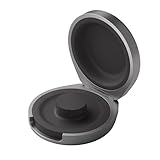
- UP TO 5 RING CHARGES - With up to 5 charges, take your Oura Ring 4 anywhere and never run out of battery
- NEVER MISS A BEAT - With seamless charging you get credit for every heartbeat, body shift, and wink of sleep. You’ll have the most complete picture of your health, with fewer gaps in your data
- TRAVEL READY - The match-box sized case is made of the highest grade recycled aluminum. It easily fits into your pocket, carry-on, or gym bag
- COMPATIBLE WITH OURA RING 4 - Compatible with titanium and ceramic styles
- SIZE-SPECIFIC CHARGER - Oura Ring 4 Charging Case is size-specific, so make sure to buy one that matches your size
- Keep the ring on its powered charger.
- Turn off the phone’s Bluetooth.
- Force-close the Oura app and ensure it is not running in the background.
- Turn Bluetooth back on.
- Open the phone’s Bluetooth settings.
- Remove or forget the Oura Ring entry.
- Open the Oura app.
- Follow the app’s instructions to pair the ring again.
Do not repeatedly tap Connect while leaving a corrupted Bluetooth entry in place. Do not use arbitrary third-party Bluetooth tools, and do not toggle Bluetooth during a firmware update.
8. Perform the hardware reset
If charging, permissions, and a clean Bluetooth pairing do not help, Oura publishes a hardware-reset procedure for a corded charger:
- Keep the ring on its charger.
- Hold the ring securely in place with one finger.
- Tap the charger firmly and rapidly against a table several times.
- Wait about one minute.
- Reopen the Oura app and check the connection.
- Repeat the attempt a few times if it does not activate immediately.
This is Oura’s published reset procedure—not a general-purpose impact test. Do not strike the ring directly. Stop if the ring or charger is physically damaged, and contact Oura instead.
9. Reinstall the Oura app only after simpler fixes
Deleting and reinstalling the app can clear damaged app state, but it is more disruptive than checking permissions or resetting Bluetooth. Before deleting it, allow the ring to sync if possible and confirm that recent data has been backed up or otherwise synchronized. Oura’s available guidance supports reinstalling the app, but the evidence here does not establish a universal outcome for every possible piece of unsynced data.
Independent reader supportYour contribution helps us test, update, and keep practical guides available for everyone.10. Check Oura’s Known Issues page
If several users began reporting the same failure after an app, firmware, or phone-OS change, check Oura’s Known Issues page before repeatedly resetting the ring. Oura says the page is updated weekly and categorizes issues as Open, In Progress, or Fixed. Check the page’s date and status because its contents can change. The absence of a general Bluetooth notice does not prove that no connectivity issue exists.
Quick wins for a faster PC:
Fix the driver behind crashes, sound loss and screen glitchesFind Drivers →Clear out junk files and repair common Windows errorsFree Scan →When the problem is probably hardware
Escalate rather than repeating the same Bluetooth steps indefinitely when:
Best Value

- Gen 4 Only – Check Compatibility: Designed exclusively for Ou-ra Ring Gen 4 (sizes 7-13). This ou-ra ring charger is not compatible with Gen 3 or other smart rings. Double-check the size engraved inside your ring before using
- One Charger Fits Multiple Sizes: Unlike single-size docks, this ou-ra charger features a retractable design that fits ring sizes 7, 8, 9, 10, 11, 12, and 13. Please verify your ring size before using
- Fast Charge: This ou-ra ring charger charges your ou-ra ring gen 4 to 80% in just 45 minutes. To check battery level, tap the circular icon in the upper right corner of the app home tab. Note: Not compatible with Ring Gen 3
- Four Built-In Safety Protections: Equipped with over-current, over-voltage, short-circuit, and over-temperature protection, this ou-ra ring charger keeps your smart ring safe during every charge
- Compact & Travel-Friendly Design: Small enough to fit in any pocket or bag – ideal for home, office, or travel. Package includes: 1x ou-ra charger dock, 1x 3.3ft USB-C cable, and 1x user manual. Charge your ring anytime, anywhere
- The ring reconnects only while it is charging.
- Battery levels behave erratically or fall unusually quickly.
- The charger does not appear to charge the ring normally.
- The ring repeatedly disappears after a clean re-pairing.
- The official reset process does not restore a stable connection.
- The ring is physically damaged.
These signs do not prove a failed battery or ring, but they make phone-side troubleshooting less likely to be the complete answer.
What to tell Oura Support
Contact Oura Member Care through the troubleshooting area if the ring remains unusable. Oura’s troubleshooting hub currently advertises 24/7 chat and phone support by appointment. Have these details ready:
- Ring generation: Gen3, Ring 4, Ring 5, or another model
- Phone model and iOS or Android version
- Oura app and ring-firmware versions
- Whether the ring connects on its charger
- Whether another compatible phone was tested
- The exact error message
- Observed battery and charging behavior
- When the problem began
- Whether it followed an update or phone change
Support can determine the appropriate troubleshooting, warranty, replacement, or repair path. Do not assume a replacement is guaranteed; the result can depend on region, purchase channel, warranty status, ring generation, and Oura’s assessment.
Frequently overlooked questions
Will I lose data while the ring is disconnected?
Not automatically. Oura documents that Ring Airplane Mode disables Bluetooth while the ring continues collecting and storing data, then syncs after communication is restored. That supports the idea that a temporary communication failure is not automatically immediate data loss, but it does not guarantee the outcome for every battery, software, or hardware failure.
Should I forget the ring from Bluetooth?
Yes, when the ring is visible but stuck in a failed pairing state. Keep it on the charger, follow Oura’s Bluetooth-reset order, and pair again through the Oura app rather than directly through another Bluetooth utility.
Does Oura Membership affect Bluetooth connectivity?
Membership is not a Bluetooth repair. A subscription does not replace checks for permissions, pairing, charging, app state, or hardware. It is a separate consideration from diagnosing the connection.
Quick Recap
Product prices and availability are accurate as of the date/time indicated and are subject to change. Any price and availability information displayed on Amazon at the time of purchase will apply.
Do these 3 things before closing this tab:
1Repair Windows errors before they cause bigger problems2Fix the driver behind crashes, sound loss and screen glitches3Clear out junk files and repair common Windows errors
