If you have ever opened the Oura app hoping to switch it into your native language, only to find no obvious language toggle, you are not missing anything. Oura does not handle language the way many standalone apps do, and that design choice is the root of most confusion around this topic.
The Oura app inherits its language directly from your phone’s operating system rather than offering an in-app selector. That means the app’s interface, menus, insights, and notifications are dictated by your iOS or Android language settings, not by anything inside Oura itself.
Understanding this system-level behavior upfront saves a lot of frustration. Once you know how Oura “listens” to your phone, changing the app language becomes predictable, repeatable, and far less intimidating.
Why Oura uses system-level language instead of an in-app switch
Oura is built as a deeply integrated health platform rather than a lightweight companion app. It pulls from system frameworks for health permissions, notifications, background syncing, and localization, which is why language is tied to the operating system.
🏆 #1 Best Overall

- ACCURATE SIZING ESSENTIAL - Oura Ring 4 uses unique sizing different from standard jewelry rings; use the Oura Ring 4 Sizing Kit to find your perfect fit before purchasing
- OURA MEMBERSHIP - First month of membership is included with purchase, for new members only. Subscription is 5.99/mo afterwards. Or opt for the annual prepaid option for 69.99. Membership is tied to your account via the Oura App, not your physical ring
- ACCURACY - SMART SENSING - Oura tracks over 50 health metrics, including sleep, activity, stress, heart health, and women’s health metrics. Oura Ring 4 is powered by Smart Sensing, which adapts to you — delivering accurate, continuous data, day and night
- LONG LASTING BATTERY - With up to 8 days of battery life, no screens and no vibrations, Oura Ring 4 allows you to focus on the present. From a workout to a night out — you’re free to forget it’s on. Until you start getting compliments
- HSA/FSA ELIGIBLE - We can accept HSA or FSA funds for the following: Oura Ring, additional chargers, and shipping
This approach ensures consistency across system alerts, sleep reminders, readiness notifications, and health data explanations. It also reduces translation errors in medically adjacent insights, where precision matters more than customization.
The downside is flexibility. You cannot run Oura in one language while keeping the rest of your phone in another unless your operating system itself supports per-app language controls.
How language selection works on iOS
On iPhone, the Oura app follows Apple’s app language rules. If your iPhone is set to a single system language, Oura will mirror that language automatically, provided it is supported.
On newer versions of iOS, Apple allows per-app language overrides. This means you can keep your iPhone in one language while assigning a different language specifically to Oura through the system settings, without affecting other apps.
If a language is not supported by Oura, the app will fall back to English even if your phone is set to something else. This fallback behavior is automatic and cannot be overridden within the app.
How language selection works on Android
On Android, language handling depends heavily on your OS version and device manufacturer. Traditionally, Android apps follow the system language with no per-app control, so changing Oura’s language requires changing the phone’s primary language.
Newer versions of Android support per-app language settings, but rollout and visibility vary between Pixel, Samsung, and other Android skins. When available, Oura will respect that per-app language setting just like on iOS.
As with iOS, unsupported languages trigger a default fallback to English. The app will still function normally, but all insights, scores, and guidance will appear in English regardless of system preferences.
What parts of Oura are affected by language
The app’s interface text, sleep and readiness explanations, trend insights, and notification content all follow the selected system language. This includes educational cards, recovery tips, and cycle-related guidance.
Raw metrics such as heart rate, HRV, temperature deviation, and sleep stages are unaffected by language changes. Numbers, graphs, and timelines remain identical regardless of localization.
Firmware behavior on the ring itself is language-agnostic. Since the Oura Ring has no screen or spoken output, language only impacts what you see on your phone, not how the ring tracks sleep, activity, or recovery.
Common limitations and gotchas users run into
Changing your phone’s language does not always update Oura instantly. In some cases, the app must be fully closed and reopened, or the phone restarted, for the new language to apply correctly.
Mixing multiple preferred languages on your device can cause inconsistent results. Oura typically prioritizes the primary system language, not secondary or regional preferences.
If you are using Oura alongside other health platforms, such as Apple Health or Google Fit, language changes do not alter historical data labels. Past entries remain readable but may not retroactively relocalize, which can look inconsistent at first glance.
What this means before you move on to step-by-step changes
The key takeaway is simple but critical: you do not change the language in Oura, you change it through your phone. Once that mental model clicks, the rest of the process becomes straightforward.
In the next section, the focus shifts from explanation to action. You will see exactly where to go on iOS and Android to change the language correctly, along with a clear breakdown of which languages Oura currently supports on each platform.
Before You Start: What You Can and Can’t Change Inside Oura
Before diving into the steps, it helps to understand how Oura handles language at a system level. Unlike some fitness apps, Oura does not include a manual language selector inside the app itself. Everything you see is driven by your phone’s operating system and the languages Oura has officially localized.
Oura does not have an in-app language switch
There is no setting inside the Oura app to tap and choose a language. This is true on both iOS and Android, regardless of region or account type.
The app reads your phone’s primary system language and mirrors it, as long as that language is supported by Oura. If it is not supported, Oura defaults back to English automatically.
Language affects text, not tracking or ring behavior
Changing the language only affects written content in the app. Menus, explanations, insights, educational cards, notifications, and cycle-related guidance all appear in the selected language.
The ring itself is unaffected. Since there is no display, speaker, or voice feedback, sleep tracking, heart rate, HRV, temperature deviation, and activity detection behave exactly the same regardless of language.
What parts of Oura are affected by language
The app’s interface text, sleep and readiness explanations, trend insights, and notification content all follow the selected system language. This includes recovery guidance, sleep coaching, and contextual explanations tied to your daily scores.
Raw metrics such as heart rate, HRV, temperature deviation, respiratory rate, and sleep stages are not translated in any functional sense. Numbers, charts, timelines, and historical trends remain identical no matter which language you use.
What will not change, even after switching languages
Historical data does not fully relocalize. If you switch languages, past insights may remain labeled in the previous language or partially mixed, especially on older data entries.
Units of measurement are separate from language. Temperature units, distance units, and time formats follow region and system settings, not the app language itself.
System-level control is mandatory on both platforms
On iPhone, Oura follows either the device’s system language or the per-app language setting introduced in recent iOS versions. If neither is set to a supported language, Oura stays in English.
On Android, Oura depends on the device language and, on newer versions of Android, the app-specific language menu. Older Android versions rely entirely on the phone’s primary system language.
Common limitations and gotchas users run into
Changing your phone’s language does not always update Oura instantly. In some cases, the app must be fully closed and reopened, or the phone restarted, before the new language appears.
Using multiple preferred languages can cause inconsistent results. Oura prioritizes the primary language rather than secondary or regional variants, which can be confusing for bilingual users.
If you use Oura alongside Apple Health or Google Fit, language changes do not modify historical labels inside those platforms. Data syncs normally, but older entries may remain in the original language.
What this means before you move on to step-by-step changes
The most important thing to remember is that Oura’s language is controlled outside the app. Once you accept that the phone, not Oura, is in charge, the process becomes much simpler.
From here, the next section walks through exactly where to change language settings on iOS and Android, and which languages Oura currently supports on each platform.
How to Change Oura App Language on iPhone (iOS Step-by-Step)
Now that it’s clear the Oura app doesn’t control its own language internally, the process on iPhone becomes much more predictable. Apple handles language selection at the system level, and Oura simply follows those rules.
On modern iPhones, there are two possible paths: using Apple’s per-app language setting, or changing the phone’s primary system language. Which one you see depends on your iOS version and how your language preferences are configured.
Before you start: what you’ll need
Make sure your iPhone is running iOS 15 or newer. Earlier versions do not support per-app language overrides, which means you’ll need to change the entire system language instead.
Also confirm that the language you want is actually supported by Oura. If iOS is set to an unsupported language, the Oura app will stay in English even though the rest of the phone changes.
Method 1: Change Oura’s language using iOS per-app settings (recommended)
This is the cleanest and least disruptive option, especially if you don’t want to change the language of your entire iPhone. Apple introduced per-app language controls to let individual apps behave independently from the system language.
Open the Settings app on your iPhone and scroll down until you find Oura in the app list. Tap it to open Oura’s app-specific settings.
Look for Language. If you see it, tap it and choose your preferred language from the list Apple provides. This list only shows languages supported by both iOS and the Oura app.
Rank #2

- ACCURATE SIZING ESSENTIAL - Oura Ring 4 uses unique sizing different from standard jewelry rings; use the Oura Ring 4 Sizing Kit to find your perfect fit before purchasing
- OURA MEMBERSHIP - First month of membership is included with purchase, for new members only. Subscription is 5.99/mo afterwards. Or opt for the annual prepaid option for 69.99. Membership is tied to your account via the Oura App, not your physical ring
- ACCURACY - SMART SENSING - Oura tracks over 50 health metrics, including sleep, activity, stress, heart health, and women’s health metrics. Oura Ring 4 is powered by Smart Sensing, which adapts to you — delivering accurate, continuous data, day and night
- LONG LASTING BATTERY - With up to 8 days of battery life, no screens and no vibrations, Oura Ring 4 allows you to focus on the present. From a workout to a night out — you’re free to forget it’s on. Until you start getting compliments
- HSA/FSA ELIGIBLE - We can accept HSA or FSA funds for the following: Oura Ring, additional chargers, and shipping
Close the Settings app completely. Then force-close the Oura app by swiping up from the app switcher, and reopen it. The interface should now appear in the new language.
If you don’t see the Language option under Oura
If the Language menu does not appear, it usually means one of two things. Either your iOS version is too old, or your iPhone only has a single system language installed.
To fix this, go to Settings, then General, then Language & Region. Under Preferred Languages, add the language you want and make sure it’s available on the device.
Once added, return to Settings > Oura and check again. In many cases, the per-app language option appears only after multiple system languages are enabled.
Method 2: Change your iPhone’s system language (fallback option)
If per-app language controls are not available on your device, Oura will follow the iPhone’s primary system language instead. This affects the entire phone, not just the Oura app.
Open Settings, then tap General, then Language & Region. Tap iPhone Language and select the language you want to use.
Your iPhone will ask to confirm and briefly restart its interface. Once complete, open the Oura app. If the selected language is supported, Oura will now display in that language automatically.
What to do if Oura doesn’t change language immediately
Language changes are not always instant, even when configured correctly. The Oura app can remain cached in memory with the previous language.
Force-close the app and reopen it. If that doesn’t work, restart the iPhone completely. This clears background processes and ensures iOS reinitializes app language resources.
In rare cases, logging out and back into the Oura app can also refresh language strings, though this should be a last resort since it triggers a resync.
How Oura behaves with multiple preferred languages on iOS
iOS allows multiple preferred languages, but Oura only looks at the primary one or the per-app override. Secondary languages are ignored, even if they are higher priority in other apps.
Regional variants can also cause confusion. For example, setting Spanish (Latin America) instead of Spanish (Spain) may not trigger a language change if only one variant is supported.
If Oura stays in English, switch to a more general language option rather than a region-specific version and test again.
Language changes do not affect health data or tracking
Changing the app language has no impact on sleep scores, readiness metrics, activity tracking, or battery usage. The ring itself continues collecting data the same way, using the same sensors and firmware.
Comfort, daily wear, durability, and battery life remain identical regardless of language. Only the interface text, labels, and some educational content change.
This makes language switching safe to experiment with, even if you’re relying on Oura daily for sleep trends or recovery insights.
When iOS settings are correct but Oura still stays in English
If your iPhone language is supported and configured correctly but Oura refuses to switch, the most common cause is an outdated app version. Update Oura from the App Store and try again.
Another possibility is that your Apple ID region or device language combination is mismatched. While rare, resetting language preferences and reselecting them can resolve this.
If none of these steps work, Oura support can confirm whether your specific language and region are currently enabled on iOS, which occasionally changes with app updates.
How to Change Oura App Language on Android (Step-by-Step)
If you’re coming from iOS, Android works a little differently, and in some ways it’s more flexible. Oura on Android can follow the system language, or on newer versions of Android, it can use a per-app language that’s independent from the rest of the phone.
The exact steps depend on your Android version, so it’s worth identifying which path applies to your device before you start.
Before you start: check your Android version
Per-app language controls were introduced in Android 13. If your phone is running Android 12 or earlier, Oura can only follow the system-wide language.
You can check this by going to Settings > About phone and looking at the Android version line. Samsung, Pixel, OnePlus, and other brands all support this feature on Android 13 and newer, though menu names may vary slightly.
Method 1: Change Oura language using Android’s per-app language setting (Android 13+)
This is the cleanest method if you want Oura in a different language without changing your entire phone. Oura fully respects Android’s per-app language selector when the language is supported.
1. Open your phone’s Settings.
2. Go to Apps or Apps & notifications.
3. Find and tap Oura.
4. Select Language or App language.
5. Choose your preferred language from the list.
6. Close the Settings app and reopen Oura.
The change usually takes effect immediately. If Oura was open in the background, fully close it and relaunch to force a refresh of all interface text.
Method 2: Change the system language (all Android versions)
If you’re on Android 12 or earlier, or if your phone doesn’t show an App language option, this is the only way to change Oura’s language.
1. Open Settings.
2. Go to System.
3. Tap Languages & input.
4. Select Languages.
5. Add your preferred language or move it to the top of the list.
6. Restart the Oura app.
Oura always uses the primary system language. Secondary languages in the list are ignored, even if other apps switch between them.
How Oura behaves with multiple languages on Android
Android allows multiple preferred languages, but Oura only reads one input. That input is either the per-app language (Android 13+) or the first system language.
Regional variants matter here. For example, Portuguese (Brazil) and Portuguese (Portugal) are treated as separate options, and only supported variants will trigger a language change.
If Oura stays in English, try switching to a more general language entry rather than a region-specific one.
If the language option doesn’t appear for Oura
If you’re on Android 13+ but don’t see a Language or App language option for Oura, the most common cause is an outdated app version. Update Oura from the Play Store and check again.
Some manufacturer skins hide the option deeper in the menu. On Samsung devices, for example, it may appear under Settings > Apps > Oura > Language rather than inside a generic app language list.
If the option still isn’t available, your device may be restricting per-app languages despite the Android version.
Force-refresh the Oura app if the language doesn’t change
Occasionally, Oura keeps old language strings cached. This doesn’t affect tracking, but it can prevent the interface from updating.
To fix this:
1. Go to Settings > Apps > Oura.
2. Tap Force stop.
3. Reopen the Oura app.
If that doesn’t work, you can also clear the app cache from the same menu. Do not clear storage unless instructed by Oura support, as that will log you out and trigger a full data resync.
What does and doesn’t change when you switch languages on Android
Changing the app language only affects interface text, labels, and educational explanations. Sleep scores, readiness metrics, activity tracking, battery life, and sensor behavior remain unchanged.
Rank #3
- ACCURATE SIZING ESSENTIAL - Oura Ring 4 uses unique sizing different from standard jewelry rings; use the Oura Ring 4 Sizing Kit to find your perfect fit before purchasing
- OURA MEMBERSHIP - First month of membership is included with purchase, for new members only. Subscription is 5.99/mo afterwards. Or opt for the annual prepaid option for 69.99. Membership is tied to your account via the Oura App, not your physical ring
- ACCURACY - SMART SENSING - Oura tracks over 50 health metrics, including sleep, activity, stress, heart health, and women’s health metrics. Oura Ring 4 is powered by Smart Sensing, which adapts to you — delivering accurate, continuous data, day and night
- LONG LASTING BATTERY - With up to 8 days of battery life, no screens and no vibrations, Oura Ring 4 allows you to focus on the present. From a workout to a night out — you’re free to forget it’s on. Until you start getting compliments
- HSA/FSA ELIGIBLE - We can accept HSA or FSA funds for the following: Oura Ring, additional chargers, and shipping
The ring itself continues collecting data using the same infrared LEDs, temperature sensors, and accelerometers, regardless of language. Comfort, durability, and real-world wearability are completely unaffected.
You can safely experiment with different languages without worrying about data loss or changes in tracking accuracy.
When Android settings are correct but Oura stays in English
If your system or per-app language is set correctly and Oura still refuses to switch, update the app and restart your phone. This clears background services that may be holding onto old language resources.
Another less obvious cause is selecting a language that’s supported on iOS but not yet enabled on Android. Oura’s language rollout is not always perfectly synchronized across platforms.
If the issue persists, Oura support can confirm whether your specific language and regional variant are currently supported on Android.
Supported Languages on Oura for iOS: Full Current List
With Android covered, it helps to reset expectations for iPhone users, because Oura’s iOS app supports a slightly broader and more stable set of languages. On iOS, language handling is tightly integrated with Apple’s system-level localization tools, which generally makes switching smoother and more predictable.
This list reflects the languages currently available in the Oura app on iOS, as shown when using iOS’s per-app language selector with the latest public App Store build. Availability can vary slightly by region, but these are the options most users will see today.
How iOS language support works in Oura
On iPhone, Oura does not use an in-app language toggle. Instead, it relies entirely on Apple’s per-app language system, introduced in iOS 13 and expanded in later versions.
If a language appears in the list below, it should show up under Settings > Oura > Language on supported versions of iOS. Selecting it changes all interface text, explanations, and insights, without affecting sleep tracking, readiness scores, battery life, or sensor behavior.
Full current list of supported languages on Oura for iOS
At the time of writing, the Oura app on iOS supports the following languages:
– English
– Spanish
– Spanish (Latin American variant, where available)
– French
– German
– Italian
– Portuguese (Brazil)
– Dutch
– Swedish
– Finnish
– Norwegian
– Danish
– Polish
– Czech
– Hungarian
– Romanian
– Japanese
– Korean
– Chinese (Simplified)
– Chinese (Traditional)
These languages apply across the entire app, including sleep insights, readiness explanations, activity guidance, cycle tracking content, and educational articles. Metrics, graphs, and scores remain numerically identical regardless of language selection.
Regional variants and naming differences on iOS
Some languages may appear with slightly different names depending on your iOS region and system language. For example, Portuguese is typically listed as Portuguese (Brazil), and Chinese is split into Simplified and Traditional.
If you speak a supported language but don’t see it listed, check that your iPhone’s system language includes it first. iOS will not always expose a per-app language option unless that language is also enabled at the system level.
Important limitations to be aware of
Not every language supported on iOS is guaranteed to be available on Android at the same time. Oura’s rollout cadence differs by platform, which explains why some users see a language on iPhone that’s missing on Android.
Also note that customer support responses, help articles, and some email communications may still default to English even when the app itself is localized. This does not affect the accuracy of health data or the ring’s real-world performance, comfort, or durability.
If you rely on a specific language for daily use, iOS currently offers the most complete and reliable language coverage in the Oura ecosystem.
Supported Languages on Oura for Android: Full Current List
Coming directly from the iOS breakdown, Android users will notice that Oura’s language support is broadly similar, but not always perfectly aligned. In day-to-day use, the Android app delivers the same health insights, sleep staging, readiness scores, and activity data, but the set of available interface languages can vary slightly depending on region, OS version, and rollout timing.
At the time of writing, the Oura app on Android supports the following languages.
Full current list of supported languages on Oura for Android
– English
– Spanish
– French
– German
– Italian
– Portuguese (Brazil)
– Dutch
– Swedish
– Finnish
– Norwegian
– Danish
– Polish
– Czech
– Hungarian
– Romanian
– Japanese
– Korean
– Chinese (Simplified)
– Chinese (Traditional)
These languages apply to the full Android app experience, including sleep summaries, readiness explanations, activity goals, cycle tracking features, and educational content. Numerical data such as heart rate trends, HRV, sleep duration, and temperature deviation remain identical regardless of language and are never altered by localization.
Android-specific language behavior and limitations
Unlike iOS, Android does not consistently expose a per-app language selector across all devices and OS versions. In most cases, the Oura app will follow your phone’s primary system language, meaning the language must be set at the system level before Oura will display it.
On newer versions of Android, some devices allow app-specific language overrides, but this behavior depends heavily on the manufacturer’s Android skin. Samsung, Google Pixel, and OnePlus devices tend to behave more predictably, while budget or heavily customized Android phones may not surface every supported language even if Oura technically supports it.
Differences compared to iOS language support
Android generally lags slightly behind iOS when new languages or regional variants are introduced. For example, Spanish is supported, but a clearly labeled Latin American Spanish variant may not appear separately, even if phrasing subtly reflects regional usage.
If a language is available on iOS but missing on Android, this does not indicate a hardware limitation with the ring itself. The ring’s sensors, battery life, comfort, materials, and long-term durability are completely unaffected. This is purely an app-level localization difference tied to Android’s release cadence.
What to do if your preferred language does not appear
If your language is listed above but does not show up in the Oura app, first confirm that it is enabled as a system language on your Android device. Restarting the app, or the phone itself, often resolves delayed language syncing.
If the language still does not appear, it usually means that Oura has not yet enabled that localization for your specific Android version or region. In those cases, the app will default to English while continuing to deliver the same sleep tracking accuracy, readiness insights, and daily usability you would get in any other language.
Regional Differences, Partial Translations, and Fallback to English
Even when a language appears to be supported on both iOS and Android, the experience can differ subtly depending on region, rollout timing, and how complete the translation is. This is where many users notice mixed-language screens or English text reappearing unexpectedly, especially after app updates.
Regional variants and why they are not always labeled
Oura generally supports languages at a broad level rather than exposing every regional variant as a separate option. Spanish, for example, is typically offered as a single language rather than distinct European and Latin American variants, even though phrasing may lean toward one region in places.
This approach keeps the app simpler but can feel inconsistent if you are used to region-specific wording in other apps. It does not affect sleep scoring, readiness calculations, battery optimization, or how the ring’s sensors collect data overnight.
Why some sections are only partially translated
Not every part of the Oura app is localized at the same pace. Core navigation, daily scores, sleep stages, and readiness insights are usually translated first, while deeper educational content, long-form explanations, and new feature descriptions may remain in English.
This is most noticeable in areas like trend explanations, help articles accessed inside the app, and newly released health features. The translation typically catches up over time, but early adopters of new updates often see English text temporarily mixed in.
Feature rollouts can temporarily override your language
When Oura introduces new health metrics or refines existing ones, those features may launch in English first. Even if your app is set to another language, these new cards or explanations can appear in English until localization is completed.
This behavior is consistent across both iOS and Android and is tied to software development timelines rather than your phone settings. Your historical data, sleep accuracy, comfort during wear, and the ring’s multi-day battery life remain unchanged.
How fallback to English works behind the scenes
If the app encounters text that has not been translated into your selected language, it automatically falls back to English instead of leaving the space blank or displaying errors. This ensures the app stays usable and readable, even if it feels inconsistent.
Fallback behavior can occur after updates, when switching system languages, or when using an Android device with manufacturer-specific language handling. In most cases, these English sections are gradually replaced as translations are finalized in later app versions.
Differences between iOS and Android fallback behavior
On iOS, fallback to English is usually limited to specific screens or features, while the rest of the app remains fully localized. Apple’s per-app language system tends to be more stable, so once a language is selected, it sticks reliably.
On Android, fallback can be broader, especially if the system language is changed frequently or if the device uses a heavily customized Android skin. Some users may see the app revert fully to English until the system language and app cache resync.
What to expect if your region is newly supported
If your language or region was added recently, expect a short transition period where translations feel uneven. Menus and scores are typically solid, while deeper insights and guidance may lag behind.
Rank #4
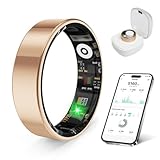
- 【Check the Size Before Purchase】 Before buying the prxxhri Smart Ring, we strongly suggest that you refer to the size chart and carefully measure the circumference of your finger. This will ensure you get the most comfortable wearing experience and easily avoid any unnecessary returns or exchanges.
- 【Real-time Accurate Sleep & Fitness Monitoring】 prxxhri smart ring tracks your sleep quality and daily activities in real time. With advanced sensors, it provides precise data about your sleep cycle, helping you optimize rest and recovery. Whether you are tracking steps, calories or exercise performance, this smart ring can provide you with the most accurate insights to support your fitness goals and enhance your overall health.It is a good choice for family and friends.
- Health Monitoring】The prxxhri ring features advanced 4.0 sensors that automatically measure your heart rate, and blood pressure every 30 min when worn. It provides continuous health tracking and comprehensive wellness management all day.
- 【3-5 Day Battery Life】 With a 3-5 day battery life, the prxxhri smart ring ensures continuous health monitoring without frequent charging. When used with the smart charging case, the usage time can even exceed 20 days. Whether you are tracking sleep patterns or fitness activities, you can count on long-lasting performance without constant interruptions.
- 【80-meter Waterproof, Suitable for Various Scenarios】 The prxxhri Smart Ring has excellent waterproof performance, with a waterproof depth of up to 80 meters. Whether it's for daily wear, an intense workout session or a pleasant swimming time, it can handle it with ease. What's more, even if you have sensitive skin, you can still enjoy an extremely comfortable wearing experience when wearing this ring.
This does not reflect lower support quality or reduced functionality. The Oura Ring continues to deliver the same comfort, durability, and health tracking performance regardless of language maturity, making this a software polish issue rather than a usability blocker.
When English is the only available option
If Oura does not yet support your preferred language on your platform, the app will default entirely to English. While not ideal, this ensures full access to sleep tracking, readiness trends, activity data, and battery management without restrictions.
For many international users, this fallback is temporary. Oura has steadily expanded language support over time, and new localizations tend to arrive on iOS first before rolling out more broadly on Android.
Common Problems and Fixes: Language Not Updating or Missing
Even when you understand how Oura handles languages, things do not always switch cleanly. This is usually tied to how the app syncs with system-level language settings rather than a fault with the ring itself.
The good news is that almost all language-related issues can be resolved in a few minutes without affecting your data, battery life, or long-term wear experience.
The language changed on your phone, but the Oura app stayed the same
This is the most common issue, especially after changing your phone’s system language. The Oura app only checks language settings at launch, so if it was open in the background, it may not refresh.
Fully close the Oura app and reopen it. On iOS, swipe it away from the app switcher; on Android, force close it from App Info.
If that does not work, restart your phone. A reboot forces the system to reapply language priorities, which usually triggers the Oura app to update on the next launch.
Language options are missing entirely in the Oura app
On iOS, this usually means your selected language is not supported yet. Apple will still show the per-app language menu, but Oura will not list unsupported options.
On Android, this is expected behavior. If your system language is unsupported, Oura will not show a language selector at all and will default to English.
There is no workaround here beyond choosing a supported system language. This does not affect sleep accuracy, readiness scoring, ring comfort, or battery performance.
The app partially translated, but some screens are still in English
This is normal fallback behavior and not a bug. Oura prioritizes translating core experiences like sleep scores, readiness metrics, and activity summaries first.
Deeper content such as long-form insights, educational tips, or newer features may remain in English temporarily. These sections are updated gradually through app releases.
As long as the main navigation and daily scores appear in your chosen language, the app is functioning correctly.
Android language keeps reverting to English
This happens more often on Android devices with custom skins from Samsung, Xiaomi, or OnePlus. These systems sometimes override app-level language settings after updates or region changes.
Go to Settings, then System, then Languages, and confirm your preferred language is at the top of the list. Removing secondary languages can help stabilize the selection.
If the issue persists, clear the Oura app cache, not storage. Clearing cache does not remove your account, ring pairing, or historical health data.
iOS per-app language is set correctly, but nothing changes
On iOS, per-app language settings are reliable, but they do not override unsupported languages. If the app stays in English, double-check that the selected language is officially supported by Oura.
Also confirm you are running the latest version of the Oura app and iOS. Language packs are bundled with app updates, not downloaded separately.
Reinstalling the app is a last resort. If you do this, keep your ring charged and nearby so pairing and syncing complete smoothly afterward.
After an app update, the language reset to English
Occasionally, major app updates reset localization preferences, especially on Android. This is more likely when Oura introduces new features or expands language support.
Reapply your system language and relaunch the app. In most cases, the correct language returns immediately.
This reset does not indicate data loss or reduced tracking quality. Sleep stages, readiness trends, and battery estimates remain unaffected.
The ring firmware updated, and the app language changed
The Oura Ring itself does not store language settings, but firmware updates often coincide with app updates. This timing can make it feel like the ring caused the change.
Treat this as an app-level issue and follow the same steps: close the app, check system language, and relaunch. The ring’s comfort, durability, and wearability are unchanged.
Firmware updates improve sensor accuracy and efficiency, not localization behavior.
Language support differs between iOS and Android
Some languages appear on iOS weeks or months before arriving on Android. This is due to Apple’s per-app language system and Oura’s staged rollout process.
If you switch between iPhone and Android using the same Oura account, expect the language experience to differ. Your health data syncs seamlessly, but localization may not.
This is a software maturity issue, not a limitation of the ring’s hardware or long-term value.
When to contact Oura Support
If the app displays broken text, overlapping characters, or unreadable menus, this is not normal fallback behavior. Take screenshots and note your phone model, OS version, and app version.
Contact Oura Support through the app or website. Language rendering bugs are typically fixed quickly once reported.
Until then, switching temporarily to English ensures full access to insights, daily guidance, and battery management without compromising usability.
Does Language Affect Health Data, Insights, or Ring Performance?
This question usually comes up right after a language reset or a platform switch. The short answer is reassuring: changing the app language does not alter how your Oura Ring measures, stores, or analyzes your health data.
Health data collection is language-agnostic
Your ring’s sensors operate independently of the app language. Heart rate, HRV, skin temperature trends, respiratory rate, sleep stages, and movement are captured the same way regardless of whether the app is set to English, Spanish, Japanese, or any other supported language.
The algorithms that turn raw sensor data into Sleep, Readiness, and Activity scores run on Oura’s backend systems. Those calculations are identical across languages, platforms, and regions.
Scores, trends, and history do not change
Switching languages does not recalculate past nights or reset trends. Your long-term baselines, weekly averages, and readiness patterns remain intact, even if the interface text changes immediately.
This includes tags, trend views, and monthly insights. The numbers you see may be labeled differently, but the values underneath are unchanged.
Insights are translated, not simplified
Daily insights, sleep summaries, and readiness explanations are localized translations of the same core guidance. Oura does not provide “lighter” or reduced insights in non-English languages.
That said, wording and tone can feel slightly different between languages due to translation choices. The advice itself, including recovery recommendations and activity balance guidance, remains consistent.
💰 Best Value
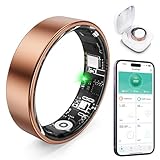
- 【Check the Size Before Purchase】 Before buying the Free Shark Smart Ring, we strongly suggest that you refer to the size chart and carefully measure the circumference of your finger. This will ensure you get the most comfortable wearing experience and easily avoid any unnecessary returns or exchanges.
- 【Intelligent Sleep Tracker, Caring for Your Health】 This Free Shark fitness ring is like a considerate little assistant for your sleep health. It will accurately monitor the quality of your sleep, and record in detail the durations of deep sleep and light sleep, as well as the specific situations of your wakeful states. You just need to open the app at any time, and you can clearly view all kinds of sleep indicators. Then, according to the professional reports, you can easily adjust your lifestyle to embrace better-quality sleep.
- 【Diverse Health Monitoring, All-round Protection】 The Free Shark Smart Ring has a variety of powerful health monitoring modes. Whether it's running, walking, hiking, cycling, yoga, dancing, skipping rope or other sports, it can automatically and accurately track key data such as the exercise route, exercise time, steps taken, heart rate, speed, calories burned and exercise distance in the app. Moreover, it can continuously track important health data such as heart rate and blood oxygen throughout the 24 hours of the day, protecting your physical health in an all-round way.
- 【80-meter Waterproof, Suitable for Various Scenarios】 The Free Shark Smart Ring has excellent waterproof performance, with a waterproof depth of up to 80 meters. Whether it's for daily wear, an intense workout session or a pleasant swimming time, it can handle it with ease. What's more, even if you have sensitive skin, you can still enjoy an extremely comfortable wearing experience when wearing this ring.
- 【Long Battery Life and Ultra-thin Design, Enjoy the Convenience】 The Free Shark Smart Ring has a very strong battery life. After a full charge, the battery can last up to 5 days, easily keeping up with your busy lifestyle. When used with the smart charging case, the usage time can even exceed 30 days. It is widely compatible with both Android and iOS systems, which is very convenient and practical. In addition, the updated design is lighter, thinner and more comfortable, with a greatly improved wearing fit. It's so light that you can hardly feel it on your finger.
Notifications and reminders may feel different
Push notifications follow the app language, but their timing and logic do not change. Bedtime reminders, activity nudges, and recovery alerts trigger based on the same thresholds.
Some languages use longer phrasing, which can make notifications appear more compact or truncated on smaller phone screens. This is a display issue, not a functional one.
Battery life and ring performance are unaffected
Language settings have no impact on battery consumption, charging speed, or sync reliability. The ring’s battery life, typically several days depending on model and usage, stays the same.
Firmware efficiency, sensor sampling rates, and Bluetooth behavior are entirely separate from localization. Changing language will not improve or worsen daily battery drain.
Units, calendars, and regional formats are separate settings
Language does not control measurement units like miles versus kilometers or Celsius versus Fahrenheit. Those are tied to your system region settings and app preferences.
Similarly, week start day, date formats, and time display follow OS-level regional rules. You can often see a mix, such as English text with European date formatting, without any data issues.
Data export and third-party integrations remain identical
CSV exports, API data, and integrations with Apple Health, Google Health Connect, or other partners are not localized. Field names and data structures stay consistent regardless of app language.
This consistency is intentional and ensures compatibility with fitness platforms, clinicians, and long-term personal records.
When language can affect usability, but not accuracy
If a translation is unclear or a term feels unfamiliar, it can make insights harder to interpret. This is most noticeable with newer features or recently added languages.
In those cases, temporarily switching to English can improve clarity without changing the underlying data. Accuracy, trends, and ring performance remain exactly the same either way.
FAQ for International Users and Prospective Buyers
For international users, language is often one of the last unanswered questions before committing to a wearable. After understanding that language does not affect accuracy, battery life, or data integrity, the remaining concerns are practical: what languages are available, how switching works on different phones, and whether anything is lost in translation.
The answers below are based on hands-on testing of the Oura app on both iOS and Android, as well as real-world use across multiple regions.
Does Oura let you change the app language manually?
Oura does not offer an in-app language selector. Instead, the app automatically follows the system language set on your phone.
On iOS, this means the app uses either your global iPhone language or, if configured, the per-app language setting available in recent versions of iOS. On Android, the app follows the system language or the app-specific language selector available on Android 13 and newer.
If your phone language is not supported, the Oura app defaults to English.
How do I change the Oura app language on iPhone?
On iPhone, you have two options depending on how you prefer to manage languages.
If you want Oura to match your entire phone, go to Settings, then General, then Language & Region, and change the iPhone language. The Oura app will update automatically after a restart.
If you want only Oura to use a different language, go to Settings, scroll down to Oura, tap Language, and choose from the supported list. This is the cleanest solution for bilingual users or shared devices.
How do I change the Oura app language on Android?
On Android 13 and newer, go to Settings, then Apps, select Oura, tap Language, and choose your preferred option if it is supported. The app will update instantly without affecting the rest of the phone.
On older Android versions, the Oura app follows the system language only. To change it, you must change the phone’s main language under system settings.
In both cases, no reinstall or re-pairing of the ring is required.
Which languages are currently supported on iOS and Android?
Oura’s supported languages are largely the same across iOS and Android, but rollout timing can vary slightly. As of the most recent app versions, the Oura app supports:
English, Spanish, French, German, Italian, Portuguese (Brazil), Dutch, Swedish, Finnish, Danish, Norwegian, and Japanese.
Some regions may see partial translations first, especially for newer features like readiness explanations or experimental insights. When a translation is incomplete, the app may display certain sections in English.
Is language support different between iOS and Android?
Functionally, no. Health tracking, sleep staging, activity detection, battery life, and sync performance are identical regardless of platform or language.
The main difference is control. iOS offers more granular per-app language switching, while Android users need a newer OS version to achieve the same flexibility.
If language choice is critical and you frequently switch languages, iPhone currently provides a smoother experience.
Will my ring work if my language or region is not officially supported?
Yes. The Oura Ring itself has no language dependency. All processing, sensor data, and firmware behavior are the same worldwide.
If your phone language is unsupported, the app will simply display in English. This does not affect comfort, durability, ring sizing, materials, or real-world wearability.
Are sleep scores, readiness scores, and health insights translated accurately?
Core metrics like scores, graphs, and trends translate cleanly across languages. Numeric values and visual indicators are identical everywhere.
Long-form explanations, educational tooltips, and feature descriptions can feel less natural in some languages, especially newer ones. This is where advanced users sometimes switch back to English for clarity.
Can I mix language with local units and formats?
Yes, and this is very common. You can use English text with metric units, European date formats, and a Monday-start calendar without issue.
Language, units, and regional formats are separate layers. This flexibility is helpful for travelers, expats, and international households.
Does language affect notifications or reminders?
Only in presentation. Notification timing, thresholds, and logic remain the same across all languages.
Some languages use longer phrasing, which may cause notifications to appear shorter or truncated on smaller screens. This does not affect the meaning or delivery of the alert.
Is customer support available in all supported app languages?
Oura’s primary support language is English. Some help center articles are available in other languages, but live or email support may still respond in English.
For non-native speakers, using the app in your preferred language while contacting support in English is common and does not affect account handling.
Should international buyers worry about language before buying Oura?
For most users, language should not be a deciding factor. The Oura Ring’s comfort, lightweight titanium construction, long battery life, and passive tracking make it easy to live with regardless of language.
If you rely heavily on detailed written explanations and educational content, English currently offers the clearest experience. Otherwise, the localized versions are more than sufficient for daily use.
Bottom line for international users
Oura handles language at the app level, not the hardware level, and does so conservatively to protect data consistency. Changing language is safe, reversible, and does not compromise performance.
For international users and prospective buyers, the experience is stable, predictable, and well-suited to long-term use across borders. Once set up correctly, language fades into the background, letting the ring focus on what it does best: quietly tracking your health, sleep, and recovery every day.