Siri is one of the most powerful features built into the Apple Watch, yet for many owners it remains an afterthought rather than a daily tool. That’s surprising, because the Apple Watch is uniquely suited for voice interaction in a way no iPhone or Mac can fully replicate. It’s always on your wrist, always connected to your personal data, and often used in moments when your hands and eyes are already busy.
Most people try Siri once or twice, get an inconsistent result, and quietly stop using it. Others assume Siri on Apple Watch is just a smaller, slower version of Siri on iPhone, good for asking the weather and not much else. In reality, when Siri is set up properly and used in the right scenarios, it becomes one of the fastest ways to control your watch, manage notifications, log health data, and interact with your Apple ecosystem without breaking your flow.
This guide starts by reframing what Siri on Apple Watch is actually good at. From there, you’ll learn how to unlock its strengths, avoid its common pitfalls, and turn it into a genuinely useful part of your daily routine instead of a novelty you forget exists.
The Apple Watch is built for voice-first interaction
Unlike your iPhone, the Apple Watch is constrained by size, touch precision, and attention span. Tapping through menus on a 41mm or 45mm display, especially while walking, exercising, or carrying something, is never ideal. Siri exists to bypass those limitations entirely.
🏆 #1 Best Overall

- Water Resistant: Our innovative splash-proof stretchy apple watch band allows droplets slides away which makes it handle sweat, light rain, and even accidental splashes without any issues. For some types of spills on this apple watch strap, like coffee, just a quick rinse under water within 1 minute and you will get a clean band
- Variety of Colors: With 10 colors in one pack to match any outfit, these apple watch bands for women and men offers a fashionable touch to iWatch. With a range of color options, you can easily switch up your look to suit any occasion, from professional meetings to casual outings. Enjoy the versatility of a band that complements your lifestyle and personal style effortlessly
- Comfort & Durability: Enjoy all-day comfort with our iwatch bands for women, designed to fit your wrist without any constriction. Crafted from soft, skin-friendly and durable sweat-wicking nylon, this apple watch se band is lightweight and breathable, preventing irritation and ensuring your wrist stays comfortable and cool, even during workouts
- Customizable Fit: Find your perfect fit with these iphone watch bands for women. Featuring a reinforced stainless steel buckle, these wristbands are fully adjustable to your desired length. The stretchable design ensures a snug and comfortable fit, suitable for both women and men with wrist sizes from 4.5" to 8.7"
- Compatible Models: Butifacion elastic apple watch sport band compatible with Apple Watch 38mm 40mm 41mm 42mm 44mm 45mm 46mm 49mm, iWatch Series Ultra/Ultra 2//Ultra 3 & Series 11/10/9/8/7/6/5/4/3/2/1/SE 3. The Water-Resistant design and comfortable material makes it suitable for everyday activities and outdoor fun, also ideal as a surprise for Birthdays, Mother's Day, Father's Day, Valentine's Day, Christmas and Thanksgiving Day
Because the watch is worn close to your mouth and paired with beamforming microphones, Siri can often hear you clearly even in noisy environments like gyms or city streets. The result is a faster interaction loop: raise wrist, speak, action completed. When used correctly, Siri is often quicker than touch, not slower.
Why Siri feels underwhelming to many users
The biggest reason Siri gets underused is mismatched expectations. Users tend to ask vague or overly complex questions, then judge Siri harshly when the response isn’t perfect. On Apple Watch, Siri works best with clear, action-oriented commands rather than open-ended conversations.
Another issue is setup neglect. Features like Raise to Speak, voice feedback preferences, language settings, and iPhone-side Siri permissions are often left at default. Small misconfigurations can make Siri feel unreliable, when in reality it’s being artificially limited by settings most users never revisit.
Siri excels at quick actions, not long interactions
Where Siri shines on Apple Watch is immediacy. Setting timers, starting workouts, sending short messages, controlling music, logging health data, or checking upcoming calendar events can all be done faster with voice than touch. These are tasks that benefit from speed and minimal friction, not screen time.
Trying to browse information, dictate long messages, or troubleshoot problems is where frustration creeps in. Apple Watch Siri is designed to reduce interaction time, not replace your iPhone. Once users align their habits with this reality, Siri suddenly feels far more capable.
Health, fitness, and logging are where Siri becomes indispensable
One of Siri’s most overlooked strengths is health and fitness interaction. You can log water intake, start specific workouts, check heart rate, or ask about recent activity trends without opening a single app. During workouts, this hands-free control preserves focus and safety, especially for running, cycling, or strength training.
Because Apple Watch already tracks movement, heart rate, and workouts in the background, Siri acts as a voice shortcut into that data. This makes health tracking feel less like admin work and more like a natural extension of wearing the watch.
The convenience gap most users never close
Siri on Apple Watch isn’t meant to impress in demos; it’s meant to save seconds dozens of times a day. Those seconds add up, especially when you’re multitasking, commuting, exercising, or managing notifications on the move. The users who get the most value are the ones who integrate Siri into habits, not the ones who test it occasionally.
The sections that follow will show you exactly how to set Siri up correctly, which commands consistently work best, and how to adapt Siri to your lifestyle. Once that foundation is in place, Siri stops being something you “try” and starts becoming something you rely on.
Getting Siri Set Up Properly: Essential Settings on Apple Watch and iPhone
Once you understand what Siri is best at on Apple Watch, the next step is making sure the foundation is solid. Many frustrations people blame on “bad Siri” are actually caused by mismatched settings between the watch and iPhone, disabled triggers, or privacy defaults that limit what Siri can do.
Think of this setup phase as tuning a mechanical watch before judging its accuracy. A few minutes here dramatically improves speed, reliability, and how natural Siri feels in daily use.
Start on iPhone: Siri is anchored to your phone
Even though Siri runs on your Apple Watch, its core configuration still lives on the paired iPhone. If Siri is misconfigured there, the watch inherits those limitations.
On your iPhone, go to Settings > Siri & Search and make sure Listen for “Hey Siri” and Press Side Button for Siri are enabled. The side button option matters because it governs Siri’s system-level access, not just voice activation.
Confirm Language and Siri Voice match how you actually speak. Accents, regional phrasing, and language mismatches are a common cause of misheard commands, especially for quick workout or messaging requests.
Enable all three Siri activation methods on Apple Watch
Apple Watch supports three ways to trigger Siri, and enabling all of them gives you flexibility depending on context. On the Watch app on iPhone, go to Siri and ensure the following are on.
Hey Siri allows hands-free activation when your watch is awake. This is ideal for workouts, cooking, or situations where touching the watch isn’t practical.
Raise to Speak activates Siri when you lift your wrist and start talking. This feels almost invisible in daily use and is often the fastest method once you trust it.
Press Digital Crown gives you guaranteed access when voice detection fails or you’re in a noisy environment. Holding the crown for a second is more reliable than tapping the screen.
Fine-tune voice feedback for real-world use
Voice feedback determines when Siri speaks responses out loud versus silently showing them on screen. This setting heavily affects comfort, especially in public spaces.
In the Watch app under Siri > Voice Feedback, choose Control with Silent Mode or Headphones Only if you want discretion. Always On is useful at home or during workouts but can feel intrusive elsewhere.
Remember that the Apple Watch speaker is small and directional. Spoken responses are clear at close range but not designed to fill a room, which makes selective voice feedback more practical.
Check wrist detection and passcode settings
Wrist detection is more important for Siri than most users realize. If it’s disabled, Siri may limit access to messages, health data, and personal requests.
On the Watch app, go to Passcode and ensure Wrist Detection is turned on. This allows Siri to function seamlessly while the watch is unlocked on your wrist without constantly asking for authentication.
A properly fitted watch matters here. A snug but comfortable fit improves sensor accuracy, microphone positioning, and consistency when using Raise to Speak.
Allow Siri access to health, fitness, and apps
Siri can only log workouts, record health data, or control apps if it’s allowed to. These permissions are easy to miss during initial setup.
On iPhone, open Settings > Privacy & Security > Health > Siri and ensure access is enabled. Without this, commands like logging water intake or checking trends won’t work reliably.
Also review Settings > Siri & Search and scroll through your most-used apps. Enable Use with Siri for fitness, music, messaging, and smart home apps you rely on.
Optimize Siri responses for speed, not conversation
Apple Watch Siri works best when it can act without follow-up questions. You can influence this by keeping Personal Requests enabled.
In the Watch app, under Siri, turn on Personal Requests. This allows Siri to send messages, check calendars, and access reminders without asking you to unlock your iPhone.
This is where Siri starts to feel genuinely helpful rather than cautious. It turns short commands into immediate actions instead of multi-step confirmations.
Network and battery considerations that affect Siri performance
Siri’s responsiveness depends on connectivity. GPS-only models rely on your iPhone nearby, while cellular models can work independently but consume more battery.
If you use Siri heavily away from your phone, be mindful that cellular Siri requests draw more power. Apple Watch battery life remains excellent for daily use, but constant voice queries over LTE can shorten runtime.
For the most consistent experience, keep Bluetooth enabled on your iPhone and wear the watch within normal range whenever possible. This balances speed, reliability, and efficiency.
Privacy settings that quietly limit Siri’s usefulness
Apple’s privacy defaults sometimes restrict Siri more than users expect. These protections are valuable, but they need alignment with how you actually use the watch.
In Settings > Siri & Search, review Siri History and Improve Siri & Dictation. Opting in can improve recognition accuracy over time, especially for names, places, and workout terminology.
If Siri feels oddly limited or refuses simple requests, this is often the missing piece rather than a hardware or software problem.
Why setup quality matters more on Apple Watch than iPhone
Unlike the iPhone, the Apple Watch has a small display, short interaction windows, and is often used mid-motion. Poor Siri setup here is immediately noticeable.
When configured properly, Siri complements the watch’s lightweight, curved design and all-day comfort by reducing screen dependence. Voice becomes the primary interface for quick actions, which is exactly what the Apple Watch is designed for.
With these settings dialed in, Siri stops feeling inconsistent and starts behaving like a reliable shortcut engine. From here, the real gains come from knowing which commands and habits unlock its full potential.
The Three Ways to Trigger Siri on Apple Watch — And When Each Works Best
Once Siri is properly set up and behaving consistently, the next real optimization is knowing how to call it up in different situations. Apple gives you three distinct ways to trigger Siri on the Apple Watch, and each one shines in very different real‑world scenarios.
Choosing the right trigger isn’t just about preference. It directly affects speed, reliability, battery efficiency, and how natural Siri feels during workouts, commuting, or quick interactions throughout the day.
1. “Hey Siri” or “Siri” Voice Activation
Voice activation is the most natural way to interact with Siri when your hands are busy or your attention is elsewhere. Simply raising your wrist and saying “Hey Siri” or, on newer watchOS versions, just “Siri” initiates the assistant without touching the display.
This method works best during movement. Walking, cooking, carrying groceries, or mid‑workout are ideal situations where pressing buttons would interrupt your flow or compromise safety.
Because the Apple Watch sits close to your mouth, microphone pickup is surprisingly strong even in moderate noise. That said, loud gyms, wind during outdoor runs, or crowded transit can reduce accuracy, especially on GPS-only models relying on your iPhone’s connection.
Battery impact is minimal when used occasionally, but frequent always‑listening activation does add up over a long day. If you rely heavily on voice activation and use cellular models untethered from your phone, expect slightly faster battery drain compared to button-based triggers.
This is the trigger that best aligns with the watch’s lightweight, curved design and all-day comfort. It turns Siri into a true ambient assistant rather than something you have to consciously “open.”
2. Press and Hold the Digital Crown
Pressing and holding the Digital Crown is the most reliable and deliberate way to activate Siri. It works regardless of background noise, accent detection, or whether voice activation is currently disabled.
This method is ideal in quiet or shared environments where speaking aloud feels awkward. Meetings, public transport, late-night use, or situations where discretion matters are where the Digital Crown shines.
It’s also the best fallback when Siri mishears you. If voice activation fails once or twice, the crown gives you immediate control without repeating yourself.
From a hardware perspective, the Digital Crown’s tactile feedback and precise machining make this interaction feel intentional and premium. Even with gloves or sweaty hands after a workout, it’s easy to locate without looking.
Rank #2
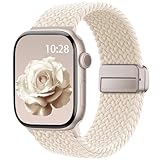
- Compatible Models: The HEARTBOOM magnetic nylon sport bands compatible for iWatch all versions. Suitable for Apple Watch Series 3/2/1 (38mm), Series 4/5/6/SE/SE 2/SE 3 (40mm), Series 7/8/9 (41mm), Series 11/10 (42mm). Pls check the model on the back of your watch to select the correct size
- Comfortable & Fit: HEARTBOOM stretchy apple watch band is made of recycled polyamide with a fabric weave, which is skin-friendly, breathable, lightweight, washable, sweat-resistant and quick-drying. Perfect for Fitness, Running, Yoga and daily wear, as it ensures that your wrist remains comfy and gentle feeling
- Multi Colors & Freely Adjustable: Our iwatch bands come with Various rich & muted colors for your choices, personalize your smartwatch to fit your outfit in daily life and easy change for every occasion. Suitable for women and men with 5.5"-9.6"(140mm~244mm) wrists. One size fit for most people,no need to measure your wrist to choose the size like the traditional braided bands
- Confidently Secure with Upgraded Magnets: Experience the perfect blend of style and security with our braided stretch band for Apple Watch. The enhanced magnetic Closure creates a strong, reliable connection that is easily adjustable for a flawless custom fit. Designed for all-day comfort and peace of mind, it stays put during any activity. Tool-free installation and one-click removal make it incredibly easy to use
- Perfect Gift: This apple watch bands blend fashion with functionality, look more fashionable and youthful. It's a a thoughtful and well-made gift. Suitable for Christmas, New Year's, Father's Day, Mother's Day and birthdays as a surprise for your parents, loved ones, and friends.We offer 24/7 friendly support
Because Siri only activates when you press the crown, this method is also the most battery-efficient. If you’re stretching a long day on an older Apple Watch or traveling without a charger, this trigger keeps power usage predictable.
3. Raise to Speak
Raise to Speak is the most subtle and underused Siri trigger on Apple Watch. When enabled, simply raising your wrist toward your mouth and speaking activates Siri without a wake phrase or button press.
This method works best for quick, quiet commands. Setting a timer, checking the weather, logging water intake, or starting a workout can feel nearly instant when Raise to Speak is dialed in.
It excels in environments where saying “Hey Siri” feels unnatural or repetitive. Because there’s no trigger phrase, it often feels faster once your muscle memory adapts.
However, Raise to Speak is the most sensitive to posture and motion. If your wrist movement isn’t distinct enough, Siri may not activate. Conversely, exaggerated wrist raises can occasionally trigger Siri unintentionally, especially when talking to someone nearby.
Battery usage sits between voice activation and the Digital Crown. It’s efficient when used intentionally, but repeated false activations can quietly chip away at daily runtime.
For many users, this becomes their favorite method once properly tuned. It complements the Apple Watch’s design philosophy by reducing friction to almost zero when performing short, frequent tasks.
How to Choose the Right Trigger for Your Daily Routine
Most experienced Apple Watch users don’t rely on a single Siri trigger. They instinctively switch based on context, noise level, and how urgent the task is.
Use voice activation when movement or safety matters. Use the Digital Crown when precision, privacy, or battery conservation takes priority. Use Raise to Speak when you want Siri to feel invisible and immediate.
The Apple Watch’s value isn’t just in its hardware, sensors, or materials. It’s in how seamlessly software and physical design work together. Mastering when and how you trigger Siri is one of the simplest ways to make the watch feel faster, smarter, and more personal every single day.
Personalizing Siri for Faster, More Accurate Results
Once you’ve chosen the right way to trigger Siri, the next leap in usefulness comes from personalization. This is where Siri stops feeling like a generic voice assistant and starts behaving like an extension of how you actually use your Apple Watch day to day.
Most frustrations with Siri on the wrist come down to mismatched expectations, not limitations. A few minutes spent tuning settings on both the Watch and iPhone can dramatically improve speed, accuracy, and reliability in real-world use.
Train Siri to Your Voice and Speech Patterns
Siri’s voice recognition improves noticeably when it’s calibrated properly. On your iPhone, turning off and re-enabling “Listen for Hey Siri” forces a fresh voice training session that can resolve persistent misfires or ignored commands.
This matters even more on Apple Watch because microphones are smaller and often competing with wind, clothing noise, or gym environments. Clear training helps Siri distinguish your voice when Raise to Speak or hands-free activation is used in motion.
If you’ve changed your speaking style over time, use a different accent, or frequently issue commands while exercising, retraining Siri can feel like a quiet reset that restores responsiveness.
Fine-Tune Language, Accent, and Siri Voice
Under Siri & Search settings, make sure language and accent match how you naturally speak. Even small mismatches can cause slower responses or incorrect dictation, especially for names, workouts, or locations.
Choosing a Siri voice isn’t just cosmetic. Some voices respond faster or sound clearer in noisy settings, which can make confirmations easier to catch on a quick wrist glance.
On Apple Watch, clarity matters more than richness. You’re often listening through a tiny speaker during movement, so prioritizing intelligibility improves everyday usability.
Control Which Apps Siri Can Use
Siri works best when it isn’t guessing which app you mean. Reviewing which apps have Siri permissions helps prevent vague responses or the dreaded “I can’t help with that on Apple Watch.”
Prioritize apps you actually use on the watch, such as Messages, Reminders, Workout, Music, Podcasts, Calendar, and smart home apps. Removing unused apps from Siri access reduces confusion and speeds up responses.
This also improves privacy and battery efficiency, since Siri isn’t scanning irrelevant app contexts in the background.
Leverage Personal Requests for True Hands-Free Control
Personal Requests allow Siri to access messages, reminders, contacts, and calendar data even when the watch is locked. When enabled, Siri can read incoming messages, send replies, and add reminders without requiring Face ID or a passcode interaction.
This setting is essential if you use Siri while driving, running, cooking, or carrying groceries. Without it, Siri feels artificially limited and slower than it needs to be.
For Apple Watch models with cellular, this turns the watch into a genuinely independent assistant rather than a remote control for your iPhone.
Make Siri Smarter by Fixing Your Contacts and Calendars
Siri relies heavily on clean data. If contacts have inconsistent naming, missing relationships, or duplicated entries, Siri’s accuracy drops quickly.
Adding relationships like “my partner,” “my manager,” or “my doctor” to contacts enables natural language commands that feel intuitive. Saying “message my partner” or “call my doctor” becomes reliable instead of hit-or-miss.
The same applies to calendars. Clearly named calendars and events make queries like “What’s next on my schedule?” far more accurate on the watch’s small screen.
Customize Siri Suggestions on the Watch Face
Siri Suggestions are often overlooked, but they quietly shape how proactive Siri feels. On watch faces that support them, these suggestions surface actions based on time, location, and habits.
If you consistently start a workout at the same time, open a specific app at work, or play music during a commute, Siri learns and surfaces those actions automatically.
This reduces how often you need to speak at all, making the Apple Watch feel anticipatory rather than reactive.
Optimize Siri for Fitness and Health Tracking
Siri is deeply integrated into Apple’s health and fitness ecosystem, but only if permissions are properly set. Make sure Siri has access to Health, Fitness, and Workout data so commands don’t stall or fail.
Simple phrases like “start an outdoor walk,” “log 500 calories,” or “what was my heart rate today?” work best when phrased consistently. Over time, Siri adapts to your phrasing patterns and becomes faster at recognizing intent.
During workouts, this hands-free control preserves flow and focus, especially on aluminum or titanium models where lighter weight and better comfort encourage all-day wear.
Adjust Spoken Responses to Match Your Environment
Under Siri Responses, you can control when Siri speaks versus when it stays silent. Choosing “Control with Silent Mode” or “Only with Hey Siri” prevents unexpected audio in quiet environments.
On Apple Watch, this setting matters more than on iPhone. A spoken response during a meeting, yoga class, or public transit can feel intrusive.
Matching Siri’s response style to how and where you wear your watch makes interactions feel intentional rather than awkward.
Use Consistent Command Phrasing for Faster Results
Siri responds faster when you use repeatable, predictable phrasing. While Siri supports natural language, consistency reduces processing time and misinterpretation.
For example, always saying “start a 10-minute timer” instead of varying between “set,” “begin,” or “count down” creates a reliable pattern Siri learns quickly.
This becomes especially powerful on Apple Watch, where speed matters more than conversational flexibility.
Common Personalization Mistakes That Slow Siri Down
One of the most common issues is assuming Siri “just knows” what you want without proper setup. Missing permissions, poorly maintained contacts, or unused apps cluttering Siri access all create friction.
Another mistake is relying on Siri for tasks better handled visually, such as complex navigation or long-form searches. Siri excels at quick, repeatable actions, not deep exploration on a small display.
Treat Siri as a precision tool rather than a general assistant, and it will reward you with speed and reliability that genuinely enhances daily wearability.
Personalization is where Siri shifts from novelty to necessity. When your Apple Watch is tuned to your voice, habits, and priorities, every interaction becomes shorter, more accurate, and more satisfying without demanding extra effort from you.
Everyday Time-Savers: The Most Useful Siri Commands You Should Actually Use
Once Siri is personalized and behaving predictably, the real value comes from using it for actions that eliminate screen taps entirely. On Apple Watch, the best Siri commands are the ones you repeat daily while moving, carrying things, or staying focused.
Think of Siri as a set of reliable shortcuts attached to your wrist, not a conversational assistant. The commands below are the ones that consistently save time in real-world Apple Watch use.
Instant Timers and Alarms Without Touching the Screen
Timers are Siri’s single most reliable strength on Apple Watch. Saying “start a five-minute timer” or “set a 20-minute timer called laundry” works even when your hands are wet, gloved, or occupied.
Multiple timers are supported on newer watchOS versions, making this ideal for cooking, workouts, or time-blocking tasks. The haptic tap on your wrist is often more noticeable than an iPhone alert, especially on lighter aluminum and titanium models worn snugly.
Alarms are equally frictionless. “Wake me up at 6:30” or “set an alarm for tomorrow morning” avoids scrolling through the Alarms app and works well with Sleep Focus enabled.
Messages That Feel Faster Than Typing Ever Will
Dictating messages is where Apple Watch comfort and Siri accuracy intersect. Saying “text Alex I’m running five minutes late” is faster than raising your wrist and tapping through the Messages interface.
Siri handles punctuation naturally if you speak it, which matters on longer replies. You can also say “send it” immediately after dictation, avoiding confirmation taps.
Rank #3

- 【Fit All Models】SuperNaNa Sport silicone watch band compatible with apple watch bands 40mm 38mm 42mm 44mm 41mm 45mm 46mm 49mm women men,Soft breathable replacement sport strap for iwatch bands series 11 series 10 series 9 series 8 series 7 series 6 series 5 series 4 series 3 series 2 series 1. and iwatch Ultra 3 2, Ultra, SE(2nd Gen). All iwatch versions can attach perfectly and seamlessl.
- 【Soft Silicone Material】apple watch bands for women men are made of premium soft silicone, prevents skin from irritation, lightweight, persistent, skin-friendly, touch comfortable, water-resistant and sweat-proof; iphone watch bands for women perfectly fit for runs, hiking, rides, camping, climbing, swims, workouts, traveling and more outdoor activities. iWatch bands 40mm womens completely unburdened to wear on the wrist, perfect for all day.
- 【Adjustable size for all wrist】Our Sport apple watch strap compatible for 38mm/40mm/41mm/42mm(series 11 10), this size fits for 5.1"-7.1" (130mm-180mm) wrist; soft silicone iwatch strap compatible for 42mm(series 3 2 1)/44mm/45mm/46mm/49mm, this size fits for 5.9" - 7.9" (150mm-200mm) wrist. Please check the size on the back of your watch to choose the right size.
- 【Easy installation & removal】Our watch bands for women come with Innovative pin-and-tuck closure design, which locks onto smart watch interface precisely and securely. No tool needed,easy to install and remove,provides a secure and comfortable fit for extended wear.
- 【20+ Colors Choice】Silicone iwatch bands for women come with 20+ different cute colors available for women men. black starlight apple watch band etc colors personalize your Apple Watch and fit your daily mood and outfit. A idear option for your smartwatch accessories.
For quick responses, commands like “reply with sounds good” or “tell her I’m on my way” are ideal when walking or carrying bags.
Calendar and Reminder Control That Keeps You Moving
Siri excels at capturing commitments before you forget them. “Remind me to call the dentist tomorrow at 9” or “add milk to my groceries list” works instantly and syncs across your iPhone and Mac.
Calendar creation is just as effective. “Schedule a meeting with Sam Friday at 2 PM called project review” avoids opening the Calendar app entirely.
On Apple Watch, this kind of voice capture feels natural because the watch is already part of your daily movement, not something you need to pull from a pocket.
Workout Control Without Breaking Your Rhythm
Starting workouts with Siri is faster than navigating the Workout app, especially mid-motion. Commands like “start an outdoor walk,” “begin a strength training workout,” or “start cycling” work reliably.
You can also end sessions hands-free with “end my workout,” which is useful when sweaty or wearing gloves. This matters for accuracy, since stopping workouts promptly preserves cleaner heart rate and calorie data.
Siri integrates tightly with Apple Fitness+, Activity Rings, and third-party fitness apps that support SiriKit, extending usefulness beyond Apple’s own ecosystem.
Quick Weather Checks That Actually Influence What You Do
Weather commands are most useful when they’re immediate and contextual. “What’s the weather right now?” or “will it rain this evening?” gives concise answers optimized for the small display.
For runners and walkers, “what’s the temperature?” or “how windy is it?” often matters more than a full forecast. Siri’s spoken summaries pair well with Always-On Display models where you only glance briefly.
This is one of those moments where Siri saves you from opening an app you would otherwise close immediately.
Music, Podcasts, and Audio Without Disrupting Your Flow
Siri is the fastest way to control audio when your phone isn’t in your hand. Commands like “play my workout playlist,” “pause,” or “skip this song” work across AirPods, Beats, and many Bluetooth headphones.
You can also say “play the latest episode of my podcast” or “resume what I was listening to,” which is ideal during walks or commutes. On cellular Apple Watch models, this works even without your iPhone nearby.
Voice control here preserves momentum, which is exactly what a wearable is meant to do.
Smart Home Commands That Make the Watch Feel Powerful
If you use HomeKit devices, Siri on Apple Watch becomes a genuine control center. “Turn off the living room lights,” “set the thermostat to 72,” or “lock the front door” all work reliably.
Because the watch is always accessible, these commands often replace phone-based controls entirely. This is especially noticeable when arriving home with groceries or leaving in a hurry.
The small display is irrelevant here, because the task never needs to be seen to be completed.
Navigation and Location Shortcuts for Everyday Movement
While full navigation is better visually, Siri is excellent for quick direction starts. “Get directions to home,” “navigate to the nearest coffee shop,” or “how long will it take to get to work?” provides immediate guidance.
On Apple Watch, haptic turn-by-turn taps are often more useful than spoken instructions. This makes Siri-started navigation ideal for walking or cycling in urban environments.
It’s a practical balance between voice control and passive guidance.
System Controls That Eliminate Repetitive Taps
Siri can handle many system-level tasks that people forget exist. “Turn on silent mode,” “increase brightness,” or “turn off always-on display” saves trips into Settings.
You can also say “ping my iPhone,” which triggers the iPhone’s alert sound instantly. This is one of the most-used real-world Siri commands among long-term Apple Watch owners.
These small actions add up, especially on days when you interact with your watch dozens of times.
When Not to Use Siri on Apple Watch
Siri is not ideal for tasks that require scanning lists, comparing options, or reading long content. Asking for detailed web searches or complex app navigation often feels slower than using your iPhone.
It also struggles in loud environments without AirPods or when permissions are misconfigured. Recognizing these limits keeps Siri feeling fast instead of frustrating.
Used intentionally, Siri becomes a quiet efficiency tool that matches the Apple Watch’s comfort, lightweight design, and all-day wearability rather than fighting against it.
Siri for Fitness, Health, and Workouts: Hands-Free Control That Makes Sense
Once you understand where Siri shines and where it slows you down, fitness and health become some of its most natural use cases on Apple Watch. This is where the always-on position, lightweight comfort, and tap-free interaction actually matter.
During movement, sweat, or recovery, voice control stops being a novelty and starts feeling like the point of wearing the watch in the first place.
Starting and Controlling Workouts Without Breaking Rhythm
Siri is one of the fastest ways to begin a workout, especially when you are already moving. Saying “start an outdoor walk,” “begin a strength training workout,” or “start cycling” launches the correct workout instantly without navigating the Fitness app.
This is particularly useful on larger Apple Watch models where accidental screen taps can happen with gloves or sweaty fingers. It also works well on smaller cases, where the compact display can feel cramped during fast interactions.
Once a workout is active, Siri can pause or end it mid-session. Commands like “pause my workout” or “end my workout” are reliable and eliminate awkward double-presses of the side button when your heart rate is elevated.
Mid-Workout Metrics Without Looking at the Screen
Siri can surface key workout stats while you are moving, which is something many users never realize. Asking “what’s my heart rate?” or “how far have I gone?” works during most Apple Fitness workouts.
For runners and walkers, “what’s my pace?” or “how long have I been exercising?” helps maintain rhythm without raising your wrist. This pairs well with the Apple Watch’s haptic feedback and avoids constant screen glances that break focus.
These voice check-ins feel especially natural on watches with always-on displays, where Siri complements the glanceable data rather than replacing it.
Logging Health Data with Voice Instead of Apps
Siri can log health information directly into the Health app, which is one of its most underrated features. Saying “log my weight,” “log my water intake,” or “log that I took my vitamins” saves multiple taps and menu dives.
This works well for daily habits where consistency matters more than precision. Logging medications, supplements, or hydration verbally increases compliance simply because it removes friction.
Over time, these quick voice entries build more complete health trends without requiring extra effort or third-party apps.
Mindfulness, Breathing, and Recovery on Demand
Siri can launch recovery-focused features instantly when stress or fatigue hits. Commands like “start a breathing session” or “start a mindfulness session” open the corresponding app without searching for it.
This is particularly useful during workdays or travel when stress spikes unexpectedly. The Apple Watch’s comfortable fit and lightweight aluminum or stainless steel cases make it easy to keep these sessions short and frequent.
Because these interactions are private and quiet, Siri feels more like a personal coach than a voice assistant here.
Sleep, Alarms, and Recovery Planning
Siri plays a supporting role in sleep routines and recovery planning. Saying “set a sleep alarm for 6 AM” or “turn on sleep focus” works reliably without opening the Sleep app.
You can also ask “how much sleep did I get last night?” for a quick recovery check in the morning. This is especially useful when the watch is charging nearby and your phone is across the room.
Over time, these small voice interactions reinforce better sleep habits without demanding attention or screen time.
Safety, Emergency, and Health Awareness
Siri can assist with safety-related actions that matter during workouts. Commands like “call emergency services” or “call my emergency contact” work hands-free if something goes wrong.
For users with fall detection or crash detection enabled, Siri adds an extra layer of accessibility when physical interaction is difficult. This makes it particularly valuable for solo runners, hikers, or older users.
In these moments, the Apple Watch’s durability, secure strap fit, and reliable microphone placement all contribute to Siri’s effectiveness.
Understanding the Limits During Exercise
Siri is most reliable for short, specific fitness commands. Complex requests, like comparing past workouts or analyzing trends, are still better handled on iPhone where visuals matter.
Loud gyms, wind noise, or poor microphone placement under thick sleeves can affect recognition. Using AirPods or ensuring the watch microphone is unobstructed improves reliability significantly.
When used with realistic expectations, Siri becomes a quiet training partner rather than a frustrating distraction.
Why Siri Fits the Apple Watch Better Than the iPhone for Fitness
On iPhone, Siri often competes with the screen for attention. On Apple Watch, the smaller display and all-day wearability make voice control feel intentional rather than optional.
The watch’s design, whether aluminum for lightness or stainless steel for weight balance, supports hands-free use without discomfort. Battery life easily handles frequent Siri interactions during workouts without noticeable drain.
Rank #4

- Newest Engraved Flower Design: SNBLK Apple watch band has clear vivid flower patterns made by advanced laser carving technology. Unique and stylish design that is sure to add a touch of elegance to your everyday outfit. One with sunflowers and the other with roses. Their cute floral print is perfect for anyone who loves nature and wants to add a personal touch to their daily wear. In addition, it's a thoughtful and well-made gift that is sure to be appreciated by anyone who receives it
- Comfortable to Wear: The Apple watch bands are made of high-quality soft silicone material that provides a comfortable and flexible fit on your wrist. The soft and lightweight nature of the band makes it perfect for everyday use, as it ensures that your skin remains comfy and free from irritation even when you wear the watch for extended periods of time. Plus, the silicone material is water-resistant and sweat-proof, making it perfect for use during physical activities or outdoor adventures
- Compatible Models & Size Options: These flower bands are designed for iWatch all versions. Suitable for Apple Watch Series 3/2/1(38mm),Series 4/5/6/SE/SE 2/3(40mm),Series 7/8/9(41mm),Series 11/10(42mm);For Series 3/2/1(42mm),Series 4/5/6/SE/SE 2/3(44mm),Series 7/8/9(45mm),Series 11/10(46mm),Ultra 3/Ultra 2/Ultra(49mm); 38/40/41/42mm Size fits 5.1"-7.1" (130mm-180mm) wrist, 44/45/46/49/42mm Size fits 5.9"-7.9" (150mm-200mm). Pls check the model on the back of your watch to select the correct size
- Enjoy the Thrill of Experimenting with Diverse Combinations: Enhance your iWatch with our stylish and intricately engraved printed strap, allowing you to personalize your smartwatch and effortlessly match your mood and outfit every day. Mix and match straps of various colors to elevate the look of your iWatch and showcase your distinct style. With a 6-pack of replacement, you can effortlessly transform your watch for various occasions, whether it's for sports, leisure, work, or everyday life
- Unmatched Durability: Our iWatch bands are built to withstand the test of time. Made from premium-grade silicone, it exhibits exceptional resistance to wear, tear, and daily use. Whether you're an athlete pushing your limits or a professional with a busy lifestyle, it is designed to keep up with your active routine, ensuring it remains in pristine condition. In addition, they comes with double hole and metal snap fastener, easier to take on/put off, no worry of loosing your watch any more
In fitness and health scenarios, Siri finally aligns with the Apple Watch’s core strengths: immediacy, comfort, and staying present in the moment rather than staring at a screen.
Using Siri for Messages, Calls, and Notifications Without Touching the Screen
After fitness and safety, everyday communication is where Siri on Apple Watch quietly becomes indispensable. The watch’s always-on presence, directional microphones, and tight iPhone integration make handling messages and calls by voice feel natural rather than forced.
When your hands are busy, wet, gloved, or simply resting at your sides, Siri lets the watch fade into the background while still keeping you connected.
Sending and Replying to Messages by Voice
Raising your wrist and saying “Hey Siri, message Alex” is still the fastest way to start a conversation without breaking stride. Siri will ask what you want to say, then read the message back before sending, which helps catch mistakes without needing the screen.
Dictation accuracy is strongest when you speak in full sentences and include punctuation cues like “comma” or “question mark.” The Apple Watch’s microphone array is optimized for close-range speech, so even aluminum models with lighter cases handle dictation surprisingly well.
You can also reply to incoming messages entirely by voice when notifications appear. Saying “Reply” followed by your message works without tapping anything, which is ideal during workouts, cooking, or carrying bags.
Choosing How Siri Sends Your Message
By default, Siri asks whether to send messages as text or audio if both are available. You can streamline this by going to Watch app on iPhone, Messages, Dictation Language, and ensuring your preferred language and input are set correctly.
For users who message frequently while walking or commuting, audio messages can be faster and feel more natural. Text replies remain better in noisy environments where Siri’s playback confirmation helps prevent accidental sends.
This balance is part of what makes Siri feel more personal on the watch than on the phone.
Making and Managing Calls Hands-Free
Siri handles calls with simple, direct commands like “Call Mom” or “Call my last contact.” The watch will place the call immediately using its built-in speaker or connected headphones, depending on your setup.
Call quality is influenced by case material and fit. Stainless steel and titanium models sit more securely on the wrist, keeping microphones aligned, while sport bands and solo loops help maintain consistent positioning during movement.
For longer calls, transferring audio to AirPods or Beats headphones improves clarity and preserves battery life on the watch.
Answering Calls Without Touching the Watch
When a call comes in, you can say “Hey Siri, answer” instead of tapping the screen. This works best when Raise to Speak or Hey Siri is enabled and the watch is awake.
If you regularly take calls while driving or cycling, this hands-free interaction reduces distraction and keeps your focus where it belongs. It also highlights the Apple Watch’s value as a communication device, not just a notification mirror.
Ending calls works the same way with “Hey Siri, hang up.”
Letting Siri Read Notifications Aloud
One of the most underused features is having Siri announce notifications. With AirPods connected, Siri can automatically read incoming messages, reminders, and alerts without you lifting your wrist.
This is enabled from the iPhone under Settings, Siri & Search, Announce Notifications. Once active, the watch becomes a quiet relay for important information while your phone stays in your pocket or across the room.
For runners, commuters, and parents juggling tasks, this feature dramatically reduces screen dependency.
Filtering What Siri Interrupts You With
Not every notification deserves your attention. Siri respects Focus modes, so setting up custom Focus profiles on iPhone directly affects what gets announced or spoken on the watch.
For example, a Workout Focus can allow calls from favorites while silencing group chats. This keeps Siri helpful instead of intrusive, preserving the watch’s role as a supportive tool rather than a constant interrupter.
Battery impact from spoken notifications is minimal, even on smaller Apple Watch cases, thanks to efficient audio handling in watchOS.
Common Voice Interaction Mistakes to Avoid
Speaking too quickly or issuing multiple commands in one sentence is the most common source of frustration. Siri performs best with one clear request at a time, especially for communication tasks.
Another mistake is covering the microphone with a jacket cuff or tight sleeve. Even premium materials and excellent finishing can’t compensate for blocked audio input.
If Siri seems inconsistent, redoing the “Hey Siri” voice training on iPhone often restores reliability across both devices.
Why Voice-First Communication Suits the Apple Watch
Unlike the iPhone, the Apple Watch is designed for brief, intentional interactions. Its compact dimensions, curved caseback, and all-day comfort encourage quick voice commands instead of prolonged screen use.
This design philosophy is where Siri shines most. Messages, calls, and notifications become moments rather than tasks, handled in seconds and forgotten just as quickly.
Used this way, Siri doesn’t feel like an assistant you have to manage. It feels like the watch finally working at the pace of your day.
Siri as Your Smart Home and Car Assistant from the Wrist
Once you’re comfortable using Siri for communication, the real efficiency gains show up when your watch starts controlling the spaces and vehicles around you. This is where the Apple Watch’s always-on presence and all-day comfort turn Siri from a convenience into quiet infrastructure.
Because the watch is already on your wrist, these commands feel less like “using tech” and more like instinctive actions you perform while walking, carrying groceries, or driving away from home.
Controlling Your Smart Home Without Touching a Screen
If you use HomeKit-compatible devices, Siri on Apple Watch becomes your fastest control surface. Lights, thermostats, locks, blinds, plugs, and sensors are all accessible without reaching for your phone.
Simple commands like “Hey Siri, turn off the living room lights” or “Set the thermostat to 72 degrees” work instantly, even when your iPhone is in another room. The watch’s microphone placement and proximity to your mouth often make recognition more reliable than shouting at a HomePod from across the house.
Why Scenes Matter More Than Individual Commands
Scenes are where Siri truly shines on the Apple Watch. Instead of issuing multiple commands, a single phrase can trigger a whole environment change.
“Hey Siri, good night” can lock doors, turn off lights, adjust the thermostat, and arm security sensors. On a watch, this saves time and battery compared to tapping through the Home app, especially on smaller case sizes where screen navigation feels cramped.
Room-Aware Control From Your Wrist
Siri understands room context if your HomeKit setup is properly labeled. Saying “Turn off the lights” while standing in the kitchen usually targets that room automatically.
This feels especially natural when moving through the house, because the watch stays with you. There’s no need to specify rooms every time, reducing friction and making voice control feel genuinely smart rather than scripted.
Managing Home Security and Access
For homes with smart locks, cameras, or alarm systems, the Apple Watch offers discreet control. You can lock doors, check door lock status, or arm systems without pulling out your phone in public.
A quick wrist raise and “Is the front door locked?” is often faster and more socially subtle than opening an app. For parents or frequent travelers, this adds peace of mind without increasing screen time.
Siri in the Car: Hands-Free Control That Actually Stays Hands-Free
In the car, Siri on Apple Watch complements CarPlay rather than replacing it. When your hands are on the wheel, the watch lets you issue commands without touching the dashboard or waiting for the car’s microphone to pick you up.
You can start navigation, send messages, adjust routes, or ask for ETA updates directly from your wrist. This is especially useful in older vehicles or rentals where CarPlay isn’t available or microphone quality is inconsistent.
Navigation and Driving Commands That Work Best on Watch
Short, focused commands perform best while driving. “Navigate to home,” “Find gas nearby,” or “What’s my ETA?” are ideal examples.
The watch provides haptic feedback for turns when using Apple Maps, which reduces reliance on spoken directions. This subtle tap-based guidance is easier to live with on long drives and has minimal battery impact, even on smaller Apple Watch models.
Garage Doors, EVs, and Car Accessories
Many HomeKit-enabled garage door openers work seamlessly with Siri on Apple Watch. Opening or closing the garage as you approach or leave becomes a single voice command instead of a remote hunt.
For electric vehicles and supported apps, Siri can handle tasks like checking charge status, preconditioning the cabin, or unlocking the car. While functionality varies by manufacturer, the watch’s quick-access nature makes these features far more practical than using a phone app.
Using Siri Automations to Reduce Repetition
Automations tied to location, time, or accessories amplify Siri’s usefulness. For example, arriving home can trigger lights and climate adjustments without any command at all.
When automation handles the routine, Siri becomes the override. The watch is then used for exceptions rather than repetition, preserving battery life and keeping interactions intentional.
Setup Tips That Make or Break the Experience
Make sure your HomeKit rooms, accessory names, and scenes use simple, spoken language. Siri struggles more with clever names than descriptive ones, especially in noisy environments.
On the watch, clarity matters more than personality. Short names reduce misfires and prevent Siri from asking follow-up questions that slow everything down.
Battery and Reliability Considerations
Smart home commands have minimal battery impact because they rely on brief audio interactions rather than prolonged screen use. Even daily use won’t noticeably affect all-day wearability on aluminum or stainless steel models.
For reliability, keep your watchOS and iOS versions aligned. Most Siri smart home issues stem from outdated software or poorly synced HomeKit data, not hardware limitations.
When Siri Is the Better Choice Than Tapping
The Apple Watch’s small display and curved glass are optimized for glances, not complex control. Siri bypasses those limitations entirely.
💰 Best Value

- 【Compatible Models】: UJUTL Sport silicone bands perfect compatible with Apple Watch Bands Series 11 10 -(42mm), Series 9 8 7 -(41mm), Series 6 5 4 SE3 SE2 -(40mm), Series 3 2 1 SE -(38mm), Check your watch size before ordering, Size fits 5.3"-7.6" (135mm-193mm) wrist
- 【Newest Original Design 】: The breathable groove design wicks away moisture to keep you cool during workouts and daily activities, Hidden buckle design that does not come into contact with any metal, Keep the irritate away from you
- 【Premium Material】: Comfort & Breathability - Made of high quality silicone, these bands provide soft, irritation-free wear for sensitive wrist, Durable & Easy to Clean - Non-sticky, stain-resistant silicone stays fresh through sweat, rain, and daily use. Simply wipe with a damp cloth for instant refresh
- 【10 Colors in One Pack】: Available in a variety of colors, these bands can be easily swapped out to match your outfit or mood, perfect for mixing styles with outfits or seasons. Also proper to be used as gifts for Wedding, birthday, Valentines' day, Mothers' day, father' day, Christmas, Thanksgiving Day etc
- 【Worry-Free Purchase】: To ensure 100% customer satisfaction, we provide 24/7 online support. If you encounter any issues with our product, please contact us immediately—we will prioritize resolving your concerns and offer tailored solutions promptly
When your hands are full, your attention is divided, or your phone is out of reach, voice control from the wrist feels like the Apple Watch doing exactly what it was designed to do.
Offline Siri, On-Device Processing, and Battery Life Considerations
As Siri becomes more deeply woven into daily Apple Watch use, what happens behind the scenes matters just as much as what you say out loud. Offline capability, on-device processing, and power efficiency all shape whether Siri feels instant and dependable or slow and situational.
This is where newer Apple Watch hardware quietly changes the experience, especially for users who rely on Siri away from their iPhone or in motion.
What Offline Siri Actually Means on Apple Watch
Offline Siri allows certain requests to be processed directly on the watch without an internet connection. That includes common actions like starting workouts, setting timers and alarms, controlling music playback, or toggling system settings.
This capability depends on the watch’s processor. Apple Watch Series 9 and Ultra 2, powered by the S9 SiP, support true on-device Siri for a growing list of commands, while older models still route most requests through the iPhone or Apple’s servers.
When offline Siri is available, the response feels immediate. There’s no waiting for network checks, no spinning indicator, and no silent failures when you’re in an elevator, on a trail run, or traveling without cellular access.
On-Device Processing and Real-World Responsiveness
On-device processing doesn’t just help when you’re offline; it improves consistency everywhere. Commands register faster, follow-up questions are reduced, and Siri feels less fragile in noisy or crowded environments.
From a usability standpoint, this matters most during workouts and quick interactions. Saying “start outdoor walk” or “mark this lap” works reliably even when your phone is miles away, which reinforces the Apple Watch’s role as a standalone fitness tool rather than a dependent accessory.
There’s also a privacy benefit. Requests handled on the watch aren’t sent to Apple’s servers, which may matter to users who prefer minimal data exposure for health or location-related commands.
Battery Impact: Voice vs Touch vs Background Processing
Siri interactions are generally efficient because they replace screen-on time. A short voice command often consumes less power than waking the display, navigating menus, and waiting for animations to complete.
On-device Siri is even more power-conscious. Processing locally avoids the extra energy cost of maintaining a data connection, which becomes noticeable during long workouts or all-day wear on LTE models.
That said, frequent Siri use can add up if it triggers apps with background activity, such as third-party fitness platforms or streaming audio. The command itself is cheap; what it launches determines the real battery impact.
Managing Siri Settings for Better Battery Longevity
If battery life is a priority, review how Siri is activated. “Raise to Speak” can be convenient but may cause accidental wake-ups during active days, especially on larger watches like the Ultra with looser straps.
Limiting Siri’s language processing to a single language and disabling unnecessary Siri suggestions in watchOS settings can also reduce background overhead. These changes won’t affect command accuracy but can improve standby efficiency.
For cellular models, remember that offline Siri helps most when you’re away from your phone. When paired closely with an iPhone, the battery difference is modest, but independence is where newer watches earn their efficiency edge.
Which Apple Watch Models Benefit the Most
Apple Watch Series 9 and Ultra 2 gain the most from offline and on-device Siri, not just in speed but in reliability. The difference is especially noticeable during workouts, commuting, or travel, where connectivity is inconsistent.
Older aluminum and stainless steel models still handle Siri well for basic tasks, but they depend more heavily on the iPhone and network quality. For users who rely on Siri as a primary control method, this is a meaningful upgrade consideration rather than a spec-sheet footnote.
In daily wear, on-device Siri reinforces the Apple Watch’s core value. It feels less like a companion screen and more like an always-ready tool that responds instantly, conserves power, and works wherever your wrist happens to be.
Common Siri Mistakes on Apple Watch (And How to Fix Them for Better Results)
Once you understand Siri’s strengths on Apple Watch, the next step is avoiding the habits that quietly undermine it. Most frustrations aren’t hardware limitations or software bugs; they’re small usage patterns that prevent Siri from delivering fast, accurate results.
Fixing these issues doesn’t require advanced settings or third-party apps. It’s about aligning how you speak, configure, and rely on Siri with how watchOS is designed to work in real-world conditions.
Using Vague Commands Instead of Intent-Focused Requests
One of the most common mistakes is speaking to Siri the same way you would a person, rather than a task engine. Phrases like “I need to work out later” or “I’m trying to eat better” don’t give Siri a clear action to execute.
Siri performs best when you pair intent with a specific outcome. “Set a 30-minute strength training workout,” or “Log lunch with 600 calories,” gives the system enough structure to respond immediately.
On Apple Watch, clarity matters even more because interactions are designed to be brief. The faster Siri understands your goal, the less time your wrist stays raised and the more natural the experience feels.
Ignoring App-Specific Siri Permissions
Many users assume Siri automatically works with every installed app. In reality, third-party apps must explicitly support Siri and be allowed access in settings.
If Siri refuses to log water, start a workout, or control a smart device, check Siri & Search in the Watch app on iPhone. Make sure the relevant app is enabled for Siri, including “Use with Ask Siri” and background permissions.
This is especially important for fitness, meditation, and smart home apps. Once properly enabled, Siri becomes a powerful launcher that bypasses tiny on-screen buttons and scrolling during workouts or busy moments.
Relying Only on “Hey Siri” in Noisy Environments
“Hey Siri” works well indoors or at home, but it’s less reliable outdoors, in gyms, or on busy streets. Wind, traffic, and workout breathing can easily disrupt voice detection.
Many users forget that pressing and holding the Digital Crown is often faster and more reliable. This method guarantees Siri is listening and avoids repeated wake-word attempts that drain patience and battery.
On larger or heavier models like Apple Watch Ultra, the physical controls are especially comfortable to use mid-activity. Learning when to switch activation methods dramatically improves consistency.
Speaking Too Quickly During Workouts
During runs, rides, or strength sessions, users often rush commands between breaths. This leads to misheard requests, incomplete logging, or Siri asking for clarification when you least want it.
Slowing down slightly and pausing before speaking makes a noticeable difference. A calm “Start an outdoor run” is more reliable than shouting fragments while moving.
Apple Watch microphones are tuned for clarity, not chaos. Treat Siri commands like short, deliberate inputs rather than background chatter, especially when your heart rate is elevated.
Overlooking Offline Siri Capabilities
With newer Apple Watch models, many users still assume Siri requires an internet connection. As a result, they hesitate to use it when away from their phone.
On-device Siri can handle timers, workouts, alarms, messages, and many system tasks entirely offline. This is one of the biggest quality-of-life upgrades in Series 9 and Ultra 2, particularly for runners, travelers, and commuters.
Trusting offline Siri turns the watch into a genuinely independent tool. The more you use it untethered, the more valuable the Apple Watch feels in everyday wear.
Leaving “Raise to Speak” Enabled When It Causes Accidental Triggers
“Raise to Speak” sounds ideal in theory but can be counterproductive in practice. Active days, loose straps, or expressive arm movements can cause unintended activations.
These false triggers don’t just feel awkward; they can drain battery and create the impression that Siri is unreliable. If you notice Siri activating without being asked, it’s time to reassess this setting.
Disabling it and relying on the Digital Crown or wake phrase often leads to more intentional, accurate interactions. Comfort, strap fit, and wrist movement all play a role here, especially on larger titanium models.
Assuming Siri Is Only for Simple Tasks
Many users limit Siri to timers and weather checks, never exploring deeper integrations. This underuse makes Siri feel like a novelty instead of a core control system.
Siri can manage calendar changes, control HomeKit scenes, adjust workouts, send precise messages, and retrieve health metrics like heart rate trends or recovery stats. These features shine on a small screen where touch input is slower.
Once you trust Siri with more responsibility, the Apple Watch becomes less about tapping and more about flow. That’s where the platform’s design philosophy truly pays off.
Not Reviewing Siri Language and Accent Settings
Siri accuracy depends heavily on language configuration. Users who switch languages frequently or leave unused languages enabled can experience slower or less accurate recognition.
Limiting Siri to your primary language improves response speed and reduces processing overhead. This matters most on older models, but even newer watches benefit from streamlined settings.
If you use regional accents or mixed-language commands, testing a few configurations can dramatically improve consistency. This is a quiet optimization that pays off every day.
Expecting Siri to Fix Poor App Design
Siri can’t compensate for apps that aren’t well-optimized for watchOS. If an app launches slowly or fails after a voice command, the issue often lies with the app itself, not Siri.
Stick with apps that actively support Apple Watch and update regularly. Well-designed apps respond faster, use less battery, and integrate more cleanly with Siri workflows.
Choosing quality apps is part of getting the most out of Siri. The better the ecosystem, the better the experience on your wrist.
Turning Siri Off After One Bad Experience
Perhaps the biggest mistake is giving up on Siri entirely after a single failure. Voice assistants improve significantly with small adjustments in phrasing, settings, and usage patterns.
Siri on Apple Watch isn’t meant to replace your iPhone. It’s meant to reduce friction during moments when your hands, eyes, or attention are elsewhere.
Once you correct these common missteps, Siri stops feeling like a gamble. It becomes a reliable, time-saving companion that fits naturally into daily wear, workouts, and everything in between.