Outdated Drivers Are Slowing You Down
One free scan finds every outdated or missing driver and matches the right update for your exact hardware.Free scan · exact hardware matchWindows Errors? Fix Them Before They Spread
Repair common Windows errors and clear accumulated junk for a smoother, more stable PC - no reinstall needed.Free scan · no reinstallTurning off wrist-down notifications can keep message previews from appearing when your watch is facing away, but it also makes quick notification checks less immediate. If you want more privacy without giving up the glanceable summary, try Apple’s full-notification privacy control or adjust only sensitive apps first.
What the wrist-down setting changes
Show Notifications on Wrist Down controls whether notifications appear on the watch while your wrist is down or turned away. Turning it off reduces the chance that someone nearby will see an incoming alert or its preview; it does not necessarily stop the alert from arriving. Depending on your other settings, you may still get a sound or haptic alert, and unread notifications may remain in Notification Center.
Apple says notifications generally appear on either the iPhone or Apple Watch, rather than both. If the iPhone is unlocked, alerts normally appear there; if it is locked or asleep, they generally go to the watch, subject to factors such as whether the watch is locked, connected, or available. Apple’s notification guidance explains the routing behavior.
How to turn wrist-down notifications off
On Apple Watch
- Open Settings on your Apple Watch.
- Tap Notifications.
- Find Show Notifications on Wrist Down.
- Turn the option off to prevent notifications from appearing automatically in that position. Turn it on if you want them to appear while your wrist is down.
Apple’s current watchOS guide says wrist-down notifications are off by default, so check the state of the control rather than assuming it is enabled.
Recommended Free Tools
#1 Best Overall
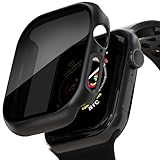
- APPLE WATCH CASE COMPATIBLE MODELS - The 46mm Apple Watch screen protector case fits Apple Watch Series 11 Series 10. Please check the back of your Apple watch to make sure you are ordering the correct size.
- APPLE WATCH SCREEN PROTECTOR - The Apple Watch Case is made of high quality frosted PC material and 9H tempered glass, covering the entire front and curved edges of the Apple Watch, providing your Apple Watch with drop, scratch and impact protection.
- ANTI-PEEKING APPLE WATCH COVER - Apple Watch cover adds a special privacy coating, the screen can only be seen by people directly in front of the watch screen. The anti-peep design will effectively protect your personal, private or sensitive information from prying eyes in public.
- TOUCH SENSITIVE APPLE WATCH CASE - The Apple Watch case is smooth and responsive to the touch, with precision cutouts to access all controls, sensors and Apple Watch features. The watch can be charged directly without removing the case and band, providing a comfortable wearing experience.
- EASY TO PUT ON AND TAKE OFF - The Apple Watch case has precise cutouts so you can easily snap the case on and off. And you can charge the watch directly without removing the case and band, providing a comfortable wearing experience.
In the iPhone Watch app
- Open the Watch app on your iPhone.
- Tap My Watch, then Notifications.
- Open the wrist-down notification setting and change Show Notifications.
Apple has changed notification menus across software versions, and the iPhone route may not appear on every setup. If you do not see it in the Watch app, check the watch’s own Settings app.
What gets better—and what gets worse
More privacy and fewer visual interruptions
When the watch is turned away, the screen is less likely to display app names, sender names, subject lines, or message previews for bystanders to see. That can be useful at work, on public transit, in class, at dinner, or in a shared home. It can also make incoming alerts less visually distracting and encourage you to check them deliberately instead of reading every preview as it arrives.
This is not complete privacy: a sound or tap may still reveal that an alert arrived, and you can still see unread items later in Notification Center. Apple documents a separate Notifications Indicator control if you want to change whether the red indicator appears. See Apple’s notification options.
Rank #2
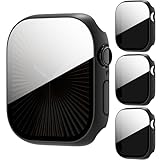
- 【Precise Compatibility】--- Specifically designed for Apple Watch Series 10/11 46mm, paired with high-definition tempered glass screen protector and premium PC protective case, perfectly fits the watch size without looseness, restoring the original elegant appearance of the watch.
- 【Anti-Privacy Protection】--- Adopts anti-spy tempered glass and clear PC material, prevents side-view peeping from strangers, only visible directly in front while maintaining smooth native touch of Watch Series 10/11 46mm.
- 【Easy Installation】--- Bubble-free installation, no complicated tools required, the ultra-thin design fits Apple Watch Series 10/11 46mm perfectly, without adding extra bulk.
- 【Full Protection】--- Full-wrap design provides all-around protection for Apple Watch Series 10/11 46mm, effectively resisting scratches, bumps and daily wear, serving as a reliable protector and independent screen protector for your watch.
- 【Note】--- This case is not waterproof. Please avoid water contact during swimming or showering to protect the screen protector and your watch.
Less immediate information
The main cost is that you may feel or hear an alert without seeing what it is until you raise your wrist or wake and interact with the display. A haptic can signal that something arrived, but it does not show the message content or provide the same quick triage as a preview.
The trade-off is especially noticeable when your hands are occupied—washing dishes, carrying groceries, cooking, exercising, holding a child, or using tools. The alert itself is not necessarily lost; what may be delayed is the visual information that helps you decide whether to reach for your phone.
In a May 2, 2024 article, a BGR writer using an Apple Watch Ultra 2 described delayed visibility after raising the wrist and missed visual information during chores. That is one wearer’s account, not a measured result or evidence of identical behavior across watch models and watchOS versions. Read the original account.
Rank #3

- Application: ONLY Compatible with Apple Watch Ultra 4/3/2/Ultra 49mm (2026/2025/2023/2022 Release). Not compatible with any other Apple Watch models.
- High Privacy: Keeps your personal, private, and sensitive information hidden from strangers,screen is only visible to persons directly in front of screen.Good choose when you are in the bus,elevator,metro or other public occasions.(Note: Due to this privacy cover will darken the image to prevent the peeking eyes near you, you might need to turn your device display brightness up a bit when use it.)
- Touch Sensitive: It doesn't interfere with the touch screen and easy access to all controls, buttons, sensors and with smooth tempered glass surface and "True Touch" feel.
- 99.99% High-definition hydrophobic and oleophobic screen coating protects against sweat and oil residue from fingerprints.Featuring maximum protection from scratches, scrapes, and bumps.
- Easiest Installation: Removing dust and aligning it properly before actual installation, enjoy your screen as if it wasn't there.
Try these narrower privacy controls first
Show a summary, not the full notification
Apple’s Tap to Show Full Notification option displays a quick summary first and requires a tap to reveal full details. It is a good middle ground if you want to identify an app or sender at a glance but do not want the whole message exposed. Apple documents this option alongside other notification privacy settings.
Hide summaries while the watch is locked
Show Summary When Locked controls whether a short summary appears while the watch is locked. Turning it off targets locked-screen previews rather than changing wrist-down presentation across the board. It may be the better fit if the concern is specifically what someone could read on a locked watch.
Do these 3 things before closing this tab:
1Fix the driver behind crashes, sound loss and screen glitches2Clear out junk files and repair common Windows errors3Scan for outdated or missing drivers - takes under a minuteChange behavior for sensitive apps
Keep wrist-down notifications available for most alerts, then restrict apps whose previews you would rather not show. Apple’s notification settings let you allow alerts, send them directly to Notification Center, or turn them off for individual apps. Consider Messages, Mail, workplace chat, banking, dating, health, social, and authentication apps according to what you actually use and what you consider sensitive. See Apple’s app-level notification controls.
Rank #4

- Compatible Model:Only fit for iWatch Ultra 4/3/2/1 49mm.Tempered glass Privacy screen protector,offer full protection sercure.Let you have a new experience.
- Product Features:tempered glass screen protector comes with a dust-free space, designed with a cover plate and vacuum strip to effectively absorb dust during the film application process, ensuring a clean and bubble free bonding effect
- Product Material:Watch screen protector made of tempered glass Privacy film,gives you a better feeling than a bare screen.99.99% hydrophobic and oleophobic screen coating protects against sweat dirt,dust and oil residue from fingerprints.
- Easy to Remove without Residue---No bubbles when applied. Excellent product remaining your watch brand-new. When fixed on the screen, it is nearly automatic. non-bubble adhesive, no-bubble installation.
- kit and Installation:for iWatch Ultra 4/3/2/1 49mm Privacy screen protector*2,Warm reminder, we recommend that you clean the before installation, and then patiently stick the tempered film on the lens screen to achieve bubble-free installation.
Use Focus for situations that change
Focus can apply different notification rules by schedule or context—for example, during work, sleep, driving, or a meeting—without making a permanent change to wrist-down behavior. Do Not Disturb is broader, while a configured Focus can allow selected people or apps through. Apple explains Focus and other interruption controls.
Use Silent Mode or Theater Mode for temporary quiet
- Silent Mode mutes sounds while retaining haptic alerts.
- Theater Mode prevents the display from turning on when you raise your wrist and also enables Silent Mode.
- Do Not Disturb suppresses sounds and haptic notifications.
These controls help with interruptions or a bright display in specific settings; they are not substitutes for choosing what notification content appears. Apple’s guide covers these modes.
Independent reader supportYour contribution helps us test, update, and keep practical guides available for everyone.Check Always On settings on supported models
On Apple Watch models with an Always On display, Apple provides additional choices for what remains visible while the wrist is down under Settings → Display & Brightness → Always On. The available options depend on the model and watchOS version. This control may be a better match if your concern is what stays visible on the dimmed screen, rather than whether a notification arrives. Check Apple’s Always On guidance for supported models.
What’s actually slowing this PC down?
Pick the symptom - the matching free tool is one click away.
Best Value

- Compatibility: LK Apple Watch screen protector 42mm is only compatible for Apple Watch Series 12/11/10 42mm. Please check your Apple Watch model & size before purchasing
- Perfect 28° Privacy Protection: LK privacy Apple Watch Screen Protector 42mm made with the latest technology, it keeps your personal, private, and sensitive information hidden from strangers, screen is only visible to persons directly in front of screen. Good choose when you are in the bus,elevator,metro or other public occasions.
- Edge to Edge Full-Screen Coverage Design: LK Apple Watch Series 12/11/10 42mm Screen Protector Privacy, precisely laser-cut, perfectly fits your iWatch screen from curved to curved. It has no black border, full-screen coverage without blocking display, designing to provide the maximum coverage and maximum protection for your Apple Watch 42mm Screen.
- Ultra-HD Clarity & Smooth Touch: With 99% High Transparency, this 42mm Apple Watch Screen Protector has no grid, no dotted blur, bringing bright and colorful image quality, maintaining the original visual experience for you and reducing eye fatigue. And ultra-thin design, feels like bare screen, retains original touch sensitivity.
- Easy installation: Provides an exclusive installation kit for easy installation, accurate positioning, and easy disassembly without residue. If there are small scratches and bubbles after installation, do not worry, it will automatically recover within 24 hours.
Always On is unavailable in Low Power Mode and Theater Mode, according to Apple. If the display does not wake as expected, wrist orientation, Wake on Wrist Raise, lock state, and display modes can all matter; do not assume the wrist-down notification setting is the cause. Apple’s display guide describes wake behavior and related controls.
If notifications seem to disappear
Turning off wrist-down display changes presentation, not necessarily delivery. If an alert does not appear where expected, check these conditions:
- iPhone state: When the iPhone is unlocked, notifications may appear on it instead of the watch.
- Watch lock and connection: A locked watch or disconnected devices can change notification routing.
- Focus and interruption modes: Focus or Do Not Disturb may suppress alerts; Theater Mode affects the display and enables Silent Mode.
- App settings: The app may be configured to send alerts to Notification Center or not mirror notifications to the watch.
- Always On and display state: Supported models have separate Always On visibility choices, and Low Power Mode or Theater Mode can affect display behavior.
If raising your wrist does not wake the display reliably, check Wake on Wrist Raise and the display settings rather than attributing every delay to notification privacy. Apple also documents wrist flick as a way to dismiss notifications on Apple Watch SE 3, Series 9 and later, and Ultra 2 and later; it clears an alert quickly but does not change its privacy settings. See Apple’s gesture support details.
Quick Recap
Is turning it off right for you?
- Turn it off if bystander privacy is your priority, most alerts are non-urgent, and you are comfortable checking the watch intentionally.
- Leave it on if you rely on quick triage, often have both hands occupied, or need to identify calls, timers, reminders, or work alerts promptly.
- Choose a compromise if only message content is sensitive, or if your privacy needs change by app, time, or setting. Try Tap to Show Full Notification, app-level controls, or Focus before changing the global behavior.
Product prices and availability are accurate as of the date/time indicated and are subject to change. Any price and availability information displayed on Amazon at the time of purchase will apply.
Quick wins for a faster PC:
Scan for outdated or missing drivers - takes under a minuteDriver Scan →Clear out junk files and repair common Windows errorsFree Scan →