Crashes, No Sound, or Screen Glitches?
Random freezes, missing sound and display glitches usually trace back to one bad driver. Find and replace yours safely.Free scan · under a minutePC Slower Than It Used to Be?
A free scan shows the junk files, broken settings and background clutter dragging Windows down - then fixes them in one click.Free scan · Windows 10 & 11Some links on this page are affiliate links: if you buy through them we may earn a commission, at no extra cost to you.
If your Fitbit shows old steps, an outdated time, or no new heart-rate data, start with a manual sync rather than resetting the device. Fitbit syncing is now handled through the Google Health app, not the former Fitbit app. The app requires Android 11 or later or iOS 16.4 or later.
Keep the Fitbit close to your phone while working through these fixes. Most sync failures come from a second phone holding the Bluetooth connection, restricted background permissions, or a stale pairing.
| # | Preview | Product | Price | |
|---|---|---|---|---|
| 1 |
|
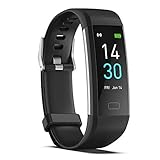
Fitness Tracker with Step/Distance/Calories Counter for Women Men | Heart Rate Monitor, Slim Style... | $19.99 | Buy on Amazon |
As an Amazon Associate I earn from qualifying purchases.
Start with a manual sync
Open Google Health and try a manual refresh:
- Android: Open Google Health → Connections. Touch and hold the screen, then pull down until the progress bar appears. Release and wait for the sync to finish.
- iPhone or iPad: Open Google Health → Connections → tap your Fitbit. Touch and hold the screen, then pull down until the progress bar appears.
You can also try Google Health → Connections → Sync, where that option is shown. Google Health normally syncs automatically when the Fitbit is nearby and the app is opened.
1. Check whether another phone is connected
A Fitbit can sync with only one phone or tablet at a time. If you recently changed phones, or another household device uses the same Google Account, that device may be capturing the connection.
Popular on Amazon
- 【All-day Activity Tracker】: ENGERWALL IP68 Waterproof fitness tracker can record and track your daily steps, calories burned, exercise distance and time. It can also monitor your Body Temp, Heart Rate, Blood Oxygen and Blood Pressure. IP68 waterproof ensures that you don't need to take it off for daily hand washing and swimming, but don't soak it in water for a long time or wear it for hot baths, saunas.
- 【Slim and simple band design】The design concept of this tracker’s band is slim and unique, offering a comfortable and lightweight wearing experience. Suitable for men, women and the elderly.
- 【Heart Rate Monitor and Sleep Tracker】: Smart tracker can detect heart rate, blood pressure, blood oxygen, and body temperature in daily life. Monitor your sleep and analyze your sleep quality through Fall Sleep, Deep Sleep, Light Sleep, REM Sleep. You can view daily, weekly, and monthly data in the APP "Runmefit" to help you better understand your health status and lead a healthy lifestyle. [IMPORTANT] The blood pressure measurement feature must be downloaded and enabled within the app.
- 【Call and message notifications】: You can receive text messages and SNS notifications (including Facebook, Twitter, WhatsApp and Instagram) directly on your wrist. When your phone's Bluetooth is turned on, if you receive a message, the watch will vibrate to remind you and you can view the specific message. This function is very practical whether in work or life.
- 【Working Time】: Smart Fitness Watch is the best partner at work, you can set it on the mobile APP ‘Runmefit’: up to 5 sets of alarms, you don’t have to worry about being late for appointments or forgetting important things. You can set drinking Water Reminders and Sedentary Reminders to establish a healthy way of working.
- On the other phone or tablet, turn Bluetooth off or uninstall Google Health temporarily.
- Open its Bluetooth settings.
- Remove the Fitbit by selecting Forget on Android or Forget This Device on iPhone or iPad.
- Retry the sync on the phone you actually want to use.
This often explains a Fitbit that appears nearby or connected but refuses to upload data.
2. Restart the Fitbit and Bluetooth
Restart the Fitbit and wait until its clock face appears. Then open Google Health and try syncing again.
Recommended Free Tools
If the connection is still stuck, reset Bluetooth on the phone:
| Phone | Path | What to do |
|---|---|---|
| Android | Settings → Connected devices → Connection preferences → Bluetooth | Turn Bluetooth off, wait at least 3 seconds, then turn it on. |
| iPhone or iPad | Settings → Bluetooth | Turn Bluetooth off and back on. |
Make sure the phone also has working Wi-Fi or cellular data. Bluetooth carries the data from the Fitbit to the phone, but Google Health needs internet access to finish uploading it.
3. Remove Android restrictions
Android can prevent Google Health from discovering the Fitbit or running long enough to complete a sync. Menu names vary by manufacturer, but check these settings:
- Open Settings → Apps → Health → Permissions.
- Allow Nearby devices on Android 12 and later.
- On Android 11 or earlier, turn on Location as well. Older Android versions tie Bluetooth scanning to Location services.
- Open Settings → Apps → Health → Mobile data & Wi-Fi or Mobile data usage.
- Enable Background data and Unrestricted mobile data usage.
- Open App battery usage, enable background usage, and select Unrestricted if that option is available.
On Android 12 or later, Location is not always required for basic Fitbit syncing; Nearby devices permission is the important setting. Location may still be needed for features such as GPS maps and weather.
What’s actually slowing this PC down?
Pick the symptom - the matching free tool is one click away.
Also check Battery Saver. Turn it off manually if it is enabled. Plugging in the phone does not necessarily remove the restriction.
4. Check iPhone permissions
On an iPhone or iPad, open Settings → Apps → Google Health. Turn on:
- Bluetooth
- Background App Refresh
- Cellular Data
Return to Google Health, keep the Fitbit nearby, and run the manual sync again.
5. Update the phone, app, and Fitbit
Install pending updates in this order:
- Update the phone’s operating system.
- Update Google Health through Google Play or the App Store.
- Install any available Fitbit firmware update from Google Health.
Before uninstalling Google Health, confirm that the phone meets the current minimum requirements: Android 11 or later or iOS 16.4 or later. Google warns that an unsupported phone may not be able to reinstall the app.
6. Charge the Fitbit
Put the Fitbit on its charger and confirm that it begins charging. A critically low battery can stop normal syncing. Once it has enough charge, leave it near the phone and retry the manual sync.
7. Re-pair the Fitbit through Google Health
Do not complete setup from the phone’s Bluetooth screen alone. Bluetooth settings are useful for removing a stale pairing, but the actual Fitbit setup should be initiated in Google Health.
iPhone and iPad
- Open Settings → Bluetooth.
- Tap the information icon beside the Fitbit.
- Tap Forget This Device.
- If iOS asks for notification permission, tap Allow.
- Open Google Health and wait for the pairing request.
- Tap Pair when prompted.
Android
- Open Settings → Connected devices or Bluetooth.
- Select the Fitbit and tap Forget.
- Open Google Health.
- Follow the app’s connection or setup instructions to pair the Fitbit again.
8. Disconnect old Fitbit devices
Unused Fitbit devices listed in the account or phone can interfere with reconnection. Remove them from Google Health and from the phone’s Bluetooth list.
- Android: Open Connections, select the device list, and tap Disconnect device for an unused Fitbit.
- iPhone or iPad: Open Connections → select the device → System → Disconnect → Disconnect.
Afterward, forget the old Bluetooth entries and try pairing the Fitbit you currently wear.
9. Reinstall Google Health
Use this only after checking the phone’s operating-system requirement.
- Confirm the phone runs Android 11 or later or iOS 16.4 or later.
- Uninstall Google Health.
- Reinstall it from Google Play or the App Store.
- Sign in with the same Google Account.
- Allow the requested permissions.
- Open Connections and try syncing.
Fitbit data stored in Google Health is cloud-backed, so moving to another supported phone normally does not require manually transferring historical data.
Independent reader supportYour contribution helps us test, update, and keep practical guides available for everyone.Special cases
The Fitbit clock is wrong
A time that is a few minutes behind can indicate that the Fitbit has not synced recently. If the clock is wrong by an hour or more, use Google’s separate instructions for changing the time on a Fitbit rather than treating it as an ordinary sync delay.
Google Pixel Watch Fitbit data is missing
Battery Saver and Bedtime mode can restrict background data on a Pixel Watch. Interact with the watch or turn those modes off, then retry the sync. The watch should show Connected in the Google Pixel Watch app, and it should appear under Connections in Google Health.
Fitbit Aria Air will not sync
Keep Google Health open to the Today tab on a nearby phone while weighing yourself. Bluetooth must be on, the scale must have sufficient battery, and other nearby phones or Bluetooth devices may need to be moved away.
Fitbit Aria or Aria 2 shows a Wi-Fi error
Aria and Aria 2 scales use Wi-Fi rather than Bluetooth. A successful weigh-in normally displays a progress bar followed by a check mark. Messages such as NO SYNC, WRONG PASSWORD, CONNECTION ERROR, CAN’T CONNECT, NO WIFI, and WEAK SIGNAL point to a network problem.
- Try weighing yourself again.
- Check that the router is working.
- Remove the scale’s batteries for 10 seconds, then reinstall them.
- Confirm that the Wi-Fi name or password has not changed.
- Move the scale closer to the router.
- Do not use public Wi-Fi for setup.
What not to do first
- Do not look for the old Fitbit app. Current Google support instructions use Google Health.
- Do not pair only from Bluetooth settings. Use Bluetooth settings to forget a stale entry, then finish setup in Google Health.
- Do not assume Location is always required on newer Android phones. Android 12 and later can handle basic syncing with Nearby devices permission, although some features still use Location.
- Do not factory-reset the Fitbit as your first move. Restarting, correcting permissions, resetting Bluetooth, updating software, charging, and reinstalling the app are less destructive steps.
- Do not assume there is a continuing service outage. Google’s current sync guidance says a previously reported Google Health performance and syncing issue has been resolved.
FAQ
Why is my Fitbit connected but not syncing?
The most common causes are another nearby phone using the Fitbit connection, restricted Google Health permissions, battery-saving settings, or a stale Bluetooth pairing. Forget the Fitbit on other devices, restart Bluetooth, check permissions, and re-pair through Google Health.
Do I need the Fitbit app to sync my device?
No. Fitbit syncing is now handled through Google Health. Sign in with the Google Account associated with your Fitbit data and open Connections to sync.
Free tools Windows power users keep installed
One-click scans. No signup required.
Is Location required for Fitbit syncing on Android?
Android 11 and earlier require Location for Bluetooth discovery. On Android 12 and later, basic syncing can work with Nearby devices permission, although Location may still be needed for GPS maps, weather, and other features.
Will reinstalling Google Health delete my Fitbit history?
Fitbit data stored in Google Health is cloud-backed, so reinstalling the app or moving to another supported phone normally does not require manually transferring historical data. Sign back in with the same Google Account.
The Bottom Line
Work through the connection in order: manually sync in Google Health, remove other phones, restart the Fitbit and Bluetooth, check Android or iPhone permissions, update the software, charge the device, and re-pair it through Google Health. Reinstall the app only after confirming the phone meets the current Android 11 or iOS 16.4 requirement.