What’s actually slowing this PC down?
Pick the symptom - the matching free tool is one click away.
Some links on this page are affiliate links: if you buy through them we may earn a commission, at no extra cost to you.
Remove the case or protective film, clean the button area with a lint-free cloth and fresh water, then test the button without forcing it. If the button still feels sunken, has no click, remains intermittent, or repeatedly behaves as though it is being held down, stop troubleshooting and arrange Apple Watch service. A force restart is appropriate only when the button still physically clicks and the watchOS software may be frozen.
Apple’s official troubleshooting path is short: remove anything blocking the button, check for dirt or debris, clean the watch, and arrange repair if the button remains stuck, damaged, or intermittent. See Apple’s side-button troubleshooting guide.
As an Amazon Associate I earn from qualifying purchases.
Make sure you are troubleshooting the right button
On standard Apple Watch models, the side button is below the Digital Crown on the right side of the watch when you are looking at the display. The Digital Crown is the round, rotating control above it.
- Right side: Digital Crown on top; side button directly below it.
- Apple Watch Ultra: the orange Action button is on the opposite, left-hand side. It is separate from the side button and cannot replace all of the side button’s functions.
The Action button on Apple Watch Ultra models is configurable for actions such as workouts and the siren. It is not the button used for the normal side-button functions. Apple’s button and gesture guide shows the current layout and functions.
Popular on Amazon

- 【Watch repair tool kit】- JOREST watch repair tool kit contains common tools required for repairing watches, suitable for adjusting and replacing watch straps, opening watch covers, replacing watch batteries, gaskets, etc., and has detailed operations Manual to help you solve watch problems at home and save expensive repair costs.
- 【Adjust the strap】- Metal watch band link remover, watch band holder, pin punches, double-headed hammer and spring bar tool with scale are used to replace various watch straps, adjust the length of the strap to fit your wrist.We are equipped with 15PCS spare needle to improve the service life of the tool, suitable for pin punch and metal watch band link remover.
- 【Suitable for different watch covers】- Watch back case opener is used for watch cases with grooves;watch case opening pry is used for the watch case with a pry opening;Screwdriver is used for watch case fixed by screws;tweezer is used to remove the battery.The use range of the watch back case opener is 15-55mm, and the drill bit spacing is set by rolling the adjusting wheel to fit the groove of your watch back.
- 【Five-in-one watch screwdriver】- Five types of screwdriver bits are suitable for many situations: watch battery fixing screws, watch case screws, watchband screws, and can also be used for glasses screws. The cover at the end of the screwdriver can be opened, and the inside is hollow for storing other screwdriver bits.
- 【The purpose of the watch case holder】 - The watch case holder can be used with other tools in the kit to help fix the watch and reduce the risk of sliding and scratching the watch. It is suitable for watches of various sizes, and can be used for watches with a diameter of up to 50mm.
Button behavior also depends on watchOS. On watchOS 10 and later, pressing the side button opens or closes Control Center. On watchOS 9 and earlier, it opens or closes the Dock. A double-click is associated with Apple Pay, while holding the side button brings up power controls and Emergency SOS behavior. The Digital Crown, rather than the side button, is associated with pressing and holding for Siri in Apple’s current guide.
What kind of side-button problem do you have?
The difference between a physically jammed button and a button that clicks without producing a response determines what is safe to try.
Free tools Windows power users keep installed
One-click scans. No signup required.
| Symptom | What it may indicate | Best next step |
|---|---|---|
| Sunken, gritty, mushy, unusually hard, or missing its click | Case interference, residue, debris, impact damage, liquid exposure, or a mechanical fault | Remove the case, clean once using the procedure below, and arrange service if normal movement does not return. |
| Clicks normally but does nothing | A frozen watchOS process, an electrical switch fault, or another software or hardware problem | Try a normal restart if possible, or one force restart if the watch is otherwise unresponsive. |
| Works only occasionally | An intermittent physical or electrical fault | Do not rely on it. After removing accessories and cleaning safely, arrange service. |
| The watch repeatedly displays power controls, Emergency SOS, or reboots | The switch may be registering as continuously pressed | Release the button, avoid repeated testing, temporarily disable automatic side-button SOS dialing if necessary, and seek repair. |
| The screen is black or shows a charging-cable icon | A discharged battery or charging problem, not necessarily a button failure | Place the watch on its charger and allow up to 30 minutes before concluding that the button is dead. |
| The problem began after a drop, crushing force, or liquid exposure | Possible internal damage; inspection is needed to confirm the cause | Skip aggressive cleaning and arrange service, particularly if the case or display is cracked or lifted. |
A button that is physically held down should not be treated like a software freeze. Software can sometimes explain a normally clicking button that does nothing, but no setting or restart can repair a failed physical switch. That conclusion is an inference from Apple’s troubleshooting path: Apple moves from removing obstructions and cleaning directly to repair when the button remains damaged or intermittent.
1. Remove the case, bumper, film, or cover
- Take off any protective case, bumper, button cover, protective film, or other accessory around the watch.
- Inspect the accessory for a shifted edge, accumulated sweat or grit, deformation, or pressure against the side button.
- Press the side button once without the accessory. Compare its height, travel, and click with the Digital Crown or with how the button normally felt.
Do this before cleaning or restarting. A case can begin interfering even if it worked correctly when first installed. If the button works normally with the case removed, replace or refit the accessory rather than pressing harder.
2. Clean the side-button area without forcing anything into the gap
Apple’s general cleaning instructions—not a side-button-specific repair procedure—provide the safest starting point.
- Turn off the Apple Watch and remove it from its charger.
- Remove a leather band before cleaning. Also remove any band that is not suitable for water exposure.
- Wipe the watch and the area around the side button with a clean, nonabrasive, lint-free cloth.
- If dry wiping is not enough, lightly dampen the cloth with fresh water. Do not pour cleaner into the button gap.
- Wipe the watch dry with another nonabrasive, lint-free cloth and allow the area to dry before testing.
These steps follow Apple’s Apple Watch cleaning guidance. Use light pressure only. Do not repeatedly mash a button that is still sunken or does not spring back.
The Tool Desk
Outbyte PC Repair FREERepair Windows errors before they cause bigger problemsFix Now →Outbyte Driver Updater FREEScan for outdated or missing drivers - takes under a minuteDriver Scan →Can you rinse an Apple Watch to free a stuck side button?
Apple says visible debris on the watch can be cleaned under lightly running, warm, fresh water. Apple also permits gentle rinsing of Series 2 and later after swimming. However, Apple’s specific instruction to turn and press continuously under running water is written for the Digital Crown, not the side button.
Therefore, treating a stuck side button with running water is a cautious application of Apple’s general cleaning guidance, not an official side-button-specific repair procedure. Consider it only when all of the following are true:
Also popular on Amazon
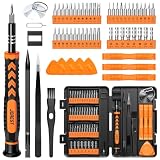
- 【59 in 1 Precision Screwdriver Set】Small screwdriver set contains 44 screwdriver bits, Phillips PH000,PH00,PH0,PH1,PH2; Flathead -1.0, -1.5 -2.0,-3.0; Torx T1 T2 T3 T4 T5, Torx security TR6 TR7 TR8 TR9 TR10 TR15 TR20; Triwing Y0.6, Y1.5. Y2.3, Y3.0; Pentalobe P2(0.8) P5(1.2); Triangle 2.3; U-type U2.6; H-type: H0.9, H1.3, H1.5, H2.0, H2.5, H3.0; MID-type: MID; Sleeve: M2.5, M3.0, M3.5, M4.0, M4.5, Cross 2.0, G3.8, G4.5
- 【Unique Handle Design】Ergonomic design handle, more energy-saving operation, batch head built-in strong magnet, easy to adsorb the batch head. The screwdriver bit is made of high quality CRV steel, which is wear-resistant and hard.
- 【Multi-Functional Accessories】Mini Tool kit contains 15 accessories for a variety of repair needs, including a magnetic plus or minus area to increase or decrease the magnetism of the bit, a long pry bar, a scimitar shaped pry bar, four triangular pry blades, three double-ended pry bars, tweezers, a black cleaning brush, a SIM card thimble, and a suction cup. Note: The package is made of PP material without carton and user manual.
- 【Practical Storage Box】Compartments are categorized for placement, each CRV precision bit is marked with a model number for easy identification, neatly dispensed for easy storage and searching. The box is sturdy and durable with strong clasps that protect each accessory well. The bits are mini (long 28mm, diameter 3.98mm) for precision work, not suitable for large screws.
- 【Wide Scope of Application】Suitable for iPhone/Samsung/Huawei and other cell phones; Mini/Air/Pro and Huawei/Honor and other laptops; Macbook/Air/Pro; Kindle/Kindle Fire; Ring Video Doorbell/ Video Doorbell 2/Pro/Elite; PS4/PS5/XOBX game console controllers and consoles, and PC laptops , watches, glasses, jewelry, toys, flight models, drones, cameras, RC cars, and some small appliances like coffee makers.
- The watch is a water-appropriate model and has no cracked case, lifted display, or other visible damage.
- The watch can be powered off and is disconnected from the charger.
- You use only lightly running, warm, fresh water—never soap, detergent, salt water, or a cleaning solution.
- You stop if the button remains jammed rather than increasing pressure or prolonging the rinse.
If the watch cannot be powered off because the side button is stuck, do not deliberately rinse it. Use a barely damp lint-free cloth on the exterior, dry it carefully, and arrange service if the button does not recover.
Water-resistance and band limitations
Do not assume that a water-resistance rating makes every cleaning method safe. Apple Watch water resistance is not permanent, cannot be rechecked, and cannot be resealed by Apple. Apple Watch Series 2 and later have a 50-meter rating under ISO 22810:2010; Apple Watch Ultra models have a 100-meter rating. The original Apple Watch and Series 1 have an IPX7 rating, but Apple does not recommend submerging them.
Do these 3 things before closing this tab:
1Clear out junk files and repair common Windows errors2Fix the driver behind crashes, sound loss and screen glitches3Repair Windows errors before they cause bigger problemsLeather, FineWoven, some stainless-steel, and certain Hermès bands should not be exposed to water. Remove the band before any wet cleaning. Apple’s water-resistance information and liquid-exposure guidance explain the model and band caveats.
Do not use these products or tools
- WD-40, oil, lubricant, solvent, adhesive remover, or any other penetrating liquid.
- Soap, detergent, household cleaner, or cleaning fluid poured onto the watch.
- Compressed air or a high-pressure water jet.
- A hair dryer, heater, heat gun, or other external heat.
- Abrasive pads, polishing compounds, or abrasive cleaning products.
- An ultrasonic cleaner.
- Needles, pins, knives, metal picks, toothpicks, or other objects inserted beside the button or into case openings.
Apple permits some disinfectant wipes, including 70% isopropyl alcohol wipes, on exterior surfaces, but says to avoid openings and never submerge the watch in cleaning agents. For a stuck button, fresh water and a lint-free cloth are the lower-risk first choice. Apple also warns that the holes in the case are not a reset button or SIM slot; do not insert anything into them. See Apple’s guidance about case openings and preparing a watch.
3. Dry the watch and test it once
After cleaning, wipe around the button thoroughly and wait until the exterior is dry. The side button should be at its normal height, move through a short, definite travel, and spring back without grit or mushiness.
Test in this order:
- Single press: on watchOS 10 or later, Control Center should appear or close; on watchOS 9 or earlier, the Dock should appear or close.
- Double-click: Apple Pay should respond if it is configured and available. Do not keep repeating the test if the button feels abnormal.
- Press and hold: do this only if necessary and only when the button is moving normally. Release immediately if the Emergency Call slider or countdown appears.
If the button still has no click, remains depressed, or works only intermittently, stop pressing it. More force can worsen damage and will not restore a failed switch.
4. Restart only when the symptoms suggest software
Normal restart
Use a normal restart when the side button clicks and the watch responds, or when the watch is acting unusually without visible physical damage:
- Press and hold the side button until the sliders appear.
- Tap the Power button.
- Drag the Power Off slider.
- After the watch turns off, press and hold the side button until the Apple logo appears.
An Apple Watch cannot be restarted while it is charging. The complete procedure is in Apple’s restart and force-restart guide.
Also popular on Amazon

- 【Compatible Models For Apple】The iphone screwdriver Ph000/ P2/ Y0.6/ MID2.5 are used for iPhone 16 15 14 13 12 11 Pro Max/XS/XR/X/8 Plus/7 Plus 6S 6 Plus 5 4,which is a perfect iphone repair tool kit; The macbook pro screwdriver P2/P5/Ph000/T3/T4/T5H/T6H/T8H are used for Macbook/Air/Pro, P2/P5//Y0.6/T5H for apple watch series,T5H/T6H/T8H for Mac mini,it's good macbook pro repair tools kit;It's also good laptop screwdriver kit for other laptops.
- 【Compatible Models For Vedio Games & Samsung】 The Switch tool kit Ph000/Y1.5/T6H/T8H are used for Switch controllers and consoles,Ph000/Y1.5/Y0.6/T6H it's also repair cleaning kit for Samsung mobile phone Series and other andriod phones etc
- 【Wide Application】The precision screwdriver repair cleaning tool kit has 10 bits,t5 torx screwdriver and p5 pentalobe screwdriver is very popular.The screwdriver set can fully meet your daily electronic product maintenance or DIY.In addition, the screwdriver repair set has 13 pcs othe tools. Therefore, whether you are a professional or a amateur, you can easily complete your tasks with the screwdriver set kit.such as mobile cell phone,iphone,ipad, laptop,game consoles,Mac mini, macbook air/pro, camera, Apple Watch,etc.Especially it's good apple screwdriver set kit.
- 【High Quality】The screwdriver kit is made of stainless S2 steel, which is not easy to rust or deform, and is sturdy and durably
- 【Ergonomic design】More convenient and efficient, easy to use.Anti-slip handle to prevent slippage during use,The cap is 360°rotated, which can save energy and improve efficiency to the greatest extent possible
Force restart
Use a force restart only when a normal restart cannot be performed or the watch is unresponsive:
- Press and hold the side button and Digital Crown at the same time.
- Continue holding both for at least 10 seconds.
- Release them when the Apple logo appears.
A force restart may clear a software freeze when the side button still physically clicks. It cannot repair a button that is mechanically broken, electrically stuck, corroded, or held down by a case. If the button is visibly jammed, do not repeatedly attempt the force-restart combination; the watch may continue interpreting the button as pressed.
If the screen is blank or the watch is stuck on the Apple logo
Blank screen or charging-cable icon
A black display does not prove that the side button has failed. If the watch shows a blank screen or a charging-cable icon, Apple says it may need to charge for up to 30 minutes before turning on. Put it on its charger and wait before using the button as a diagnostic test. See Apple’s blank-screen and charging guidance.
Apple logo that does not go away
Apple’s recovery sequence is:
- Perform one force restart.
- If the Apple logo remains, unpair and pair the watch again.
- Check for and install software updates.
- Arrange service if the problem continues.
Unpairing is disruptive: it erases the watch and should not be used casually as a supposed side-button repair. Use this path when the watch is genuinely stuck at the Apple logo, not when the button is visibly damaged. Apple documents the sequence in its Apple-logo troubleshooting article.
Prevent accidental Emergency SOS calls
A side button that is physically stuck down can be risky because pressing and holding it can display the Emergency Call slider and continuing to hold it can automatically call emergency services after a countdown.
If an accidental countdown begins, release the side button to stop it. If an emergency call has already connected, Apple advises staying on the line and explaining that help is not needed rather than simply hanging up. Read Apple’s Emergency SOS instructions before testing a suspicious button.
As a temporary safety measure, if you can access the paired iPhone:
- Open the Watch app.
- Tap My Watch.
- Tap Emergency SOS.
- Turn off Hold Side Button to Dial.
This does not repair the button, and Emergency Call remains available through the on-screen slider. Re-enable the setting after repair only if you want that automatic dialing feature.
Also popular on Amazon

- 【Model Compatibility】: Compatible with Apple Watch Series 2 42mm. Not compatible with 38mm models. Please verify your device model before installation.
- 【Complete Repair Kit Included】: Package includes precision tools, screen adhesive, and a step-by-step illustrated manual for efficient battery replacement without professional help.
- 【Reliable Battery Cell】: Fit For Watch Series 2 42mm OEM-grade 0-cycle Li-ion battery supports stable charging and extended performance. Built-in IC protects against overcharge, overheating, and short circuits.
- 【Adhesive and Seal Ready】: Pre-installed battery adhesive and included screen frame tapes ensure a secure, dust-resistant seal during reassembly—no extra materials needed.
- 【Secure and Precise Fit】: Engineered to match the original battery size for a perfect fit inside the watch. Ensures smooth installation and reliable performance after replacement.
Use AssistiveTouch as a temporary workaround
AssistiveTouch can reduce dependence on a physical side button on supported models. Apple lists compatibility with:
- Apple Watch Series 4 and later.
- Apple Watch SE, first generation and later.
- Apple Watch Ultra and later.
Enable it on the watch through Settings → Accessibility → AssistiveTouch, or configure it through the Apple Watch app on the iPhone. Depending on the configuration, gestures can provide access to Control Center, the App Switcher, Siri, Apple Pay, and actions equivalent to pressing or holding the side button. Apple’s AssistiveTouch action guide lists the available controls.
Crashes, No Sound, or Screen Glitches?
Random freezes, missing sound and display glitches usually trace back to one bad driver. Find and replace yours safely.Free scan · under a minutePC Slower Than It Used to Be?
A free scan shows the junk files, broken settings and background clutter dragging Windows down - then fixes them in one click.Free scan · Windows 10 & 11There is an important limitation: Apple’s setup instructions say that Confirm with AssistiveTouch requires a double-click of the side button during configuration. If the button has completely failed, you may not be able to configure every side-button alternative afterward. AssistiveTouch is a temporary accessibility workaround, not a physical repair.
Independent reader supportYour contribution helps us test, update, and keep practical guides available for everyone.When cleaning and restarting are no longer appropriate
Arrange service rather than continuing home troubleshooting if:
- The button is visibly damaged, detached, sunken, or permanently depressed.
- It does not regain normal movement after the case is removed and the exterior is cleaned safely.
- It works intermittently.
- The watch was dropped, crushed, or exposed to liquid shortly before the problem began.
- The watch repeatedly triggers Emergency SOS, power menus, or reboot behavior.
- The Digital Crown and side button are both affected.
- The case is corroded, cracked, or separated, or the display is lifting.
- The problem became worse after cleaning.
- The watch cannot be powered off before any wet cleaning.
These symptoms are consistent with a hardware problem, but only an inspection can establish the exact failed component. Apple does not promise a button-only repair. Depending on the model, coverage, location, and inspection, the service outcome may be a repair or a replacement device.
Apple service, AppleCare, or an independent repair shop?
Apple and Apple Authorized Service Providers
Apple offers in-person and mail-in Apple Watch service. The watch is inspected, and Apple says the final out-of-warranty fee depends on the device and service situation. Apple Authorized Service Providers may set their own out-of-warranty fees. Start with Apple Watch repair options and check availability for your country or region.
For the United States, Apple’s current AppleCare fee schedule lists accidental-damage service fees of $69 for Apple Watch models other than Ultra and Hermès and $79 for Apple Watch Ultra and Hermès. These are U.S. AppleCare fees subject to the applicable plan and terms—not universal prices for an out-of-warranty stuck-button repair. Verify the current amount at Apple’s AppleCare fees page.
Independent repair
An independent shop may offer a lower price, but ask exactly what it will do:
Also popular on Amazon
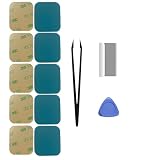
- Model-Specific Design – Engineered exclusively for the 40mm Apple Watch Series 4, 5, and 6. Verify compatibility before application.
- Complete Restoration Kit – Includes professional-grade tools and illustrated manual for proper screen reattachment and waterproof sealing.
- Premium Adhesive – High-quality pressure-sensitive tape provides strong, lasting bond between display and case.
- Installation Tip – For optimal results in cooler conditions, warming the adhesive surface slightly before application improves initial tack.
- Curing Process – Allow adhesive to fully set for 2 hours after installation to achieve maximum bonding strength and sealing performance.
- Is it repairing the button, replacing an internal component, or replacing the entire watch?
- Can it test or preserve water resistance after opening the case?
- What written warranty covers the work?
- Could the repair affect Apple warranty or future Apple service?
Apple’s U.S. warranty terms generally exclude damage caused by service performed by someone other than Apple or an Apple Authorized Service Provider. Warranty wording varies by product and region; review the applicable terms at Apple’s warranty page before authorizing third-party work.
Protect your data before sending the watch for service
When the watch and side button are usable enough, Apple recommends preparing it for service by:
Quick wins for a faster PC:
Repair Windows errors before they cause bigger problemsFix Now →Scan for outdated or missing drivers - takes under a minuteDriver Scan →- Unpairing the Apple Watch from the iPhone when possible.
- Erasing the watch only when necessary or when Apple instructs you to do so.
- Removing the band.
- Not giving a technician your Apple Account password or device passcode.
- Bringing the paired iPhone and proof of purchase if available.
Unpairing erases the watch and helps handle its pairing and Activation Lock status, so do not unpair merely because the button is stuck if you are still diagnosing a simple case obstruction. If the watch cannot be unpaired normally, tell the service provider and follow Apple’s account and device instructions rather than handing over your account credentials. Apple’s Apple Watch service-preparation guide covers the current process.
Common advice that can make the problem worse
- Do not press harder. Extra force can damage the switch, case, or seal.
- Do not inject lubricant. WD-40, oil, and solvents can contaminate internal parts and seals.
- Do not scrape the gap. A toothpick, needle, pin, or metal pick can damage the button or push debris farther inside. Apple’s current cleaning instructions do not provide a side-button scraping procedure.
- Do not use compressed air or heat. Apple specifically warns against both.
- Do not submerge every Apple Watch model. The original Apple Watch and Series 1 should not be treated like Series 2 or later, and water resistance diminishes over time.
- Do not mistake Water Lock for water protection. Water Lock prevents unintended touchscreen input while swimming; it does not improve the watch’s physical water resistance or fix a button. See what Water Lock actually does.
- Do not factory-reset the watch as a first step. A reset cannot repair a mechanical button and may erase useful data or complicate diagnosis.
- Do not assume holding the side button activates Siri. Siri is associated with holding the Digital Crown in Apple’s current button guide.
Frequently Asked Questions
Can I use WD-40, oil, or alcohol to free an Apple Watch side button?
No. Do not use WD-40, oil, lubricant, solvents, soap, or cleaning products in or around the button. Apple permits certain disinfectant wipes on exterior surfaces, but fresh water on a lint-free cloth is the safer first choice. Avoid all openings and never submerge the watch in cleaning agents.
Will a force restart fix a stuck Apple Watch side button?
Only if the button physically clicks and the real problem is a frozen watchOS process. Press and hold the side button and Digital Crown together for at least 10 seconds, releasing when the Apple logo appears. A force restart cannot repair a sunken, jammed, intermittent, or electrically failed switch.
Is it safe to rinse the side button under water?
Apple permits lightly running, warm, fresh water for general cleaning and post-swimming rinsing on appropriate models, but its specific press-and-hold-under-water procedure is for the Digital Crown, not the side button. Treat side-button rinsing as a cautious extrapolation only: power off the watch, remove unsuitable bands, avoid damaged or older models, and use no pressure or soap. If the watch cannot be powered off, use a damp cloth instead and seek service.
Recommended Free Tools
How can I use an Apple Watch if the side button no longer works?
AssistiveTouch may provide temporary gesture-based access to Control Center, the App Switcher, Siri, Apple Pay, and side-button actions on Series 4 or later, Apple Watch SE first generation or later, and Apple Watch Ultra or later. Some features, including Confirm with AssistiveTouch, require a side-button double-click during setup, so a completely failed button can limit what you configure.
The Bottom Line
The safe fix is limited: remove the case or film, clean the exterior with a lint-free cloth and fresh water, dry it, and try one restart only if the button still clicks. Do not force, lubricate, scrape, heat, or repeatedly rinse the watch. If the button remains physically abnormal, intermittent, or capable of triggering unwanted SOS or reboot behavior, protect your data and arrange Apple or qualified repair.