Quick wins for a faster PC:
Fix the driver behind crashes, sound loss and screen glitchesFind Drivers →Repair Windows errors before they cause bigger problemsFix Now →Some links on this page are affiliate links: if you buy through them we may earn a commission, at no extra cost to you.
Garmin map updates usually fail for one of three reasons: Garmin Express cannot finish the computer download, the map cannot be copied to the navigator, or the device restarts without recognizing all of the installed data. Identify that stage first, then apply the matching fix. A stable high-speed connection, current Garmin Express software, up to 20 GB of free computer storage, a direct USB data connection when using Express, and enough device or microSD storage resolve most cases. Wi-Fi updates need uninterrupted power and a reliable wireless signal. If an update was interrupted, Garmin says to run the map update again rather than relying on the partial map.
Which stage is failing: download, installation, or map recognition?
The symptom tells you where to start. Do not troubleshoot a recognition problem by repeatedly changing Wi-Fi settings, and do not replace a memory card when Garmin Express has not even completed the download.

As an Amazon Associate I earn from qualifying purchases.
| Failure stage | Typical symptoms | First checks | Correct recovery |
|---|---|---|---|
| Computer download | Garmin Express shows an error, no visible progress, a frozen bar, or a bar that appears to move backward. | Express version, internet quality, computer storage, sleep settings, VPN/proxy/firewall, date and time. | Restart Express and the computer, free disk space, use a stable home connection, and retry. |
| Copy or installation | The download completes, but copying to the Garmin device fails or the device disconnects. | USB data cable, direct computer port, device detection, BaseCamp and other device software. | Close competing applications, reconnect directly, and let Express complete every requested disconnect/reconnect. |
| Post-update recognition | The update reports success, but searches or routing show “No Detailed Maps Found,” “No Map Data Available,” or incomplete coverage. | Map enablement, internal storage, microSD detection, and whether the model uses two map files. | Enable the maps, reseat or replace the compatible card, then reinstall the maps through Wi-Fi or Garmin Express. |
Write down the exact message before changing anything. “Download failed” points to the computer and network; “copy failed” points to USB access or storage; a successful update followed by missing roads points to map files, map settings, or card detection.
How do I fix a Garmin Express download that fails, freezes, or reverses?
Garmin Express needs current software, a large temporary workspace, and a connection that can sustain a long download. Work through these checks in order; retry after each major change so you know which condition solved the problem.
Popular on Amazon
1. Update or reinstall Garmin Express
Install the current Garmin Express build for your operating system and restart the computer. Garmin’s support guidance lists “No visible progress over time (Update stuck, frozen, or progress bar reversing)” as a download symptom and recommends updating Express, restarting, and reinstalling it if the symptom persists.
Garmin’s support result listed Express 7.29.1 for Windows and 7.29.2 for Mac on July 21, 2026. Those numbers are a dated reference, not a permanent requirement; check Garmin’s current download page or the application’s update prompt before starting a map transfer.
Free tools Windows power users keep installed
One-click scans. No signup required.
2. Free computer storage, not just device storage
Express downloads and unpacks large map archives before transferring them. Garmin says some downloads may require up to 20 GB of free disk space on the computer. This is separate from the space required on the Garmin navigator or its memory card.
- Check the free space on the drive used for downloads and temporary files.
- Empty the recycle bin and remove unneeded installers or large files.
- Leave additional headroom rather than stopping exactly at 20 GB; the required amount varies with the map package and operating system.
- Retry Express after freeing space instead of assuming a partially downloaded archive will finish.
3. Use a stable, high-speed connection
Prefer Ethernet when the computer’s Wi-Fi signal is weak or intermittent. Garmin warns that public and work networks, VPNs, mobile broadband or tethering, satellite service, fixed wireless, and dial-up can prevent a successful download. ISP throttling can also make a transfer appear frozen even though the connection has not completely stopped.
Pause other large downloads and avoid moving the computer between access points. If a home Wi-Fi connection is unreliable, connect the computer by Ethernet or move it close to the router for the entire map download.
4. Remove network and security blockers temporarily
Verify the computer’s date, time, and time zone. Incorrect clock settings can interfere with secure connections. Also review proxy or LAN settings and any firewall, endpoint-security, or web-filtering software that may block Express.
Quick wins for a faster PC:
Clear out junk files and repair common Windows errorsFree Scan →Scan for outdated or missing drivers - takes under a minuteDriver Scan →As a diagnostic, disconnect a VPN and temporarily test with less restrictive firewall rules. Restore normal protection immediately after the test and create an application exception for Garmin Express if the security product supports one. Do not leave the computer unprotected simply to complete an update.
Also popular on Amazon

- Latest version - updated June 2026 Locate hotels, restaurants and attractions Find points of interest and routes and turn-by-turn voice directions Plug & Play Operation Works with virtually ALL Garmin devices
- Find hotels, restaurants and attractions
5. Keep the computer awake
Prevent sleep, hibernation, and automatic shutdown for the expected duration of the download. Closing a laptop lid can suspend the transfer even when the progress window remains visible. Garmin specifically recommends a full computer restart, not merely closing the lid, when Express appears stuck.
6. Check Windows permissions
On Windows, right-click Garmin Express and choose Run as administrator when permissions may be preventing it from writing temporary files or communicating with the device. Use an administrator account or ask the computer’s administrator to approve the installation if the option is unavailable.
7. Restart cleanly and retry
- Exit Garmin Express completely.
- Restart the computer from the operating system’s restart command.
- Confirm the internet connection, free space, time settings, and sleep settings.
- Open the newly installed Express version and sign in if prompted.
- Start the map update again and leave the computer connected until the download and installation stages finish.
A progress bar that moves backward does not by itself prove that map data was deleted. Express may be verifying, unpacking, or recalculating work. Treat it as a failure only when there is no progress over an extended period or Express displays an error; then apply the checks above rather than repeatedly unplugging the navigator.
What should I do when Garmin Express downloads the map but cannot copy it?
Copy failures occur after the computer has obtained the map package. Concentrate on USB communication, exclusive device access, and available storage on the navigator or card.
Use a direct USB data connection
- Connect the Garmin directly to the computer rather than through a hub, dock, or monitor.
- Use a known-good cable that carries data, not a charge-only cable.
- Turn on the navigator and wait for its USB or Mass Storage connection screen.
- In Garmin Express, choose Add a Device if the navigator is not already listed, then select the offered map update.
If the device never appears, try another USB port and another verified data cable. A charging cable can power the unit while giving Express no data path, which looks like an installation failure rather than a cable problem.
Close applications that can claim the navigator
Quit Garmin BaseCamp and any other application that may be reading, caching, indexing, or writing files on the device. Garmin’s guidance says only one application can actively read or write the navigator at a time. File-manager windows, backup utilities, and media-management tools can also interfere; close them while Express is transferring.
Follow Express reconnect instructions
Do not unplug the navigator simply because the screen appears idle. Garmin Express may instruct you to disconnect and reconnect during the update. Follow that instruction exactly, wait for the device to be detected again, and allow the transfer to resume.
Recommended Free Tools
Also popular on Amazon

- Latest version - updated June 2026 Locate hotels, restaurants and attractions Find points of interest and routes and turn-by-turn voice directions Plug & Play Operation Works with virtually ALL Garmin devices
If copying fails repeatedly at the same point, check the device’s free internal space and any inserted card before attempting another transfer. A successful computer download cannot be installed if the destination is full or the card is not writable.
How can I fix “not enough space” and incomplete Garmin maps?
Storage is a primary cause of incomplete coverage. The computer needs working space for Express, while the navigator needs enough internal or removable storage for the finished map files.
Separate computer space from navigator space
The up-to-20-GB figure from Garmin applies to the computer’s temporary download area. It does not guarantee that the Garmin device has room for the final maps. Check both locations before retrying:
- Computer: free the drive used by Express for downloads and temporary extraction.
- Navigator: inspect internal storage in the device or Express and remove only files that Garmin identifies as removable.
- Memory card: verify that the card is inserted, detected, writable, and approved for the exact model.
When is a microSD card required?
Garmin states that map updates are very large and that a microSD card may be needed when the update will not fit internal storage. A card marketed for Garmin GPS map updates can address that documented bottleneck, but capacity, speed class, filesystem, and maximum supported size are model-dependent. Check the navigator’s owner manual or Garmin’s model-specific instructions before buying or formatting a card.
Do these 3 things before closing this tab:
1Clear out junk files and repair common Windows errors2Scan for outdated or missing drivers - takes under a minute3Repair Windows errors before they cause bigger problemsA larger card is not automatically a solution. An unsupported capacity, incorrect filesystem, damaged card, or poor contact can leave the device acting as though no card is installed. Insert the card before launching the update so Express can place the files where the model expects them.
Why can an automotive update contain two map files?
Some automotive navigators split coverage between internal storage and a memory card. One map file may remain on internal storage while a second file is placed on the card. If the card is missing or not detected, the device can show only part of the coverage or report that detailed maps are unavailable.
- Power off the navigator and remove the card as Garmin directs for the model.
- Inspect the card and contacts for damage or contamination.
- Reinsert the card securely and start the navigator.
- Open the device’s map-information screen and verify that both expected maps are listed and enabled.
- If a map is missing, rerun the update with the card inserted and recognized.
What if Express offers only a memory-card or support option?
That offer can indicate that the device does not have enough internal capacity for current map data. Garmin notes that some older devices no longer support current maps because they lack sufficient memory or the technical capability required by newer map packages. In that case, installing the largest possible card may not help if the model itself is no longer compatible.
Also popular on Amazon
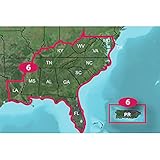
- Provides detailed digital topographic maps, comparable to 1:24,000 scale USGS maps.
- Contains detailed hydrographic features, including, coastlines, lake and river shorelines, wetlands and perennial and seasonal streams.
- Search by points of interest, including cities, summit, lakes and campsites.
- Provides elevation profile on compatible devices to estimate terrain difficulty.
- Contains many routable trails, rural roads, city neighborhood roads, major highways and interstates.
How do I safely retry a Garmin map update over Wi-Fi?
Wi-Fi updates avoid computer-to-device USB copying, but they are sensitive to power and wireless interruptions. Garmin’s Drive manual instructs owners to keep the unit on external power and within Wi-Fi range until installation completes.
- Connect the navigator to a reliable Wi-Fi network.
- Open Settings > Updates.
- Choose Map > Install All.
- Accept the license terms when prompted.
- Connect external power. Garmin recommends a USB wall charger providing at least 2 A.
- Keep the navigator within Wi-Fi range and do not drive away, shut it down, or disconnect power during installation.
- Wait for the completion message and restart only when the device requests it.
Garmin’s Drive Owner’s Manual (September 2026) warns: “If a map update is interrupted or canceled before it completes, your device may be missing map data. To repair missing map data, you must update the maps again using either Wi-Fi or Garmin Express™.” Treat a partially completed Wi-Fi update as incomplete and run the update again through Wi-Fi or Express.
Should I use Garmin Express or Wi-Fi for the next attempt?
Neither method is universally better. Choose based on the failure point, your network, available power, and whether a computer can recognize the navigator.
| Consideration | Garmin Express | Wi-Fi update |
|---|---|---|
| Connection | Uses the computer’s internet connection; Ethernet is useful when Wi-Fi is weak. | Requires a stable Wi-Fi signal at the navigator for the entire installation. |
| Storage | Needs substantial temporary computer space, potentially up to 20 GB, plus destination space. | Still needs enough internal or card storage on the navigator; no computer workspace is used. |
| Power | The computer and navigator must remain powered during transfer. | External power is required; Garmin recommends a 2 A USB wall charger for Drive updates. |
| Computer detection | Requires a working USB data connection and a recognized device. | Does not require USB detection, but the model must support Wi-Fi updates. |
| Best recovery use | Useful when Wi-Fi updating was interrupted or when the device’s wireless connection is unreliable. | Useful when USB ports, cables, or computer software are the source of the failure. |
If Express repeatedly fails during the download stage, changing to Wi-Fi will not fix a full device or a weak wireless network. If the computer cannot detect the navigator, Wi-Fi can bypass the USB problem only when the model supports wireless map installation.
Independent reader supportYour contribution helps us test, update, and keep practical guides available for everyone.What should I check when the update says it succeeded but maps are missing?
Start on the navigator, not the computer. A completed progress message does not prove that every map file is enabled or that a removable card was available when the files were installed.
- Open the map-information or map-management screen and confirm the expected maps are enabled.
- Check for a missing second map file on models that divide coverage between internal memory and a card.
- Power the navigator off and reseat the card, then check the map-information screen again.
- Search for a known address in an area that should be covered; a single missing road can be a map-setting issue, while broad missing regions suggest absent map files.
- Rerun the update through Wi-Fi or Garmin Express if the update was interrupted or a map file is absent.
Do not assume that a partial map is safe for routing. Garmin’s recovery instruction is to update again when an interruption may have left map data missing.
What can I do with an older Garmin device that cannot accept current maps?
Older navigators can reach a technical limit even when they still power on and connect to a computer. Garmin identifies insufficient memory and lack of required technical capability as reasons some older devices no longer support current map data.
Also popular on Amazon

- Latest version - updated June 2026 Locate hotels, restaurants and attractions Plug & Play Operation Works with virtually ALL Garmin devices
Signs of a compatibility limit
- Express repeatedly offers only a memory-card or support option.
- The update requires more storage than the device and a compatible card can provide.
- The model is recognized correctly, but current map installation is unavailable rather than merely interrupted.
- A card that meets the model’s documented limits is detected, yet the current map package remains unsupported.
Check the exact model’s Garmin documentation for supported map versions and maximum card capacity. Do not force an incompatible map package or delete system files to create space; that can leave the navigator unable to boot or restore its original maps.
How should I prepare before using a legacy or regional updater?
Regional and legacy tools can remove original map data as part of their process. Garmin’s regional-updater instructions advise backing up the device’s GPX folder first.
- Connect the navigator to the computer and wait until its storage appears.
- Copy the entire
GPXfolder to a clearly named folder on the computer. - Safely eject the navigator or leave it connected only as the updater requires.
- Run the regional or legacy updater exactly as Garmin documents for the model.
- Afterward, verify maps, saved routes, waypoints, and favorites before deleting the backup.
The GPX backup protects personal route and waypoint data; it does not replace a backup of the device’s map files. Follow the updater’s own instructions for any additional map-data backup.
How can I prevent the next Garmin map update from failing?
Most interruptions are avoidable when the computer, connection, power source, and storage are prepared before Express or Wi-Fi starts.
- Install the current Garmin Express build before beginning a large update.
- Keep at least 20 GB free on the computer when Garmin indicates that the package may require it.
- Use a stable home connection, preferably Ethernet when Wi-Fi is inconsistent.
- Disable sleep and hibernation for the expected update window.
- Remove VPN or proxy complications and configure a firewall exception rather than leaving security disabled.
- Use a direct USB port and a known-good data cable for Express transfers.
- Close BaseCamp and other software that can access the navigator.
- Confirm internal and microSD storage before starting.
- For Wi-Fi, connect external power and remain within range until completion.
- Back up the GPX folder before any legacy or regional recovery utility.
If the same failure returns after these checks, record the model number, operating system, Express version, exact error text, storage configuration, and the stage at which the process stops. Those details distinguish a fixable connection problem from a model-capability or storage limitation when contacting Garmin support.
Frequently Asked Questions
Can I format a microSD card before installing Garmin maps?
Do not format it based only on its advertised capacity. Garmin models differ in supported filesystem, maximum size, and card requirements, so follow the exact model’s manual and back up any existing files before changing the card.
The Tool Desk
Outbyte Driver Updater FREEScan for outdated or missing drivers - takes under a minuteDriver Scan →Outbyte PC Repair FREERepair Windows errors before they cause bigger problemsFix Now →Why does Garmin Express need free space on both the computer and the navigator?
Express first downloads and unpacks a temporary map archive on the computer, then writes the finished files to the navigator or card. Freeing only one location leaves the other bottleneck unchanged.
Is a charge-only USB cable enough for a Garmin map update?
No. The navigator may show charging while remaining invisible to Express. Use a known-good data cable connected directly to the computer, then confirm the device enters USB or Mass Storage mode.
What information should I give Garmin support after repeated failures?
Provide the exact navigator model, computer operating system, Garmin Express build, error wording, available computer and device storage, connection type, and whether the stop occurred during download, copying, or map recognition. This lets support separate software, network, USB, storage, and compatibility causes.

