Quick wins for a faster PC:
Clear out junk files and repair common Windows errorsFree Scan →Scan for outdated or missing drivers - takes under a minuteDriver Scan →Some links on this page are affiliate links: if you buy through them we may earn a commission, at no extra cost to you.
First identify the exact device: a Nintendo Game & Watch is a dedicated handheld, while Galaxy Watch, Apple Watch, Garmin, Pixel Watch and Fitbit Ace LTE are smartwatches with different recovery controls. Put the watch on its proper charger, try its ordinary restart, and only then use the model-specific force-restart combination. Do not guess at a button sequence, because holding the wrong controls can open a different menu or start a data-erasing reset.
The safest escalation is charge, normal restart, force restart, software or app cleanup, then factory reset only when necessary. The procedures below use the manufacturers’ published timings and warnings, including what to do when a Nintendo system can no longer be serviced.
As an Amazon Associate I earn from qualifying purchases.
What’s actually slowing this PC down?
Pick the symptom - the matching free tool is one click away.
What should I do first when a gaming watch is frozen?
Keep the first attempt reversible. A flat battery, a poor charging connection, a temporary software hang, or an app that has stopped responding can all look like a dead screen.
- Identify the model. Read the name on the case, charger, box or companion app. “Gaming watch” does not identify one universal control layout.
- Charge it correctly. Use the supplied dock or the manufacturer’s charger and leave it connected long enough to rule out a critically low battery. Inspect contacts, cable and dock for dirt, corrosion or damage.
- Try the normal restart. Use the on-screen power control or the model’s ordinary power-menu shortcut when the display still accepts input.
- Force-restart only with the matching instructions. Keep holding for the published minimum; a brief press is often not enough.
- After it starts, update software and remove or close a recently troublesome app. Do this while the watch is responsive, before considering a reset.
- Reserve a factory reset for persistent problems. It can erase apps, settings and personal data.
If the case is damaged, a button is physically jammed, the watch repeatedly reboots, or charging never begins, stop escalating button combinations and use the manufacturer’s service route. The exception is Nintendo’s Game & Watch systems covered below: Nintendo says those products are no longer serviceable.
Popular on Amazon
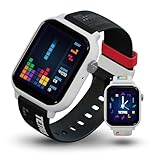
- ICONIC ARCADE GAMING ON YOUR WRIST – Play Tetris on a compact touchscreen, optimized for seamless gameplay. Relive the classic puzzle game anywhere, anytime.
- SELECTIVE TECH – NO DISTRACTIONS – A non-connected smartwatch with no notifications, no tracking, just pure gameplay and fitness.
- RETRO-INSPIRED DESIGN – Features custom crown that honors the visuals of Tetris with thoughtful details, deep Tetris themed software.
- VIBRANT FULL-COLOR DISPLAY – 1.91” TFT touchscreen for sharp, colorful visuals, perfect for gaming and everyday use.
- FITNESS MEETS NOSTALGIA – Track heart rate, steps, and calories with a Tetris-themed fitness interface.
Which device do these button instructions apply to?
The timing and result depend on the exact model. Use this comparison to select the right section rather than borrowing a combination from another watch.
| Device | Force-restart control | Power connection | What the documented action does | Service or replacement position |
|---|---|---|---|---|
| Nintendo Game & Watch: Super Mario Bros. or The Legend of Zelda | Hold POWER at least 5 seconds, then press POWER once | Not stated as required | Turns the frozen system off and starts it again | Nintendo says these products can no longer be sent for service; it points owners to refurbished, older or used units |
| Samsung Galaxy Watch | Hold Home/Power and Back together for at least 7 seconds | Charge first with the supplied dock | Forces a reboot when the power menu cannot be reached | Use Samsung support if hardware or repeated failures remain |
| Garmin watch | Hold the power button while connected to external power, up to 30 seconds | Yes for the documented recovery | Powers off; release and press again, or disconnect and reconnect if it does not restart automatically | Check the cable and contacts, then seek Garmin service for physical faults |
| Apple Watch | Hold side button and Digital Crown together at least 10 seconds, until the Apple logo | Not stated as required for the force restart | Force-restarts a watch that cannot be shut down normally | Apple says to obtain service if it remains stuck on the Apple logo |
| Google Pixel Watch | Hold crown and side button about 35 seconds or longer, until the “G” logo | Not stated as required | Force-restarts an unresponsive display | A later factory reset erases apps, settings and data |
| Fitbit Ace LTE | Hold both side buttons for at least 20 seconds, until the logo | Check adequate charge first | Attempts a restart after the ordinary restart fails | Fitbit documents a separate fastboot factory-reset path that wipes data |
These are procedure timings, not estimates of failure rates or repair success. Menu labels and button layouts can vary by model and software version; Samsung specifically warns about that variation.
Recommended Free Tools
How do I fix a frozen Nintendo Game & Watch?
Nintendo’s instructions for Game & Watch: Super Mario Bros. and The Legend of Zelda use only the POWER button. A five-second hold is the first and only documented restart procedure.
Restart procedure
- Press and hold POWER for at least five seconds.
- Wait for the screen to turn off completely.
- Press POWER once to start the system again.
If the screen lights but still ignores every button, Nintendo says there is likely a system issue. Its support wording is explicit: “If the screen is powered on, but the system does not respond to any button input, then there is likely an issue with the system.”
When replacement is the realistic option
Nintendo states that these Game & Watch products can no longer be sent in for service. If the five-second POWER procedure fails, the documented path is a refurbished, older or used replacement rather than continued disassembly or repeated button holds. Do not insert tools into the case; a stuck switch or damaged board needs replacement, not a software shortcut.
How do I restart a Samsung Galaxy Watch that will not respond?
Samsung separates an app-level slowdown, an ordinary restart and a frozen-screen force reboot. Start with the least disruptive option that the watch still allows.
Do these 3 things before closing this tab:
1Repair Windows errors before they cause bigger problems2Fix the driver behind crashes, sound loss and screen glitches3Clear out junk files and repair common Windows errorsClose a problem app
If the watch responds enough to open Recent apps, open Recent apps and close the suspected app, or choose Close all. This is appropriate when one app is lagging but the rest of the interface still works.
Also popular on Amazon

- ICONIC GAMING ON YOUR WRIST – Play Centipede, Pong, Missile Command, and Super Breakout, optimized for a seamless watch experience. Relive the Atari 2600 era from your living room, now anytime, anywhere.
- SELECTIVE TECH – NO DISTRACTIONS – Unlike traditional smartwatches, this non-connected watch means no notifications, no tracking, & no distractions (no bluetooth or Wi-Fi) just fun & timekeeping.
- RETRO-INSPIRED DESIGN – Inspired by the legendary Atari 2600, with a metal bezel face, a custom red crown modeled after the classic joystick, and a button styled like the paddle controller.
- VIBRANT FULL-COLOR DISPLAY – A 2.02" TFT touchscreen with bright, crisp visuals, creates sharp gameplay graphics and visuals of everyday use.
- ATARI-THEMED interface that makes activity tracking more fun and engaging.
Perform a normal restart
- Hold the Home/Power key and Back key together until the power-off menu appears.
- Tap the power icon on the screen.
- Allow the watch to shut down and start again.
Force-restart a completely frozen watch
- Press and hold Home/Power and Back together.
- Continue for at least seven seconds, even if there is no immediate visual response.
- Release when the screen goes dark and the watch begins restarting.
Samsung’s broader frozen-screen guidance says to charge with the supplied dock, force a reboot until “Rebooting…” appears, and install available software updates afterward. It lists outdated software, third-party apps, unclean hands, gloves, optional accessories and the watch’s physical condition as possible contributors to poor touch response. Clean and dry the watch and remove gloves or accessories before deciding that its display hardware has failed.
How do I recover a Garmin watch with a frozen screen?
Garmin’s documented recovery uses external power and the physical power button. The hold can take substantially longer than a normal press.
- Connect the watch to an external power source.
- Press and hold the power button until the watch powers off. Garmin says this can take up to 30 seconds.
- Release the button.
- Press the power button again. If the cable does not restart the watch automatically, unplug it and reconnect it.
Before treating this as a firmware problem, examine the charging cable and contacts. Garmin’s guidance calls out debris, corrosion and physical damage; any of those can prevent charging and make a software recovery appear ineffective. If the button itself is stuck or the case is damaged, stop pressing it and arrange service.
Recommended Free Tools
How do I force-restart an Apple Watch?
Use the ordinary on-screen power controls whenever they work. The force restart is for a watch that cannot be turned off normally or remains unresponsive.
Force-restart steps
- Press and hold the side button and the Digital Crown at the same time.
- Keep holding for at least 10 seconds.
- Release when the Apple logo appears.
If the watch is stuck on the Apple logo
Apple advises force-restarting first. If the logo problem continues, Apple recommends unpairing and pairing the watch again, installing available software updates, and obtaining service if the watch remains stuck. Apple’s support page published January 29, 2026, gives the direct boundary: “Get service for your Apple Watch if it’s still stuck on the Apple logo.” Do not jump to unpairing while the watch is merely slow; reserve that step for a persistent startup failure after the force restart.
How do I restart a Google Pixel Watch that is not responding?
Pixel Watch has a short normal-restart route and a much longer force-restart hold. The two actions should not be confused.
Normal restart
- Press and hold the crown for three seconds.
- Tap Restart on the display.
Force restart
- Press and hold the crown and side button together.
- Continue for about 35 seconds or longer, until the “G” logo appears.
Google places a factory reset later in the recovery sequence for persistent startup or pairing problems. Its warning is unambiguous: resetting erases apps, settings and data. Never probe the microphone opening or charging pins with a paper clip or another object; those openings are not reset controls.
PC Slower Than It Used to Be?
A free scan shows the junk files, broken settings and background clutter dragging Windows down - then fixes them in one click.Free scan · Windows 10 & 11Outdated Drivers Are Slowing You Down
One free scan finds every outdated or missing driver and matches the right update for your exact hardware.Free scan · exact hardware matchAlso popular on Amazon

- ICONIC ARCADE GAMING ON YOUR WRIST – Play SPACE INVADERS, optimized for seamless gameplay on a compact touchscreen. Relive the classic arcade experience anytime, anywhere.
- SELECTIVE TECH – NO DISTRACTIONS – A non-connected smartwatch with no Bluetooth, no Wi-Fi, no notifications, and no distractions…just pure fun, fitness, and timekeeping.
- RETRO-INSPIRED DESIGN – Features a custom red crown and button, inspired by classic arcade controls, along with SPACE INVADERS themed details for an authentic retro feel.
- VIBRANT FULL-COLOR DISPLAY – A 1.91” TFT touchscreen with crisp visuals and vibrant colors, optimized for both gaming and everyday use.
- FITNESS MEETS NOSTALGIA – Tracks heart rate, steps, and calories burned with a SPACE INVADERS -themed fitness interface for a fun and engaging experience.
How do I restart a Fitbit Ace LTE when both buttons and the screen seem dead?
Check charge first, then try the ordinary restart before the two-button recovery.
Ordinary restart
- Confirm that the watch has adequate charge.
- Long-press the top side button.
- Select Restart on the screen.
Force restart
- Press and hold both side buttons together.
- Keep holding for 20 seconds or longer, until the logo appears.
Fitbit also documents a fastboot factory-reset route. That procedure is a wipe, not an ordinary restart, so use it only after the preceding steps fail and only after accounting for the loss of stored data. Do not insert anything into charging contacts or other openings while trying to recover the watch.
What should I check if the buttons work only sometimes?
Intermittent response points to more than a frozen operating system. Work through these checks while the watch is powered down or responding safely.
- Charging path: Reseat the watch on its dock or charger. Check the cable, contacts and dock for debris, corrosion or visible damage. Garmin specifically identifies these conditions as possible causes of failed recovery.
- Surface and contact conditions: Samsung lists unclean hands, gloves and optional accessories among factors that can reduce touch response. Dry the screen and fingers, remove gloves and take off accessories that press against the case.
- Software: Install available system updates after the watch restarts. Outdated software can contribute to slow or frozen behavior.
- Third-party apps: If the problem began after installing or opening an app, close it from Recent apps when possible. Remove the problematic app only when the watch and its companion controls are responsive enough to do so.
- Physical condition: A bent case, liquid exposure, a loose button or a cracked display is a hardware concern. Repeated force-restarts will not repair a damaged switch.
- Restart loop: If the watch repeatedly returns to a logo or reboots after recovery, stop experimenting with unrelated combinations and move to the manufacturer’s service instructions. For Nintendo Game & Watch, the official outcome is replacement because service is unavailable.
Which recovery step is safest for data?
A restart and a factory reset are different operations. The model instructions above describe power cycling or rebooting; the manufacturers separately identify reset procedures as destructive or potentially destructive.
What’s actually slowing this PC down?
Pick the symptom - the matching free tool is one click away.
| Action | When to use it | Data warning |
|---|---|---|
| Normal restart | The interface still opens the power control | No factory wipe is described in the restart instructions |
| Force restart | The screen or buttons do not respond to a normal shutdown | The documented action is a reboot, not a factory-reset command |
| Update or close/remove an app | The watch starts but becomes slow or freezes around one app | Follow the model’s on-screen prompts; do not reset solely because one app misbehaves |
| Factory reset | Persistent startup, pairing or software failure after restart steps | Google says Pixel Watch reset erases apps, settings and data; Fitbit’s fastboot path wipes data |
Back up or sync anything the companion service can save before a reset. If you cannot reach the backup controls, treat a reset as a last resort and ask the manufacturer’s support channel what can still be recovered.
Independent reader supportYour contribution helps us test, update, and keep practical guides available for everyone.How long should I hold each button combination?
Use the published minimums, not a generic “hold until it restarts” rule. The longer timings are intentional and are not evidence that one watch is more reliable than another.
| Model | Published hold | Expected indication |
|---|---|---|
| Nintendo Game & Watch | POWER for at least 5 seconds | Screen turns off; press POWER once to start |
| Samsung Galaxy Watch | Home/Power + Back for at least 7 seconds | Screen goes dark and the watch restarts; Samsung may show “Rebooting…” |
| Garmin | Power button while connected to power, up to 30 seconds | Watch powers off; press again or reconnect power |
| Apple Watch | Side button + Digital Crown for at least 10 seconds | Apple logo appears |
| Google Pixel Watch | Crown + side button for about 35 seconds or longer | “G” logo appears |
| Fitbit Ace LTE | Both side buttons for 20 seconds or longer | Fitbit logo appears |
If the expected logo or restart does not appear after the model’s full interval, repeat the charge and contact checks once. Do not switch to another brand’s combination, and do not repeatedly press a physically damaged button.
Also popular on Amazon

- ICONIC ARCADE GAMING ON YOUR WRIST – Play SPACE INVADERS, optimized for seamless gameplay on a compact touchscreen. Relive the classic arcade experience anytime, anywhere.
- SELECTIVE TECH – NO DISTRACTIONS – A non-connected smartwatch with no Bluetooth, no Wi-Fi, no notifications, and no distractions…just pure fun, fitness, and timekeeping.
- RETRO-INSPIRED DESIGN – Features a custom red crown and button, inspired by classic arcade controls, along with SPACE INVADERS themed details for an authentic retro feel.
- VIBRANT FULL-COLOR DISPLAY – A 1.91” TFT touchscreen with crisp visuals and vibrant colors, optimized for both gaming and everyday use.
- FITNESS MEETS NOSTALGIA – Tracks heart rate, steps, and calories burned with a SPACE INVADERS -themed fitness interface for a fun and engaging experience.
When should I seek service or replace the watch?
Escalate when the conservative sequence has been exhausted or when there is evidence of hardware damage.
- The watch will not show a charging indication with a known-good, correctly seated charger.
- A button is jammed, the case or display is cracked, or the watch has suffered liquid or impact damage.
- The watch restarts but immediately freezes, loops at its logo or loses input again.
- The required force-restart combination produces no response after the full published hold.
- A factory reset would erase data you cannot back up.
Use the manufacturer’s service channel for Samsung, Garmin, Apple, Google or Fitbit devices. Apple specifically directs owners to service when an Apple Watch remains stuck on its logo. Nintendo’s Game & Watch guidance is different: those products are no longer serviceable, so a refurbished, older or used replacement is the documented next step.
What should I never do during recovery?
- Do not assume “gaming watch” means Nintendo; verify the model before holding buttons.
- Do not insert paper clips, pins or other objects into microphone holes, charging pins or case openings. Google and Fitbit explicitly warn against this.
- Do not begin a factory reset merely because a force restart takes several seconds. Reset is a separate escalation and can erase data.
- Do not keep forcing a button that feels physically stuck or grinding; that can worsen mechanical damage.
- Do not describe procedure timings as failure-rate statistics. The manufacturers publish hold times, not population-level reliability figures for frozen gaming watches.
What is the shortest safe decision path?
Identify the model, charge it with the correct equipment, try its normal restart, and then use only the matching force-restart controls. Once it boots, update software and close or remove a problematic app. Reset only after considering data loss; seek service for damage or repeated failure, and replace a Nintendo Game & Watch that still ignores every button because Nintendo no longer services those units.
Frequently Asked Questions
Can I use the same force-restart buttons on every gaming watch?
No. The controls are model-specific: for example, a Game & Watch uses POWER alone, while an Apple Watch combines the side button with the Digital Crown. Using another model’s shortcut can leave you in the wrong menu or fail to restart the device.
Does a frozen screen always mean the battery is empty?
No. A charging fault, outdated software, a third-party app, poor touch conditions or physical damage can produce the same symptom. Checking the charger and contacts first distinguishes a power problem from a software hang without erasing data.
What is the difference between a force restart and a factory reset?
A force restart power-cycles the watch using its hardware buttons. A factory reset is a separate recovery action that removes stored configuration; Google warns that Pixel Watch reset erases apps, settings and data, and Fitbit’s fastboot route wipes data.
Why does my watch restart but freeze again later?
A repeat freeze suggests an unresolved app, outdated software, charging fault or hardware condition rather than a one-time hang. After it boots, update the system and close or remove a suspect app; repeated logo loops or damaged controls warrant manufacturer support.