Recommended Free Tools
Some links on this page are affiliate links: if you buy through them we may earn a commission, at no extra cost to you.
On a supported Garmin watch, remove an unused map from Settings > Map (or Map & Navigation) > Map Manager. Choose the map category and map, press START, then choose Remove. Garmin says the watch does not need Wi‑Fi to delete a map. If Remove is not offered, the file is probably required or bundled with the watch and cannot be deleted through normal map management.
Map menus vary by model. Garmin Express is the better choice when you need a desktop view of free space, regional checkboxes, or a larger screen for installing and removing maps. Outdoor Maps+ content has a separate section in Map Manager, while Garmin Explore offline maps live in the phone app rather than on-watch storage.
As an Amazon Associate I earn from qualifying purchases.
Quick wins for a faster PC:
Fix the driver behind crashes, sound loss and screen glitchesFind Drivers →Clear out junk files and repair common Windows errorsFree Scan →How do I remove maps from my Garmin watch?
Use the watch’s Map Manager rather than deleting files manually. The general sequence is the same across supported models, although Garmin may label the menu Map or Map & Navigation.
- Open Settings on the watch.
- Select Map or Map & Navigation.
- Open Map Manager.
- Choose the relevant map category.
- Select the map you no longer need.
- Press START, then select Remove and accept any confirmation prompt.
Garmin Customer Support states that a Wi‑Fi connection is not required for removal. The watch can therefore delete an eligible map while offline. Wi‑Fi is generally needed when you later download or update map data.
Popular on Amazon

- Multisport GPS watch with a large 1.4” display in a resilient 51 mm fiber-reinforced polymer case with a titanium bezel and rear cover
- Scratch-resistant Power Sapphire solar charging lens uses the sun’s energy for weeks of battery life in smartwatch mode
- Built-in LED flashlight with variable intensities and strobe modes gives you greater awareness while you train at night and provides convenient illumination when you need it
- New hill score feature measures your running strength/endurance during ascents and gauges your progress over time
- New endurance score feature combines training data from all your athletic pursuits to help you better understand how training impacts your overall endurance
Example: fēnix 7X Pro Sapphire Solar
On a fēnix 7X Pro Sapphire Solar, hold MENU, select Map, then open Map Manager. Select the map, press START, and choose Remove. Other models can place Map Manager under a different settings heading, so use the owner’s manual if these labels do not appear.
Why can’t I delete a Garmin map?
The absence of a Remove command usually means Garmin has marked that content as required or bundled. Garmin identifies several categories that can be updated but not removed from supported watches.
- Preloaded golf maps.
- Ski-resort maps and related points of interest.
- U.S. public-lands maps.
- Other required golf or points-of-interest files identified by Garmin Express.
These files are part of the device’s supported software arrangement. Do not browse the watch as a USB drive and delete map files by hand; manual deletion can remove files the watch expects and is not Garmin’s supported management method. If a map has no Remove option, leave it in place and manage only maps that expose the command.
What “required” means in practice
A required map can consume space even when you rarely use its coverage. Garmin does not publish one universal storage capacity or one universal map-size figure for every watch. Available space and map availability depend on the model, so the practical way to see the impact is the device-specific storage display in Garmin Express.
How can I free up Garmin map storage with Garmin Express?
Garmin Express provides a larger-screen workflow for checking storage and selecting regional content. It is especially useful when a watch’s small display makes map selection awkward or when you want to see how much space a change will release.
- Connect the watch to a computer with the Garmin-branded USB charging/data cable.
- Open Garmin Express and select the watch, or add it if it is not already registered in the application.
- Choose Manage Maps.
- Review the map list. Check maps you want to install and uncheck maps you want to remove.
- Select Apply Changes and accept any prompts shown by Garmin Express.
- Use the storage chart to review free space and the space used by maps and other critical software.
Hovering over a map, or changing its checkbox, shows the storage effect in Garmin Express. That makes it possible to compare a regional selection before committing the change. The chart also prevents a common mistake: assuming all used storage belongs to maps when some is occupied by other device software.
What’s actually slowing this PC down?
Pick the symptom - the matching free tool is one click away.
Also popular on Amazon

- Multisport GPS watch with a large 1.4” display in a resilient 51 mm fiber-reinforced polymer case with a titanium bezel and rear cover
- Scratch-resistant Power Sapphire solar charging lens uses the sun’s energy for weeks of battery life in smartwatch mode
- Built-in LED flashlight with variable intensities and strobe modes gives you greater awareness while you train at night and provides convenient illumination when you need it
- New hill score feature measures your running strength/endurance during ascents and gauges your progress over time
- New endurance score feature combines training data from all your athletic pursuits to help you better understand how training impacts your overall endurance
When Garmin Express is the better option
- You have access to a computer and the correct USB cable.
- You want a visual storage breakdown instead of navigating a watch screen.
- You are choosing among several regions.
- You need to identify which files Garmin marks as required.
If you do not have a computer or cable available, on-watch Map Manager is sufficient for removing an eligible map. The map’s removability, not the choice of interface, determines whether deletion is possible.
Should I use the watch or Garmin Express to manage maps?
Both interfaces manage supported watch maps, but they suit different situations. Use the following comparison to choose the shortest safe route.
| Consideration | Map Manager on the watch | Garmin Express on a computer |
|---|---|---|
| Screen and convenience | Fast for one map and no computer; menu names vary by model. | Larger screen with a complete map list and checkboxes. |
| Connection needed to remove | Wi‑Fi is not required for deletion. | Requires the watch, a Garmin-branded USB cable, and the computer application. |
| Connection needed to add or update | Wi‑Fi is generally required for the watch to download or update content. | Uses the connected computer workflow for map management; follow any Garmin Express prompts. |
| Storage visibility | Provides map controls but not the same desktop storage chart. | Shows free space and space used by maps and other critical software. |
| Removability | Only maps with a Remove command can be deleted. | Required golf and points-of-interest content is identified as non-removable. |
| Best use | Quick cleanup away from a computer. | Regional selection, troubleshooting space, and visual planning. |
Neither method bypasses Garmin’s protection for required content. Express is not a way to force-delete a bundled map; it simply makes the supported choices easier to see.
How do I add a map or restore a region I removed?
For watches that support downloadable maps, use Map Manager’s Add Map command. A removed, optional region can be selected again if it is offered for that device and account.
Outdated Drivers Are Slowing You Down
One free scan finds every outdated or missing driver and matches the right update for your exact hardware.Free scan · exact hardware matchWindows Errors? Fix Them Before They Spread
Repair common Windows errors and clear accumulated junk for a smoother, more stable PC - no reinstall needed.Free scan · no reinstall- Open Settings > Map or Map & Navigation > Map Manager.
- Select Add Map.
- Allow the watch to connect to Wi‑Fi.
- Choose the region shown for your model.
- Press START, then select Download.
Garmin queues the download and asks to begin when the watch is connected to power. Large downloads can drain the battery, and completion time varies with map size and connection speed. Keep the watch within range of the configured Wi‑Fi network and connect it to power before starting a substantial transfer.
How do I update an installed map?
In Map Manager, maps with a pending release are labeled Update Available. Select that map, press START, and choose Update. As with a new download, the watch may queue the job until it is plugged in, and Wi‑Fi is normally required to transfer the update.
Also popular on Amazon

- Multisport GPS watch with a large 1.4” display in a resilient 51 mm fiber-reinforced polymer case with a steel bezel and rear cover
- Power Glass solar charging lens uses the sun’s energy for weeks of battery life in smartwatch mode
- Built-in LED flashlight with variable intensities and strobe modes gives you greater awareness while you train at night and provides convenient illumination when you need it
- New hill score feature measures your running strength/endurance during ascents and gauges your progress over time
- New endurance score feature combines training data from all your athletic pursuits to help you better understand how training impacts your overall endurance
How are Outdoor Maps+ files managed?
Outdoor Maps+ content is handled inside Map Manager but in its own section. It is not the same list as the watch’s standard preloaded or downloadable maps.
- Open Settings > Map or Map & Navigation > Map Manager.
- Open Outdoor Maps+.
- For an active subscription linked to the same Garmin Connect account, choose + Add to activate available content.
- Select a map marked Update Available to update it.
- To remove Outdoor Maps+ content, select the map, press START/STOP, and choose Delete.
Outdoor Maps+ downloads remain queued until the watch is plugged in and within range of the Wi‑Fi network. A subscription must be linked to the same Garmin Connect account used by the watch; without that account link, premium layers may not appear as available content.
Recommended Free Tools
Are Garmin Explore offline maps stored on the watch?
Not necessarily. Garmin Explore offline maps are managed separately in the Garmin Explore phone application under Offline Maps. Delete those downloads from the app’s Offline Maps list, not from the watch’s Map Manager.
This distinction matters when a phone reports low app storage but the watch still has room, or when the watch’s Map Manager does not show a region you remember downloading. The two workflows control different storage locations.
What should I check before removing a map?
A short check avoids removing coverage you still need and helps distinguish a map problem from a storage problem.
- Confirm the device: Make sure you are changing the watch rather than Garmin Explore’s phone storage.
- Check the category: Map Manager can separate standard maps, golf or ski content, and Outdoor Maps+ content.
- Look for the command: A visible Remove or Delete option indicates that Garmin exposes a supported deletion path.
- Check free space: Use Garmin Express’s storage chart when you need to know whether maps or other critical software occupy the space.
- Plan reinstallation: If you travel to a removed region later, confirm that it appears under Add Map before relying on the watch for navigation there.
What if a map download or update will not start?
Most stalled transfers are connection, power, or account issues rather than a failed removal.
Also popular on Amazon
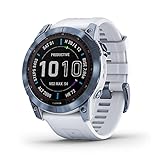
- Long-running solar powered multisport GPS watch with scratch-resistant Power Sapphire lens and always-on 1.4” display uses the sun’s energy to extend battery life; a built-in LED flashlight keeps you going after dark
- Battery performance: in smartwatch mode, up to 28 days while indoors or up to 37 days with solar charging in 3 hours of direct sunlight (50,000 lux) per day; in GPS mode, up to 89 hours indoors or up to 122 hours with solar charging continuously in direct sunlight (50,000 lux)
- Take your training to the next level with endurance and real-time stamina tracking, training status, advanced performance metrics and 30+ built-in sports apps
- Get 24/7 health and wellness monitoring with wrist-based heart rate, Pulse Ox (not available in all countries), stress and enhanced sleep tracking (this device is intended to give an estimation of your activity and metrics; it is not a medical device)
- Navigate the outdoors with a higher level of positioning accuracy, thanks to new multi-band frequency and GNSS network support (GPS, GLONASS and Galileo) plus built-in sensors for 3-axis compass, gyroscope and barometric altimeter
The job is queued but does not begin
Connect the watch to power and place it within range of the configured Wi‑Fi network. Garmin queues downloads and may wait for both conditions before beginning.
The map is not listed
Return to the correct category in Map Manager. Standard maps and Outdoor Maps+ content are presented in separate sections, and premium content requires the subscription to be linked to the same Garmin Connect account.
The watch says there is not enough space
Use Garmin Express to inspect the storage chart. Uncheck optional maps that expose a removal choice, then apply the changes. Required maps and other critical software remain protected, so freeing space may be limited to optional content.
The download is taking a long time
Garmin notes that duration varies with map size and connection speed. Keep the watch powered and connected rather than interrupting a queued transfer. Battery drain is possible during Wi‑Fi downloads.
The Tool Desk
Outbyte PC Repair FREERepair Windows errors before they cause bigger problemsFix Now →Outbyte Driver Updater FREEFix the driver behind crashes, sound loss and screen glitchesFind Drivers →How do I avoid damaging map storage?
Use Garmin’s management controls only. Do not format the watch, rename map files, or delete folders through a computer’s file browser in an attempt to gain extra space. Those actions are outside the supported workflow and can affect required software.
When cleaning up, remove one optional map at a time and check the storage result before making another change. For a larger cleanup, Garmin Express’s checkboxes and storage chart provide a clearer record of what will change than manual file operations.
Also popular on Amazon

- Advanced multisport GPS smartwatch for athletes/adventurers features a 1.4” solar charged display with scratch-resistant sapphire lens, durable titanium bezel and built-in LED flashlight for after-dark visibility
- Battery performance: up to 48 days of battery life in smartwatch mode with solar charging (assumes all-day wear with 3 hours per day outside in 50,000 lux conditions) and up to 149 hours in GPS mode with solar charging (assumes continuous use for entire period in 50,000 lux conditions) — all with an always-on display, so you’re ready to take on the toughest challenges
- Power up your body’s performance, endurance and resistance to injury with targeted strength training plans, real-time stamina tracking, sport-specific workouts and a full range of built-in sports apps
- Your training readiness score is based on sleep quality, recovery, training load and HRV status to determine if you’re primed to go hard and reap the rewards (data presented is intended to be a close estimation of metrics tracked)
- For your active lifestyle, a built-in speaker and mic let you make and take phone calls from your wrist when your watch is paired to your smartphone — and you can even use your smartphone’s voice assistant to respond to text messages and more
What storage information does Garmin publish?
There is no single capacity or map-size number that applies to every Garmin watch in this guide. Garmin describes storage per device through Garmin Express, where the chart shows free space and the amount assigned to maps and other critical software. Model, region, map category, and available features determine the figures shown on a particular watch.
That device-specific approach is why a watch may offer fewer removable regions than another model, even when both use Map Manager. Check the actual watch or Garmin Express rather than applying a capacity figure from a different Garmin model.
Frequently Asked Questions
Can I remove a map while my Garmin watch is offline?
Yes. Garmin states that Wi‑Fi is not required for map removal. You need a connection later only if you want to download or update map data.
Will removing a map reset my navigation settings?
Map deletion controls map files, not the watch’s general settings. Garmin’s documented removal workflow does not include a reset step; review the confirmation screen and remove only the selected map.
Why does Garmin Express show less free space than I expected after map cleanup?
The storage chart includes maps plus other critical device software. Removing an optional map therefore may not return all occupied space, particularly when required content remains installed.
Can I manage Outdoor Maps+ without a subscription?
Outdoor Maps+ activation uses the + Add control after a subscription is linked to the same Garmin Connect account. Without that account link, premium content may not be available to add or update.
Where do I delete maps downloaded in Garmin Explore?
Open the Garmin Explore phone app and go to Offline Maps. Those downloads are managed in the app and are separate from maps installed on the watch through Map Manager.

