Free tools Windows power users keep installed
One-click scans. No signup required.
Some links on this page are affiliate links: if you buy through them we may earn a commission, at no extra cost to you.
First identify the exact hardware. Suunto’s official instructions reviewed for this guide document watches and smartwatches with a display; they do not identify a truly screenless Suunto fitness-band model. Do not follow a watch pairing guide blindly if your device has no screen. Read the model name or number on the back or packaging, or the Bluetooth name, then use the instructions for that model. For documented Suunto watches, setup is performed inside the Suunto app: charge both devices, enable Bluetooth, turn airplane mode off, select the device in the app’s sync view, enter the passkey shown on the device, and approve requested permissions. A device that cannot show a passkey may be a different product, a discontinued model, or a sensor using another app and pairing process.
What should you do before trying to pair a screenless Suunto band?
Verify the model before changing Bluetooth settings or downloading several apps. The name printed on the rear case, box, receipt, or the device’s Bluetooth broadcast is the only reliable starting point when the hardware has no display.
As an Amazon Associate I earn from qualifying purchases.
Do these 3 things before closing this tab:
1Fix the driver behind crashes, sound loss and screen glitches2Clear out junk files and repair common Windows errors3Scan for outdated or missing drivers - takes under a minuteFind the model identity
- Inspect the back of the unit for a model name, model number, or serial number.
- Check the original packaging and any quick-start card.
- Look at the exact Bluetooth name shown in the phone’s available-device list, but do not assume that every Bluetooth entry is meant to be paired directly from that list.
- If the product came without Suunto branding or documentation, treat it as unidentified until its maker and app are confirmed.
Keep the serial number available. Suunto’s documented app flow uses it to distinguish the correct device when more than one appears during setup.
Why the display matters
The official Suunto pairing workflow requires a passkey displayed by the device. A watch can show that code on its screen; a genuinely screenless band cannot do so. That is a decisive compatibility check, not a minor interface difference. If your hardware has no way to present a code, stop before attempting random Bluetooth pairings and verify the product identity.
Popular on Amazon

- ⌚ MENS WATCHES ANALOG: Mens military watches made with shock-resistant stainless steel case and anti-scratch mineral window, exquisitely crafted and durable. Men's watch strap width: 22mm / 0.86 inches, stainless steel case: 42mm / 1.65 inches.
- ⌚ MILITARY WATCHES FOR MEN: This mens field watch is very suitable for active lifestyles, with a comfortable double nylon strap, will suitable for personal use and good for anniversary, graduation, business, birthday , the father's day , Christmas .
- ⌚3 ATM WATERPROOF MILITARY WATCHES: 30M waterproof, sweat-proof, rain-proof and hand-washing for daily life, no problem. But NOT suitable for swimming, bathing, diving or touch hot water. Perfect for most of indoor / outdoor sports.
- ⌚ EASY TO READ TIME: 12 / 24 hrs military time and luminous dial. The mens watches equipped with date calendar can tell you the time quickly and accurately. Come with luminous function, easy to read the time even in the dark.
- ⌚ PURCHASE WITHOUT WORRY: Japan imported quartz analog movement and battery, long-term operation. for 1 years,24-hour customer service is at your service.
Does Suunto have a verified screenless fitness tracker?
No screenless Suunto fitness-band model is identified in the official documentation reviewed for this topic. The closest fitness-oriented product in that material, Suunto 3 Fitness, has a screen and buttons, while Suunto 7 and Suunto Run are documented as watches or smartwatches. The evidence therefore does not support claiming that a screenless band follows the normal Suunto watch setup.
| Product or category | Display status in the documentation | Pairing evidence | Phone-related features described |
|---|---|---|---|
| Unidentified screenless band | no Suunto model verified | not stated; a device passkey cannot be confirmed | not stated |
| Suunto 3 Fitness | screen and buttons | documented Suunto app workflow with an on-device passkey | connected GPS, mobile notifications, and insights |
| Suunto 5 | covered by watch documentation | documented app syncing and pairing process | syncing, notifications, and insights |
| Suunto Run | watch | app pairing with model-specific phone requirements | not stated beyond the model’s documented app connection |
| Suunto 7 | smartwatch | app pairing; compatible with Android and iOS | smartwatch functions through the phone connection |
If your product has no display, the realistic possibilities are a different brand, an older or discontinued product, or a sensor that uses another application. The documents available here do not identify which possibility applies to your unit.
Quick wins for a faster PC:
Scan for outdated or missing drivers - takes under a minuteDriver Scan →Clear out junk files and repair common Windows errorsFree Scan →Fix the driver behind crashes, sound loss and screen glitchesFind Drivers →How do you pair a supported Suunto watch with an iPhone or Android phone?
Use the Suunto app rather than beginning with an arbitrary Bluetooth pairing. The labels below follow Suunto’s documented watch workflow; a screenless product should not be assumed to support it.
- Charge both devices. Put the watch and phone on sufficient charge before starting. An interrupted setup can leave an incomplete pairing record.
- Install or update the Suunto app. Use the latest app available for your phone and accept device-software updates when the app offers them.
- Meet phone prerequisites. Suunto’s iPhone instructions require a current iOS version, Bluetooth, and a stable internet connection. Keep mobile data or Wi-Fi available during setup.
- Turn on Bluetooth and disable airplane mode. Enable Bluetooth on the phone and on the watch where the watch exposes that setting. On documented Suunto watches, open Connectivity » Discovery. Suunto’s user guide states: “You cannot pair anything if airplane mode is on.”
- Open the sync view. Launch the Suunto app and tap the watch/device icon in the upper-left corner. This opens the screen where the app searches for a device.
- Select the correct device. When the watch appears, tap it. If several devices are listed, match the serial number printed on the watch or its packaging instead of choosing by name alone.
- Enter the passkey shown on the watch. Type the code exactly as displayed on the device. Suunto notes that completion can take several minutes, so keep the app open and the devices nearby.
- Approve permissions. Allow notification and location access when prompted. Some features need Wi-Fi or mobile data; your carrier may charge for data use.
After setup completes, leave the app available for the first synchronization. If a watch never displays a passkey, do not substitute a guessed code; return to the model-identification step.
Where is the Suunto pairing code, and what if there is no code?
For documented Suunto watches, the passkey appears on the watch during the in-app pairing process. It is not a code you independently look up in a manual or invent in the phone’s Bluetooth screen.
When the code appears
Start discovery from the Suunto app’s sync view, select the watch, and wait for the watch to present its passkey. Enter that code in the app and allow several minutes for the exchange to finish.
When the device has no display
A band with no screen cannot show the required on-device code. That does not prove the band is defective; it indicates that the documented watch procedure may not apply. Check the model number, search the manufacturer’s instructions for its dedicated app, and avoid repeated pairing attempts with unrelated Bluetooth entries.
What does the phone add after a Suunto device is paired?
The phone connection extends the capabilities described for supported Suunto models. The exact set depends on the model and the phone’s operating system.
Connected GPS
For Suunto 3 Fitness, Suunto says the app adds connected GPS. In practical terms, location data is obtained through the phone connection rather than assumed to come from a separate GPS receiver in the band. Location permission and a functioning phone connection are therefore important when recording an activity that uses GPS.
Synchronization and insights
Suunto 3 Fitness and Suunto 5 documentation describe synchronization and insights. Syncing transfers recorded activity information to the app, where the supported model’s analysis and history can be viewed.
Recommended Free Tools
Notifications
Notifications are enabled by default in the documented workflows. You can turn them off in the device’s Notifications settings. Delivery still depends on the phone’s notification permissions and on whether the particular messaging app is compatible; a successful pairing does not guarantee that every messaging service will appear on the device.
Why can’t your phone find the Suunto device?
Work through the checks in this order. Each one eliminates a common setup failure without creating additional, conflicting Bluetooth records.
1. Confirm the basic connection state
- Bluetooth is enabled on the phone.
- Airplane mode is off on the phone and watch. Pairing is blocked when airplane mode is enabled.
- The watch is powered and sufficiently charged.
- The phone has Wi-Fi or mobile data and a stable internet connection.
- The Suunto app and the device software are current, or any offered updates have been installed.
2. Start discovery in the right place
Open the Suunto app, tap the watch/device icon in the upper-left, and use its sync view. The supported workflow begins there; it is not an instruction to pair an arbitrary entry from the phone’s general Bluetooth settings first.
Also popular on Amazon
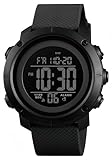
- FUNCTIONS: Countdown,Snooze,Hourly time,Date/Week,EL night-light,Stopwatch(1/100 seconds),Alarm,12/24 hour formart
- 164FT/50M WATERPROOF:Can't wear swimming and taking a hot bath. Because the general watch uses a sealing method to prevent the intrusion of sweat and harmful gases, it is not absolutely not water.only wash hands, shower, Satisfy daily use.NOTE: *Please don't press any buttons under water*
- HIGH QUALITY:Made with quality materials which enable the watch to be tough and durable.COMFORTABLE :Silicone watch band,Suitable for your wrist, Light weight and comfortable to wear.
- BACKLIGHT UPGRADE:Easy-to-read numbers can be clearly seen during the day and night.
- GIFT : It is a great gift for family and friends, especially suitable for you.
3. Remove an old pairing
If the device was previously connected, remove the old pairing from the Suunto device and from the phone’s Bluetooth settings. Then restart discovery from inside the Suunto app. Leaving a stale record in either place can prevent a clean attempt.
Quick wins for a faster PC:
Fix the driver behind crashes, sound loss and screen glitchesFind Drivers →Clear out junk files and repair common Windows errorsFree Scan →4. Check for the passkey
A documented watch should show a code after you select it in the app. If no code appears, stop troubleshooting the phone and verify the hardware model. The absence of a display or passkey is a model-identity issue, not a prompt to try random codes.
5. Resolve a wrong-device selection
When multiple devices appear, compare serial numbers and choose the exact unit you own. Selecting a nearby watch with a similar name can make the setup appear to fail even though the app is working correctly.
Independent reader supportYour contribution helps us test, update, and keep practical guides available for everyone.How do you fix missing Suunto notifications?
Notification delivery has three separate permission layers. Check each one rather than assuming that a completed pairing enabled every alert.
- Open the Suunto app and confirm notification access for the paired device.
- In the phone’s system settings, verify that the Suunto app is allowed to receive and present notifications.
- On the watch, open the device’s Notifications setting and make sure alerts have not been turned off.
- Test with a messaging app known to work with your phone and model. Suunto notes that compatibility varies by phone and messaging app.
If notifications remain unavailable while activity syncing works, the limitation may be the particular messaging app rather than the Bluetooth connection.
What’s actually slowing this PC down?
Pick the symptom - the matching free tool is one click away.
Can you use a truly screenless band without a screen?
It is possible for some fitness sensors to rely on a phone for setup and display, but the Suunto evidence reviewed here does not establish a screenless model or its procedure. You cannot safely infer support from the watch instructions because those instructions require a code shown on the device.
Questions to answer before using it
- What exact model and manufacturer are printed on the hardware?
- Which application does the manufacturer name for setup?
- Does the product advertise connected GPS, independent GPS, or no GPS?
- How does it present a pairing code or confirmation if it has no display?
- Which phone operating systems and notification features are officially supported?
Until those points are documented for your unit, treat it as an unidentified accessory rather than a confirmed Suunto band.
How should you compare a suspected band with a documented Suunto watch?
Use the following checks when the product description is vague or the packaging is incomplete.
| Check | What to verify | Why it changes setup |
|---|---|---|
| Display | Screen and buttons, or no display | A screen is needed for the documented on-device passkey. |
| App | Suunto app or another named application | The supported workflow starts in the correct manufacturer app. |
| GPS arrangement | Connected GPS, independent GPS, or not stated | Connected GPS depends on the phone’s location connection and permissions. |
| Notifications | Supported, unsupported, or not stated | Compatibility varies by phone and messaging app even after pairing. |
| Phone operating system | Android, iOS, both, or not stated | Model-specific requirements can determine whether setup is possible. |
| Pairing confirmation | On-device passkey, app confirmation, or not stated | A missing passkey means the watch workflow cannot be assumed. |
What should you remember before starting setup?
- No screenless Suunto fitness-band model is verified in the official material covered here.
- Identify the model before following instructions; Suunto 3 Fitness, Suunto 5, Suunto Run, and Suunto 7 are documented watch or smartwatch products, not confirmed screenless bands.
- For supported watches, pair from the Suunto app’s sync view, not by initiating an unrelated Bluetooth pairing.
- Bluetooth, current software, internet access, and airplane mode off are core prerequisites.
- The pairing passkey is shown on the device, making a truly screenless product a special case that requires model-specific documentation.
Frequently Asked Questions
Why does my Suunto device not appear in the phone’s Bluetooth list?
Suunto’s supported workflow begins in the Suunto app’s sync view, so a watch may not be intended for an initial pairing from the phone’s generic Bluetooth page. Open the app, tap the watch/device icon in the upper-left, and run discovery there after removing any stale pairing.
What does connected GPS mean on a Suunto fitness device?
Connected GPS means the phone supplies the location connection used for the activity rather than the device operating as a fully independent GPS receiver. Location permission, an active phone connection, and—in some situations—mobile data or Wi-Fi are therefore relevant.
Will every messaging app send notifications to a paired Suunto watch?
No. Suunto documents notification support, but compatibility varies by phone and messaging application. Check app permissions on both the phone and the Suunto device, then test with a supported messaging service.
Can I pair a Suunto watch while airplane mode is enabled?
No. Suunto’s user guide explicitly says, “You cannot pair anything if airplane mode is on.” Disable airplane mode before starting discovery in the app.

