Windows Errors? Fix Them Before They Spread
Repair common Windows errors and clear accumulated junk for a smoother, more stable PC - no reinstall needed.Free scan · no reinstallCrashes, No Sound, or Screen Glitches?
Random freezes, missing sound and display glitches usually trace back to one bad driver. Find and replace yours safely.Free scan · under a minuteSome links on this page are affiliate links: if you buy through them we may earn a commission, at no extra cost to you.
Change the settings that affect access, safety, battery behavior, and at-a-glance information first. Set the Action button for your most common activity, complete Medical ID and emergency options, choose a deliberate battery policy, configure an activity-focused face with Night Mode if needed, and adjust Depth only if you regularly enter the water. This order gets the most important controls ready before you rely on the watch outdoors. Apple Watch Ultra menus can vary slightly by watchOS version, so confirm labels on your model before an activity.
Which Apple Watch Ultra settings should I change first?
The practical order is: Action button, Medical ID and emergency features, battery policy, watch face and Night Mode, then Depth settings for water use. These choices cover the situations in which a delay, missing alert, or unreadable screen matters most.
As an Amazon Associate I earn from qualifying purchases.
The Tool Desk
Outbyte PC Repair FREERepair Windows errors before they cause bigger problemsFix Now →Outbyte Driver Updater FREEFix the driver behind crashes, sound loss and screen glitchesFind Drivers →| Priority | Setting | Best first choice | Main trade-off |
|---|---|---|---|
| 1 | Action button | Assign your most-used activity or tool | One fast action is less flexible than a menu |
| 2 | Safety information | Complete Medical ID and emergency contacts; review detection features | More automatic assistance can create unwanted alerts in some situations |
| 3 | Battery | Normal mode when sensing and prompt alerts matter; Low Power Mode for long days | Low Power Mode reduces sensing, display, and connection features |
| 4 | Face and Night Mode | Modular Ultra or Wayfinder with activity-specific complications | A data-dense face is less visually simple |
| 5 | Depth | Auto-launch only if you routinely swim or dive | Automatic behavior can be inconvenient on casual water days |
How do I customize the Action button on Apple Watch Ultra?
Open Settings > Action Button on the watch, or use the Action Button page in the Apple Watch app on the paired iPhone. Choose the action you want to start with a press, then verify what a long press does before leaving for an activity.
Choose an action that matches your routine
Apple lists Workout, Stopwatch, Waypoint, Backtrack, Dive, Flashlight, Shortcut, Voice Memo, Translate, Accessibility, and Recognize Music as available assignments. A runner might select Workout, while a hiker may get more value from Waypoint or Backtrack. Dive is useful only when water sessions are a regular part of your use; otherwise it gives up the button to a function you rarely need.
Popular on Amazon

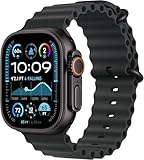
- WHY APPLE WATCH ULTRA 2 — Rugged, capable, and built to meet the demands of endurance athletes, outdoor adventurers, and water sport enthusiasts — with a specialized band for each. The S9 SiP enables a superbright display and a magical new way to quickly and easily interact with your Apple Watch without touching the display. Up to 36 hours of battery life and 72 hours in Low Power Mode.
- CARBON NEUTRAL — Apple Watch Ultra 2 paired with the latest Alpine Loop or Trail Loop is carbon neutral. Learn more about Apple’s commitment to the environment at apple.com/2030.
- EXTREMELY RUGGED, INCREDIBLY CAPABLE — 49mm corrosion-resistant titanium case. Large Digital Crown and Customizable Action button for instant control over a variety of functions. 100m water resistance.
- BIGGEST, BRIGHTEST DISPLAY YET — Apple’s brightest Always-On Retina display is easy to see, even in direct sunlight. More room for adding complications to customize your watch face and enough space to view six metrics at once.
- THE FREEDOM OF CELLULAR — Cellular is built in. You can call and text without your iPhone, even overseas with international roaming. Stream your favorite music and podcasts. Get directions with Maps.
Use Quick Switch when one assignment is not enough
Quick Switch provides alternate choices without forcing you to open the full app grid. It favors flexibility over the fastest possible single-purpose launch: you gain options, but you may need an additional selection before the desired tool opens. Set it up if your day routinely alternates between workouts, navigation, and the flashlight.
Prevent accidental siren activation
The Ultra has a siren designed to emit high-intensity sound patterns to attract help in an emergency. If a long press is easy to trigger accidentally in your clothing or while climbing, review the Siren settings and turn off Hold to Turn On. Do this before an expedition, and make sure everyone who may assist you knows how to activate the siren intentionally.
What safety information should I set up before going outdoors?
Complete Medical ID and emergency contacts before relying on the watch away from help. Then decide whether Check In, Fall Detection, Crash Detection, emergency calling, and the built-in siren fit your activities, location, and risk tolerance.
Complete Medical ID and emergency contacts
On the paired iPhone, open the Health app, open your profile, and select Medical ID. Add conditions, allergies, medications, blood type, and emergency contacts only after checking that each entry is current. Enable the option that allows emergency information to be shown from the lock screen if you want responders to access it without your passcode. Review these details after a phone-number, medication, or insurance change.
Review automatic detection features
Fall Detection and Crash Detection can be valuable for solo activity, but they are not substitutes for a personal safety plan. Read the prompts in the Apple Watch app under the emergency settings, decide whether automatic calling suits your normal environments, and tell your emergency contacts that they are listed. Check In can share a status with a chosen contact when a trip or activity does not end as expected; configure it for the situations in which someone would genuinely need to know you are safe.
Know the siren and emergency-call limits
Practice locating Emergency SOS and the siren without starting a call or sounding the alarm. Calling and messaging capabilities depend on the watch model, an available cellular plan or nearby iPhone, and local network coverage. Satellite communication is also model-, region-, and carrier-plan dependent; Apple’s current Ultra documentation associates satellite communication with Apple Watch Ultra 3 rather than promising it on every Ultra generation.
Do these 3 things before closing this tab:
1Clear out junk files and repair common Windows errors2Scan for outdated or missing drivers - takes under a minute3Repair Windows errors before they cause bigger problemsAlso popular on Amazon
- Always‑On Retina LTPO OLED display
Should I use Low Power Mode on Apple Watch Ultra?
Use normal power mode when continuous sensing, an Always On display, and prompt notifications are more important than maximum runtime. Choose Low Power Mode for long hikes, travel days, or endurance events when you accept reduced sensing and potentially delayed communications.
What Low Power Mode changes
Apple says Low Power Mode can disable the Always On display, background heart-rate measurements, and background blood-oxygen measurements. Heart-rate notifications may be unavailable, other notifications can be delayed, and some cellular or Wi-Fi connections may be limited. Those are functional changes, not merely a dimmer screen, so do not enable the mode automatically for an activity that depends on continuous physiological alerts.
How to turn it on and off
- On the watch, open the Control Center and tap the battery percentage.
- Choose Low Power Mode, review the feature changes, and confirm.
- To return to full sensing, repeat the path and select the normal power setting.
You can also manage battery options from Settings > Battery. Decide on a policy before leaving: normal mode for medical or training feedback, Low Power Mode for a known long-duration outing, and a charged backup plan for trips where neither reduced sensing nor a dead watch is acceptable.
How should I configure the watch face and Night Mode?
Choose the face that puts the information for your current activity where you can read it immediately. Apple highlights the Modular Ultra and Wayfinder faces because they support activity-oriented complications and, on those faces, Night Mode.
The Tool Desk
Outbyte Driver Updater FREEFix the driver behind crashes, sound loss and screen glitchesFind Drivers →Outbyte PC Repair FREEClear out junk files and repair common Windows errorsFree Scan →Build an activity face instead of one overloaded face
In the Face Gallery in the Apple Watch app, add Modular Ultra or Wayfinder and assign complications deliberately. For hiking, prioritize elevation, compass, coordinates, and a workout or battery complication. For running, show workout metrics, heart rate, elapsed time, and weather. Keep a simpler everyday face available so the information you need at work or at night is not buried among expedition data.
Set Night Mode to Auto when preserving night vision matters
On a supported Modular Ultra or Wayfinder face, set Night Mode to Auto. The display uses red illumination in darkness, which is easier on night vision than a bright white interface. Auto mode is preferable to remembering a manual toggle each evening, but confirm the face is one of the supported designs; Night Mode is not a universal setting for every Apple Watch face.
Also popular on Amazon

- 49mm (1.92") 502x410pixels, 326PPI, Always-On Retina LTPO OLED, Flat sapphire crystal display, 3000 nits brightness
- 64GB 1GB RAM, Apple S9 SiP with 64-bit dual-core processor, 4-core Neural Engine, PowerVR GPU, 564mAh Battery
- watchOS 10, upgradable to watchOS 10.4, Bluetooth 5.3, 100m water resistant (WR100), 40m swimproof/diving (EN13319)
- MIL-STD 810H certified, ECG certified, GPS (L1+L5), GLONASS, GALILEO, BDS, Third-generation optical heart sensor, Multiday battery life, up to 36 hours of normal use
- 3G: 850/ 700(AWS)/1900/2100, 4G LTE: 1/2/3/4/5/6/7/12/13/14/17/18/19/25/26/39/40/41/66 - eSIM. Cellular LTE model Compatible with GSM and CDMA Carriers like T-Mobile, AT&T, Verizon, etc. Contact Carrier to Register.
How do I configure Depth and water units?
Change Depth settings only when water use is part of your routine. For automatic behavior, open Settings > General > Auto-Launch and choose Off, Selected App, or Remain on Watch Face. Then open Settings > Depth and select feet or metres plus Fahrenheit or Celsius.
Choose the right auto-launch behavior
- Selected App: lets the watch open the chosen water app when immersion is detected.
- Remain on Watch Face: leaves the current face visible so you control when to open an app.
- Off: prevents automatic launching, which is useful if you enter water casually or dislike interruptions.
With auto-launch enabled, Apple documents the Depth app beginning a session when the watch is submerged to about 1 metre or more. Test your chosen behavior in a controlled, shallow setting before relying on it during a planned water activity.
Quick wins for a faster PC:
Repair Windows errors before they cause bigger problemsFix Now →Scan for outdated or missing drivers - takes under a minuteDriver Scan →Clear out junk files and repair common Windows errorsFree Scan →Understand what Depth cannot do
Apple documents Depth to a maximum of 130 feet (40 metres), with the depth sensor accurate to plus or minus 1 metre. The Depth app is not a dive computer: it does not provide decompression-stop information, gas analysis, or other recreational scuba-diving functions. For scuba diving, use a secondary depth gauge and timer or watch, and follow your certification and training guidance.
Which settings make sense for hiking, running, or diving?
The best setup depends on what must be available without searching through apps. Use the following as starting profiles, then remove anything that distracts from the information you actually use.
| Activity | Action button | Face and complications | Battery choice | Extra checks |
|---|---|---|---|---|
| Hiking | Waypoint, Backtrack, or Workout | Wayfinder or Modular Ultra with compass, elevation, coordinates, weather, and battery | Normal for continuous sensing; Low Power for an intentionally long day | Medical ID, emergency contacts, Check In, siren access, and offline route plan |
| Running | Workout or Stopwatch | Workout metrics, heart rate, elapsed time, weather, and recovery-related data you use | Normal when heart-rate alerts matter | Fall Detection and Crash Detection choices; confirm the watch is charged |
| Pool or open-water swimming | Workout or Dive, depending on the activity | Clear elapsed-time and workout information; Night Mode is irrelevant in daylight | Normal for sensing; Low Power only when its limitations are acceptable | Set units, decide on Depth auto-launch, and rinse and inspect the watch according to Apple’s care guidance |
| Scuba diving | Dive only as a shortcut, not as a complete dive instrument | Use Depth information as supplementary data | Preserve battery for the full outing, but do not trade away required backup instrumentation | Carry the secondary depth gauge and timer Apple recommends; follow training and decompression procedures |
What should I check if a setting does not behave as expected?
The Action button opens the wrong tool
Reopen Settings > Action Button and confirm the assignment, then check whether Quick Switch is adding a selection step. If the siren is activating unexpectedly, review the Siren page and disable Hold to Turn On rather than abandoning the button entirely.
Notifications or measurements are missing
Check whether Low Power Mode is active. Its documented reductions include background heart-rate and blood-oxygen measurements, heart-rate notifications, and some connection behavior; restore normal mode when those functions are required.
Do these 3 things before closing this tab:
1Scan for outdated or missing drivers - takes under a minute2Clear out junk files and repair common Windows errors3Fix the driver behind crashes, sound loss and screen glitchesAlso popular on Amazon
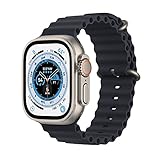
- WHY APPLE WATCH ULTRA - Rugged and capable, built to meet the demands of endurance athletes, outdoor adventurers, and water sports enthusiasts - with a specialized band for each. Up to 36 hours of battery life, plus all the Apple Watch features that help you stay healthy, safe, and connected.
- EXTREMELY RUGGED, INCREDIBLY CAPABLE - 49mm corrosion-resistant titanium case. Larger Digital Crown and more accessible buttons. 100m water resistance. Customizable Action button for instant physical control over a variety of functions.
- BIGGEST, BRIGHTEST DISPLAY YET- A bright Always-On Retina display that’s easy to see, even in direct sunlight. More room for adding complications to customize your watch face.
- FOR ENDURANCE ATHLETES - Advanced metrics in the Workout app, including Heart Rate Zones and Running Form. Precision dual-frequency GPS for accuracy, distance, route, and pace calculations. Trail Loop band is thin, light, and flexible, designed especially for runners.
- FOR OUTDOOR ADVENTURERS - Redesigned Compass app delivers all-new views and functionality. Mark your location with Compass Waypoints. Backtrack uses GPS to map where you’ve been so you can retrace your steps. Alpine Loop band is extremely rugged and secure to meet the needs of hikers and climbers.
Night Mode is not appearing
Confirm that the active face is Modular Ultra or Wayfinder and that Night Mode is set to Auto. A different face can show the same complications but will not necessarily provide the red Night Mode treatment.
Depth does not open automatically
Verify Settings > General > Auto-Launch and make sure it is not set to Off. Remember that auto-launch is intended for immersion around 1 metre or more, so shallow splashing may not trigger a session; manually open the appropriate app when you need a reading in shallower water.
Frequently Asked Questions
How can I tell whether my Apple Watch Ultra supports satellite communication?
On the watch, open Settings > General > About and note the model name, then compare it with Apple’s current Ultra documentation. Even a supported model requires the feature to be available in your country or region and through the relevant carrier plan.
Will Low Power Mode erase my workout or route data?
Low Power Mode changes which sensors, displays, and connections operate in the background; it does not function as a command to delete existing records. Before a long activity, review the workout and navigation settings you depend on and carry a charging option if the outing could exceed the expected runtime.
Recommended Free Tools
Can I keep a simple everyday face and a separate expedition face?
Yes. Add multiple faces in the Face Gallery and switch between them by touching and holding the current face, then swiping to the one you want. This avoids rebuilding complications every time you move from daily wear to hiking or training.
Is the Depth reading suitable for planning a decompression stop?
No. Apple explicitly says Depth does not provide decompression-stop information, gas analysis, or equivalent scuba functions. Treat it as supplementary depth information and use a properly rated secondary instrument plus your certified dive procedures.