To charge AirPods Max, connect the correct cable to the port on the bottom-right earcup and plug the other end into a compatible USB charger or computer. The original AirPods Max uses Lightning; AirPods Max 1 (USB-C) and AirPods Max 2 use USB-C. Check the battery percentage on a connected iPhone, iPad, or Mac.
The connector difference is the most important detail. Inspect the port before using a replacement cable, because a Lightning cable and a USB-C cable are not interchangeable at the headphone end.
Key takeaways
- The original AirPods Max uses Lightning, while AirPods Max 1 (USB-C) and AirPods Max 2 use USB-C; inspect the port on the bottom-right earcup before choosing a cable.
- To charge AirPods Max, connect the correct cable to the bottom-right earcup and connect the other end to a compatible USB charger or computer USB port.
- The most accurate battery percentage appears on a connected iPhone, iPad, or Mac; the right-earcup status light provides only an approximate indication.
- Apple rates AirPods Max for up to 20 hours of listening with active noise cancellation enabled and approximately 1.5 hours of listening after five minutes of charging.
- The Smart Case puts AirPods Max into an ultralow-power mode during storage, but the Smart Case does not replace the charging cable.
How do I charge AirPods Max?
To charge AirPods Max, plug the model-compatible cable into the charging port on the bottom-right earcup, then connect the other end to a compatible USB charger or a computer USB port. Apple describes the procedure as follows: “To charge your AirPods Max, plug the USB-C or the Lightning cable that came with your AirPods Max into the bottom-right earphone, then plug the other end of the cable into a USB charger or port.” Apple’s AirPods Max charging instructions distinguish the cable by connector type.
Before buying or using a replacement AirPods Max charging cable, look at the port on the bottom-right earcup. A Lightning port requires a Lightning cable; a USB-C port requires a USB-C cable. Checking the port is more reliable than relying on a product listing title or the age of the headphones.
Quick wins for a faster PC:
Scan for outdated or missing drivers - takes under a minuteDriver Scan →Clear out junk files and repair common Windows errorsFree Scan →Fix the driver behind crashes, sound loss and screen glitchesFind Drivers →| AirPods Max version | Port on the headphones | Apple-listed cable types | What to check before buying |
|---|---|---|---|
| Original AirPods Max | Lightning | USB-C-to-Lightning or USB-to-Lightning | Do not buy a USB-C charging cable that plugs directly into the headphones. |
| AirPods Max 1 (USB-C) | USB-C | USB-C-to-USB-C or USB-C-to-USB | Confirm that the headphone end is USB-C. |
| AirPods Max 2 | USB-C | USB-C-to-USB-C or USB-C-to-USB | Confirm that the headphone end is USB-C. |
The charger does not need a special high-wattage rating in the cited Apple instructions. Apple specifies a compatible USB charger or port, so use a compliant adapter and an undamaged cable rather than choosing a charger because it advertises unusually high wattage.
#1 Best Overall

- Designed for AirPods Pro 2(2nd generation), AirPods Pro 3(3rd generation)2025 Release and AirPods 5, AirPods 4, AirPods Max 2 (2024 Release). USB C to USB C Woven Cable.
- Cable matches the current as your device needs automatically. Multi-function protection technology makes it safe enough to ensure that this Cable and your device are safer to charge at night.
- Charger matches the current as your device needs automatically. Multi-function protection technology makes it safe enough to ensure that this charger and your device are safer to charge at night.
- The Apple MFi Certified Chip Ensures That The Cable Can output Safe and effective current for the device. The iPhone charging cable is composed of high-quality copper wires, which can accept 3A current for fast charging and 480 Mbps/s fast data transmission.
- Note: If you experience issues, please try reversing the USB C plug and attempting again. Feel free to contact us if you encounter any further problems. We are always here to help.
What cable does AirPods Max use?
The original Lightning AirPods Max uses a USB-C-to-Lightning or USB-to-Lightning cable. AirPods Max 1 (USB-C) and AirPods Max 2 use a USB-C-to-USB-C or USB-C-to-USB cable. The decisive detail is the port on the right earcup, not the cable connector on the charger end.
Apple’s current documentation covers three relevant versions: the original Lightning model, AirPods Max 1 with USB-C, and AirPods Max 2. Product names and merchant listings can be confusing, so verify the physical port before ordering a replacement. Apple’s AirPods charging guide lists the compatible cable arrangements.
How long does AirPods Max take to charge?
Apple says AirPods Max provide up to 20 hours of listening time with active noise cancellation enabled. Apple also specifies approximately 1.5 hours of listening time from five minutes of charging. These are Apple-published specifications, not an independent battery test; actual results can vary with settings, usage, battery condition, and other factors. See the AirPods Max technical specifications for Apple’s published figures.
A short charge is therefore useful when you need to leave soon, but the five-minute figure describes listening time, not a guaranteed battery percentage or universal real-world result. Leave AirPods Max connected longer when you need a fuller charge.
Rank #2
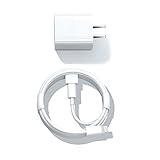
- Designed for AirPods Pro, AirPods (2nd/3rd generation), AirPods Max headphones.
- Charger matches the current as your device needs automatically. Multi-function protection technology makes it safe enough to ensure that this charger and your device are safer to charge at night.
- The Apple MFi Certified Chip Ensures That The Cable Can output Safe and effective current for the device. The iPhone charging cable is composed of high-quality copper wires, which can accept 2.4A current for fast charging and 480 Mbps/s fast data transmission.
- 1× 5 ft cable & 1× Power Adapter
- Worry-free 1-year warranty, lifetime technical support.
Can I charge AirPods Max in the Smart Case?
No. The Smart Case does not charge AirPods Max. Charging still requires the correct cable connected to the bottom-right earcup and a USB charger or USB port.
When AirPods Max are not being used, place them in the Smart Case. Apple says, “When you’re not using your AirPods Max, keep them in the Smart Case to put them into an ultralow power mode to preserve battery charge.” The Smart Case reduces power consumption during storage; it is a battery-preservation accessory, not a power source. A Smart Case and charging guidance from Apple explains the distinction.
How do I check the battery on AirPods Max?
To check the AirPods Max battery on an iPhone or iPad, connect the headphones, open Settings, tap the name of the AirPods near the top of the screen, and read the displayed battery percentage.
On iPhone or iPad
- Connect AirPods Max to the iPhone or iPad.
- Open Settings.
- Tap the AirPods Max name near the top of the screen.
- Read the battery percentage shown for the headphones.
The Batteries widget can provide a faster view of connected devices, including AirPods. Add or view the widget using the normal widget controls on the iPhone or iPad, then check the AirPods Max entry when the headphones are connected.
Rank #3

- Designed for Pro, (2nd/3rd generation), Max headphones.
- Cable matches the current as your device needs automatically. Multi-function protection technology makes it safe enough to ensure that this Cable and your device are safer to charge at night.
- Featuring a White braided design that coils without tangling, this 2-meter cable supports Phones, IPads and headsets with Lightning port.
- 2 meter in length, Braided USB C to Lightning Cable.
- Worry-free 1-year warranty, lifetime technical support.
On Mac
- Connect AirPods Max to the Mac.
- Open the Bluetooth status menu in the menu bar.
- Find AirPods Max in the Bluetooth menu and read the displayed battery percentage.
If Bluetooth does not appear in the menu bar, enable it in System Settings > Menu Bar > Bluetooth. Apple’s AirPods user guide covers the battery-checking options on Apple devices.
| Battery-checking method | Where to find it | Precision | Best use |
|---|---|---|---|
| iPhone or iPad AirPods settings | Settings, then the connected AirPods name near the top | Displayed percentage | Checking the charge before listening |
| iPhone or iPad Batteries widget | Batteries widget | Displayed percentage when connected | Quick recurring checks |
| Mac Bluetooth menu | Bluetooth status menu in the menu bar | Displayed percentage | Checking while using a Mac |
| Right-earcup status light | Press the listening mode button | Approximate status, not an exact percentage | Quickly checking whether a charge is nearly full or lower |
What does the orange or green light mean on AirPods Max?
The status light is on the right earcup. Press the listening mode button to check the charge status. For AirPods Max 1 while the headphones are connected to power, green means the battery is at least 95 percent and amber means the battery is below 95 percent, according to Apple’s support guidance.
The status light should not be treated as a precise percentage display. Use the iPhone, iPad, or Mac battery indicator when the exact percentage matters. Apple also documents low-battery notifications at 20 percent, 10 percent, and 5 percent remaining. Those notifications are thresholds, not a continuous reading from the status light. The Apple support explanation of the AirPods Max status light and low-battery alerts provides the documented thresholds.
Outdated Drivers Are Slowing You Down
One free scan finds every outdated or missing driver and matches the right update for your exact hardware.Free scan · exact hardware matchWindows Errors? Fix Them Before They Spread
Repair common Windows errors and clear accumulated junk for a smoother, more stable PC - no reinstall needed.Free scan · no reinstallWhy are my AirPods Max not charging?
If AirPods Max do not appear to charge, connect them to power for at least five minutes, check both cable connections, and confirm that the cable matches the port on the headphones. Apple’s recommended troubleshooting sequence is summarized in its guide for AirPods that will not charge.
Rank #4
![Charger Cable for AirPods Pro, [MFI Certification] Charging Power Cord Compatible for AirPods (2nd/3nd Generation) Wireless Earbuds, AirPods Max Wireless Over-Ear Headphones Charging Power Cord (5ft)](https://m.media-amazon.com/images/I/31L3+UxF5RL._SL160_.jpg)
- This is a cable specially designed for headphones and earbuds
- Cable matches the current as your device needs automatically. Multi-function protection technology makes it safe enough to ensure that this Cable and your device are safer to charge at night
- The cable is made of environmentally friendly PVC material, which has passed 9000+ bending tests to provide the best protection for your cable
- 1.5 meter in length.
- Worry-free 1-year warranty, lifetime technical support.
- Identify the port. Check whether the bottom-right earcup has Lightning or USB-C. A mismatched cable cannot charge the headphones.
- Connect the cable firmly. Push the headphone end fully into the charging port, then check the connection at the USB charger or computer.
- Use a known-good power source. Try a compatible USB charger or a computer USB port. The cited Apple guidance does not require a particular charger wattage.
- Wait at least five minutes. A completely depleted battery may not produce an immediate result that is obvious from a quick status-light check.
- Check the battery on a connected Apple device. The percentage shown on an iPhone, iPad, or Mac is more useful than interpreting the light alone.
- Inspect the cable and charging conditions. Replace a damaged cable and do not charge when moisture is present.
Do not continue using a damaged cable or charger. Apple warns that damaged charging equipment, or charging when moisture is present, can cause fire, electric shock, injury, or damage to AirPods Max and other property. Use a compliant adapter, keep the connectors dry, and stop if the equipment becomes damaged.
Should I reset AirPods Max if charging still fails?
Reset AirPods Max only after checking the cable, port, power source, and battery indicator. Resetting is separate from ordinary charging and will not make an incompatible cable work.
For a restart, press and hold the listening mode button and Digital Crown until the LED flashes amber. For a factory reset, continue holding both buttons for 15 seconds, until the LED flashes amber and then white. A factory reset is a more consequential step than a restart, so use Apple’s current AirPods safety and handling guidance and setup instructions before choosing it.
The Tool Desk
Outbyte PC Repair FREERepair Windows errors before they cause bigger problemsFix Now →Outbyte Driver Updater FREEFix the driver behind crashes, sound loss and screen glitchesFind Drivers →Which charging setup should you use?
The best setup depends on the connector on the headphones and whether you need charging speed, portability, or a quick battery check.
Best Value
![AirPods Pro Charger Cable [MFI Certification], Charging Power Cord AirPods (2nd/3nd Generation) Wireless Earbuds, AirPod Max Wireless Over-Ear Headphones, iPhone 14/13/12 Charging Power Cord (3.3FT)](https://m.media-amazon.com/images/I/3176Ak9-wYL._SL160_.jpg)
- - The USB C iPhone 14 Car Carplay Cable, AirPods Pro Charger Cable
- - Compatible with: AirPods (2nd/3nd Generation), AirPods Max, iPhone 14, 14 pro max, iPhone 13, Plus, SE 2nd/12/11/Xs/XR, iPad 4/5/ 6/7/ 8, Mini 2/3/4/5, Air 2/3
- - The cable length: 3.3feet (1m White)
- - With advanced superconducting copper wire design, it provides reliable 2A fast charging, Allowing your iPhone 14 to restore up to 100% of its power within 1 hour, Transfer speed can reach 40-60MB/S (480Mbps).
- - Enhanced Durability: Strong fiber, the most flexible, powerful and durable material, makes tensile force increased by 200%. Can bear 10000+ bending test.
| Setup | Connector compatibility | Power source | Battery visibility | Best choice when |
|---|---|---|---|---|
| Included or correctly matched cable with USB charger | Lightning cable for the original model; USB-C cable for AirPods Max 1 (USB-C) and AirPods Max 2 | Compatible USB charger | Check on iPhone, iPad, or Mac; status light is approximate | You want a straightforward wall-charging setup. |
| Correct cable with computer | Same model-specific connector requirement | Computer USB port | Check on the connected Mac, iPhone, or iPad where supported | You are working near a computer and do not have a separate charger nearby. |
| Smart Case during storage | No charging connector; the case is for storage | No charging power | Check the headphones after reconnecting | You want to reduce battery drain between listening sessions. |
| Replacement cable | Must match Lightning or USB-C port | Compatible USB charger or port | Use an Apple-device percentage for an exact reading | The original cable is missing or damaged; verify the connector before purchase. |
For readers who already have the correct cable but lack a suitable power source, a compatible USB power adapter is a reasonable accessory choice. A premium or high-wattage adapter is not established as necessary by the cited Apple instructions. For readers storing the headphones without a Smart Case, a replacement Smart Case may help preserve charge, but it still does not replace the charging cable.
Frequently Asked Questions
Can I charge AirPods Max in the Smart Case?
No. The Smart Case puts AirPods Max into an ultralow-power storage mode to help preserve battery charge, but the Smart Case does not contain a charging connection or replace the cable. Charge AirPods Max by connecting the correct Lightning or USB-C cable to the bottom-right earcup.
What cable does AirPods Max use?
The original AirPods Max uses Lightning. AirPods Max 1 (USB-C) and AirPods Max 2 use USB-C. Inspect the port on the bottom-right earcup before buying a replacement cable.
What does the orange or green light mean on AirPods Max?
For AirPods Max 1 while connected to power, green means at least 95 percent and amber means below 95 percent. The status light is not a precise percentage display, so check the battery percentage on a connected iPhone, iPad, or Mac for an exact reading.
Why are my AirPods Max not charging?
Connect AirPods Max to power for at least five minutes, firmly reconnect the cable at both ends, and verify that the cable matches the Lightning or USB-C port. If charging still fails, follow Apple’s restart or factory-reset procedure separately from the basic charging steps.
The Bottom Line
Inspect the bottom-right earcup first: use Lightning for the original AirPods Max and USB-C for AirPods Max 1 (USB-C) or AirPods Max 2. Connect the correct cable to a USB charger or computer, use the Smart Case only for low-power storage, and check the exact battery percentage on an iPhone, iPad, or Mac.




