The Tool Desk
Outbyte Driver Updater FREEScan for outdated or missing drivers - takes under a minuteDriver Scan →Outbyte PC Repair FREEClear out junk files and repair common Windows errorsFree Scan →Yes—your Apple Watch can alert you when you leave your iPhone behind. Enable Notify When Left Behind in the watch’s Find Devices app, select the iPhone, and optionally add Trusted Locations where you do not want an alert.
Set up the alert from your Apple Watch
The quickest way to enable the alert is through the Find Devices app on the Apple Watch:
- Open Find Devices on your Apple Watch.
- Select the iPhone you want to monitor.
- Scroll to Notifications and tap Notify When Left Behind.
- Turn on Notify When Left Behind.
- If prompted, add a Trusted Location, such as your home or workplace.
After this is enabled, the Apple Watch can warn you when it determines that your iPhone has been separated from you. The same Find Devices app can also show the iPhone’s current or last known location, play a sound when supported, and provide directions to it.
If you do not already own one, an Apple Watch that can notify you when your iPhone is left behind is the relevant hardware for this use case. The watch must be paired with the iPhone, and software support can vary by Apple Watch model and watchOS version, so check compatibility before buying.
Set up “Notify When Left Behind” on the iPhone instead
You can configure the same separation alert in the iPhone’s Find My app:
- Open Find My on the iPhone.
- Tap Devices.
- Select the iPhone you want to track.
- Under Notifications, tap Notify When Left Behind.
- Turn on the setting and follow the onscreen instructions.
- Optionally add one or more Trusted Locations.
The setting is associated with the device selected in Find My. If you have multiple Apple devices, make sure you select the iPhone that you actually carry.
#1 Best Overall

- 【Easy to Place and Charge】!!Apple Watch Charger is not included.!! Lamicall Watch Stand suit for Apple Watch Magnetic Fast Charger always holds your watch securely in place. The hole of the stand compatible with iwatch is perfect for you to embed your watch charger. And you can take it off anytime. The charging cable can be organized in order if you use the charging stand, so that you can run away from messy desktop.
- 【Non-Shaking & Non-Slippery】- The bottom of the stand compatible with Apple Watch have whole piece of high quality silicone to prevent shake and slip. The rubber cushion can protect your watch and the polished metal will not scratch it. Lamicall stand suit for iwatch is made by superior quality Aluminum alloy, and 4mm thickness makes this stand 3 times more sturdy than normal.
- 【Wide Compatibility】Apple Watch Series Ultra 4 Ultra 3 Ultra 2 Ultra, Series 12 11 10 9 8 7 6 5 4 3 2 1, SE SE2 SE3(38mm / 40mm / 41mm / 42mm / 44mm / 45mm /46mm / 49mm) BASIC /SPORT /EDITION. ❗❗Note : Apple Watch Charger Cable Do Not Included. Hope you can Understand.
- 【Exquisite & Elegant Design】- Standard 45 degree angle design for easy viewing and using.Thick aluminum body, delicate polish, sleek looking, it's a great watch charging stand for desk, table, nightstand. Even if it is not used as a charging stand, it is also a very beautiful and useful stand holder suit for Apple watch.
- 【Support Nightstand Mode】 Setting Nightstand Mode, the Apple Watch screen will display the date, time. When the alarm is set, that time is also displayed on the watch face. Put it on your desk or next to your bed and it quickly transforms into a beautiful upholstery.
What Trusted Locations do
A Trusted Location tells Find My not to alert you when the iPhone is intentionally left there. For example, you could add your home so that leaving the iPhone charging there does not produce a separation notification. You might also add your office, a family member’s house, or another regular location.
Depending on the setup flow, Find My may suggest a location or let you choose one on a map. Adding a Trusted Location is usually better than turning off the feature entirely: you can still receive an alert when you leave the iPhone somewhere unexpected.
Recommended Free Tools
What the alert does—and what it does not guarantee
This is a separation alert, not a guaranteed instant alarm triggered at a precise distance. Apple’s instructions describe the feature but do not establish one universal alert range or a fixed delay that applies in every situation.
Rank #2
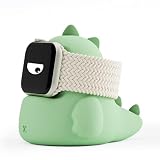
- COMPATIBILITY:Compatible with all Apple Watch Ultra 4, Ultra 3, Ultra 2, Ultra, SE3, SE2, SE1, Series 12, Series 11, Series 10, Series 9, Series 8, Series 7, Series 6, Series 5, Series 4, Series 3, Series 2, Series 1 (49mm 46mm 45mm 44mm 42mm 41mm 40mm 38mm).Perfect companion to keep on your work desk or nightstand.(The Watch and Charger not included)
- PREMIUM SILICONE:The iWatch stand is made of soft silicone,Durable and Stable,it helps to keep your watch scratch-free and protect your devices from any damage.Convenient to use and perfect for your home, bedroom, office and easy to pack for traveling.
- EASY TO INSTALL:Simply place your Watch on the Dinosaur stand to charge your watch,put the stand near your bed to allow use of key functions such as alarm clocks and messages.
- DINOSAUR IWATCH CHARGING STAND:Our iWatch stand is designed to make charging and displaying yourWatch,Support nightstand mode of the Watch and could be use an alarm clock while charging.
- CABLE MANAGEMENT:Our Watch charging stand could effectively help to organize your charging cable in the interior,and keep your watch charger securely in place, it keeps things neat and tidy as it accommodates the charge cable, allowing it to sit flat and remain stable at the same time.
The timing can depend on the connection between the watch and iPhone, the devices’ access to the Find My system, and whether the iPhone is online or otherwise locatable. For that reason, do not treat the feature as a guaranteed boundary alarm or assume that it will warn you the moment you cross a particular number of feet or meters.
Once you notice the separation, open Find Devices on the watch and select the iPhone. Find My may show a current location when the iPhone is online. If it is offline, you may see only its last known location, and actions such as playing a sound can be delayed until the phone reconnects or becomes locatable.
If you do not receive the alert
1. Confirm that Find My notifications are allowed
On the iPhone, open Settings and review the notification permissions for Find My. Notifications must be allowed for separation alerts to arrive. If Find My notifications are blocked, the setting can appear enabled while no warning is delivered.
Quick wins for a faster PC:
Scan for outdated or missing drivers - takes under a minuteDriver Scan →Repair Windows errors before they cause bigger problemsFix Now →Rank #3

- COMPATIBILITY: Compatible with Apple Watch Ultra 4, Ultra 3, Ultra 2, Ultra, SE 3, Series SE, Series 11, Series 10, Series 9, Series 8, Series 7, Series 6, Series 5, Series 4, Series 3, Series 2, Series 1 (49mm 46mm 45mm 44mm 42mm 41mm 40mm 38mm), supports Apple Watch Nightstand Mode
- APPLE WATCH HOLDER: Designed to make charging and displaying your Apple Watch as convenient as possible by acting as a nightstand or desk dock stand that keeps your Apple Watch Charger securely in place and keeps your cable tidy
- PREMIUM SILICONE CHARGING DOCK: This Apple watch stand made from premium silicone material,enhances the stability and protects your devices away from scratching
- EASY TO USE: Simply place your Apple Watch on the stand to charge your watch; keep this stand near your bed to allow use of key functions such as alarm clocks and messages. It is perfect choice as Gift Christmas Day to your family or friend
- WARM TIPS: The silicone stand work with original iWatch adapters ONLY. DISCLAIMER: Apple Watch and Apple Watch Charger are NOT included
After allowing notifications, leave the iPhone in a safe, intentional test location and take the watch with you. Avoid using a test as proof of a precise distance or delay; the feature is not documented as operating on a universal timer.
2. Check whether the watch and iPhone are connected
Open Control Center on the Apple Watch and look at the connection indicator. A red connection symbol indicates that the watch and iPhone are not currently connected.
When the watch and paired iPhone are disconnected, notification routing can change. You should not assume that every iPhone notification will continue to appear on the watch. Depending on the situation, notifications may go to the iPhone instead.
Rank #4
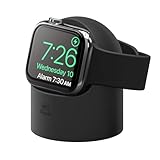
- ALWAYS READY STAND IS the perfect companion to keep on your work DESK or NIGHTSTAND. COMPATIBLE all Apple Watch Ultra 4, Ultra 3, Ultra 2, Ultra, SE3, SE2, SE1, Series 12, Series 11, Series 10, Series 9, Series 8, Series 7, Series 6, Series 5, Series 4, Series 3, Series 2, Series 1 (49mm 46mm 45mm 44mm 42mm 41mm 40mm 38mm) and is compatible with Apple Watch NIGHTSTAND MODE. DISCLAIMER: Apple Watch and Apple Watch Charger not included.
- WHILE COMPETITORS STANDS CAN’T seem to keep the charger in or has problems with different sized Apple Watches, the elago W2 was DESIGNED with PRECISE CUTOUTS to hold the charger in place and a CABLE MANAGEMENT hole to keep the area TIDY AND CLEAN!
- PROTECTING YOUR APPLE WATCH HAS never been easier! PREMIUM SILICONE helps keep your watch SCRATCH-FREE and PREVENTS THE STAND FROM MOVING while resting on a surface.
- UNLIKE OTHER COMPANIES, all of our products are designed IN HOUSE FROM SCRATCH. From a concept, all the way to a finished product, every aspect of creating a product is done in-house to ensure that you get a stand that WILL FIT PERFECTLY, HELP PROTECT IT, AND LOOKS GREAT – SAVING YOU TIME AND MONEY!
- elago is a DESIGN COMPANY FIRST AND FOREMOST. Our motto is SIMPLE SOPHISTICATION because we create products that are USEFUL AND AWESOME! WE ALWAYS CREATE products that WE OURSELVES USE, so we know YOU WILL LOVE IT!
Try these recovery steps:
- Bring the Apple Watch and iPhone close together.
- Make sure Airplane Mode is off.
- On the iPhone, confirm that Wi-Fi and Bluetooth are enabled.
- Restart the Apple Watch and iPhone if the connection does not return.
3. Check the Find My setup
For a paired Apple Watch, Find My Watch is set up automatically when Find My iPhone is enabled on the paired iPhone. Also check that the Find My network is turned on for the Apple Watch where that option is available.
Crashes, No Sound, or Screen Glitches?
Random freezes, missing sound and display glitches usually trace back to one bad driver. Find and replace yours safely.Free scan · under a minuteWindows Errors? Fix Them Before They Spread
Repair common Windows errors and clear accumulated junk for a smoother, more stable PC - no reinstall needed.Free scan · no reinstallFind My depends on the devices being configured correctly and having a way to communicate with Apple’s Find My system. A phone with no usable connection may not provide a current location or respond immediately to remote actions.
4. Recheck the selected device and alert settings
Return to either Find Devices on the watch or Find My > Devices on the iPhone. Select the correct iPhone and verify that Notify When Left Behind is still enabled. Review the Trusted Locations list too: an alert may not appear if you are leaving the phone within a location you marked as trusted.
Best Value

- COMPATIBILITY: Compatible with Apple Watch Ultra 4, Ultra 3, Ultra 2, Ultra, SE 3, Series SE, Series 11, Series 10, Series 9, Series 8, Series 7, Series 6, Series 5, Series 4, Series 3, Series 2, Series 1 (49mm 46mm 45mm 44mm 42mm 41mm 40mm 38mm), supports Apple Watch Nightstand Mode
- APPLE WATCH HOLDER: Designed to make charging and displaying your Apple Watch as convenient as possible by acting as a nightstand or desk dock stand that keeps your Apple Watch Charger securely in place and keeps your cable tidy
- PREMIUM SILICONE CHARGING DOCK: This Apple watch stand made from premium silicone material,enhances the stability and protects your devices away from scratching
- EASY TO USE: Simply place your Apple Watch on the stand to charge your watch; keep this stand near your bed to allow use of key functions such as alarm clocks and messages. It is perfect choice as Gift Christmas Day to your family or friend
- WARM TIPS: The silicone stand work with original iWatch adapters ONLY. DISCLAIMER: Apple Watch and Apple Watch Charger are NOT included
Important limitations
- It is not a fixed-distance alarm: Apple does not promise one exact separation distance or delay for every alert.
- It is not guaranteed to be immediate: Connectivity and Find My availability can affect when the notification appears.
- Offline does not always mean untraceable: Find My may show a last known location, but a current location or immediate remote action may not be available until the iPhone can reconnect or be located.
- Disconnected-watch behavior changes: when the Apple Watch and iPhone are disconnected, notifications may be routed to the iPhone rather than the watch.
- Accessories are not required: a charger or replacement band does not enable this feature. The key requirements are a suitably supported Apple Watch, a paired iPhone, and the relevant Find My settings.
Best setup for everyday use
- Enable Notify When Left Behind in Find My.
- Add only places where you routinely and intentionally leave the iPhone as Trusted Locations.
- Keep Find My notifications enabled on the iPhone.
- Check the watch’s connection indicator if notifications stop appearing.
- Use Find Devices on the watch to view the phone’s current or last known location after an alert.
With those settings in place, the Apple Watch can serve as a useful reminder when you walk away from your iPhone—without treating the feature as a guaranteed instant or fixed-range alarm.
Frequently Asked Questions
How do I make my Apple Watch alert me when I leave my iPhone behind?
Open Find Devices on the Apple Watch, select your iPhone, tap Notifications, choose Notify When Left Behind, and turn it on. You can also enable it in Find My > Devices on the iPhone.
Do these 3 things before closing this tab:
1Fix the driver behind crashes, sound loss and screen glitches2Clear out junk files and repair common Windows errors3Scan for outdated or missing drivers - takes under a minuteHow far away can I get before Apple Watch alerts me?
No. Apple documents this as a separation alert but does not promise one fixed distance or exact delay. Connectivity and Find My availability can affect when it appears.
Can I stop the alert at home or work?
Yes. Add your home, workplace, or another intentional drop-off point as a Trusted Location during setup. Find My will not alert you when the iPhone is left at that location.
Why did my Apple Watch not warn me that I left my iPhone?
Allow Find My notifications on the iPhone, check the Apple Watch connection indicator, turn off Airplane Mode, confirm Wi-Fi and Bluetooth are enabled on the iPhone, and restart both devices if necessary.
The Bottom Line
To get the alert, open Find Devices on the Apple Watch, select your iPhone, choose Notifications > Notify When Left Behind, and turn it on. You can do the same from Find My > Devices on the iPhone. Allow Find My notifications, add Trusted Locations for places where you intentionally leave the phone, and remember that alert timing depends on connectivity rather than a guaranteed distance or delay.
Free tools Windows power users keep installed
One-click scans. No signup required.
Quick Recap
Product prices and availability are accurate as of the date/time indicated and are subject to change. Any price and availability information displayed on Amazon at the time of purchase will apply.




