Outdated Drivers Are Slowing You Down
One free scan finds every outdated or missing driver and matches the right update for your exact hardware.Free scan · exact hardware matchPC Slower Than It Used to Be?
A free scan shows the junk files, broken settings and background clutter dragging Windows down - then fixes them in one click.Free scan · Windows 10 & 11The Galaxy Watch5 Pro’s Route feature lets you follow a planned hiking or cycling course while recording the workout in Samsung Health. The current workflow is not a separate navigation app: import or find a route in Samsung Health on your connected Android phone, synchronize it to the watch, then select it under Target → Route when starting a Hiking or Cycling workout.
You can reverse the route, pause and resume the workout, and review the completed track on your phone. The watch is useful for following a preloaded GPX course, but it is not a replacement for a full topographic-navigation system or a safety backup.
What the Route tracker does
Samsung’s Route feature uses GPS route data to put a saved hiking or cycling course on the Watch5 Pro. While you follow it, Samsung Health records the exercise session and can show information such as elapsed time, distance, calories and progress along the route. Samsung describes GPS route tracking as part of Samsung Health on the Watch5 series; see the Samsung Health tracker documentation.
The important limitation is that this is a route-following workout feature, not a general-purpose map-navigation app. It is centered on a selected GPX route or a route available through Samsung Health. It should not be treated as equivalent to Google Maps destination navigation, Garmin-style outdoor navigation or a complete offline topographic map system.
#1 Best Overall

- 1.4'' Super AMOLED, 450x450px 321ppi, Exynos W920 Dual-core 1.18GHz, 590mAh Battery, Android Wear OS 3.5, One UI Watch 4.5, Bluetooth 5.2, Wi-Fi
- GPS route and Auto Workout Tracking, 2x tougher Sapphire crystal glass face, Water-resistant
- Advanced Sleep Coaching analyzes your sleep stages, then provides tips, and sleep reports to manage your overall sleep quality
- Get more accurate wellness readings with the redesigned BioActive Sensor. The improved shape gets closer to your skin to track your heart rate and more
- Compatible with Android and iOS devices. Supports Samsung Pay. 4G LTE Bands: B2 (1900 MHz), B4 (1700 MHz), B5 (850 MHz), B12 (700 MHz) - eSIM. Cellular LTE model Compatible with GSM and CDMA Carriers like T-Mobile, AT&T, Verizon, etc. Contact Carrier to Register
What you need before you start
- A Galaxy Watch5 Pro. Samsung’s current GPX-route support documentation specifically lists the Watch5 Pro and Galaxy Watch Ultra, rather than every Galaxy Watch model. Check the current Samsung compatibility guidance if you are using another watch.
- An Android phone with Samsung Health and the Galaxy Wearable app installed, paired and updated.
- A Bluetooth connection between the phone and watch so the route can synchronize before the activity.
- Either a GPX file stored on the phone or a route that Samsung Health can find in its route-search feature.
- Location permission for Samsung Health on the phone and, if requested, on the watch.
- Enough battery for the planned activity. GPS use, workout recording, screen brightness and vibration can all affect battery consumption, so there is no single reliable runtime for every outing.
Samsung’s general Wear OS compatibility guidance mentions Android 6.0 or later and at least 1.5 GB of RAM for compatible phones, but phone and regional compatibility can vary. Check the manufacturer’s requirements for your particular setup.
Import a GPX route into Samsung Health
GPX, or GPS Exchange Format, is a file containing geographic coordinates that describe a planned course or recorded track. To import one using the current Samsung Health workflow:
- Open Samsung Health on the connected Android phone.
- Open the Home tab.
- Find the Exercise tile.
- Open the Exercise tile’s menu or select the desired workout.
- Choose Hiking or Cycling.
- Open Route target.
- Tap Select route.
- Tap Import GPX files.
- Select the GPX file from the phone’s local storage.
- Tap Done.
- If Samsung Health asks again, select the appropriate workout type.
- Optionally turn on Reverse route.
- Tap Save.
You can then select the saved route and tap Start if you are beginning the workout from the phone. Otherwise, leave Samsung Health open long enough for the route to synchronize, then select it from the watch.
Samsung’s support page contains a confusing reference to the SmartThings app in its GPX instructions. The route-import process is performed in Samsung Health; SmartThings is not the app you should use for this workflow.
Free tools Windows power users keep installed
One-click scans. No signup required.
Find a route inside Samsung Health
You do not necessarily need to supply your own GPX file. From the relevant workout or route-selection screen:
- Choose Search for a route.
- Zoom into the area where you want to exercise.
- Select a displayed local route, or tap the search icon and search by location or route name.
- Open the route result.
- Change the route name if you want to identify it more easily.
- Tap Save.
- Select the saved route and start the workout, either on the phone or on the watch.
Route-search availability varies by location. The absence of a route in Samsung Health does not mean that no legal or suitable trail exists, and the presence of a route does not confirm that it is open, safe or current.
Start a route on the Galaxy Watch5 Pro
After the route has been imported or saved and synchronized, use this path on the watch:
Rank #2

- Rugged Titanium Case: Durable titanium design built for outdoor activities and demanding environments.
- Open the watch’s Exercise tile, or open Samsung Health and choose Exercise.
- Select Cycling or Hiking.
- On the countdown screen, tap the Settings icon.
- Turn on the switch beside Target.
- Swipe to Route.
- Select the saved route.
- Enable the reverse option if you want to travel in the opposite direction.
- Tap Start.
The route must be selected under the workout’s Target setting. Simply starting Hiking or Cycling may record exercise data without activating route guidance. Menu wording and placement can change with Samsung Health and One UI Watch updates, but the current official path is Exercise → Hiking or Cycling → Settings → Target → Route.
PC Slower Than It Used to Be?
A free scan shows the junk files, broken settings and background clutter dragging Windows down - then fixes them in one click.Free scan · Windows 10 & 11Outdated Drivers Are Slowing You Down
One free scan finds every outdated or missing driver and matches the right update for your exact hardware.Free scan · exact hardware matchReverse, pause, resume and finish
Reverse route
Reverse route makes the watch guide you along the same course in the opposite direction. It is useful if a downloaded route was created from the other end of the trail, or if you want to return along the course you just followed. Samsung documents the option in both the phone and watch workflows.
Pause and resume
During the workout, swipe left and tap Pause when you need to stop temporarily. Tap Resume when you are ready to continue.
Finish and review
When the activity is complete, swipe left and tap Finish. Review the route summary on the watch, then tap Show on phone for the fuller workout summary in Samsung Health.
GPX limitations you should understand
A GPX file generally describes route geometry: a sequence of points that form a line on a map. It may not carry the visual map styling, spoken instructions, points of interest or turn-specific metadata from the app that created it.
The Tool Desk
Outbyte Driver Updater FREEFix the driver behind crashes, sound loss and screen glitchesFind Drivers →Outbyte PC Repair FREEClear out junk files and repair common Windows errorsFree Scan →For example, Komoot says its GPX exports exclude waypoints, voice navigation and Komoot map data. Ride with GPS also distinguishes GPX tracks from formats such as TCX and FIT and warns that a route plotted by another GPS device can differ slightly from the original planned course.
That means a route that looked detailed in a planning service may appear on the Watch5 Pro as a simpler course line. Guidance quality also depends on how accurately and densely the GPX points describe the trail or road. A sparse, inaccurate or outdated track can produce late or misleading guidance even when the file imports successfully.
Rank #3

- Rugged Titanium Case: Durable titanium design built for outdoor activities and demanding environments.
Check the route’s start and finish
Samsung warns that the start and end points of a downloaded route should not be too close together. This matters especially for loop routes, where the finish may be almost on top of the start. The Watch5 Pro may not detect such a route correctly.
- Prefer a route whose starting and ending points are clearly separated.
- Inspect the route visually before leaving.
- Avoid malformed GPX loops.
- Test an unfamiliar file near home before relying on it in remote terrain.
If a loop will not start correctly, edit the GPX file so the starting and finishing coordinates are not nearly identical, or use a version of the route with a short separated approach and finish.
Does Route work without a phone signal?
A previously synchronized route is designed around route data stored on the watch and the watch’s GPS, so a continuous cellular connection should not be assumed to be necessary for following that preloaded course. However, this does not mean every navigation function works fully offline.
- No cellular service: A preloaded route can generally still be useful if the watch obtains a GPS signal.
- No phone connection before starting: Do not rely on importing or synchronizing a new route at the trailhead.
- No GPS signal: The watch cannot reliably determine your position or progress.
- No offline map tiles: The route line may remain available, but detailed map context can be limited.
Pair and synchronize the watch at home, confirm that the route appears in the watch’s Route list, and wait for a good GPS lock outdoors before starting. Carry a phone and a backup navigation method for unfamiliar or remote areas.
Track Back is different from Route
The Watch5 Pro also has a Track Back function. It is intended to guide you back toward the starting point of an activity. It is not the same as selecting and following a planned GPX course:
- Route: follows a planned or imported course.
- Track Back: retraces the activity toward its starting point.
Samsung’s Watch5 Pro documentation describes Track Back as guidance back to the start. The exact menu label can vary by software version, so treat it as a separate watch function rather than adding it to the main Samsung Health Route setup.
See Samsung’s Watch5 Pro documentation for the device-level description.
Rank #4
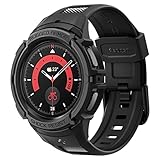
- Compatible with BIA Body Composition Measurement and Heart Rate Monitoring Feature with precise Button Cut-Out design
- All-around scratch defense with shock-absorbing material
- Rugged design with an adjustable band with a durable metal clasp
- Raised bezels around the screen for extra screen protection
- Precisely designed for the Galaxy Watch 5 Pro 45mm. Fits 5.5 inch to 8.5 inch (140mm - 215mm) wrists.
Fix common Route problems
The route does not appear on the watch
- Reconnect the watch in Galaxy Wearable.
- Open Samsung Health on the phone and confirm that the route is saved.
- Check that it is saved under Hiking or Cycling, not another exercise type.
- Reopen Samsung Health on the watch.
- Return to Exercise → workout → Settings → Target → Route.
- If synchronization remains stuck, restart both devices and try again.
Also confirm that you are using a Watch5 Pro or another model Samsung currently lists as compatible with GPX routes.
The GPX file will not import
The file may not actually be a GPX file, may be incomplete or corrupted, or may contain unusual data that Samsung Health cannot process. It may also be stored in a location the app cannot access.
- Download the file again.
- Save it locally on the phone instead of opening a cloud-service preview.
- Rename it with a simple filename.
- Open it in a route-planning app to confirm that it contains a valid track.
- If necessary, export a simpler GPX track without complex or unrelated metadata.
The watch cannot get a GPS lock
Check Samsung Health’s location permission on both phone and watch, confirm that the watch is outdoors with a clear view of the sky, and wait before starting. Also check the Bluetooth connection and make sure the activity is Hiking or Cycling. A route cannot compensate for an unavailable or unreliable GPS position.
What’s actually slowing this PC down?
Pick the symptom - the matching free tool is one click away.
Guidance is wrong or late
Possible causes include poor GPS reception, sparse or inaccurate GPX points, a route that no longer matches the trail or road, starting far from the route’s recorded beginning, or choosing the wrong activity type. Wait for a stable GPS lock, begin near the recorded start, and inspect the GPX against current maps and conditions before continuing.
The watch records the workout but shows no route
Open the workout settings and verify that Target is switched on and that a route was selected under Route. Recording a normal Hiking or Cycling workout alone does not necessarily activate route guidance.
Where to get GPX routes
Start with Samsung Health’s own route search or a GPX file you already trust. If you need to create a route, the following services are possible sources, but none is required:
- Komoot is aimed at hiking and cycling route planning. Its GPX documentation explains its export limitations and notes that export requires the region where the route starts to be unlocked.
- Ride with GPS is particularly cycling-focused and supports multiple export formats. Its route-planning documentation describes its advanced tools and Premium features.
- Strava can be useful if you already use its fitness and route-sharing ecosystem. Its route documentation covers following routes and exporting public routes.
Choose based on the route you need rather than assuming a subscription is necessary. A suitable existing GPX file may be all that is required. Before using any third-party route, check current trail or road status, closures, access rights, weather and hazards.
Route versus Google Maps
Use Samsung Health Route when you already have a planned hiking or cycling course and want to record the workout while keeping that course on the watch. Use Google Maps when you need destination-based directions or directions to a place rather than a prebuilt GPX track. Google Maps navigation on the watch is a separate workflow from Samsung Health Route.
Neither option should be considered a substitute for checking the actual route. A GPX file does not prove that a trail is open, legal to use, safe in current conditions or covered by emergency communications.
Quick Recap
Final pre-trip checklist
- The route is imported, saved and visible under the correct Hiking or Cycling workout.
- The watch has synchronized with Samsung Health through Galaxy Wearable.
- Target → Route is enabled and the correct route is selected.
- The starting point is recognizable and is not part of a badly formed loop.
- Location permissions are enabled.
- The watch has enough battery for the activity.
- You have checked closures, private land, weather and current trail or road conditions.
- You are carrying a phone and backup navigation or safety equipment for unfamiliar or remote terrain.
Product prices and availability are accurate as of the date/time indicated and are subject to change. Any price and availability information displayed on Amazon at the time of purchase will apply.




