Do these 3 things before closing this tab:
1Repair Windows errors before they cause bigger problems2Scan for outdated or missing drivers - takes under a minute3Clear out junk files and repair common Windows errorsMost Apple Watch symbols are context-sensitive status indicators, not error messages. A red dot means unread notifications, a yellow circle means Low Power Mode is active, a blue droplet means Water Lock is on, and a red iPhone or red X means the watch is disconnected from its paired iPhone. The same-looking symbol can mean something different when it appears inside an app, on a watch face complication, or in Control Center.
Use the visual descriptions below together with the symbol’s location. The exact icons available can vary by watchOS version, Apple Watch model, cellular capability, region, enabled services, selected watch face, and installed apps.
Quick reference: common Apple Watch status icons
These symbols most commonly appear at the top of the watch face or as indicators that you can tap to return to an active app. If an icon appears inside an app or complication, check that app’s own meaning before treating it as a system warning.
| Symbol or appearance | What it means | What to do |
|---|---|---|
| Red notification dot | At least one notification is unread. | Swipe down on the watch face to open and read notifications. |
| Green charging symbol | The Apple Watch is charging. | Leave it aligned with the magnetic charger. The symbol confirms that charging has started. |
| Red low-battery symbol | The battery level is low. | Place the watch on its charger as soon as possible. |
| Yellow circle or yellow battery symbol | Low Power Mode is active. | Open Control Center, tap the battery percentage, and review or turn off Low Power Mode if you need the features it changes. |
| Orange airplane | Airplane Mode is enabled. | Turn it off in Control Center if the watch needs wireless connectivity. |
| Purple crescent moon or another Focus symbol | Do Not Disturb or a configured Focus, such as Sleep or Personal, is active. | Open Control Center to identify, change, or disable the active Focus. |
| Green cellular bars | A cellular-capable Apple Watch is connected to a mobile network. The bars indicate approximate signal strength. | Use the bars as a general signal indicator. Cellular service requires compatible hardware, an eligible plan, a supported carrier, and regional availability. |
| Blue Wi-Fi symbol | The watch is connected to Wi-Fi, often because the paired iPhone is not nearby. | Check the watch’s Wi-Fi settings if its connection is unreliable. Wi-Fi generally uses less battery than cellular. |
| Red iPhone or red X | The Apple Watch is not connected to its paired iPhone. | Bring the devices closer, check Airplane Mode, and make sure Wi-Fi and Bluetooth are enabled on the iPhone. |
| Red cellular-disconnected symbol | A cellular Apple Watch has lost its connection to the mobile network. | Move to an area with coverage, then check the cellular plan and carrier connection if the problem continues. |
| Blue water droplet | Water Lock is enabled. Normal taps do not operate the screen in the usual way. | Press and hold the Digital Crown to turn Water Lock off and eject water from the speaker when prompted. |
| Blue lock | The Apple Watch is locked. | Tap the screen and enter the passcode, or unlock it through the normal wrist-detection process. |
| Blue location arrow | An app recently used Location Services. | Tap the indicator, where available, to see which app requested location access. |
| Orange microphone indicator | Siri, Voice Memos, or another app or feature is using the microphone. | Stop or close the relevant activity if microphone use is unexpected. |
| Green Workout icon | The Workout app is active. | Tap the indicator to return to the workout, or end the workout in the Workout app. |
| Walkie-Talkie icon | Walkie-Talkie was recently used or remains enabled in the relevant context. | Open Walkie-Talkie or Control Center to check its state. |
| Music or audio icon | Audio is playing on the Apple Watch. | Tap the indicator to open the app currently playing audio. |
| Compass icon | Compass Backtrack is running. | Open Compass to review or stop Backtrack. |
Color is only a clue. Red can indicate unread notifications, low battery, or disconnection. Blue can indicate Wi-Fi, a lock, Water Lock, or location use. Green can indicate charging, cellular connectivity, or an active workout. Always use the shape and location as well as the color.
Free tools Windows power users keep installed
One-click scans. No signup required.
#1 Best Overall

- [Fit All Models]: Sunnywoo sports nylon watch bands - Compatible with apple watch for women and men, Fits all apple watches, iWatch Bands for Se, Ultra 3/2/1, Series 11, Series 10, Series 9, Series 8, Series 7, Series 6, Series 5, Series 4, Series 3, Series 2, Series 1, iWatch wrist straps offer two size options, ① 5.11"–7.87" (130–200mm) fits 38/40/41/42mm cases ② 5.51"–8.66" (145–220mm) fits 44/45/46/49mm cases. Please check the size on the back of the watch and choose the right size
- [Easy to Wear]: Our watch bands for women men feature a magic tape closure for easy, one-handed length adjustments, ensuring a snug fit during workouts and outdoor adventures. Durable, breathable, and comfortable, they keep your smartwatch securely in place no matter how active you get
- [Skin-Friendly Material]: Sunnywoo watch straps are crafted from high-quality nylon, as soft as silk, ensuring all-day comfort. With excellent breathability and a lightweight design, they keep your wrists cool and comfortable during outdoor activities. Plus, cleaning is super easy, allowing you to maintain freshness and comfort no matter where you are
- [Multi-Colors]: With 14 stunning colors to choose from, you can easily match your daily outfit and create a personalized style statement. The Sunnywoo smart watch bands for women men are the perfect fashion watch accessory to complement any look, making them a must-have for your wardrobe
- [Warm Presents]: Know someone who loves their iWatch and has a passion for fashion and fitness? Treat them to a Sunnywoo nylon watch band! With 14 vibrant colors to choose from, they can effortlessly match their band to their daily style. It's the ultimate thoughtful Presents that combines practicality with personal flair
Where the icon appears matters
Before troubleshooting, identify the symbol’s location:
- At the top of the watch face: It is usually a status indicator or a shortcut back to an active app.
- In Control Center: It is usually a button or a current connection or mode state. Tapping it may turn a feature on or off.
- Inside an Apple app: It may describe an app-specific function, measurement, or activity rather than a system status.
- On the watch face as a complication: Its meaning depends on the selected watch face and the app providing the complication.
- Inside a third-party app: The developer—not Apple’s system interface—defines what the symbol means.
This distinction prevents a common mistake: assuming every unfamiliar graphic is an Apple Watch warning. A complication showing weather, activity, a timer, or a third-party service is not part of the universal watchOS status-icon set.
Control Center symbols and buttons
On current watchOS versions, press the Apple Watch side button to open Control Center. On older watchOS releases, Control Center may be opened by swiping up from the bottom of the watch face. Control Center shows connection status and battery level and provides quick access to commonly used controls.
| Control | What it does |
|---|---|
| Cellular | Turns cellular service on or off on supported cellular models. |
| Wi-Fi | Connects to or disconnects from Wi-Fi. |
| Airplane Mode | Changes wireless connectivity according to the watch’s Airplane Mode settings. |
| Battery percentage | Shows battery details and opens access to Low Power Mode. |
| Ping iPhone | Plays a sound on the paired iPhone when it is close enough to be reached. |
| Flashlight | Turns the watch display into a flashlight. |
| Focus | Turns on Do Not Disturb or selects a configured Focus. |
| Silent Mode | Silences sounds while allowing haptic alerts according to the watch’s settings. |
| Water Lock | Prevents accidental screen interactions during water activities and helps eject water from the speaker afterward. |
| Theater Mode | Keeps the display dark more consistently and reduces certain sounds for theaters, meetings, or other dark environments. |
| Volume | Adjusts media volume. |
Control Center is customizable, so two Apple Watches may not show the same controls in the same order. In current versions, open Control Center, scroll to the bottom, and use the edit option if it is shown to add, remove, or rearrange controls. Available controls can include accessibility features, Backtrack, Settings, Home, Notes, Reminders, Shortcuts, and supported third-party apps. The presence of a button does not prove that every Apple Watch supports the underlying feature.
Crashes, No Sound, or Screen Glitches?
Random freezes, missing sound and display glitches usually trace back to one bad driver. Find and replace yours safely.Free scan · under a minuteWindows Errors? Fix Them Before They Spread
Repair common Windows errors and clear accumulated junk for a smoother, more stable PC - no reinstall needed.Free scan · no reinstallBattery, charging, and power-saving symbols
Green charging symbol
A green charging icon means the watch has recognized the charger and charging is underway. Place the back of the watch against the magnetic charger and check that the charging symbol appears. If it does not appear, the watch may not be aligned correctly, the cable or power adapter may not be supplying power, or the battery may be too depleted to show the normal interface immediately.
If you need a replacement or spare, an Apple Watch magnetic charging cable is the accessory that directly matches Apple’s magnetic charging method. Check that the cable is compatible with your watch and that the power adapter meets the requirements for the charging speed you expect.
Red low-battery symbol
The red low-battery symbol means the watch needs power. Put it on the charger rather than repeatedly trying to wake the screen. Once enough charge is available, the normal watch face or charging display should return.
To check the exact charge level, press the side button to open Control Center and look at the battery percentage. You can also add a battery complication to a compatible watch face for a persistent at-a-glance reading.
What’s actually slowing this PC down?
Pick the symptom - the matching free tool is one click away.
Yellow Low Power Mode symbol
A yellow circle or yellow battery-related indicator means Low Power Mode is active. This is different from a low-battery warning: Low Power Mode can be enabled to extend battery life even when the battery is not critically low.
Open Control Center, tap the battery percentage, and review the Low Power Mode setting. Low Power Mode reduces or changes some Apple Watch features to save energy, so turn it off when you need normal background activity, connectivity, or other affected functions. The exact behavior depends on the watch model, watchOS version, and the feature being used.
Why charging may pause near 80 percent
Optimized Battery Charging can delay charging beyond approximately 80 percent in some situations to reduce long-term battery aging. Supported Apple Watch models may also use Optimized Charge Limit, which can dynamically stop below 100 percent based on usage patterns.
Rank #2

- 【Fit All Models】SuperNaNa Sport silicone watch band compatible with apple watch bands 40mm 38mm 42mm 44mm 41mm 45mm 46mm 49mm women men,Soft breathable replacement sport strap for iwatch bands series 12 series 11 series 10 series 9 series 8 series 7 series 6 series 5 series 4 series 3 series 2 series 1. and iwatch Ultra 3 2, Ultra, SE(2nd Gen). All iwatch versions can attach perfectly and seamlessl.
- 【Soft Silicone Material】apple watch bands for women men are made of premium soft silicone, prevents skin from irritation, lightweight, persistent, skin-friendly, touch comfortable, water-resistant and sweat-proof; iphone watch bands for women perfectly fit for runs, hiking, rides, camping, climbing, swims, workouts, traveling and more outdoor activities. iWatch bands 40mm womens completely unburdened to wear on the wrist, perfect for all day.
- 【Adjustable size for all wrist】Our Sport apple watch strap compatible for 38mm/40mm/41mm/42mm(series 12 11 10), this size fits for 5.1"-7.1" (130mm-180mm) wrist; soft silicone iwatch strap compatible for 42mm(series 3 2 1)/44mm/45mm/46mm/49mm, this size fits for 5.9" - 7.9" (150mm-200mm) wrist. Please check the size on the back of your watch to choose the right size.
- 【Easy installation & removal】Our watch bands for women come with Innovative pin-and-tuck closure design, which locks onto smart watch interface precisely and securely. No tool needed,easy to install and remove,provides a secure and comfortable fit for extended wear.
- 【20+ Colors Choice】Silicone iwatch bands for women come with 20+ different cute colors available for women men. black starlight apple watch band etc colors personalize your Apple Watch and fit your daily mood and outfit. A idear option for your smartwatch accessories.
A watch that temporarily remains below 100 percent is not necessarily failing to charge. Give it time and check whether the charge resumes when the watch predicts that a full charge will be useful. If it never charges normally, follow the charging checks in the troubleshooting section below.
Compatible models may support fast charging when used with the required charging cable and an 18-watt-or-greater USB-C power adapter. Fast-charging support depends on the Apple Watch model and region, so do not assume that every watch or every adapter provides the same result.
Connectivity icons
Red iPhone or red X: the watch is disconnected
The red iPhone or red X indicator means the watch and paired iPhone are not currently connected. It does not automatically mean either device is damaged. The devices may simply be too far apart, Airplane Mode may be active, or Bluetooth or Wi-Fi may be disabled on the iPhone.
- Bring the Apple Watch and paired iPhone close together.
- Check that Airplane Mode is off on both devices.
- On the iPhone, confirm that Wi-Fi and Bluetooth are enabled.
- Check the watch’s Control Center for Airplane Mode, Wi-Fi, and cellular states.
- If the red indicator remains, restart both the Apple Watch and iPhone, then check the connection again.
When the connection returns, the red iPhone or X should disappear. If it returns repeatedly despite the devices being close and wireless settings being correct, update both devices when updates are available and use Apple’s current connection-support guidance for the specific watchOS and iOS versions.
Blue Wi-Fi symbol
A blue Wi-Fi icon means the watch is connected to Wi-Fi. This commonly happens when the paired iPhone is not nearby. Wi-Fi generally consumes less battery than cellular, so the watch may prefer Wi-Fi when a suitable network is available.
The Tool Desk
Outbyte Driver Updater FREEScan for outdated or missing drivers - takes under a minuteDriver Scan →Outbyte PC Repair FREEClear out junk files and repair common Windows errorsFree Scan →A Wi-Fi icon does not mean that every internet-dependent function will work exactly as it does through the iPhone. Network sign-in pages, unavailable networks, weak signals, and app-specific requirements can still prevent a service from connecting. If Wi-Fi is unreliable, check the network in the watch’s Settings and move closer to the access point or use the paired iPhone connection when possible.
Green cellular bars
Green cellular bars indicate that a cellular-capable Apple Watch is connected to a mobile network. More bars generally indicate stronger signal, but the indicator is only a rough guide. Performance can still vary with congestion, indoor coverage, roaming, and the service being used.
Cellular service requires a cellular-capable watch, an eligible carrier plan, a supported carrier, and availability in the relevant country or region. A Wi-Fi-only Apple Watch will not gain cellular capability by changing a setting or adding an ordinary iPhone plan.
Red cellular-disconnected symbol
A red cellular-disconnected indicator means a cellular Apple Watch has lost its mobile-network connection. Move outdoors or to an area with better coverage, check whether Airplane Mode is on, and verify the cellular plan if the symbol persists. If the watch works normally near the iPhone or on Wi-Fi, the issue may be limited to cellular coverage or account activation rather than the watch’s general connectivity.
Orange airplane
The orange airplane indicates that Airplane Mode is enabled. Wireless behavior can depend on the settings associated with Airplane Mode, but connectivity features may be unavailable or changed while it is active. Turn it off in Control Center when you need the watch to reconnect to an iPhone, Wi-Fi network, or cellular service.
Rank #3
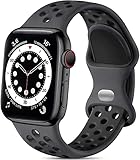
- 【Compatible Model】Lerobo soft silicone sport bands are compatible with Apple Watch band 44mm/45mm/46mm/49mm/42mm(Series 3/2/1), for Apple Watch Series 12 11 10 46mm, for Apple Watch SE 3/SE 2/SE/Series 6/5/4 44mm, for Apple Watch Series 9/8/7 45mm, for Apple Watch Ultra 4/Ultra 3/Ultra 2/Ultra 49mm, for iWatch Series 3/2/1 42mm. Please choose the right smart watch strap according your watch model and size for your wrist.
- 【Premium Soft Silicone Material】Lerobo iwatch bands for women men is designed for Apple Watch Series 12 Series 11 Series 10 Series 9 Series 8 for men and women, which is compatible for Apple Watch Series 6 made from premium soft silicone, prevents skin from irritation; the sport bands are lightweight, durable, flexible, anti-dust, sweat-resistant, dirt-proof, odorless and no fading, which feels comfortable to your skin.
- 【Air Holes Design & 2 Colors Mixed】These Breathable bands compatible for apple watch 46mm 45mm 44mm 42mm 49mm, design with more ventilation holes allow the air and liquid pass easily, make it more breathable and comfortable. Specially designed for running, swimming, cycling, hiking, climbing, camping, workouts, traveling and more outdoor activities. 2 colors mixed design makes the bands for apple watch bands women men looks more fashionable, youthful and sporty.
- 【Multiple Colors & Size Choices】Lerobo sport bands with various colors and sizes for your choices, personalize your smartwatch to fit your mood and outfit in daily life. Available Size: 38mm/40mm/41mm/42mm(Series 12/11/10) S/M fits for 5.1 "-7.1" wrist; 38mm/40mm/41mm/42mm(Series 12/11/10) M/L fits for 5.9"-7.9" wrist; 44mm/45mm/46mm/49mm/42mm(Series 3) S/M fits for for 5.5 "-7.5" wrist; 44mm/45mm/46mm/49mm/42mm(Series 3) M/L fits for 6.3 "-8.3" wrist. Fit for most wrist.
- 【Convenient Install & Removal】Quick change silicone sport watch band feature a pin and tuck closure to keep your watch secure no matter where life brings you. This one snap correctly inside and locks in place. This band come with watch lugs on both ends, which locks onto watch band interface precisely and securely. It can effectively prevent the sports bands from falling off and becoming loose. If you have any issue about our bands, please tell us and we will solve for you within 24 hours.
Focus, Do Not Disturb, Silent Mode, Theater Mode, and Schooltime
Purple crescent moon and other Focus symbols
A purple crescent moon commonly represents Do Not Disturb. Other Focus symbols can identify configured modes such as Personal or Sleep. A Focus may silence calls and alerts, prevent the display from lighting, or allow selected people and apps through, depending on its configuration.
If notifications seem to have stopped, open Control Center and tap the Focus control. Identify the active Focus and change or disable it if appropriate. Also check whether the Focus is being scheduled or mirrored from the paired iPhone, because turning it off on the watch may not be the permanent solution.
Theater Mode
Theater Mode is designed for theaters and other dark or quiet environments. It reduces display wake behavior and silences certain sounds, so the screen may not light when you raise your wrist in the usual way. Use Control Center to turn it off when you want ordinary wake and sound behavior again.
Silent Mode
Silent Mode silences sounds. It does not necessarily eliminate haptic alerts: whether the watch taps your wrist depends on the alert and haptic settings. If you are missing notifications, check Silent Mode as well as Focus and the notification settings for the relevant app.
Schooltime
Schooltime is intended to silence notifications and minimize visual distractions while still allowing the time to be checked. It can be added to and activated from Control Center. If the watch appears unusually restricted during a scheduled period, check whether Schooltime is enabled before assuming that notifications or apps are malfunctioning.
Blue water droplet: Water Lock
The blue droplet means Water Lock is on. The screen is intentionally prevented from responding to ordinary taps, which helps stop water or accidental touches from activating controls during water activities.
To exit Water Lock, press and hold the Digital Crown. The watch will unlock the screen and, when prompted, use sound and vibration to help eject water from the speaker. Water Lock is a control feature, not a guarantee that the watch is safe for every type of water exposure. Follow Apple’s water-exposure and safety guidance for your specific model.
Recommended Free Tools
Active-app indicators
Some symbols tell you that an activity is still running. Tapping the indicator often takes you back to the app that started it.
- Green Workout icon: The Workout app is active. Tap it to return to the workout, or open Workout and end the session. If the icon remains after the workout has definitely ended, Apple recommends restarting the watch.
- Music or audio icon: Audio is playing on the watch. Tap it to open the app currently playing audio and pause or change playback.
- Compass icon: Compass Backtrack is running. Open Compass to review the route or stop Backtrack.
- Walkie-Talkie icon: Walkie-Talkie was recently used or remains enabled in the relevant context. Open Walkie-Talkie or Control Center to check whether it is available and active.
An active-app indicator is not necessarily a problem. It may remain visible because a workout, audio session, navigation activity, or Backtrack session is still running in the background. Stop the activity from its own app rather than repeatedly restarting the watch.
Privacy indicators: location and microphone
Blue location arrow
The blue location arrow indicates that an app recently used Location Services. It is a privacy-relevant status signal, not an error message. Where the interface allows it, tap the arrow to identify which app requested location access.
Rank #4

- Compatible Models: Specially designed soft silicone replacement bands for women men Apple watch 38mm 40mm 41mm 42mm 44mm 45mm 46mm 49mm Ultra 3, Ultra 2, Ultra, SE, Series 11, Series 10, Series 9, Series 8, Series 7, Series 6, Series 5, Series 4, Series 3, Series 2, Series 1, Sport, Edition, ALL VERSIONS.
- Personalized Design: The bands provide different size for your choice. Various colors personalize your iwatch and fit your mood, outfit in daily life, dress up your iwatch and highlight your unique taste, perfectly fits for women men wear. Breathable holes are easier to adjust the length, a good choice for daily wear and exercise.
- Premium Material: Our replacement Bands made of high-quality elastomer, prevent skin from irritation rash. Soft flexible Lightweight durable Sweat-resistant Dirt-proofand Waterproof, very comfortable to wear.
- Multiple Occasion: There are different popular colors available for women men. Perfectly fit female and male, make you different from others and fit any occasions, dress or mood in your daily life. Perfectly fit for runs, swims, rides, workouts, Parties, Climbing, Hiking, Camping, Traveling and more outdoor activities.
- Size: 38mm/40mm/41mm/42mm(series 11 10) S/M Size: Suitable for 5.1"-7.1" (130mm-180mm) wrist; 38mm/40mm/41mm/42mm(series 11 10) M/L Size: Suitable for 5.9"-7.9" (150mm-200mm) wrist; 44mm/45mm/46mm/49mm/42mm(series 3 2 1) S/M Size: Suitable for 5.5"-7.5" (140mm-190mm) wrist; 44mm/45mm/46mm/49mm/42mm(series 3 2 1) M/L Size: Suitable for 6.3"-8.3" (160mm-210mm); Please choose the correct watch model and size for yourself.
If the request is unexpected, stop the app or activity that is using location and review its location permissions in the relevant Apple Watch or iPhone privacy settings. Navigation, workouts, weather, and other legitimate features may use location even when you did not open a map.
Recommended Free Tools
Orange microphone indicator
The orange microphone indicator appears when Siri, Voice Memos, or another app or feature is using the microphone. If you intentionally started dictation, recording, or Siri, the indicator is expected. If not, close or stop the relevant app or activity and review which feature was active.
These indicators should not be treated as evidence that the watch is infected or malfunctioning. They are designed to make access to location and microphone functions visible. Persistent or unexplained behavior is a reason to inspect apps and privacy settings, not to diagnose a hardware problem from the color alone.
Independent reader supportYour contribution helps us test, update, and keep practical guides available for everyone.Health and fitness symbols are not diagnoses
Health and fitness screens can contain symbols that are specific to the Workout, Heart, ECG, Blood Oxygen, or Health apps. They should not automatically be added to a list of universal Apple Watch status icons.
The green Workout icon indicates an active workout, while the Compass symbol can indicate that Backtrack is running. By contrast, ECG and Blood Oxygen screens display app-specific measurements and results. Blood Oxygen measurements are intended for general fitness and wellness, not medical use. Availability varies by country or region and, for some U.S. Apple Watch models, by how the data is analyzed on the paired iPhone.
Do these 3 things before closing this tab:
1Clear out junk files and repair common Windows errors2Fix the driver behind crashes, sound loss and screen glitches3Repair Windows errors before they cause bigger problemsDo not diagnose a heart, rhythm, blood oxygen, fall, or other medical condition from an icon alone. If the watch presents a health alert or a result that concerns you, review the relevant information in the Apple Health or Apple Watch feature documentation and seek qualified medical advice. In an emergency, use local emergency services rather than relying on an icon or wearable measurement.
Why your Apple Watch icon may look different
Apple Watch symbols can change in appearance or availability for several legitimate reasons:
- watchOS version: Apple can change the interface, labels, or location of controls in an update.
- Apple Watch model: Some features require newer hardware.
- Cellular capability: Cellular indicators and controls appear only on supported cellular models.
- Region and carrier: Cellular, Blood Oxygen, ECG, and other features can vary by country, region, or carrier.
- Enabled services: A symbol may not appear until its related feature, plan, or permission is enabled.
- Watch face and complications: A complication is selected by the user and may come from Apple or a third-party app.
- Current app: An icon inside Workout, Compass, Music, or another app may have a narrower app-specific meaning.
- Display conditions: Color and detail can look different depending on brightness, display settings, and the screenshot or camera used to show the symbol.
For accessibility and reliable identification, describe both the shape and color: say “red notification dot,” “yellow Low Power Mode circle,” “blue Water Lock droplet,” or “red disconnected-iPhone symbol” rather than relying on color alone.
Troubleshooting by symptom
The watch shows a red iPhone or red X
- Move the watch and paired iPhone close together.
- Turn Airplane Mode off on both devices.
- Confirm Wi-Fi and Bluetooth are on in the iPhone’s Control Center or Settings.
- Check the watch’s Control Center for a conflicting wireless setting.
- Restart both devices if they still do not reconnect.
The expected result is that the disconnected indicator disappears. If it does not, the issue may involve pairing, software compatibility, or a persistent wireless fault and should be investigated using Apple’s current support documentation for the installed software versions.
The watch shows a yellow battery symbol
Open Control Center, tap the battery percentage, and check Low Power Mode. Disable it if you need the affected features to operate normally. If the battery is also low, put the watch on its charger rather than treating Low Power Mode as a charging solution.
Best Value

- Compatible Models: The HEARTBOOM magnetic nylon sport bands compatible for iWatch all versions. Suitable for Apple Watch Series 3/2/1 (38mm), Series 4/5/6/SE/SE 2/SE 3 (40mm), Series 7/8/9 (41mm), Series 12/11/10 (42mm). Pls check the model on the back of your watch to select the correct size
- Comfortable & Fit: HEARTBOOM stretchy apple watch band is made of recycled polyamide with a fabric weave, which is skin-friendly, breathable, lightweight, washable, sweat-resistant and quick-drying. Perfect for Fitness, Running, Yoga and daily wear, as it ensures that your wrist remains comfy and gentle feeling
- Multi Colors & Freely Adjustable: Our iwatch bands come with Various rich & muted colors for your choices, personalize your smartwatch to fit your outfit in daily life and easy change for every occasion. Suitable for women and men with 5.5"-9.6"(140mm~244mm) wrists. One size fit for most people,no need to measure your wrist to choose the size like the traditional braided bands
- Confidently Secure with Upgraded Magnets: Experience the perfect blend of style and security with our braided stretch band for Apple Watch. The enhanced magnetic Closure creates a strong, reliable connection that is easily adjustable for a flawless custom fit. Designed for all-day comfort and peace of mind, it stays put during any activity. Tool-free installation and one-click removal make it incredibly easy to use
- Perfect Gift: This apple watch bands blend fashion with functionality, look more fashionable and youthful. It's a a thoughtful and well-made gift. Suitable for Christmas, New Year's, Father's Day, Mother's Day and birthdays as a surprise for your parents, loved ones, and friends.We offer 24/7 friendly support
The watch shows a red low-battery symbol
Align the back of the watch with its magnetic charger and look for the green charging symbol. Try a known-good compatible charging cable, power adapter, and outlet if the symbol does not appear. Remove anything that prevents the watch from sitting flat against the charger, and allow a severely depleted watch time to begin charging.
If there is still no charging symbol after checking alignment, power, and compatibility, restart the watch when possible. Continued failure after these basic checks is a reason to contact Apple or an appropriate authorized service provider rather than repeatedly replacing unrelated accessories.
The watch will not respond to taps
Check for the blue water droplet. If Water Lock is active, press and hold the Digital Crown to exit and eject water. If Water Lock is not active, check Theater Mode, the lock symbol, and whether the watch is displaying an active app or a system prompt. A restart may help if the screen remains unresponsive after the relevant mode is cleared.
The green Workout icon remains after the workout ended
Open the indicator and return to Workout. Confirm that the session is ended inside the app. If the icon still remains, restart the Apple Watch; Apple specifically recommends restarting for a Workout indicator that persists after ending a workout.
The microphone or location indicator appears unexpectedly
Tap the location indicator where available to identify the requesting app. For the microphone indicator, check whether Siri, Voice Memos, dictation, or another recording feature is open. Stop the activity, close the relevant app, and review privacy permissions if the indicator returns without an obvious reason.
Cellular service is unavailable
First determine whether the watch is a cellular-capable model. Then check coverage, Airplane Mode, the cellular control in Control Center, and the carrier plan. Cellular availability depends on the model, plan, carrier, and region; a missing green cellular indicator is not by itself proof of a hardware failure.
A simple identification workflow
- Locate it: Decide whether the symbol is on the watch face, in Control Center, inside an app, or part of a complication.
- Describe it: Record the color, shape, and whether it resembles a dot, phone, lock, droplet, airplane, crescent, battery, microphone, or app logo.
- Tap it when appropriate: Active-app indicators often open the relevant app, and some status indicators reveal additional information.
- Open Control Center: Press the side button to inspect battery, connection, Focus, Water Lock, Theater Mode, Silent Mode, and other active controls.
- Check the setting before restarting: A yellow battery icon may simply be Low Power Mode, and a blue droplet may simply be Water Lock.
- Restart only when the state appears stuck: Persistent Workout indicators and connection problems are examples where restarting can be useful after the settings have been checked.
- Escalate hardware-like problems: If charging, battery behavior, or connectivity remains abnormal after the basic checks, use Apple’s current support or service options for the exact model and software version.
The most important distinction
Apple Watch does not have one universal set of symbols that appears on every model. Status icons, Control Center buttons, active-app indicators, complications, and third-party app graphics belong to different parts of the interface. When a symbol changes after a watchOS update or appears only in one app, Apple’s current Apple Watch User Guide and support documentation take precedence over an older screenshot or icon list.
Frequently Asked Questions
What does the red dot at the top of my Apple Watch mean?
The red notification dot means that at least one notification is unread. Swipe down on the watch face to open your notifications.
Why is my Apple Watch battery icon yellow?
A yellow battery-related icon or yellow circle means Low Power Mode is active. Press the side button to open Control Center, tap the battery percentage, and review or disable Low Power Mode.
Why is there a blue water droplet on my Apple Watch?
Water Lock is enabled. The screen will not respond to ordinary taps normally. Press and hold the Digital Crown to turn Water Lock off and eject water from the speaker when prompted.
What does the red iPhone or red X on Apple Watch mean?
The watch is disconnected from its paired iPhone. Bring the devices together, turn off Airplane Mode, confirm Wi-Fi and Bluetooth are enabled on the iPhone, and restart both devices if necessary.
Can an Apple Watch icon diagnose a health problem?
No. Health and fitness symbols or results are not diagnoses. Review the relevant information in Apple Health or the applicable Apple Watch feature documentation, and seek qualified medical advice for concerning results or alerts.
The Bottom Line
Read an Apple Watch symbol by combining its shape, color, and location. Use Control Center to check battery, connectivity, Focus, Water Lock, and other active controls; use the relevant app for workout, audio, Compass, or health information. If a charging or connection problem survives those checks, troubleshoot the specific hardware, plan, or software involved instead of interpreting the icon alone.




