What’s actually slowing this PC down?
Pick the symptom - the matching free tool is one click away.
The supported way to correct a Fitbit Versa 2 clock is to change the time zone in the Google Health/Fitbit app, then sync the watch. Open Today → profile picture or initials → Google Health settings → Date, time & units → Time Zone. If necessary, turn off Set Automatically, select the correct zone, and sync while the watch is near your phone.
To change the appearance from 12-hour to 24-hour time—or the reverse—use Clock Display Time in the same settings area. Menu names can differ slightly if your account still shows legacy Fitbit branding.
As an Amazon Associate I earn from qualifying purchases.
Why your Versa 2 may show the wrong time
The Versa 2’s supported time-correction process relies on the companion app’s time-zone setting and synchronization. An incorrect clock commonly follows:
Free tools Windows power users keep installed
One-click scans. No signup required.
- Travel across time zones
- A daylight-saving-time change
- An incorrect date, time, or time zone on the phone
- Automatic time-zone detection selecting the wrong region
- A delayed or failed sync
Fitbit’s current instructions do not provide a documented Versa 2 control for entering a different hour and minute directly on the watch. The official workflow is to correct the time-zone setting in the app and synchronize the device.
#1 Best Overall

- Use Amazon Alexa Built in to get quick news and information, check the weather, set timers and alarms, control your smart home devices and more all through the sound of your voice (third party app may be required; Amazon Alexa not available in all countries)
- Based on your heart rate, time asleep and restlessness, Sleep Score helps you better understand your sleep quality each night; Also track your time in light, deep and REM sleep stages and get personal insights
- Control your Spotify app, download Pandora stations and add Deezer playlists plus store and play 300+ songs on your wrist (subscription required; Pandora is US only)
- With a larger display and an always on option, your information’s always a quick glance away (always on display requires more frequent charging)
- Track heart rate 24/ 7, steps, distance, calories burned, hourly activity, active minutes and floors climbed. Syncing range - up to 6.1 metres
See Google’s current time and time-zone instructions.
Change the Versa 2 time zone
- Open the Google Health app. On some phones or accounts it may still be labeled Fitbit.
- Open the Today tab.
- Tap your profile picture or initials.
- Tap Google Health settings. Older interfaces may use Fitbit settings or a similar label.
- Under App Settings, tap Date, time & units.
- Tap Time Zone.
- Leave Set Automatically enabled for normal use, or turn it off if automatic detection is wrong.
- Select the correct time zone manually.
Manual selection is particularly useful after travel, when the phone is misreporting its location, or when automatic detection repeatedly returns to the wrong zone. Remember to change the setting again when you travel home.
Force a sync after changing the setting
Changing the app setting alone may not immediately change the watch. Keep the Versa 2 close to the phone, open the app’s Today screen, and pull down on the screen to start a manual sync. Wait for synchronization to finish, then check the time on the watch.
PC Slower Than It Used to Be?
A free scan shows the junk files, broken settings and background clutter dragging Windows down - then fixes them in one click.Free scan · Windows 10 & 11Outdated Drivers Are Slowing You Down
One free scan finds every outdated or missing driver and matches the right update for your exact hardware.Free scan · exact hardware matchIf you recently crossed a border or changed time zones, the most reliable order is:
Rank #2

- Brand New in box. The product ships with all relevant accessories
- Check that the phone has the correct date, time, and time zone.
- Verify the time zone in the Google Health/Fitbit app.
- Choose the destination zone manually if automatic detection is unreliable.
- Sync with the Versa 2 nearby.
For Versa 2 navigation and screen controls, consult Fitbit’s device-navigation guide.
Switch between 12-hour and 24-hour time
This setting changes the clock’s format, not its actual time zone. If the watch correctly shows the equivalent of 1 p.m. but displays 13:00 instead of 1:00 PM, change the clock format:
- Open the Google Health/Fitbit app.
- Tap Today.
- Tap your profile picture or initials.
- Open Google Health settings.
- Tap Date, time & units.
- Tap the arrows beside Clock Display Time.
- Choose 12 hour or 24 hour.
- Sync the Versa 2.
Changing this option will not fix a clock that is one or more hours ahead or behind. That problem requires a time-zone or synchronization check.
Versa 2 time troubleshooting
The time is wrong by exactly one or more hours
Check the phone’s time-zone setting, then check Date, time & units → Time Zone in the app. Turn off Set Automatically, select the correct zone manually, and sync again.
Rank #3

- Use Amazon Alexa Built in to get quick news and information, check the weather, set timers and alarms, control your smart home devices and more all through the sound of your voice (third party app may be required; Amazon Alexa not available in all countries)
- Based on your heart rate, time asleep and restlessness, Sleep Score helps you better understand your sleep quality each night. Also track your time in light, deep and REM sleep stages and get personal insights
- Control your Spotify app, download Pandora stations and add Deezer playlists—plus store and play 300+ songs on your wrist (subscription required; Pandora is US only)
- With a larger display and an always on option, your information’s always a quick glance away (always on display requires more frequent charging)
- Track heart rate 24/ 7, steps, distance, calories burned, hourly activity, active minutes and floors climbed
The time is correct but the format is wrong
Use Clock Display Time to select 12-hour or 24-hour display. Do not change the time zone for a formatting preference.
The time changes back after synchronization
Automatic detection may be restoring the wrong zone. Disable Set Automatically, choose the correct zone, and perform another manual sync.
Syncing appears to do nothing
- Confirm the phone itself shows the correct date, time, and time zone.
- Keep the watch close to the phone and confirm that it remains paired.
- Open the app instead of relying only on background syncing.
- Pull down on Today to force synchronization.
- Set the time zone manually and sync again.
- Log out of the app, log back in, and sync again.
The logout-and-login step is part of Fitbit’s official recovery guidance. If the problem continues, standard additional checks include restarting both devices, checking Bluetooth, updating the app where updates are available, and investigating account or connection problems. Contact Fitbit/Google support if the Versa 2 cannot sync or continually retains an incorrect time.
Do these 3 things before closing this tab:
1Clear out junk files and repair common Windows errors2Fix the driver behind crashes, sound loss and screen glitches3Repair Windows errors before they cause bigger problemsWhen the problem is the display, not the clock
The Versa 2 home screen is its clock face. The screen can wake through wrist movement or screen-wake controls, and the time can also remain visible through the always-on display.
Rank #4
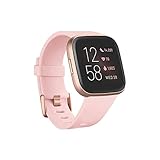
- Use Amazon Alexa Built in to get quick news and information, check the weather, set timers and alarms, control your smart home devices and more all through the sound of your voice (third party app may be required; Amazon Alexa not available in all countries)
- Based on your heart rate, time asleep and restlessness, Sleep Score helps you better understand your sleep quality each night. Also track your time in light, deep and REM sleep stages and get personal insights
- Control your Spotify app, download Pandora stations and add Deezer playlists—plus store and play 300+ songs on your wrist (subscription required; Pandora is US only)
- With a larger display and an always on option, your information’s always a quick glance away (always on display requires more frequent charging)
- Track heart rate 24/ 7, steps, distance, calories burned, hourly activity, active minutes and floors climbed
If the time is correct but the screen is blank, dim, or slow to appear, check the watch’s Screen Wake, Brightness, Screen Timeout, and Always-On Display settings. Fitbit documents always-on display as a feature that affects battery life and may turn off automatically when the battery is critically low.
If only the always-on clock looks different, open Settings app → Always-On Display → Customize. Versa 2 can use a digital or analog always-on style and can show options such as a battery indicator or selected core statistics. The always-on design may not match the main clock face exactly. See Fitbit’s always-on display documentation.
Independent reader supportYour contribution helps us test, update, and keep practical guides available for everyone.Changing the clock face is not changing the time
A clock face changes the watch’s visual design; it does not repair the underlying time or time zone. Manage clock faces through the companion app, but use Date, time & units for time-zone and 12/24-hour controls. Some larger clock-face installations or updates may require Wi-Fi; that requirement is unrelated to correcting the system clock. Fitbit explains clock-face management in its Versa 2 setup guidance and Wi-Fi requirements in its app and clock-face documentation.
Fixes to avoid initially
- Do not rely on an undocumented watch-side menu for manual hour-and-minute entry.
- Do not change the clock face expecting the time to change.
- Do not install a third-party clock app solely to correct the system time.
- Do not factory-reset the watch before checking the app, pairing, account, and sync.
A factory reset can require setup again and should be considered only after ordinary connection and synchronization troubleshooting.
Current Versa 2 support context
Google’s current security-support table lists December 2025 as the minimum guaranteed security-update date for Versa 2. As of 2026, that does not by itself mean the watch immediately stops displaying the time or syncing, but software behavior and app compatibility should not be assumed to receive indefinite guaranteed support. A listed firmware reference is Fitbit OS 4.2.4, version 35.72.1.23; that does not prove every Versa 2 has that firmware installed. See Google’s security-support table and Fitbit’s firmware information.
The Bottom Line
For a wrong Versa 2 clock, correct Time Zone in the Google Health/Fitbit app, then force a sync. Use Clock Display Time only when you want to switch between 12-hour and 24-hour formatting.
Quick Recap
Product prices and availability are accurate as of the date/time indicated and are subject to change. Any price and availability information displayed on Amazon at the time of purchase will apply.




