To connect an Apple Watch to an iPhone, unlock the compatible iPhone, bring it near the Watch, and follow the prompt to set it up in the Apple Watch app. If the prompt does not appear, open the app and tap All Watches > Add Watch. You can scan the pairing animation or pair manually, then follow the setup prompts and keep both devices close while they sync.
If your Watch will not pair, first check compatibility, software, Bluetooth, and proximity. Moving a Watch to a replacement iPhone and setting one up for a family member are separate processes.
Before you pair: compatibility and preparation
Apple Watch compatibility depends on the exact Watch model and software versions. Apple’s compatibility guidance says Ultra 3, Series 11, and SE 3 require an iPhone 11 or later with iOS 26 or later. Older models have different requirements; check Apple’s model-by-model compatibility table before you start.
| Apple Watch model | Minimum iPhone and software requirement |
|---|---|
| Ultra 3, Series 11, SE 3 | iPhone 11 or later with iOS 26 or later |
| Series 10 | iPhone XS or later with iOS 18 or later; watchOS 11 or later |
| Series 7 | iPhone 6s or later with iOS 15 or later; watchOS 8 or later |
These model requirements come from Apple Support’s compatibility guidance (2026); they are not universal minimums for every Apple Watch.
Do these 3 things before closing this tab:
1Fix the driver behind crashes, sound loss and screen glitches2Repair Windows errors before they cause bigger problems3Scan for outdated or missing drivers - takes under a minute#1 Best Overall
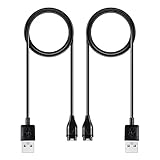
- 【Wide Compatibility】Compatible for Garmin Fenix 8 7 7S 7X Pro 6 6S 6X Pro 5 5S 5X Plus, Forerunner 965 955 945 935 745 265 255 245 165 55 45 45S Music, Approach S70 S62 S60 S50 S44 S42 S40 S12 S10 G12, X10, Instinct 3 2 2S 2X, Venu 3 2 plus 2S Sq, Vivoactive 6 5 4 4S 3, Quatix 7 6 6X 5, Vivosmart 5, Vivomove 3 3S Style Sport, Vivosport, D2 Charlie, D2 Delta PX, D2 Delta S, Impact Bat Swing Sensor, Tactix 8, Tactix 7, Tactix Charlie, BarkLimiter 2 2VT, Striker Cast, Rey, Swim 2, First Avenger, Darth Vader, Epix (gen 2), Enduro 3 2, Striker Cast GPS,Rey,First Avenger,Darth Vader,Enduro Smartwatch
- 【Durable & Premium Quality】Made of high quality wire; ensure the excellent charging experience for your Device. Durable High-quality ABS + TPE Material and Copper Wire ensures Stable Current Transmission, which assures the quality of the charge
- 【Fast Charge, Stable Performance】You can connect it to power source on PC, laptop, notebook, because this charging method can provide high efficiency and high stability charging experience for you. Also, Data Sync is available. Provides fast and stable charging speed
- 【Safe Charging】AWINNER Charging Cable has Voltage Regulator and PTC Inside to protect your Device being damaged by overcurrent when connected to power source. Made of over- voltage and over- current protection, they will protect your watch from being damaged when charging
- What You Get: Free Lifetime Replacement Warranty-As our fans
- Update the iPhone to the latest iOS available for it.
- Turn on Bluetooth in Settings > Bluetooth.
- Connect the iPhone to Wi-Fi or cellular.
- Have the Apple Account password available in case setup or Activation Lock requires it.
- Keep the iPhone and Watch close together during pairing and initial syncing.
How to pair an Apple Watch with an iPhone
- Turn on the Watch. Hold its side button until the Apple logo appears, then put it on or keep it near the iPhone.
- Unlock the iPhone and bring it close to the Watch.
- Start setup. When the prompt “Use your iPhone to set up this Apple Watch” appears, tap Continue.
- Open the Watch app if needed. If no prompt appears, open the Apple Watch app, tap All Watches, then Add Watch.
- Choose the setup type. For your own Watch, tap Set Up for Myself.
- Pair the devices. Centre the Watch’s pairing animation in the iPhone camera viewfinder. If the camera cannot read it, tap Pair Apple Watch Manually and follow the prompts.
- Choose new or previous setup. Select Set Up as New Apple Watch for a fresh setup. If offered a previous Watch setup, review the choices, including Customize Settings or restoring a backup.
- Complete the prompts. Install any required software update, choose your wrist, agree to the terms, and sign in to your Apple Account if prompted. Set a passcode if desired; Apple Pay requires one.
- Choose other settings such as text size, health and safety options, cellular service, and Apple Pay as appropriate.
- Keep the devices close while setup and syncing finish. The Watch face may appear before background syncing is complete.
What to choose: set up as new or restore a backup?
Choose Set Up as New Apple Watch for a first Watch or a clean configuration. If you are replacing a Watch and a previous setup is offered, you can restore an available backup to bring back compatible settings and content, or customize settings and start fresh. Review the available choices during setup; a backup may not include changes made after it was created.
- Set up as new: configure the Watch from the beginning.
- Restore a backup: bring back compatible prior settings and content from an available backup.
Move an existing Apple Watch to a new iPhone
If you still have the old iPhone, update the old iPhone and Watch, back up the old iPhone, and follow the transfer prompt while the unlocked Watch is on your wrist and nearby. Then complete the Watch setup on the new iPhone. If pairing does not finish during iPhone migration, open the Watch app and tap Finish Pairing if that option appears.
If the old iPhone is unavailable, erase the Watch, pair it with the new iPhone, and restore the most recent available Watch backup if offered. Changes made since that backup may be lost. If Activation Lock appears, use the Apple Account linked to the Watch; a previous owner may need to remove the lock before a secondhand Watch can be set up.
Rank #2

- Fit for VeryFit / VeryFitPro Models (2.84mm 2-Pin): Compatible with VeryFit app smartwatch modelsID208(BT/Plus), GTX20, IDW28, IDW26, IDW25, IDW23, IDW21, IDW19, IDW17, IDW16, IDW15, IDW13and Letsfit Willful YAMAY SW023 ID205L SW021 ID205U ID205S SW025 Uwatch 3SPlease confirm your watch charging port is 2-pin and pin spacing is 2.84mm before purchase.
- NOT Compatible (Avoid Wrong Purchase) NOT compatible with DaFit app devices, NOT compatible with 4-pin magnetic chargers, NOT compatible with any pin distance 2.84mm, NOT compatible with Apple Watch (all series), NOT compatible with Samsung Galaxy Watch, NOT compatible with Fitbit, FITIIV devices.
- Stable Magnetic Charging & Safe Use Magnetic alignment helps attach securely for stable charging. Recommended to use a 5V 1A USB power adapter for safe and steady charging.
- 2 Pack for Home, Office and Travel: Includes 2 charger cables1xUSB C and 1xUSB A so you can keep one at home and one in the office, car, or travel bag. The 3.3FT / 1M length offers convenient everyday charging without needing to move a single cable around.
- What You Get & Support Includes 1 USB charging cable. Note: VeryFit is an app name and does not mean it fits all smartwatches. If youre unsure, contact us with your watch model and a photo of the charging port.
Set up cellular service on Apple Watch
Cellular service is optional for pairing. You can follow the setup prompt to configure it if applicable, or look for the cellular option in the Apple Watch app later. Carrier, plan, model, and regional support vary.
Recommended Free Tools
Set up an Apple Watch for a family member
Family setup is different from pairing your own Watch. Use Set Up for a Family Member in the Apple Watch app when setting up a Watch for someone who does not have their own iPhone. Apple lists requirements including an eligible cellular Apple Watch, supported watchOS, an iPhone for initial setup, Apple Accounts with two-factor authentication, and a Family Sharing group. Availability and features vary by region and carrier; check Apple’s family setup guidance for current requirements.
If the Apple Watch will not turn on
Apple says the Watch might need charging. Place it on a compatible charger and try the side button again after charging. If needed, a compatible Apple Watch magnetic charging cable is an accessory option; charging is not a required step if the Watch already has power.
Troubleshooting Apple Watch pairing problems
The pairing prompt does not appear
- Unlock the iPhone and bring it close to the Watch.
- Confirm Bluetooth is on.
- Open the Apple Watch app, tap All Watches, then Add Watch.
The camera cannot read the pairing animation
Tap Pair Apple Watch Manually on the pairing screen and follow the onscreen instructions.
Rank #3

- 【Efficient Fast Charging】Advanced fast charging technology, optimized circuit design ensures stable output of current and voltage.
- 【Strong Magnetic Design】 Built-in pure copper probe with solid magnetic power supply, stronger adsorption watch charging than other chargers.
- 【Short-Circuit Protection】Multiple protection mechanisms, such as short-circuit protection, over-voltage and over-current protection, effectively prevent the battery from overheating and damage.
- 【Stable and Durable】Made of ABS material and flexible PVC. The charger cable has been tested for bending over 5000+ times.
- 【Portable and ECO-FRIENDLY】The charging cable is designed to be lightweight and portable, so it can be put into your travel bag and carried around.Adopting high efficiency conversion circuit and low power standby mode reduces energy consumption, minimizing energy waste and carbon emission.
The Watch asks for a passcode or is paired elsewhere
The Watch may still be paired with another iPhone. If you cannot remember its passcode or cannot use the original iPhone, Apple’s setup guidance may require erasing the Watch before setting it up again. Erasing can require the Apple Account linked to it because of Activation Lock.
Activation Lock appears
Activation Lock means the Watch is linked to an Apple Account. Enter the credentials for that account, or ask the previous owner to remove the lock. There is no legitimate bypass for a buyer without the linked account’s authorization.
Setup shows an error
- Confirm the iPhone is running the latest iOS available for it.
- Restart the iPhone and Apple Watch.
- Bring them close together and try setup again in the Apple Watch app.
- Check the Watch model’s compatibility if the iPhone cannot install the required iOS version.
Quick checklist
- Check compatibility for the exact Watch and iPhone models.
- Update the iPhone, turn on Bluetooth, and connect to Wi-Fi or cellular.
- Use All Watches > Add Watch if the setup prompt is missing.
- Scan the animation or choose Pair Apple Watch Manually.
- Keep the devices close while background syncing finishes.
- Handle new-iPhone transfer and family setup as separate flows.
FAQ
How do I connect my Apple Watch to my iPhone?
Unlock the iPhone, bring it near the Watch, and tap Continue when the setup prompt appears. If it does not, open the Apple Watch app and tap All Watches > Add Watch.
Rank #4
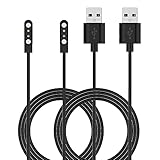
- Replacement Charger for VeryFitPro Fitpolo Tozo Smartwatch, Magnetic Charging Cable Cord for YAMAY SW021 SW025 Letsfit ID205L ID205U ID205S Wyze 44mm 47mm.
- Magnetic Charging Method - Gold-plated magnetic 2 pins contact, ensures stable current transmission for YAMAY SW021 Willful SW023 SW025.
- High Quality - Over voltage protection, over current protection. safe to protect for Fitpolo smart watch.
- Compact and Lightweight Design - Cable length 1m / 3.3ft, convenient for travelers and business users.
- Notice for Using - We advise that you connect to usb ports on power adapter, car charger, power bank, laptop, PC, etc.
Why won’t my Apple Watch pair with my iPhone?
Check that the models and software are compatible, Bluetooth is on, the iPhone is updated, and both devices are close. If the prompt is missing, start setup from All Watches > Add Watch; if the camera cannot read the animation, use manual pairing.
Does seeing the Watch face mean setup is finished?
The Watch face indicates pairing has completed, but syncing can continue in the background. Keep the Watch and iPhone close until syncing finishes.
Quick wins for a faster PC:
Fix the driver behind crashes, sound loss and screen glitchesFind Drivers →Clear out junk files and repair common Windows errorsFree Scan →Scan for outdated or missing drivers - takes under a minuteDriver Scan →Can I pair a secondhand Apple Watch with my iPhone?
Only if it is no longer linked to another person’s Apple Account. If Activation Lock appears, the previous owner must remove it or provide the linked account credentials.
How do I move my Apple Watch to a new iPhone?
With the old iPhone available, update and back it up, then follow the transfer prompt with the unlocked Watch nearby. If the old phone is unavailable, erase the Watch, pair it with the new iPhone, and restore an available backup; changes since that backup may be lost.
The Bottom Line
For a normal setup, unlock and update a compatible iPhone, bring it near the Watch, and follow the prompt in the Apple Watch app. Use All Watches > Add Watch if needed, pair manually if the camera fails, and leave both devices close while syncing completes.
Quick Recap
Product prices and availability are accurate as of the date/time indicated and are subject to change. Any price and availability information displayed on Amazon at the time of purchase will apply.




