What’s actually slowing this PC down?
Pick the symptom - the matching free tool is one click away.
There is no single setup flow for every Lenovo smartwatch. Start by reading the model name printed on the watch, the box, or the manual, then use the companion app that model’s documentation names. Lenovo’s materials point to three different starting points: Lenovo Health Life in its general connection FAQ, Lenovo Watch for the Watch 9, and Lenovo Life for the HW25H. If you install the wrong app, the screens and button steps below will not match what you see.
Identify your model and its app first
The table below lists what each source names. Treat the minimum phone and Bluetooth versions as the figures stated in those documents, not as current compatibility guarantees. Several of these documents date from around 2020, and app names and store listings can change.
| Model or source | Companion app named | Phone minimums stated | Bluetooth minimum stated | Source and date |
|---|---|---|---|---|
| Lenovo Watch 9 | Lenovo Watch | iOS 8.0 or later; Android 4.3 or later | Not stated | Lenovo Smart Choice community FAQ, 2020 (legacy requirements) |
| Lenovo HW25H | Lenovo Life | Android 5.0 or later; iOS 9.0 or later | 4.2 or later | HW25H user manual, circa 2020, retrieved from a third-party document host |
| General Lenovo smartwatch connection advice | Lenovo Health Life | Not stated | Not stated | Lenovo support FAQ, undated |
If your model is not in this table, look for a quick start guide or QR code in the box and follow the app it names. The general steps below are the pattern Lenovo’s own instructions share, but the button presses and menu labels belong to your exact model.
Before you start
- Charge the watch. For the HW25H, the manual says to use the corresponding charging stand on first use.
- Have the phone’s Bluetooth and location services available to switch on.
- Keep the phone and watch close together during setup. Lenovo’s general FAQ recommends 10 meters unobstructed as the best distance.
General setup steps
Lenovo’s general support FAQ gives this instruction, in Chinese: 手表连接手机时,请您开启手表蓝牙,并开启手机蓝牙和定位服务,然后打开手机上的“联想健康生活”APP绑定。 In English, this is a translation: “When connecting the watch to a phone, turn on Bluetooth on the watch and phone and turn on location services, then open the ‘Lenovo Health Life’ app on the phone to bind.” The steps below follow that sequence.
Do these 3 things before closing this tab:
1Repair Windows errors before they cause bigger problems2Scan for outdated or missing drivers - takes under a minute3Clear out junk files and repair common Windows errors#1 Best Overall
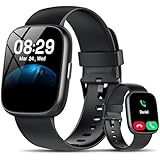
- Bluetooth 5.3 Call and Message Notification: Cillso smart watch features an advanced single-chip processor and sensitive microphone, enabling direct call making and answering. When you enable the "VeryFit" App to receive messages, notifications will be displayed on the smartwatch. Get all your messages and notifications (Facebook, Twitter, WhatsApp, Instagram, Messenger, Linkedin,Skype etc.) sent straight to your smartwatch with intuitive customizable vibrations
- Built-in Alexa Voice Control: This smartwatch integrates Amazon Alexa's intelligent voice assistant, delivering a comprehensive hands-free experience directly from your wrist. Simply speak commands to instantly access news, weather, and calendar updates, set reminders, control smart home devices, and manage music playback. This full suite of voice-activated functionalities streamlines daily routines, enhances multitasking efficiency, and keeps your hands free for the moments that matter most.
- 1.83" HD Display and Personalized Customization: IDW26 smart watches for women men feature a 1.83-inch HDdisplay paired with 3D tempered glass, boasting a resolution of up to 320×385 for excellent image quality and high touch sensitivity. The 4-level adjustable brightness ensures clear visibility even under bright sunlight. Through the "VeryFit" app, users gain access to over 130 stylish watch faces and the ability to create custom designs, allowing for personalized expression
- 120+ Sport Modes and IP68 Waterproof: Fitness tracker supports 120+ professional sport modes, covering diverse indoor/outdoor activities like running, cycling, and soccer to suit all fitness levels. Equipped with high-precision sensors, fitness watch accurately tracks steps, distance, calories burned, and workout duration to help analyze performance and optimize training plans. With an IP68 rating, it's resistant to sweat, rain, and handwashing (Not for swimming or hot showers)
- All-Day Health Monitoring: Android smart watch is equipped with a high-precision optical sensor that supports 24h real-time heart rate monitoring, helping you stay informed about your physical condition. It also intelligently analyzes sleep quality, accurately identifying deep sleep, light sleep, and awake phases to help improve your sleep habits. Paired with its dedicated app, you can view long-term health trends and receive personalized insights to gradually develop a healthier lifestyle
- Turn on Bluetooth on the watch using that model’s own control. Button steps differ by model; see the model sections below.
- Turn on Bluetooth and location services on the phone.
- Install the companion app named in your model’s documentation. Complete its registration and grant the permissions it requests.
- Add the watch from inside the app. The method differs by model: the HW25H path is in its own section below, and the Watch 9 path is in its own section too.
- If your phone shows a Bluetooth pairing request, accept it. The HW25H manual says this applies to iPhone.
- Let the app finish synchronizing. The HW25H manual says binding triggers a sync of watch information, including activity, sleep, and heart-rate data.
Lenovo Watch 9 setup
The Watch 9 FAQ names the Lenovo Watch app. The Watch 9 manual, retrieved from a third-party document host, describes the following button steps.
- Hold the watch button for three seconds to open Bluetooth. The light at the 12 o’clock position then flashes continuously.
- In the app’s Bluetooth search screen, choose the watch’s name from the list.
- The watch vibrates. Confirm by pressing its button or shaking the watch.
- To check the connection later, press the button briefly. A steady light for about two seconds means connected. Continuous flashing means not connected.
Lenovo HW25H setup
The HW25H manual uses Lenovo Life, not Lenovo Health Life. Its binding path is:
- Charge the watch on its corresponding charging stand before first use.
- Install Lenovo Life, then complete registration and permissions.
- In the app, go to Profile > Add Device > Smart Watch > HW25H.
- On iPhone, accept the Bluetooth pairing request when it appears.
- Allow the sync described above to complete.
If pairing fails
- Wrong app or model. Confirm the app matches the model name on your watch or manual before retrying.
- Bluetooth or location is off. Bluetooth must be on at both ends, and Lenovo’s general FAQ says the phone’s location services must also be enabled for its binding process.
- An old watch record is on the phone. Lenovo’s general FAQ recommends deleting the previous Bluetooth record for the watch and restarting. For the HW25H, the manual says to ignore the saved HW25H entry before going through the app flow again. Then restart the watch, reopen the app, and add the watch again.
- Distance or interference. Re-check the distance guidance in the general steps above, and keep the watch clear of obstructions during discovery.
- Permissions refused. The HW25H manual warns that refusing the permissions the app requests can interfere with connection and Bluetooth communication. Grant the ones needed for setup and the features you want.
- Still failing. Use your model’s manual or Lenovo support. Do not assume a generic reset will fix it.
Resetting the watch
Reset controls differ by model and firmware, so there is no universal factory-reset instruction. On the Watch 9, the manual describes holding the button for a long press to power off and restore factory settings. The Watch 9 FAQ says the hold duration can change after a firmware revision, so check the manual that matches your watch’s revision before you reset.
Rank #2

- 【1.85" AMOLED Screen & DIY Watch Face】Upgraded with 1.85" AMOLED screen & Ultra-Durable panda glass with highly responsive touch sensitivity, this lightweight men smart watch provides you ultimate viewing and user experience. Support cool dynamic watch face plus with over 105 watch faces to choose from. You can also customize the watch face with your photos!
- 【Heart rate/SpO2/Sleep/Stress Monitoring】This health smart watch supports 24/7 continuous & accurate Heart Rate/SpO2/Stress/Sleep quality (deep sleep, light sleep and awake)/female menstrual cycles monitoring (Non-Medical Use). Moreover, it will also vibrate to remind you when your health metrics is too low or high. Perfect gift for your mother, father, grandmother and grandfather for daily health monitoring!
- 【Bluetooth Call & AI Voice Command】Thanks to Bluetooth 5.3 & Built-in Mic/Speaker, fitpolo smart watch allows you to make/answer clear calls on your wrist conveniently. This smartwatch can control your smartphone' AI voice assistant (Such as Siri, Bixby, Google Assistant). Just speak to the watch to ask questions, control music playback, check the weather, set alarms and timers and so on, making your life to be smarter.
- 【Fantistic Fitness Tracker】Our fitness tracker watch supports over 105 sport modes like Running, Walking, Hiking, Badminton, Basketball, Boating, Climbing, Cycling, Fitness, Football, Yoga & More, recording your exercise time, heart rate, distance and calories burned & more. 3ATM waterproof rating ensures worry-free use during swimming, rain, hand washing, face washing and sweaty activities.
- 【Up to 7 Days Battery Life& Wide Compatibility】Never worry about running out of battery during fitness routine or travels. This smartwatch for women offers an impressive battery life of up to 7 days with typical use (30 days on standby) with 2 hours charging. Widely compatible with iOS and Android smartphones (iOS 12.0 or later, Android 8.0 or later), including but not limited to iPhone 6~iPhone 18 Series, Samsung, Google Pixel/Nexus, Microsoft, Oneplus and More.
Reconnecting after changing phones
Lenovo’s sources do not describe moving an existing binding to a new phone. The safest route supported by the guidance above is to run setup again on the new phone. If the watch still appears in the old phone’s Bluetooth list, remove it there first so that it does not compete with the new connection.
The Smart Connect question
Lenovo Smart Connect documentation lists Moto Watch among wearables that can be managed in its dashboard. That listing does not show that a Lenovo smartwatch pairs through Smart Connect. Use Smart Connect only if your watch’s own documentation tells you to.
Quick Recap
“
Product prices and availability are accurate as of the date/time indicated and are subject to change. Any price and availability information displayed on Amazon at the time of purchase will apply.




