Quick wins for a faster PC:
Fix the driver behind crashes, sound loss and screen glitchesFind Drivers →Clear out junk files and repair common Windows errorsFree Scan →Scan for outdated or missing drivers - takes under a minuteDriver Scan →To stop only certain alerts, turn off notifications for those apps in Galaxy Wearable. For a temporary quiet period, use Do not disturb. If you want notifications to remain available but change how they alert, adjust sound and vibration settings instead. The right choice depends on whether you want to change which alerts arrive or how they behave.
Choose the fix that matches the alerts you want to stop
| Option | What it changes | Best for |
|---|---|---|
| Turn off selected apps | Stops notifications from chosen apps on the watch; other apps can still alert. | Quieting specific noisy apps while keeping useful alerts. |
| Do not disturb | Mutes calls, notifications, and other alerts on the watch while enabled. | A temporary quiet period, such as a meeting or sleep. |
| Change sound or vibration | Adjusts alert behavior without turning off app notifications. | Keeping notifications enabled while changing how they alert. |
Turn off notifications for selected apps
This is the most precise option if, for example, you want to keep calls and messages but stop alerts from other apps.

As an Amazon Associate I earn from qualifying purchases.
- Open the Galaxy Wearable app on your connected phone.
- Go to Watch settings > Notifications > App notifications.
- Switch off the apps you do not want to notify you on the watch.
You can also make the change on the watch: open Settings > Notifications > App notifications, select an app, and turn off its notification switch. Samsung notes that screens and settings can vary by watch, phone, or provider; if a label is different, look for Notifications and App notifications in the watch settings or Galaxy Wearable.
The Tool Desk
Outbyte PC Repair FREEClear out junk files and repair common Windows errorsFree Scan →Outbyte Driver Updater FREEFix the driver behind crashes, sound loss and screen glitchesFind Drivers →If alerts return after installing an app
Newly installed apps may be enabled automatically, depending on the setting for new apps. Check the app’s notification switch in Galaxy Wearable > Watch settings > Notifications > App notifications if an unwanted alert returns. Samsung’s UK notification guide covers selecting apps and managing notifications for new apps.
#1 Best Overall

- ⌚ MENS WATCHES ANALOG: Mens military watches made with shock-resistant stainless steel case and anti-scratch mineral window, exquisitely crafted and durable. Men's watch strap width: 22mm / 0.86 inches, stainless steel case: 42mm / 1.65 inches.
- ⌚ MILITARY WATCHES FOR MEN: This mens field watch is very suitable for active lifestyles, with a comfortable double nylon strap, will suitable for personal use and good for anniversary, graduation, business, birthday , the father's day , Christmas .
- ⌚3 ATM WATERPROOF MILITARY WATCHES: 30M waterproof, sweat-proof, rain-proof and hand-washing for daily life, no problem. But NOT suitable for swimming, bathing, diving or touch hot water. Perfect for most of indoor / outdoor sports.
- ⌚ EASY TO READ TIME: 12 / 24 hrs military time and luminous dial. The mens watches equipped with date calendar can tell you the time quickly and accurately. Come with luminous function, easy to read the time even in the dark.
- ⌚ PURCHASE WITHOUT WORRY: Japan imported quartz analog movement and battery, long-term operation. for 1 years,24-hour customer service is at your service.
Use Do not disturb for a temporary quiet period
Samsung says Do not disturb “mutes calls, notifications, and other alerts” on a Galaxy Watch. Turn it on when you want broad quiet rather than changing notification permissions app by app.
- On the watch, swipe up to the apps screen and open Settings > Notifications > Do not disturb.
- Alternatively, open the watch’s Quick panel and tap the Do not disturb icon.
To sync this mode with the connected phone, open Galaxy Wearable > Watch settings > Notifications and enable Sync Do not disturb with phone. Phone Do not disturb exceptions are also applied to the watch when syncing is enabled. Menu paths can differ by model and Watch OS version; see Samsung’s UK Do not disturb instructions if your screens look different.
Rank #2
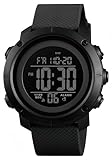
- FUNCTIONS: Countdown,Snooze,Hourly time,Date/Week,EL night-light,Stopwatch(1/100 seconds),Alarm,12/24 hour formart
- 164FT/50M WATERPROOF:Can't wear swimming and taking a hot bath. Because the general watch uses a sealing method to prevent the intrusion of sweat and harmful gases, it is not absolutely not water.only wash hands, shower, Satisfy daily use.NOTE: *Please don't press any buttons under water*
- HIGH QUALITY:Made with quality materials which enable the watch to be tough and durable.COMFORTABLE :Silicone watch band,Suitable for your wrist, Light weight and comfortable to wear.
- BACKLIGHT UPGRADE:Easy-to-read numbers can be clearly seen during the day and night.
- GIFT : It is a great gift for family and friends, especially suitable for you.
Change sound or vibration while keeping notifications on
Notification permissions and alert style are separate controls: an app can remain allowed to notify while you adjust sound or vibration. Samsung’s US instructions put sound controls in Galaxy Wearable > Sounds and vibration, including Volume and Notification sound. Sound controls alone do not necessarily stop vibration.
Do these 3 things before closing this tab:
1Repair Windows errors before they cause bigger problems2Fix the driver behind crashes, sound loss and screen glitches3Clear out junk files and repair common Windows errorsSound and vibration settings can also be managed on the watch. If your model’s Wearable menus differ, check Settings > Sounds and vibration on the watch for the available controls. The exact vibration options and labels are not the same on every model, so use the controls shown on your device rather than assuming there is one universal vibration-only switch. See Samsung’s US guide to Galaxy Watch notifications and sound settings.
Stop duplicate alerts on both phone and watch
If the phone and watch both buzz for the same notification, check how phone alerts are delivered to the watch. In Galaxy Wearable > Watch settings > Notifications > Phone notifications on watch, Always show on both can make alerts sound and vibrate on both devices regardless of which one is in use. Smart device selection avoids showing notifications on the watch while you are using the phone.
This changes where notifications are delivered; it does not mute watch notifications altogether. Choose it when the issue is duplicate alerts, rather than unwanted watch notifications from particular apps. Samsung’s notification settings guide describes these delivery options.
Quick Recap
Product prices and availability are accurate as of the date/time indicated and are subject to change. Any price and availability information displayed on Amazon at the time of purchase will apply.
Free tools Windows power users keep installed
One-click scans. No signup required.




