The Tool Desk
Outbyte PC Repair FREEClear out junk files and repair common Windows errorsFree Scan →Outbyte Driver Updater FREEFix the driver behind crashes, sound loss and screen glitchesFind Drivers →The dependable way to sync contacts to a smartwatch is: save contacts in a synchronizable account, pair the watch through its official phone app, grant contact permission, allow the devices to sync, and then check the watch’s Contacts or Phone app.
There is no universal “sync contacts” switch. Apple Watch, Galaxy Watch, Pixel Watch, Wear OS, Garmin, and Fitbit devices handle contacts differently. Some mirror contacts from a phone or cloud account; others use a smaller, app-managed list for safety features.
As an Amazon Associate I earn from qualifying purchases.
Before you begin
Have the following ready:
- Your watch model and phone model. Compatibility varies, especially between iPhone and Android.
- The manufacturer’s current companion app, such as Apple Watch, Galaxy Wearable, Google Pixel Watch, Wear OS, Garmin Connect, or Google Health.
- Bluetooth enabled and the watch near the phone.
- An internet connection if contacts are syncing through iCloud, Google, Samsung, or another online account.
- The account where your contacts are stored.
- Current phone, watch, companion-app, and watch-plug-in software.
- Contact permission granted to the companion app and, where applicable, its watch plug-in.
Also decide whether you need the entire address book, a few favorites, or only emergency and assistance contacts. A full contact mirror can put work accounts, duplicates, and private entries on a small watch screen.
Crashes, No Sound, or Screen Glitches?
Random freezes, missing sound and display glitches usually trace back to one bad driver. Find and replace yours safely.Free scan · under a minutePC Slower Than It Used to Be?
A free scan shows the junk files, broken settings and background clutter dragging Windows down - then fixes them in one click.Free scan · Windows 10 & 11Prepare your contacts first
Contacts saved only as Phone, Device, or SIM contacts are the most common reason they fail to appear on another device. Save important entries to the account intended for synchronization—usually iCloud on an iPhone or Google Contacts on Android.
#1 Best Overall

- 【IP68 Waterproof Multifunctinal Smart Watch】Torjalph fitness activity tracker smart watch is IP68 waterproof technology ,you can wear it when swimming,handwashing,it's rain-proof which means that you perform multiple exercise modes outside without worrying about sweat or rain corroding your fitness smart watch,and this watch equipped with a 230 mAh large capacity battery magnetic charging ,and this sports activity tracker watch can be used 5-7 days If fully charged.
- 【Larger 1.83'' Full Screen Watch & Multi-dial Selection】1.83 inch full HD color touch screen smart watch for men / women provides excellent 240*284 resolution image quality ,This Bluetooth smart watch offers a better touch experience and remarkable immersion and ,more than 200 watch faces for you to choose from App"Da Fit ", you can change the dial style according to your mood to wear keeping the world on your wrist
- 【Accurate Activity Tracker Smart Watch 】sports watch activity tracker uses sweat and dust resistant breathable silicone strap, our Fitness Tracker Smart Watch for Android iOS Phones supports 12 sports modes,walking,running,bicycle,swimming,badminton,basketball,football,rope skipping. This bluetooth calls smart watch for men women is lightweight and stylish, bringing more convenient and relaxing sports experience while also providing more protection.
- 【Your 24 Hour Personal Daily Health Monitor】Fitness watch for women men full touch screen IP67 waterproof bluetooth smartwatch for Android iOS Phones with heart rate blood pressure monitor multifunction Andriod smart watch with steps counter sleep monitor sports fitness watch, monitoring blood oxygen saturation allows you to understand your physical condition in real time to track fitness progress ,to know your health status in time.
- 【More Functions Bluetooth Call Smart Watch】This fitness activity smart watch full screen for iPhone and Android phones includes a bunch of new features including:The bluetooth smart watch can hang up the phone, receive and display WhatsAPP /Text /Facebook /Twitter /Messenger reminder.Support sedentary reminder, alarm clock, stopwatch, timer,weather information,music control, remote camera control compatible with Android 5.0 and above or iOS 9.0 and above smartphones.
- Open the phone’s main Contacts app and choose All contacts, if that option is available.
- Confirm the contact appears and is not hidden by an account filter.
- Check that it has a complete, usable phone number.
- Merge obvious duplicates and correct malformed entries.
- Use a consistent country or area code format, particularly for contacts you may call internationally.
Move Android device and SIM contacts into Google Contacts
On supported Android phones, Google provides this path:
- Open Settings.
- Tap Google services and preferences.
- Tap All services.
- Tap Backup & restore.
- Tap Google Contacts sync.
- Tap Also sync device and SIM contacts.
- Turn on Sync device and SIM contacts automatically.
Google explains that device- or SIM-only contacts may otherwise remain available only on that device and may not sync across Google services or other signed-in devices. Menu labels can vary by Android version and manufacturer. Google’s contact-sync instructions provide the current reference.
Check account synchronization on a Samsung phone
- Open Settings.
- Tap Accounts and backup.
- Tap Manage accounts.
- Select the relevant Google, Samsung, Microsoft, Exchange, or other account.
- Tap Sync account.
- Make sure Contacts is enabled.
- Return to the account screen and confirm Auto sync data is enabled.
The phone needs Wi-Fi or mobile connectivity for account synchronization. If only one account’s contacts are visible, change the Contacts app’s display filter and select All contacts. See Samsung’s contact troubleshooting guide.
Free tools Windows power users keep installed
One-click scans. No signup required.
Enable iCloud Contacts on an iPhone
- Open Settings.
- Tap [your name].
- Tap iCloud.
- Tap See All beside Saved to iCloud.
- Turn on Contacts.
Apple says iCloud keeps contacts current across devices signed in to the same Apple Account. Contacts can also come from Google, Microsoft, or another account, but the watch must support that account’s contact behavior. Apple’s iCloud Contacts guide explains the account-based model.
The universal syncing process
- Pair the watch inside the official companion app. Pairing only from the phone’s Bluetooth settings is often insufficient.
- Approve Contacts permission. If you denied it, open the phone’s app-permission settings and enable Contacts for the companion app and any watch plug-in.
- Sign in to the correct account. Use the account that contains the contacts and, where required, the same account on both phone and watch.
- Keep the watch nearby. Leave Bluetooth enabled and open the companion app while synchronization completes.
- Run a manual sync if available. Some apps sync when reopened; others provide a Sync button or pull-to-refresh gesture.
- Open Contacts or Phone on the watch. Search for a known contact, then test the available call or message action.
Seeing a caller notification does not prove that the watch has a browsable address book. A watch may display a number or notification text without synchronizing the full contact list.
Rank #2
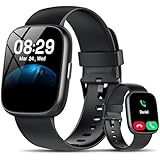
- Bluetooth 5.3 Call and Message Notification: Cillso smart watch features an advanced single-chip processor and sensitive microphone, enabling direct call making and answering. When you enable the "VeryFit" App to receive messages, notifications will be displayed on the smartwatch. Get all your messages and notifications (Facebook, Twitter, WhatsApp, Instagram, Messenger, Linkedin,Skype etc.) sent straight to your smartwatch with intuitive customizable vibrations
- Built-in Alexa Voice Control: This smartwatch integrates Amazon Alexa's intelligent voice assistant, delivering a comprehensive hands-free experience directly from your wrist. Simply speak commands to instantly access news, weather, and calendar updates, set reminders, control smart home devices, and manage music playback. This full suite of voice-activated functionalities streamlines daily routines, enhances multitasking efficiency, and keeps your hands free for the moments that matter most.
- 1.83" HD Display and Personalized Customization: IDW26 smart watches for women men feature a 1.83-inch HDdisplay paired with 3D tempered glass, boasting a resolution of up to 320×385 for excellent image quality and high touch sensitivity. The 4-level adjustable brightness ensures clear visibility even under bright sunlight. Through the "VeryFit" app, users gain access to over 130 stylish watch faces and the ability to create custom designs, allowing for personalized expression
- 120+ Sport Modes and IP68 Waterproof: Fitness tracker supports 120+ professional sport modes, covering diverse indoor/outdoor activities like running, cycling, and soccer to suit all fitness levels. Equipped with high-precision sensors, fitness watch accurately tracks steps, distance, calories burned, and workout duration to help analyze performance and optimize training plans. With an IP68 rating, it's resistant to sweat, rain, and handwashing (Not for swimming or hot showers)
- All-Day Health Monitoring: Android smart watch is equipped with a high-precision optical sensor that supports 24h real-time heart rate monitoring, helping you stay informed about your physical condition. It also intelligently analyzes sleep quality, accurately identifying deep sleep, light sleep, and awake phases to help improve your sleep habits. Paired with its dedicated app, you can view long-term health trends and receive personalized insights to gradually develop a healthier lifestyle
Platform-specific instructions
Apple Watch with iPhone
- Pair the watch with the iPhone using the Apple Watch app.
- Confirm the desired contacts are visible in the iPhone’s Contacts app.
- Enable iCloud Contacts or the relevant account on the iPhone.
- Allow contact access when requested during setup.
- Open Contacts on the watch and select a person.
- Check whether calling or messaging options appear.
The Apple Watch generally exposes contacts available through the paired iPhone and its accounts rather than becoming an independent master copy of the address book.
Do not confuse NameDrop with contact synchronization. NameDrop exchanges a new contact card between supported Apple devices; Apple says it does not update an existing contact. Apple’s current requirements include iOS 17.1 or later and watchOS 10.1 or later, with support for Apple Watch SE (2nd generation), Series 7 or later, and Apple Watch Ultra models. See Apple’s NameDrop documentation.
Samsung Galaxy Watch
- Open Galaxy Wearable.
- Tap Menu.
- Tap + Add new device if the watch is not already paired.
- Select the watch and follow the pairing prompts.
- Approve contact access when requested.
- After setup finishes, open Contacts on both the phone and watch.
Galaxy Watch contact behavior depends on the watch generation, phone, provider, and software. Samsung supports contacts with Samsung and other compatible Android phones, but newer Galaxy Watches running Wear OS are not compatible with iOS. Check Samsung’s compatibility guidance and model-specific support information.
Google Pixel Watch
Pixel Watch setup associates the watch with a Google Account used for services including contacts and app synchronization.
- Install and open the Google Pixel Watch app.
- Pair the watch using the setup prompts.
- Sign in with the Google Account containing the contacts.
- Approve access to the phone’s contact list when prompted.
- On the watch, press the crown or side button and open Contacts.
- Select or search for a contact, then tap the phone icon to call or the message option to text.
Basic setup requires a compatible Android phone, Bluetooth, internet access, a Google Account, and the Google Pixel Watch app. Google’s setup requirements and contact calling and messaging instructions cover the current process.
Rank #3

- Sports Tracking
Other Wear OS watches
During Wear OS setup, the watch is associated with a Google Account used for notifications, contacts, and app synchronization. The exact process depends on the watch manufacturer and companion app.
On an iPhone using a supported Wear OS configuration:
- Make sure the watch is connected.
- Open the Wear OS or device companion app.
- Tap Advanced settings.
- Tap Accounts on your watch.
- Turn on the desired account or add one.
Do not assume every Wear OS watch works with an iPhone. Compatibility and available features vary substantially by model and companion app. Google’s Wear OS account guidance lists the relevant account process.
Garmin watches
Garmin’s contact system is not necessarily a mirror of the phone’s entire address book. Garmin Connect manages contacts for functions such as Incident Detection, Live Event Sharing, and Assistance.
- Open Garmin Connect.
- Tap More in the bottom-right corner.
- Tap Contacts.
- To create a contact, choose Create a Connect Contact and save the details.
- To import a phone contact, select the Phone tab and choose the contact.
- Synchronize the watch after adding or editing contacts.
Deleting a Garmin contact also removes it from the safety features that use it. On the vívosmart 5, Garmin specifically says contacts must be synchronized after they are added for changes to reach the watch. See Garmin Connect contact instructions and the vívosmart 5 manual.
Windows Errors? Fix Them Before They Spread
Repair common Windows errors and clear accumulated junk for a smoother, more stable PC - no reinstall needed.Free scan · no reinstallCrashes, No Sound, or Screen Glitches?
Random freezes, missing sound and display glitches usually trace back to one bad driver. Find and replace yours safely.Free scan · under a minuteRank #4

- 【Crystal-Clear Bluetooth Calls & Message Notification】 AEAC smart watch with Bluetooth 5.3 and a built-in DSP chip, enjoy ultra-clear call quality and zero lag. Stay connected on the go with real-time SMS and app notifications (Not supporting reply messages)—all from your wrist.
- 【1.85" HD Display with 60Hz Refresh Rate】Experience crisp visuals and smooth scrolling on the vibrant 1.85" HD touchscreen. Plus, you can also upload photos of your family, pets, and scenery to customize a watch face with your own style.
- 【24/7 Health Monitoring】Track your health around the clock with advanced sensors. Monitor heart rate, sleep stages, stress levels, and more, helping you make informed choices for a healthier lifestyle.
- 【Fitness Tracking with 100+ Modes】Elevate your workouts with over 100 sport modes, including running, swimming, yoga, and more. The IP68 waterproof design ensures it’s ready for your toughest adventures, from the gym to the pool.
- 【Seamless Compatibility & Long Battery Life】AEAC smart watch works effortlessly with iOS and Android smartphones. Enjoy up to 7 days of battery life on a single charge, so you never have to worry about recharging.
Fitbit devices and Google Health
The cited current support material uses the Google Health app for Fitbit and Pixel Watch synchronization:
- Open Google Health.
- Tap Connections.
- Tap Add device.
- Select the Fitbit device or Pixel Watch.
- Follow the pairing prompts.
- To sync manually, pull down on the Today tab, or open Connections and select Sync.
Google says Fitbit devices automatically sync when nearby and the Google Health app is opened. This is primarily health-data synchronization, not a promise that a Fitbit tracker exposes a complete, browsable phone address book. Older devices or apps may still show Fitbit or Google Fit wording. See Google Health device setup and Google’s synchronization guidance.
Quick reference
| Watch ecosystem | Main contact source | Typical app | Important limitation |
|---|---|---|---|
| Apple Watch | iPhone and iCloud contacts | Apple Watch | NameDrop is not general contact synchronization. |
| Galaxy Watch | Compatible Android phone and accounts | Galaxy Wearable | Newer Wear OS models are not compatible with iOS. |
| Pixel Watch | Google Account and phone contacts | Google Pixel Watch | Independent cellular calling requires an LTE model and service. |
| Other Wear OS | Google Account or device-specific setup | Wear OS or manufacturer app | Features vary by watch and phone. |
| Garmin | Garmin Connect contacts | Garmin Connect | Often focused on safety and assistance contacts. |
| Fitbit | Google Health device data | Google Health | Not necessarily a full address-book mirror. |
When contacts are missing
No contacts appear
Check these in order:
- The watch is paired in the official companion app.
- The app has Contacts permission.
- The contacts are visible in the phone’s Contacts app.
- The correct account is selected on the phone and watch.
- The Contacts app is not filtering out the relevant account.
- Bluetooth is enabled and both devices are nearby.
- The phone has internet access.
- The companion app, plug-in, phone, and watch are updated.
- Both devices have been restarted.
- A manual sync has been run or the companion app has been reopened.
If a watch is incompatible with the phone, permissions and resets will not solve the problem. Check compatibility before doing anything destructive.
Only some contacts appear
Contacts may be split between Google, iCloud, Samsung, Exchange, device storage, and SIM. The phone may also be displaying only one account. Other possibilities include missing phone numbers, duplicates, a watch-specific contact limit, or a sync that has not completed after an edit.
Names appear as phone numbers
- Confirm the saved number matches the number being used for the call.
- Check country and area-code formatting.
- Merge duplicate entries.
- Make sure the account containing the contact is visible to the watch.
- Refresh synchronization after editing the contact.
Number formatting can contribute to caller identification, but the exact behavior depends on the watch, phone, carrier, and software.
Best Value

- 【BUILT-IN ALEXA & BLUETOOTH CALLING】This brand-new smart watch features an integrated Amazon Alexa voice assistant and supports Bluetooth calling. You can interact with the watch to check messages, play music, set reminders and manage your schedule, get weather and traffic updates, and more. It significantly reduces the need to rely on your phone(Sending SMS is not supported).
- 【PERSONALIZED DIAL & INNOVATIVE ROTATABLE CROWN】The IDW20 sports smartwatch features a 1.91-inch HD LCD touchscreen with high touch sensitivity and exceptional display quality. The app offers over 100 different watch face styles, along with customizable options to showcase your personality. The innovative rotating crown function allows you to easily switch between watch interfaces, significantly enhancing the convenience of using the watch!
- 【24/7 HEALTH MONITORING & ACTIVE ALERTS】This smartwatch for women men provides round-the-clock tracking of your steps, distance, and calories burned. Equipped with advanced high-precision sensors, it accurately monitors your heart rate, blood oxygen levels, sleep quality and stress in real time. The smart watch will actively alert you with a vibration if any of your metrics deviate from the norm during daily activities. It also provides reminders for drinking water, alarms, reaching fitness goals, and women's health notifications. Your health is in good hands with this smartwatch! (Non-Medical Use)
- 【ACTIVITY TRACKER & IP68 WATERPROOF】This fitness tracker supports over 100 popular sports modes, providing accurate and scientific data for a wide range of indoor and outdoor activities including running, cycling, swimming, baseball, basketball, fitness, yoga, strength training, and free workouts. With an IP68 waterproof rating, you can confidently use it while swimming, sweating, or washing your hands. It's the perfect companion for all fitness enthusiasts!
- 【SMART NOTIFICATIONS & VERSATILITY】Get real-time notifications for social media messages, emails, and texts directly on your wrist, ensuring you never miss important information even when your phone is out of reach. This smart wristwatch also includes practical daily features such as time display, weather forecast, music control, camera control, alarm settings, and phone finder. It’s an excellent companion for everyday life!
Phone changes do not reach the watch
- Open the companion app while the watch is nearby.
- Trigger a manual sync if the app provides one.
- Allow background data for the companion app.
- Temporarily disable battery optimization for that app.
- Confirm the same account is being used on both devices.
- Restart the phone and watch.
- Revoke and re-grant Contacts permission.
Battery-saver and Bedtime modes can limit background connectivity on Pixel Watch-related services until those modes are disabled. Google documents this behavior in its synchronization troubleshooting guidance.
The watch was paired to an old phone
- Verify that contacts are backed up to iCloud, Google Contacts, or the relevant account.
- Remove the old pairing according to the watch manufacturer’s instructions.
- Remove the watch from the old phone’s Bluetooth settings if required.
- Install the current companion app on the new phone.
- Pair from inside that app, not only from Bluetooth settings.
- Sign in to the same account.
- Recheck contact permission and synchronize.
Garmin notes that removing an old device from the new phone’s Bluetooth menu may be necessary before pairing completes. See Garmin’s new-phone pairing guidance.
Can you call without your phone nearby?
Contact synchronization and independent calling are separate features.
Do these 3 things before closing this tab:
1Repair Windows errors before they cause bigger problems2Fix the driver behind crashes, sound loss and screen glitches3Clear out junk files and repair common Windows errors- Bluetooth watches generally use the phone for calls and messages.
- Wi-Fi watches may communicate when the watch has a suitable Wi-Fi connection, but supported calling and messaging behavior varies.
- LTE or cellular watches can perform supported functions away from the phone after cellular service is activated.
LTE does not make every app, contact, message type, or carrier feature independent. You may need compatible hardware, carrier support, an activated watch line, and number sharing. For example, Google says a Wi-Fi Pixel Watch generally needs the phone nearby for calls and texts, while an LTE model requires compatible cellular service for those functions away from the phone. See Google’s Pixel Watch cellular guidance.
Privacy and contact cleanup
Contact access lets the companion app or watch read information such as names and phone numbers. Review the permission after setup and remove it if you no longer use contact features.
- Keep work and personal accounts separate where possible.
- Use favorites or a supported emergency list instead of mirroring every contact when you need only a few people.
- Remove sensitive contacts from the watch if the device is shared or frequently left unattended.
- Remember that deleting a Garmin Connect contact also removes it from Incident Detection, Live Event Sharing, and Assistance.
- Check the watch after changing accounts, removing permissions, or deleting contacts.
Factory reset: last resort only
A factory reset should come after checking pairing, permissions, account selection, filters, connectivity, and software updates. Back up contacts and verify your account credentials first.
On Wear OS, Google states that a factory reset erases apps, settings, and data on the watch and requires pairing again afterward. A reset will not fix an incompatible phone or a contact stored in the wrong account. See Google’s Wear OS reset guidance.
The Tool Desk
Outbyte PC Repair FREEClear out junk files and repair common Windows errorsFree Scan →Outbyte Driver Updater FREEFix the driver behind crashes, sound loss and screen glitchesFind Drivers →Quick Recap
Which contact model is right for you?
- Full contact list: Apple Watch with iPhone, Galaxy Watch with a compatible Android phone, Pixel Watch with Android, or a supported Wear OS setup are the most natural choices.
- Emergency and assistance contacts: Garmin Connect or a watch’s dedicated emergency-contact feature may be more appropriate than full address-book mirroring.
- Calls away from the phone: Choose a watch with compatible LTE hardware and carrier service, then verify that the calling and messaging features you need are supported.
- Health-data synchronization: Fitbit and Google Health focus primarily on health and device data, so do not assume a complete phonebook is available.
Product prices and availability are accurate as of the date/time indicated and are subject to change. Any price and availability information displayed on Amazon at the time of purchase will apply.




