If your Apple Watch is not showing incoming-call information, first lock the iPhone and make a test call. Apple normally routes the alert to the iPhone or the watch rather than both. Then check the watch’s connection, lock and Focus states, Notification Center, and notification settings before restarting or re-pairing the devices.
Start with the iPhone, not the watch
In most cases, an Apple Watch that does not show incoming-call information is not defective. The alert may be appearing on the iPhone instead, the watch may be disconnected or locked, or the call may have been delivered to Notification Center without an obvious vibration or sound.
Use this order:
- Lock the iPhone and place a test call.
- Check whether the watch is connected to the iPhone.
- Unlock the watch and check silent, Focus, and Do Not Disturb states.
- Review Apple Watch notification settings and Notification Center.
- Restart both devices, then update iOS and watchOS.
- If the problem happens only away from the iPhone, check Wi-Fi or cellular service.
- Unpair and pair the devices again only as a last software step.
1. Lock the iPhone and make another test call
Apple Watch does not normally display the same notification on both devices. When the iPhone is unlocked and actively in use, the incoming-call information generally appears on the iPhone. When the iPhone is locked or asleep, the alert generally goes to the Apple Watch instead, as long as the watch is unlocked and connected.
For a useful test, place the iPhone face down or press its side button to lock it. Keep the watch on your wrist, make another call to the iPhone, and raise your wrist when it rings. If the caller information appears now, the watch is behaving normally; the earlier test was routed to the unlocked iPhone.
#1 Best Overall
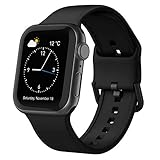
- Fit All Models: The apple watch sport bands are tailored for Apple Watch 38mm 40mm 41mm 42mm 44mm 45mm 49mm for iWatch ultra 2, ultra 3, ultra 4, series 12 11 10 9 SE 8 7 6 5 4 3 2 1 Ultra. 2 size options - 38mm/40mm/41mm/42mm(series 11 10) fits 6.6" - 8.1" wrists; 42mm/44mm/45mm/46mm/49mm suits 7.5" - 8.8" wrists.
- Water-Ready Comfortable Wear: Soft, smooth silicone apple watch sport band gives a silky comfy touch that refreshes your wrist on the go. Water-resistant and sweat-wicking, the rubber apple watch strap is ready for any water-packed activities, workouts, exercises and all your daily routines.
- Customizable Fit: Classic tang buckle makes the iwatch straps easy to resize for a secure, snug fit. Also a snap to slide in and out of your apple watch to change out the look for your day-to-day outfits, from sport wear, business attire to casual look.
- Color-Matched Clasp: We match specific buckle color with the band’s shade or your apple watch finish, creating a harmonious tone-on-tone look to blend in seamlessly.
- Wear & Tear Ready: Scratches, smudges, splashes – no problem. Crafted from remarkably sturdy silicone, our Apple Watch wristbands are primed to handle daily surprises with unparalleled performance, even in demanding use.
This behavior is selective rather than a promise of duplicate alerts. Do not expect enabling a single notification switch to make every call appear simultaneously on the iPhone and watch.
2. Check whether the Apple Watch is connected
A disconnected watch cannot reliably receive live calls or other notifications from the iPhone. On the watch, press the side button to open Control Center and look for the connection status.
- A red iPhone icon or red X indicates that the watch is not connected normally to the iPhone.
- A normal connection indicator means the watch can communicate with the iPhone, although other settings may still suppress or redirect the alert.
If the watch is disconnected:
- Put the watch and iPhone close together.
- On the iPhone, confirm that Bluetooth and Wi-Fi are turned on.
- Check Control Center on the watch and make sure Airplane Mode is off on both devices.
- Wait briefly for the connection to return, then place another locked-iPhone test call.
Changing notification preferences will not restore a missing Bluetooth or Wi-Fi connection. Solve the connection problem first. If the red icon remains after both devices are nearby and their radios are enabled, restart both devices before considering re-pairing.
3. Unlock the watch and check modes that silence or redirect alerts
Look at the watch face and Control Center for status icons. A locked Apple Watch can send notifications to the iPhone instead of displaying them on the watch. Do Not Disturb and Focus-related settings can also prevent the watch from alerting you in the expected way.
Quick wins for a faster PC:
Fix the driver behind crashes, sound loss and screen glitchesFind Drivers →Repair Windows errors before they cause bigger problemsFix Now →Check the following:
- Lock: Unlock the watch by entering its passcode. If wrist detection is enabled, make sure the watch is worn securely enough to recognize that it is on your wrist.
- Do Not Disturb or Focus: Temporarily turn off the active mode for testing, or check whether its schedule and allowed notifications are suppressing call alerts.
- Silent Mode: If the watch vibrates but makes no sound, it may simply be silenced. This explains a missing ringtone, not necessarily missing caller information.
- Theater-style behavior and display settings: These can affect when the screen wakes or how readily you see an alert. Check the current Control Center options rather than looking for one universal toggle; labels and available controls can vary by watchOS version.
Distinguish between three different symptoms: no vibration, no sound, and no caller information on the screen. A setting that silences the watch may not prevent delivery of the call notification.
4. Look in Notification Center
If you did not handle the call immediately, it may be saved rather than lost. From the watch face, swipe down to open Notification Center and look for the call notification. A red dot normally indicates unread notifications, unless the notification indicator has been disabled.
Rank #2

- 【Fit All Models】SuperNaNa Sport silicone watch band compatible with apple watch bands 40mm 38mm 42mm 44mm 41mm 45mm 46mm 49mm women men,Soft breathable replacement sport strap for iwatch bands series 12 series 11 series 10 series 9 series 8 series 7 series 6 series 5 series 4 series 3 series 2 series 1. and iwatch Ultra 3 2, Ultra, SE(2nd Gen). All iwatch versions can attach perfectly and seamlessl.
- 【Soft Silicone Material】apple watch bands for women men are made of premium soft silicone, prevents skin from irritation, lightweight, persistent, skin-friendly, touch comfortable, water-resistant and sweat-proof; iphone watch bands for women perfectly fit for runs, hiking, rides, camping, climbing, swims, workouts, traveling and more outdoor activities. iWatch bands 40mm womens completely unburdened to wear on the wrist, perfect for all day.
- 【Adjustable size for all wrist】Our Sport apple watch strap compatible for 38mm/40mm/41mm/42mm(series 12 11 10), this size fits for 5.1"-7.1" (130mm-180mm) wrist; soft silicone iwatch strap compatible for 42mm(series 3 2 1)/44mm/45mm/46mm/49mm, this size fits for 5.9" - 7.9" (150mm-200mm) wrist. Please check the size on the back of your watch to choose the right size.
- 【Easy installation & removal】Our watch bands for women come with Innovative pin-and-tuck closure design, which locks onto smart watch interface precisely and securely. No tool needed,easy to install and remove,provides a secure and comfortable fit for extended wear.
- 【20+ Colors Choice】Silicone iwatch bands for women come with 20+ different cute colors available for women men. black starlight apple watch band etc colors personalize your Apple Watch and fit your daily mood and outfit. A idear option for your smartwatch accessories.
Notification Center is especially useful when the watch is not vibrating or waking its display as expected. If the call appears there, the watch received information about it; investigate sound, wrist-down display behavior, Focus, and alert settings instead of immediately resetting the watch.
5. Review Apple Watch notification settings on the iPhone
On the paired iPhone, open the Apple Watch app and go to My Watch > Notifications. Review the available notification controls and look for a setting that allows notifications or mirrors the iPhone. Avoid selecting Send to Notification Center or Notifications Off if you want an immediate alert.
PC Slower Than It Used to Be?
A free scan shows the junk files, broken settings and background clutter dragging Windows down - then fixes them in one click.Free scan · Windows 10 & 11Outdated Drivers Are Slowing You Down
One free scan finds every outdated or missing driver and matches the right update for your exact hardware.Free scan · exact hardware matchThe exact controls shown depend on the app and the iOS/watchOS combination. The Phone system is not always presented like an ordinary third-party app, so do not assume that every Apple Watch will display an identically named “Phone” switch. The most important checks remain:
- the iPhone is locked during the test;
- the watch is connected and unlocked;
- the watch is not being suppressed by Do Not Disturb or Focus; and
- notifications are not being routed only to Notification Center or turned off.
6. Check wrist-down notification behavior
Sometimes the watch receives the notification but does not show it immediately because your wrist is turned away. Apple Watch notification settings include behavior for notifications while the wrist is down. Display-wake and wrist-orientation settings can also affect what you see.
Test the watch with your wrist raised and the display facing you. Then check Notification Center. Treat this as a visibility issue, not proof that the call failed to reach the watch. If the alert is present in Notification Center, delivery occurred even if the screen did not wake at the moment the call arrived.
7. Restart the Apple Watch and iPhone
A normal restart can clear a temporary connection or notification process problem. Restart both devices, then make another test call with the iPhone locked.
Rank #3

- Compatible Models: The HEARTBOOM magnetic nylon sport bands compatible for iWatch all versions. Suitable for Apple Watch Series 3/2/1 (38mm), Series 4/5/6/SE/SE 2/SE 3 (40mm), Series 7/8/9 (41mm), Series 12/11/10 (42mm). Pls check the model on the back of your watch to select the correct size
- Comfortable & Fit: HEARTBOOM stretchy apple watch band is made of recycled polyamide with a fabric weave, which is skin-friendly, breathable, lightweight, washable, sweat-resistant and quick-drying. Perfect for Fitness, Running, Yoga and daily wear, as it ensures that your wrist remains comfy and gentle feeling
- Multi Colors & Freely Adjustable: Our iwatch bands come with Various rich & muted colors for your choices, personalize your smartwatch to fit your outfit in daily life and easy change for every occasion. Suitable for women and men with 5.5"-9.6"(140mm~244mm) wrists. One size fit for most people,no need to measure your wrist to choose the size like the traditional braided bands
- Confidently Secure with Upgraded Magnets: Experience the perfect blend of style and security with our braided stretch band for Apple Watch. The enhanced magnetic Closure creates a strong, reliable connection that is easily adjustable for a flawless custom fit. Designed for all-day comfort and peace of mind, it stays put during any activity. Tool-free installation and one-click removal make it incredibly easy to use
- Perfect Gift: This apple watch bands blend fashion with functionality, look more fashionable and youthful. It's a a thoughtful and well-made gift. Suitable for Christmas, New Year's, Father's Day, Mother's Day and birthdays as a surprise for your parents, loved ones, and friends.We offer 24/7 friendly support
Use a force restart only if the watch cannot be restarted normally or is unresponsive:
- Hold the Apple Watch side button and Digital Crown together.
- Continue holding them for at least 10 seconds.
- Release them when the Apple logo appears.
Force restart is a recovery action, not the first notification fix. It does not replace checking the connection, lock state, or notification routing, and you should not use it when a normal restart is available.
8. Update iOS and watchOS
Install available software updates after the basic checks. An update may improve compatibility or reliability, but there is no basis for claiming that a particular iOS or watchOS release fixes every incoming-call-information problem.
When updating the watch:
- Place it on its charger and leave it there while the update completes.
- Make sure the watch is making proper contact with the charger.
- If the update will not start, check the charger connection, restart both devices, and try again.
If your existing charging cable is damaged, intermittent, or missing, a Apple Watch magnetic charger can be a practical replacement or spare for completing charging and updates. It is not a remedy for Bluetooth pairing, notification routing, or a missing caller name, and compatibility with your particular watch generation should be confirmed before buying.
9. If calls fail only when the iPhone is away
Calls working beside the iPhone but not when you leave it behind usually point to a connectivity limitation rather than an ordinary notification setting.
| Situation | What it means |
|---|---|
| iPhone nearby | The watch can use the iPhone’s connection, provided the devices are paired and connected. |
| iPhone away, watch on a known Wi-Fi network | The watch may be able to receive notifications and handle internet-based functions over Wi-Fi. |
| iPhone away, GPS + Cellular watch with active service | The watch may make calls and receive notifications over cellular service. |
| iPhone away, GPS-only watch with no usable Wi-Fi | Independent phone-call behavior should not be expected. |
Check whether the watch is a GPS-only or GPS + Cellular model. For independent cellular use, also check that a plan is active and that the carrier, region, account, and watch model are eligible. Availability can vary by carrier and location, and some corporate or prepaid accounts may have restrictions.
If the issue is specifically that calls disappear when you leave the iPhone behind, investigate an Apple Watch cellular plan or carrier activation rather than repeatedly changing notification switches. Do not assume that every cellular-capable Apple Watch works independently without an activated plan.
Rank #4

- Compatible Models: Specially designed soft silicone replacement bands for women men Apple watch 38mm 40mm 41mm 42mm 44mm 45mm 46mm 49mm Ultra 3, Ultra 2, Ultra, SE, Series 11, Series 10, Series 9, Series 8, Series 7, Series 6, Series 5, Series 4, Series 3, Series 2, Series 1, Sport, Edition, ALL VERSIONS.
- Personalized Design: The bands provide different size for your choice. Various colors personalize your iwatch and fit your mood, outfit in daily life, dress up your iwatch and highlight your unique taste, perfectly fits for women men wear. Breathable holes are easier to adjust the length, a good choice for daily wear and exercise.
- Premium Material: Our replacement Bands made of high-quality elastomer, prevent skin from irritation rash. Soft flexible Lightweight durable Sweat-resistant Dirt-proofand Waterproof, very comfortable to wear.
- Multiple Occasion: There are different popular colors available for women men. Perfectly fit female and male, make you different from others and fit any occasions, dress or mood in your daily life. Perfectly fit for runs, swims, rides, workouts, Parties, Climbing, Hiking, Camping, Traveling and more outdoor activities.
- Size: 38mm/40mm/41mm/42mm(series 11 10) S/M Size: Suitable for 5.1"-7.1" (130mm-180mm) wrist; 38mm/40mm/41mm/42mm(series 11 10) M/L Size: Suitable for 5.9"-7.9" (150mm-200mm) wrist; 44mm/45mm/46mm/49mm/42mm(series 3 2 1) S/M Size: Suitable for 5.5"-7.5" (140mm-190mm) wrist; 44mm/45mm/46mm/49mm/42mm(series 3 2 1) M/L Size: Suitable for 6.3"-8.3" (160mm-210mm); Please choose the correct watch model and size for yourself.
10. Unpair and pair the watch again
Unpairing is a late-stage software remedy because it takes more time and disrupts the existing device relationship. Use it only after checking proximity, Bluetooth and Wi-Fi, Airplane Mode, lock and Focus states, notification routing, restarts, and updates.
What’s actually slowing this PC down?
Pick the symptom - the matching free tool is one click away.
If the watch still cannot connect normally or continues to miss calls after those steps, unpair it from the Apple Watch app and pair it with the iPhone again. Follow the on-screen backup and restoration prompts carefully. If you are uncertain about the backup or activation steps, contact Apple Support before proceeding.
When to contact Apple or your carrier
Contact Apple if the watch still cannot connect, restart, update, or display incoming calls after the documented troubleshooting steps and re-pairing. A support technician can determine whether service is appropriate; do not diagnose a failed radio, screen, speaker, or antenna from this symptom alone.
Contact the carrier when the problem occurs only away from the iPhone and cellular activation, plan eligibility, signal, or account provisioning is uncertain. Carrier and regional support are part of the cellular-call path, so changing watch notification settings cannot correct an unactivated or unsupported cellular plan.
A factory reset, replacement watch, or third-party repair should not be the next step unless Apple Support or an authorized technician determines that the hardware requires service.
Do these 3 things before closing this tab:
1Repair Windows errors before they cause bigger problems2Fix the driver behind crashes, sound loss and screen glitches3Clear out junk files and repair common Windows errorsFrequently Asked Questions
Why does my Apple Watch not show calls when my iPhone is unlocked?
Apple Watch normally routes an incoming-call notification to the iPhone or the watch, rather than displaying it on both. Lock the iPhone and make a test call. If the watch is connected, unlocked, and not being suppressed by Focus or Do Not Disturb, the call should generally appear there.
Best Value

- [Fit All Models]: Sunnywoo sports nylon watch bands - Compatible with apple watch for women and men, Fits all apple watches, iWatch Bands for Se, Ultra 3/2/1, Series 11, Series 10, Series 9, Series 8, Series 7, Series 6, Series 5, Series 4, Series 3, Series 2, Series 1, iWatch wrist straps offer two size options, ① 5.11"–7.87" (130–200mm) fits 38/40/41/42mm cases ② 5.51"–8.66" (145–220mm) fits 44/45/46/49mm cases. Please check the size on the back of the watch and choose the right size
- [Easy to Wear]: Our watch bands for women men feature a magic tape closure for easy, one-handed length adjustments, ensuring a snug fit during workouts and outdoor adventures. Durable, breathable, and comfortable, they keep your smartwatch securely in place no matter how active you get
- [Skin-Friendly Material]: Sunnywoo watch straps are crafted from high-quality nylon, as soft as silk, ensuring all-day comfort. With excellent breathability and a lightweight design, they keep your wrists cool and comfortable during outdoor activities. Plus, cleaning is super easy, allowing you to maintain freshness and comfort no matter where you are
- [Multi-Colors]: With 14 stunning colors to choose from, you can easily match your daily outfit and create a personalized style statement. The Sunnywoo smart watch bands for women men are the perfect fashion watch accessory to complement any look, making them a must-have for your wardrobe
- [Warm Presents]: Know someone who loves their iWatch and has a passion for fashion and fitness? Treat them to a Sunnywoo nylon watch band! With 14 vibrant colors to choose from, they can effortlessly match their band to their daily style. It's the ultimate thoughtful Presents that combines practicality with personal flair
Where can I find a missed call notification on Apple Watch?
Swipe down from the watch face to open Notification Center. An unanswered call may be saved there even if the watch did not vibrate or wake its display. A red dot usually indicates unread notifications unless that indicator is disabled.
How do I reconnect my Apple Watch when it is not receiving calls?
Press the watch side button to open Control Center and look for a red iPhone or red X icon. Bring the devices together, turn on Bluetooth and Wi-Fi on the iPhone, turn off Airplane Mode on both devices, and restart both if the connection does not return.
Why does my Apple Watch receive calls only when my iPhone is nearby?
A cellular Apple Watch may make calls away from the iPhone only when its model, carrier, region, account, and activated plan support that use. A GPS-only watch generally needs the iPhone nearby or a suitable known Wi-Fi connection for independent connectivity.
Quick wins for a faster PC:
Fix the driver behind crashes, sound loss and screen glitchesFind Drivers →Repair Windows errors before they cause bigger problemsFix Now →Should I force-restart my Apple Watch to fix missing call alerts?
Use a normal restart first. Force-restart the watch only when it cannot be restarted normally or is unresponsive by holding the side button and Digital Crown together for at least 10 seconds, until the Apple logo appears.
The Bottom Line
The quickest fix is usually to lock the iPhone, confirm that the watch is connected and unlocked, and check Notification Center before changing anything drastic. If calls work only near the iPhone, investigate Wi-Fi or an activated cellular plan. Restart and update both devices next; reserve re-pairing and service for problems that survive those checks.
Quick Recap
Product prices and availability are accurate as of the date/time indicated and are subject to change. Any price and availability information displayed on Amazon at the time of purchase will apply.




