To change the time on a Fitbit Charge 5, update the time-zone or clock-display setting in the Fitbit/Google Health companion app, then sync the tracker. The Charge 5’s official time-correction process is handled through the app rather than by typing a new time directly on the device.
Change the time zone on a Fitbit Charge 5
- Open the Fitbit or Google Health companion app.
- From the Today tab, tap your profile picture or account initial.
- Open Google Health settings or the equivalent Fitbit settings menu.
- Under App Settings, select Date, time & units.
- Tap Time Zone.
- Leave automatic time-zone selection enabled if it is correct. If it has selected the wrong region, turn off Set Automatically (also shown in some versions as Automatic time zone) and select the correct zone manually.
- Sync your Charge 5.
The time should update after synchronization. If it does not, sign out of the app, sign back in, and sync the tracker again. See Google’s official time and time-zone instructions.

Can you set the time directly on the Charge 5?
Fitbit’s official correction procedure uses the companion app and a sync. The Charge 5’s on-device Settings app includes controls for features such as display behavior, GPS, heart rate, vibration and restarting, but the primary support procedure does not use an on-device Set time control. Avoid manually adjusting the clock by adding or subtracting hours; correct the time-zone setting instead.
Exact menu names can differ. Current Google support pages use labels such as Google Health settings, Date, time & units and Time Zone. Older Fitbit instructions may refer to Fitbit settings, App Settings, Automatic time zone and Select time zone. The wording may depend on your app version and whether you use a Google Account or older Fitbit credentials. An official Fitbit support discussion documents these label differences: Google Health/Fitbit account and menu variations.
The Tool Desk
Outbyte PC Repair FREEClear out junk files and repair common Windows errorsFree Scan →Outbyte Driver Updater FREEScan for outdated or missing drivers - takes under a minuteDriver Scan →#1 Best Overall

- EXCLUSIVE BUNDLE INCLUDES: 1x Fitbit Charge 5, 1x Charging Cable, 1x Infinity Band (Small & Large), 1x Compatible Wall Charging Plug
- SLEEP TRACKING & SLEEP STAGES Automatically Tracks How Long You Sleep Each Night and Time Spent in Light, Deep and Rem Sleep Stages*
- WATER RESISTANT You’re Covered to 50m, So Dance in the Rain if That’s How You Want to Work Out Today. Steps, Distance & Calories Displays Stats on Wrist and in the Fitbit App*
- CALL, TEXT AND APP NOTIFICATIONS See Calls, Texts & Smartphone App Notifications on Your Wrist When Your Phone is Nearby. Compatible With IOS and Android Devices, Fitbit Devices Are Compatible With IOS and Android Phones
- BUILT-IN GPS See Pace & Distance on Your Wrist — No Phone Needed. Active Zone Minutes - Tracks Your Time in Heart Rate Zones So You Get Credit When You Work Harder. Workouts in Cardio or Peak Zones Earn Double Minutes*
Switch between 12-hour and 24-hour time
If the clock shows the correct hour but you want a different format, change Clock Display Time:
- Open the companion app and go to Today.
- Tap your profile picture or initial.
- Open Google Health settings or the equivalent app settings.
- Choose Date, time & units.
- Tap the selector beside Clock Display Time.
- Choose 12 hour or 24 hour.
- Sync the Charge 5.
This changes how the time appears—it does not correct an incorrect time zone. In 12-hour mode, the display uses AM and PM; 24-hour mode displays times such as 18:30.
Rank #2
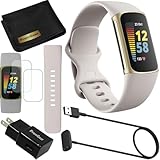
- This Exciting Bundle/Kit Includes: Fitbit Charge 5 Advanced Fitness & Health Tracker (Lunar White/Soft Gold), Small & Large Bands, PremGear 3.3ft USB Charging Cable, PremGear Wall Adapter, PremGear Screen Protectors & PremGear Quality Cleaning Cloth
- REDEFINE YOU ROUTINE – Optimize your activity and routine with Daily Readiness, a personalized score available with your included 6-month Premium membership. Daily Readiness uses insights from your exercise, sleep and Heart Rate Variability (HRV) and lets you know of you’re ready for a workout or need to prioritize recovery (requires Premium subscription
- FIND YOUR CALM – Understand how your body reacts to stress with a daily Stress Management Score and measure your body’s in-the-moment physical response with an on-wrist EDA Scan app. Plus, find your calm with expanded mindfulness tools and a detailed breakdown of your Stress management Score (included with your 6-month membership
- TRACK TRENDS IN YOUR WELLNESS – See important changes in your wellness with health metrics such as SpO2 the level of oxygen in your blood heart rate variability, breathing rate…+ See your personal range and trends for each metric from the past month
- LEVEL UP YOUR HEALTH & FITNESS – Transform your insights into impact with your included 6-month Premium membership and discover inspiration with new recommended workouts, mindfulness sessions, fun challenges and more. Also, get health insights specific to your body and mind for a more complete understanding of your well-being
Fix a Charge 5 that still shows the wrong time
If the time is several hours wrong
The most likely causes are an incorrect time zone on the phone or in the companion app, or a Charge 5 that has not synchronized since the setting changed.
- Check that the phone itself shows the correct date, time and time zone.
- Return to Date, time & units → Time Zone in the companion app.
- Temporarily disable automatic time-zone selection if it is choosing the wrong region.
- Select the correct city or regional time zone manually.
- Sync the Charge 5.
Do not change the phone’s clock manually simply to compensate for the tracker. The phone’s time should be correct, while the app’s time-zone setting should identify the correct region.
Quick wins for a faster PC:
Clear out junk files and repair common Windows errorsFree Scan →Scan for outdated or missing drivers - takes under a minuteDriver Scan →Repair Windows errors before they cause bigger problemsFix Now →Rank #3

- EXCLUSIVE BUNDLE INCLUDES: 1x Fitbit Charge 5, 1x Charging Cable, 1x Infinity Band (Small & Large), 1x Compatible Wall Charging Plug
- SLEEP TRACKING & SLEEP STAGES Automatically Tracks How Long You Sleep Each Night and Time Spent in Light, Deep and Rem Sleep Stages*
- WATER RESISTANT You’re Covered to 50m, So Dance in the Rain if That’s How You Want to Work Out Today. Steps, Distance & Calories Displays Stats on Wrist and in the Fitbit App*
- CALL, TEXT AND APP NOTIFICATIONS See Calls, Texts & Smartphone App Notifications on Your Wrist When Your Phone is Nearby. Compatible With IOS and Android Devices, Fitbit Devices Are Compatible With IOS and Android Phones
- BUILT-IN GPS See Pace & Distance on Your Wrist — No Phone Needed. Active Zone Minutes - Tracks Your Time in Heart Rate Zones So You Get Credit When You Work Harder. Workouts in Cardio or Peak Zones Earn Double Minutes*
If the time is exactly one hour off
A one-hour error can appear after a daylight-saving-time transition or travel, but it can also result from the wrong regional time zone or a missed synchronization. Verify the phone and app settings, then sync. If the tracker remains incorrect, sign out and back in to the app and sync once more. Fitbit specifically identifies travel and daylight-saving changes as situations in which the device time may need correction; the same official remedy applies: check the time zone and synchronize. Official time troubleshooting guidance.
If the app is correct but the tracker is not
- Keep the Charge 5 near the phone.
- Open the companion app and allow the normal device sync to complete.
- Check the tracker again.
- If it is still wrong, sign out of the app.
- Sign back in and sync again.
Changing the setting in the app alone is not the complete process; the updated time-zone or display preference must reach the tracker through synchronization.
Rank #4

- Fitbit Charge 6 tracks key metrics from calories and Active Zone Minutes to Daily Readiness and sleep; move more with 40+ exercise modes, built-in GPS, all-day activity tracking, 24/7 heart rate, automatic exercising tracking, and more[1]
- See your heart rate in real time: Just link your Charge 6 to compatible exercise machines, like treadmills, ellipticals, and more[2]; and stay connected with YouTube Music controls[3]
- Tune into your body: Track your response to stress with a stress management score; learn about the quality of your sleep with a personalized nightly Sleep Score; and wake up more naturally with the Smart Wake alarm
- Run your routine with Google essentials: Find your way seamlessly during runs or rides with turn-by-turn directions from Google Maps on Fitbit Charge 6; and when you need a snack break on the go, just tap to pay with Google Wallet[1,4]
- Unlock more with Google Health Premium: With a premium membership, get personalized coaching that’s built with Gemini and adapts to your life[7]; get a 3-month trial at no cost to you[5] (Google Health Premium subscription sold separately)
If the clock is correct but difficult to see
A dim, blank or slow-to-appear clock is a display issue, not necessarily an incorrect-time issue. Wake the Charge 5 by turning your wrist toward yourself or firmly tapping the screen twice. From the clock face, swipe down and check Screen Wake.
For a continuously visible clock, open Settings → Display settings → Always-on display and enable it. Always-on display makes the clock easier to check but uses more battery and may require more frequent charging. Display settings do not change the underlying time. See Google’s Charge 5 display instructions and Charge 5 navigation and settings documentation.
What does syncing do?
Syncing transfers current data and settings between the Charge 5 and the companion app. After changing the time zone or 12/24-hour preference, a functioning phone-to-tracker connection is needed for the change to appear on the device. Keep the tracker close to the phone while the sync completes.
Quick Recap
Settings that do not change the clock
- Clock face: Changes the design and information shown, not the time source. Clock faces are selected separately through the companion app. See Charge 5 setup and clock-face guidance.
- Alarm: Changes an alert schedule, not the current device clock. Charge 5 alarms are configured separately; in 12-hour mode, you choose AM or PM. See Charge 5 alarm instructions.
- Timer or stopwatch: Measures an interval and does not alter the current time. See Charge 5 timer and stopwatch guidance.
- Always-on display: Keeps the clock visible but does not correct its accuracy.
Quick checklist
- The phone’s date, time and time zone are correct.
- The app’s Date, time & units → Time Zone setting is correct.
- Automatic detection is disabled if it repeatedly chooses the wrong region.
- The Charge 5 has been synced after the setting change.
- You have signed out, signed back in and synced again if the first sync did not work.
Product prices and availability are accurate as of the date/time indicated and are subject to change. Any price and availability information displayed on Amazon at the time of purchase will apply.




