For the Casio Mudman GDG-B100, start Bluetooth setup in the CASIO WATCHES app, then complete pairing from the watch’s PAIRING > CONNECT menu. If the watch is already connected but alerts do not arrive, troubleshoot notification permissions and sound or vibration settings separately: a connection does not guarantee that notifications are enabled.
Before pairing: check the phone and app prerequisites
The GDG-B100 uses the CASIO WATCHES smartphone app for phone-linked functions. Casio’s Module 3587 operation guide instructs you to install the app, log in with a CASIO ID, turn on the phone’s Bluetooth and location services, and keep the phone within one meter of the watch during pairing.
![Casio GW-9500-1JF [G-Shock Master of G Series MUDMAN Triple Sensor Model] Watch Japan Import July 2023 Model](https://m.media-amazon.com/images/I/41bbHfxiCdL._SL160_.jpg)
As an Amazon Associate I earn from qualifying purchases.
- Install CASIO WATCHES and sign in with a CASIO ID.
- Turn on Bluetooth and location services on the phone.
- Keep the phone within one meter of the watch while pairing.
Pair the GDG-B100 with the phone
- Open CASIO WATCHES and register the watch in the app.
- On the watch, enter Timekeeping Mode, then hold the indicated setting button to open the settings.
- Select PAIRING > CONNECT on the watch.
- Follow the pairing prompts on the phone.
- After pairing, complete the initial and profile settings in CASIO WATCHES.
If pairing fails, Casio’s guide says to repeat the procedure from the beginning. If PAIRING cannot be selected, check whether the watch still has pairing information for another phone; remove the old pairing data before trying again.
What’s actually slowing this PC down?
Pick the symptom - the matching free tool is one click away.
Check whether the watch is connected
Look at the Bluetooth mark on the watch. Casio says the mark appears when the watch is connected and flashes when it is not. A flashing mark means to troubleshoot the connection before changing notification permissions.
#1 Best Overall
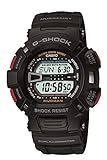
- Case size (L× W× H): 52 × 46.3 × 16.3 mm
- Shock Resistant, Mud Resistant, 200 meter water resistant, Auto Dual EL Backlights with Afterglow, Low Temperature Resistant, World Time - 29 time zones (48 cities), city code display, daylight saving on/off, 1/100 second stopwatch, Measuring modes: Elapsed time, split time, 1st-2nd place times, 1/100 second stopwatch
- Countdown timer -start time setting range: 1 minute to 24 hours (1-minute increments and 1-hour increments), Auto-repeat, progress beeper, Four Multi-function alarms & 1 snooze alarm, Hourly time signal, Full auto-calendar ,12/24 hour formats, Button operation tone on/off , Flash alert
- Make sure CASIO WATCHES is running on the phone. Casio states that phone-linked functions are available only while the app is running.
- Bring the phone close to the watch.
- Make sure Airplane Mode is off on the watch. Casio says it prevents the phone connection.
- Consider whether distance, radio interference, a phone system update, or the app not running could be disrupting the connection or automatic time correction.
Casio recommends using current versions of both the smartphone app and watch software. Updating is a sensible check, but it does not guarantee that a connection problem will be resolved.
The watch is connected, but notifications do not arrive
First confirm that the Bluetooth mark shows a connection. Then check notification settings at both ends. Casio’s FAQ, “I do not receive notifications,” identifies watch notification settings, phone notification settings, and sound or vibration status as relevant checks (Casio notification FAQ).
Rank #2
On the GDG-B100
- Check that watch notifications are enabled.
- Check whether sound or vibration is turned off.
On the phone
- Check notification access and settings for the specific app whose alerts you expect to receive.
- On Android, check the app’s notification settings and any applicable special notification settings.
- On iPhone, check notification settings for the relevant app.
Menu names and locations vary by phone and operating-system version; use the phone’s current settings rather than relying on a single universal menu path.
The Tool Desk
Outbyte Driver Updater FREEFix the driver behind crashes, sound loss and screen glitchesFind Drivers →Outbyte PC Repair FREERepair Windows errors before they cause bigger problemsFix Now →Pairing to a different phone: remove the old connection
An existing pairing with another phone can prevent the watch from offering PAIRING. Casio’s Module 3587 guide describes removing pairing information from the CASIO WATCHES app and the watch, then deleting any remaining pairing information on the old phone (Module 3587 operation guide). Airplane Mode must be off to unpair.
Quick Recap
Best Value

- Featuring a Black Band, Black Case, Scratch Resistant Mineral Crystal
- International products have separate terms, are sold from abroad and may differ from local products, including fit, age ratings, and language of product, labeling or instructions
- Original box and packaging: Watch back, but it might be different in the printed image
- Scratch resistant mineral
Rank #4

- For the fearless adventurer and nature lover, a robust and tireless Master of G MUDMASTER with case and bezel made of durable carbon and environmentally friendly materials.
Rank #3

- Precise Japan Quartz Movement - Tough Solar Powered
- Bio-Based Resin Case and Band, Stainless Steel Case Back
- Mineral Crystal, Multi-Function Digital Function including Digital Compass
- Case Size: 52.7 mm Diameter, 16.9 mm Thickness
- Water Resistant - 200 M
- Remove the watch’s pairing information from CASIO WATCHES.
- Remove the pairing information on the watch.
- Delete any remaining GDG-B100 pairing entry on the phone.
- With Airplane Mode off, start the pairing procedure again with the new phone.
Tell which problem you have
| What you see | Likely issue to check | Next step |
|---|---|---|
| The watch has not completed pairing with the phone. | Pairing setup or prerequisites. | Confirm the app, CASIO ID, Bluetooth, location services, and close proximity; then pair through the app and the watch’s PAIRING > CONNECT menu. |
| The watch was paired, but the Bluetooth mark flashes. | The watch is currently disconnected. | Run CASIO WATCHES, bring the phone close, and check that Airplane Mode is off. |
| The Bluetooth mark shows a connection, but alerts are missing. | Notification settings or muted sound/vibration. | Check notification settings on the watch and phone, including permission for the specific phone app. |

