Recommended Free Tools
Samsung Studio Mode is a webcam-enhancement feature for Galaxy Book laptops. It processes the camera feed in real time to add options such as face retouching, background blur or replacement, automatic framing, lighting correction, Eye Contact, and, on some newer Windows systems, Voice Focus. It is designed for video calls, online classes, interviews, streams, and recordings—not for changing the laptop’s performance mode or display.
The name depends on the Galaxy Book generation. Older systems may show Studio Mode or Studio Mode 2.0; selected Galaxy Book4 models use Studio Effect; and compatible Windows 11 laptops may expose similar controls as Windows Studio Effects. The menus and available features are therefore model-, region-, driver-, and Windows-version-dependent.
What problem does Studio Mode solve?
A built-in laptop webcam often produces a flat, poorly lit, tightly framed image. Your background may also be distracting, and a laptop microphone can pick up keyboard noise or activity in the room. Studio Mode is Samsung’s software answer to those problems: it modifies the camera or microphone stream before—or as—it reaches a video application.
Samsung originally described Studio Mode as a filter-like tool for people who need to look more camera-ready despite imperfect lighting, an untidy background, or an unflattering camera angle. It can be useful for meetings, interviews, remote classes, presentations, and quick calls where you do not want to set up a physical background or lighting system. Samsung introduced the feature with the Galaxy Book Pro generation in 2021 and expanded it on later Galaxy Book models. See Samsung’s original Galaxy Book Pro announcement and its descriptions of the Galaxy Book2 Pro and Galaxy Book3.
Free tools Windows power users keep installed
One-click scans. No signup required.
Studio Mode does not turn the webcam into a professional camera. It cannot add optical zoom, increase the sensor’s physical resolution, clean a dirty lens, or recover detail that the webcam never captured. Better front-facing light, a stable camera position, a clean lens, and—when image quality matters—a good external webcam can make a larger difference than an aggressive software filter.
What does each Studio Mode effect do?
The exact controls vary by Galaxy Book model and software version. You may see only some of the effects below.
#1 Best Overall

- Anti-Shock & Waterproof: EVA hard sleeve and features internal upgraded shock resistant padding layer, protect your laptop from inadvertent collision and accidental scratches when put in backpack or suitcase. The Smatree sleeve is made of durable 1600d nylon, it obstructs water effectively. Don't worry about splashing water, washable when laptop sleeve case becomes dirty
- Fashion Style: unique diamond pattern on the surface makes your case unique, personalize your laptop with its own unique style
- Customized for Samsung Laptops: Smatree has more than 20 sizes of hard EVA protective sleeve case customized for Samsung laptops. If you're not sure which model of case is fit for your laptop, please feel free to contact our customer service
| Effect | What it changes | Main trade-off |
|---|---|---|
| Face retouching or face effects | Smooths or brightens the face and may apply makeup-like changes or facial adjustments. | Strong settings can look artificial or alter your appearance more than intended. |
| Background blur | Separates you from the background and softens what is behind you. | Hair, hands, glasses, documents, and multiple people can be segmented incorrectly. |
| Background replacement | Replaces the background with a solid color or custom image. | Edges around the subject may look imperfect, especially during movement. |
| Auto Framing | Digitally crops and reframes the image to keep the subject centered. | It narrows the field of view and can make a low-resolution webcam look softer. |
| Lighting correction | Brightens or balances the appearance of the face. | It cannot replace a real light source in a very dark room. |
| Eye Contact | Adjusts the apparent direction of your gaze toward the camera. | It can look unnatural when you turn, look away, move quickly, or wear obstructive eyewear. |
| Voice Focus or noise suppression | Reduces background noise picked up by the microphone. | Noise processing can sometimes affect voices or sounds it misclassifies. |
| Freeze or pause frame | Holds the current camera image on screen. | It does not necessarily mute your microphone or leave the meeting. |
Face retouching
Legacy versions of Studio Mode may provide presets such as Off, Natural, Soft or Clean, Strong or Beautiful, and a user-defined or custom option. Depending on the model, the controls can smooth skin, reduce the appearance of blemishes, brighten the face, add makeup-like effects, or adjust facial proportions such as the eyes, nose, mouth, or jawline.
These controls are not universal. A Galaxy Book that shows a simple appearance slider may not have the more extensive face-shape controls found in an older Samsung Studio Mode implementation. For a professional interview or customer-facing call, the Natural or lightest setting is usually less distracting than a strong beauty preset.
Background blur and replacement
Background effects can remove visual distractions and provide some privacy. Depending on the software, you may be able to select no effect, a blur, a solid color, a custom image, or a stronger portrait-style blur. Samsung documents these options in its Studio Mode 2.0 instructions and its Galaxy Book4 Studio Effect guidance.
Segmentation works best when the subject is well lit and clearly separated from a relatively plain background. It can cut into hair, glasses, hands, or objects you hold. Samsung warns that performance can vary with multiple people, people at different distances, handheld objects, and groups of more than two people. Turn blur off when you are demonstrating a product, showing a document, or sharing small objects that the camera needs to represent accurately.
Auto Framing
Auto Framing recognizes a face or person and digitally crops the camera view to keep the subject centered. On earlier implementations, Samsung described it as zooming toward the person; later descriptions emphasize maintaining the person’s position as they move.
This is a software crop, not a motorized camera pan. The laptop camera does not physically turn to follow you. It needs enough unused image area around the subject to crop into. If you are already close to the lens, or the webcam has a narrow field of view, Auto Framing may either do very little or crop too tightly. Because the image is enlarged digitally, it may also look softer.
Lighting correction
Lighting correction attempts to brighten or balance the face in an unevenly lit scene. Samsung listed lighting correction among the Galaxy Book3 Studio Mode features, while Windows Studio Effects can provide a related portrait-lighting option on compatible hardware. The effect can help in a dim room, but it cannot substitute for a lamp or window facing you. If the room is extremely dark, the camera will still produce noise and lack detail.
Eye Contact
Eye Contact digitally adjusts the video so that your gaze appears closer to the camera even when you are looking at the screen. Samsung describes it for Galaxy Book3-era Studio Mode, and Microsoft includes Eye Contact among the Windows Studio Effects.
On its Galaxy Book4 support page, Samsung says the effect may take approximately 1.5 seconds to apply after facial recognition. That delay and the processing itself mean Eye Contact is not perfect eye tracking. It may appear unnatural when you turn sharply, look away for a long time, move quickly, wear glasses that obstruct recognition, or have more than one face in the frame.
Voice Focus and noise cancellation
Voice Focus is a microphone effect in newer Windows Studio Effects implementations. It reduces background noise so that your voice is easier to hear. Samsung has also marketed Intelligent Noise Cancelling and AI noise cancellation separately on Galaxy Book Pro, Book2 Pro, Book3, and later systems.
Do these 3 things before closing this tab:
1Fix the driver behind crashes, sound loss and screen glitches2Repair Windows errors before they cause bigger problems3Scan for outdated or missing drivers - takes under a minuteDo not assume that enabling a visual Studio Mode effect automatically enables microphone noise suppression. Camera processing and audio processing are separate controls, and the available audio features depend on the model, driver, and Windows implementation.
Freeze or pause frame
Legacy Studio Mode includes a freeze function that holds the current video image while you briefly step away. It can be convenient during a class or call, but a frozen picture is not a privacy guarantee. It does not mean that your microphone is muted, and it does not mean that you have left the meeting.
Rank #2

- Designed for 15.6 inch Samsung Chromebook Plus XE550XGAA XE550XGA-KC1US, Samsung Galaxy Book4 360 NP960XGK-KG1US, Samsung Galaxy Book3 360 NP750QFG-KA1US NP750QFG-KA2US, Samsung Galaxy Book2 Pro 360 NP950QED-KC1US NP950QED-KB1US, Samsung Galaxy Book2 Pro NP950XED NP950XED-KA1US NP950XED-KF1US NP950XED-KA2US, Samsung Galaxy Book Pro 360 NP950QDB P950QDB-KB1US NP950QDB-KB2US, Samsung Galaxy Book Pro NP950XDB-KB1US, Samsung Galaxy Book Ion NP950XCJ, Samsung Galaxy Book Flex 15 NP950QCG.
- Samsung Galaxy Book Pro 360 15.6 Laptop Sleeve Case Cover - Premium PU leather surface, soft interior lining, comfortable handing feeling, offers all round protection.
- Magnetic closure design make sure your Chromebook secure in place. Rubber band design helps fix your chromebook.
- Document Card Pocket is designed for you to store your business cards, bank cards, notes or bills while on the go. (The case NOT support "Tablet model")
- WARNING: The case is NOT compatible with 16 inch Samsung Galaxy Laptop, 13.3 inch Samsung Galaxy Book3 360 NP730QFG Series Laptop, 13.3 inch Samsung Galaxy Book Pro 13 NP930XDB NP935XDB Series Laptop.
If you step away, mute the microphone and use the meeting application’s own camera and leave controls. For sensitive conversations, stop the camera in Teams, Zoom, Meet, or the relevant application rather than relying on Freeze.
Studio Mode, Studio Effect, and Windows Studio Effects: what is the difference?
Samsung has used similar names for related camera features across several generations. They should not be treated as one identical application.
The Tool Desk
Outbyte Driver Updater FREEFix the driver behind crashes, sound loss and screen glitchesFind Drivers →Outbyte PC Repair FREERepair Windows errors before they cause bigger problemsFix Now →- Galaxy Book models from the original generation: typically use a Samsung Studio Mode application or toolbar that appears when the camera becomes active.
- Studio Mode 2.0: a later Samsung application available on a narrower group of supported Galaxy Books, generally installed through Samsung Update.
- Galaxy Book3: Samsung expanded the feature set with options such as Auto Framing, lighting correction, background effects, and Eye Contact, although the exact controls still depend on the model and software.
- Selected Galaxy Book4 systems: Samsung documents a related Studio Effect feature through Windows 11 camera settings, the Camera app, or Quick Settings.
- Compatible newer Windows 11 systems: the controls may appear as Windows Studio Effects in Quick Settings or Windows camera settings. These are Windows-level effects, with availability determined by the hardware, NPU, camera driver, and Windows build.
Microsoft explains that Windows Studio Effects can operate in the camera or microphone pipeline, allowing the result to be used by applications that access that camera. However, an application such as Teams may provide its own background and appearance controls or override system-level effects. That is why the same Galaxy Book can show different behavior in Camera, Teams, Zoom, a browser meeting, or OBS. See Microsoft’s consumer documentation and its developer documentation on the camera pipeline.
How to turn Studio Mode on
Older Studio Mode and Studio Mode 2.0
- Open Start.
- Search for and open Camera.
- When the camera activates, look for the Studio Mode toolbar, often near the bottom of the Camera window.
- Select the effect you want, such as face retouching, background effects, Auto Framing, or Freeze.
- Use the toolbar’s minimize or close control if you do not want the panel visible. Closing or minimizing the panel is not necessarily the same as switching every effect off, so check each effect’s setting when testing.
Samsung’s older support documentation says the toolbar can launch along with the Camera app. If it does not appear, first confirm that your model and software support the feature before assuming that the camera is faulty.
If the older Studio Mode application is missing
For the model range covered by Samsung’s Studio Mode 2.0 instructions:
- Open Start and launch Samsung Update.
- Select Samsung Apps.
- Look under Available to install.
- Install Studio Mode.
- Reopen the Windows Camera app.
This installation path applies to the older Samsung application. It may not exist on newer Galaxy Books that use Windows Studio Effects instead. A clean Windows installation can remove bundled Samsung applications even when the laptop itself supports the feature.
Galaxy Book4 Studio Effect
On selected Galaxy Book4 models, use one of Samsung’s documented Windows paths:
- Open Settings.
- Select Bluetooth & devices.
- Select Cameras.
- Under Connected cameras, select the built-in camera. Samsung’s example identifies the sensor as Camera Sensor OV02C10, but your model may show a different name.
- Under Windows Studio Effects, select the desired options.
Samsung also lists these shortcuts:
- Camera app: open Camera, switch to Video mode, then select Windows Studio Effects.
- Quick Settings: open Quick Settings from the taskbar and select Studio Effects.
Samsung’s model-specific instructions require Windows 11 version 23H2 or later for the selected Galaxy Book4 systems it documents.
Windows Studio Effects
On compatible Windows 11 hardware, open Quick Settings → Studio effects, or go to Settings → Bluetooth & devices → Cameras → select the camera → Windows Studio Effects.
Depending on the device, Microsoft lists options including Automatic Framing, Eye Contact, Background Effects, Portrait Light, Creative Filters, and Voice Focus. You may not see all of them. Microsoft’s platform documentation requires Windows 11, a supported NPU, and an OEM-installed Studio Effects driver. Its developer documentation identifies Windows 11 version 22H2 or later with build 22623.885 or newer as a platform baseline, while consumer availability and the complete effect set are more dependent on newer compatible hardware. Samsung’s own model requirements may be stricter, so check both the Galaxy Book support page and Windows camera settings.
How to turn Studio Mode off
Use the controls for the version installed on your laptop:
Rank #3

- Designed for 15.6 inch Samsung Chromebook Plus XE550XGAA XE550XGA-KC1US, Samsung Galaxy Book4 360 NP960XGK-KG1US, Samsung Galaxy Book3 360 NP750QFG-KA1US NP750QFG-KA2US, Samsung Galaxy Book2 Pro 360 NP950QED-KC1US NP950QED-KB1US, Samsung Galaxy Book2 Pro NP950XED NP950XED-KA1US NP950XED-KF1US NP950XED-KA2US, Samsung Galaxy Book Pro 360 NP950QDB P950QDB-KB1US NP950QDB-KB2US, Samsung Galaxy Book Pro NP950XDB-KB1US, Samsung Galaxy Book Ion NP950XCJ, Samsung Galaxy Book Flex 15 NP950QCG.
- Samsung Galaxy Book Pro 360 15.6 Laptop Sleeve Case Cover - Premium PU leather surface, soft interior lining, comfortable handing feeling, offers all round protection.
- Magnetic closure design make sure your Chromebook secure in place. Rubber band design helps fix your chromebook.
- Document Card Pocket is designed for you to store your business cards, bank cards, notes or bills while on the go. (The case NOT support "Tablet model")
- WARNING: The case is NOT compatible with 16 inch Samsung Galaxy Laptop, 13.3 inch Samsung Galaxy Book3 360 NP730QFG Series Laptop, 13.3 inch Samsung Galaxy Book Pro 13 NP930XDB NP935XDB Series Laptop.
- Legacy Studio Mode: set face retouching, background effects, and Auto Framing to Off. Stop or disable Freeze if it is active.
- Windows Studio Effects: open Quick Settings or the camera settings page and switch each active effect to Off.
- Teams, Zoom, Meet, OBS, or another camera app: check the application’s own camera-effects panel and disable its blur, background replacement, appearance filter, framing, or gaze correction.
If the toolbar repeatedly appears and you do not use it, check Samsung Settings for a Studio Mode option. Removing the Studio Mode application is a last resort, not the first troubleshooting step: uninstalling it removes the controls and may make the feature harder to restore through Samsung Update.
Does it work with Zoom, Teams, Google Meet, and OBS?
There is no single universal compatibility promise for every Galaxy Book and every camera application.
Samsung’s U.S. support information specifically describes its Studio Effects experience for Microsoft Teams and Zoom. Samsung’s Korean support page for selected Galaxy Book4 models says the effects can be applied in camera-using applications, including Windows Camera and video-conferencing software. The safest conclusion is that supported effects are intended to work through the Windows camera pipeline and common video-call applications, but actual behavior depends on:
- the exact Galaxy Book model and regional configuration;
- the Windows version;
- the Samsung or OEM camera driver;
- which camera is selected;
- whether the laptop uses legacy Samsung Studio Mode or Windows Studio Effects; and
- whether the application overrides system-level effects.
For Google Meet, OBS, and browser-based applications, test in the Windows Camera app first, then select the same physical camera in the other application. If the effect works in Camera but not in the meeting app, inspect the app’s own camera settings and confirm that it has not selected an external, virtual, or different camera.
Which Galaxy Books support Studio Mode?
Support is model-specific rather than universal across the Galaxy Book family. Samsung’s Korean support pages identify products released from April 2021 onward for the original Studio Mode and list selected model codes. Examples include:
- NT930QDB and NT950QDB
- NT750XDA
- NT930XDB
- NT950XDB, NT950XDC, NT950XDX, and NT950XDY
- NT951XDB and NT951XDC
That is an example list from Samsung’s regional support documentation, not a complete compatibility list for the United States or every market. Samsung model codes, bundled applications, and driver packages vary by region.
Samsung’s Studio Mode 2.0 instructions list a narrower set of models, including NT930QDB, NT950QDB, NT930XDB, NT950XDC, NT930XED, NT950XEE, NT955XED, NT930QED, NT950QED, and NT550XED.
Free tools Windows power users keep installed
One-click scans. No signup required.
For Galaxy Book4 Studio Effect, Samsung identifies selected models including:
- NT960QGK
- NT960XGK and NT960XGL
- NT940XGK
- NT950XGK
Again, these are examples from Samsung’s regional support material, not a guarantee that every retail configuration with a similar marketing name includes the same feature. Check the exact model code printed on the laptop or shown in Samsung Settings, then search that model on Samsung Support. Also check Settings → Bluetooth & devices → Cameras to see whether Windows Studio Effects is present.
Should you use Studio Mode?
The best setting is usually the lightest one that solves a specific problem. Consider these starting points:
- Moving around during a presentation: try Auto Framing, but confirm that the crop does not become too tight.
- A cluttered room: use a moderate background blur or a simple replacement image.
- Background noise: try Voice Focus or microphone noise suppression separately from the video effects.
- A dim but usable room: try lighting correction, then add a real light facing you if the image remains noisy.
- A casual call: use light retouching only if you like the result.
- A formal interview or presentation: leave strong beauty effects and Eye Contact off unless you have tested them and they look natural.
Leave Studio Mode off when color and shape need to remain accurate, such as product demonstrations or color-critical work. It is also better off when several people are sitting at different distances, when Auto Framing crops too aggressively, when Eye Contact produces visible artifacts, or when the meeting app already applies its own blur, framing, or appearance effects.
The Tool Desk
Outbyte PC Repair FREERepair Windows errors before they cause bigger problemsFix Now →Outbyte Driver Updater FREEFix the driver behind crashes, sound loss and screen glitchesFind Drivers →Rank #4

- Model No.: M89T / X8283T; internal dimension of the sleeve: 37.0*26.3*1.5 cm (14.6x10.4x0.6 inch); external dimension of the sleeve: 38.8*29.0*2.7 cm (15.3x11.4x1.1 inch); weight: 660 grams
- Compatibility: designed to perfectly fit for 16 inch Samsung Galaxy Book6/Book6 Pro/Book6 Ultra/Book6 Edge; 16 inch Samsung Galaxy Book 5/4/3 Pro; 16 inch Samsung Galaxy Book 5/4/3 Pro 360; 16 inch Samsung Galaxy Book4 Edge; 16 inch Samsung Galaxy Book 4/3 Ultra
- Anti-Shock: EVA hard sleeve and features internal upgraded shock resistant padding layer, protect your laptop from inadvertent collision and accidental scratches when put in backpack or suitcase
- Waterproof: the smatree sleeve is made of durable 260G Nylon Lycra, it obstructs water effectively. Don't worry about splashing water, washable when laptop sleeve case becomes dirty
- Customized for Samsung Laptops: Smatree has more than 20 sizes of hard EVA protective sleeve case customized for Samsung laptops. If you're not sure which model of case is fit for your laptop, please feel free to contact our customer service
Use one effects layer at a time
A common source of poor image quality is applying the same type of processing in multiple places. For example, Windows Studio Effects may blur the background, while Teams or Zoom applies another blur on top. Samsung Studio Mode, a conferencing application, OBS, and a webcam utility can also compete for control.
Double processing can cause:
- excessive digital cropping;
- a soft or smeared image;
- halos around hair and shoulders;
- unnatural skin tones;
- over-aggressive noise suppression; or
- effects that seem impossible to turn off because one layer remains active.
For troubleshooting, disable all app-level effects first, test the system-level Samsung or Windows effect in Camera, and then re-enable only the controls you actually need. Microsoft notes that applications such as Teams can independently control or override system camera effects, so both locations may need to be checked.
Independent reader supportYour contribution helps us test, update, and keep practical guides available for everyone.Why is Studio Mode missing or not working?
The toolbar does not appear
Possible explanations include an unsupported model, a missing Studio Mode application after a clean Windows installation, outdated Samsung software, disabled camera access, a privacy key or camera block, use of a different camera, or a transition from the legacy Samsung toolbar to Windows Studio Effects.
Work through this sequence:
- Test the camera: open the Windows Camera app and confirm that the built-in webcam produces an image.
- Check Windows permissions: go to Settings → Privacy & security → Camera and allow camera access for Windows and the relevant application.
- Check physical and Samsung privacy controls: inspect the webcam shutter or privacy key, and look in Samsung Settings or Samsung Security for a camera-blocking setting. Samsung provides a Galaxy Book camera support guide and separate documentation about camera blocking.
- Run Samsung Update: install available Samsung applications, Studio Mode if offered, camera drivers, firmware, and system-support components.
- Check the newer Windows path: open Settings → Bluetooth & devices → Cameras and look for Windows Studio Effects.
- Restart the laptop: camera drivers and newly installed camera components may not work correctly until Windows restarts.
- Check the selected camera: in Teams, Zoom, Meet, or OBS, confirm that the application is using the built-in camera rather than an external or virtual camera.
- Disable duplicate effects: turn off effects in the meeting application before testing Samsung or Windows controls again.
If the Camera app works but no Samsung or Windows effects are available, the most likely issue is compatibility, missing OEM software, or a driver limitation—not a dead webcam. Samsung’s regional support pages should take priority over generic claims about a Galaxy Book series.
The panel opens but its controls do nothing
This usually points to a software-integration or driver problem rather than proving that the camera hardware has failed. Community reports describe cases in which the Studio Mode panel remained visible while its controls stopped changing the image after an update or repair; these reports are anecdotal and do not establish a Samsung-wide defect.
Try updating or reinstalling Samsung Update, Samsung Settings, Studio Mode, and the camera driver. Restart Windows, test the effect in Camera before testing a conferencing application, disable competing app effects, and check whether Windows Studio Effects has replaced the older toolbar. A factory reset should not be the first response; contact Samsung support if the camera works but the effect pipeline still does not.
If the camera driver appears missing, outdated, or incompatible, you can optionally use Outbyte Driver Updater to check the Windows hardware drivers before continuing with Samsung’s troubleshooting steps.
Background blur cuts out hair, hands, glasses, or objects
Improve the conditions before judging the feature: use even front lighting, keep some distance between yourself and the wall, avoid rapid movement, and use a plain background. Disable blur when showing a product, document, or object. The meeting application’s own background processing may produce a better result for a particular call, but it should be tested on its own rather than layered over Samsung or Windows blur.
Quick wins for a faster PC:
Clear out junk files and repair common Windows errorsFree Scan →Scan for outdated or missing drivers - takes under a minuteDriver Scan →Auto Framing does not zoom or follow you
Auto Framing needs enough space around the person in the original camera image. If you are too close to the webcam, the feature may have no useful area to crop. It also cannot mechanically pan the camera. Move farther away, improve the light on your face, and test with one person centered in the frame.
Eye Contact is slow or unnatural
Allow time for facial recognition and remember Samsung’s approximately 1.5-second application delay on supported Galaxy Book4 systems. If the effect distorts your gaze while you turn, glance away, move quickly, or wear obstructive eyewear, disable it. Eye Contact is an optional presentation effect, not a guarantee of natural-looking eye tracking.
The camera still looks poor
Studio Mode changes the available video feed; it does not improve the underlying sensor, lens, or physical lighting. Independent testing of Galaxy Book3 hardware found that the effects could be useful while the built-in webcam still showed limitations such as softness or noise. If image quality is important for frequent interviews, teaching, or streaming, prioritize a clean lens, front-facing light, stable positioning, and a better external webcam before increasing retouching or digital zoom.
Alternatives to Samsung Studio Mode
Windows Studio Effects
On compatible Windows 11 hardware, Windows Studio Effects is the closest system-level alternative. It may provide Automatic Framing, Eye Contact, Background Effects, Portrait Light, Creative Filters, and Voice Focus. Hardware, NPU, driver, and Windows-build support determine which options appear.
Recommended Free Tools
Best Value
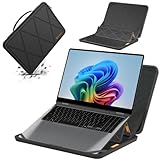
- Series Name: MS Series; Model No.: MS89T; internal dimensions: 37x26.3x1.5 cm(14.6x10.4x0.6 inch) ; external dimensions: 38.8x29x2.7 cm(15.3x11.4x1.1 inch)
- Compatibility: designed to perfectly fit for 16 inch Samsung Galaxy Book6 Pro/Ultra/Edge; 16 inch Samsung Galaxy Book 6/5/4/3 Pro; 16 inch Samsung Galaxy Book 5/4/3 Pro 360; 16 inch Samsung Galaxy Book4 Edge; 16 inch Samsung Galaxy Book 4/3 Ultra;16 inch Samsung Galaxy Book6
- Upgraded Version: laptop stand and sleeve 2 in 1. The internal foldable stand can adjust height to adapt to various working postures across different environments. Easy charging and effective cooling for your laptop
- Anti-Shock&Waterproof: EVA hard sleeve and features internal upgraded shock resistant padding layer, protect your laptop from inadvertent collision and accidental scratches. Made of durable 260G Nylon Lycra, it obstructs water effectively. Don't worry about splashing water, washable when laptop sleeve case becomes dirty
- Customized for Samsung Laptops: Smatree has more than 20 sizes of hard EVA protective sleeve case customized for Samsung laptops. If you're not sure which model of case is fit for your laptop, please feel free to contact our customer service
Teams, Zoom, and other app controls
Meeting applications commonly provide their own blur, background replacement, appearance, framing, and audio controls. These are useful when the Samsung toolbar is unavailable or when the application overrides system effects. The controls and quality vary by application, so do not assume that a setting in Teams will be present in Zoom, Google Meet, or OBS.
An external webcam and light
A good external webcam pointed at eye level and a light placed in front of you often produce a more natural result than strong face retouching or digital cropping. This is especially true when the laptop’s built-in camera is soft or noisy.
A Galaxy phone as the webcam
Some newer Galaxy Book products support using a compatible Galaxy phone as a connected camera. Samsung documents this as a separate camera-sharing or phone-webcam capability, not as Studio Mode itself. It can be a useful alternative when the phone has a better camera, but it does not change the meaning of Studio Mode.
Do not confuse these other Samsung “Studio” features with Galaxy Book Studio Mode
Galaxy Book Studio Mode: real-time webcam and, on some versions, microphone processing for calls and camera applications.
Do these 3 things before closing this tab:
1Scan for outdated or missing drivers - takes under a minute2Repair Windows errors before they cause bigger problems3Fix the driver behind crashes, sound loss and screen glitchesStudio in Galaxy phone Portrait mode: a still-photo lighting effect that brightens the subject without brightening the background. Samsung explains this separately in its phone camera support documentation.
Portrait Studio: a Galaxy AI feature that generates stylized portrait images. It is not a live laptop webcam effect; see Samsung’s Portrait Studio guide.
Samsung Studio: a Windows video-editing application for trimming clips and adding music, narration, text, stickers, subtitles, and effects. It edits recorded media rather than processing a live Galaxy Book camera feed; see Samsung’s Samsung Studio support page.
Windows Studio Effects: Microsoft’s Windows-level camera and microphone effects, which may replace or complement Samsung’s older Studio Mode depending on the laptop.
Windows Errors? Fix Them Before They Spread
Repair common Windows errors and clear accumulated junk for a smoother, more stable PC - no reinstall needed.Free scan · no reinstallCrashes, No Sound, or Screen Glitches?
Random freezes, missing sound and display glitches usually trace back to one bad driver. Find and replace yours safely.Free scan · under a minuteA sensible default setup
- Clean the webcam lens and place the Galaxy Book at a stable, eye-level angle.
- Put a light in front of you rather than directly behind you.
- Test the unprocessed image in Windows Camera.
- Enable only the effect that addresses the problem: moderate blur for privacy, Auto Framing for movement, or Voice Focus for background noise.
- Use minimal face retouching and test Eye Contact before a formal call.
- Turn off matching effects in Teams, Zoom, Meet, OBS, or another camera utility.
- Check the preview again after joining the meeting, because an application may override system-level settings.
Frequently Asked Questions
Does Studio Mode work in Zoom and Microsoft Teams?
Samsung’s U.S. documentation specifically identifies Teams and Zoom for its Studio Effects experience. On supported models, Windows-level effects may also reach other camera applications, but compatibility depends on the Galaxy Book model, Windows version, drivers, selected camera, and whether the application overrides system effects.
Does Studio Mode improve the actual webcam resolution?
No. It applies real-time software processing such as blur, retouching, lighting correction, and digital cropping. It cannot add physical sensor detail, optical zoom, or the image quality of a better webcam.
Does the Freeze option mute the microphone?
Do not assume that it does. Freeze holds the displayed video image, but it is not the same as muting audio or leaving a meeting. Mute the microphone and use the meeting app’s camera controls when stepping away.
Why does my Galaxy Book have Windows Studio Effects instead of Studio Mode?
Samsung’s naming changed across generations. Selected Galaxy Book4 models and newer compatible Windows 11 systems may expose the feature through Windows camera settings or Quick Settings as Studio Effect or Windows Studio Effects rather than through the older Samsung Studio Mode toolbar.
What’s actually slowing this PC down?
Pick the symptom - the matching free tool is one click away.
The Bottom Line
Samsung Studio Mode is best understood as a real-time Galaxy Book camera-effects layer, not a performance mode and not a professional camera upgrade. Use it selectively: moderate background blur can improve privacy, Auto Framing can help when you move, Voice Focus can help in a noisy room, and light retouching can polish a casual call. If the toolbar is missing, check the exact model, Samsung Update, camera permissions, privacy controls, and the Windows Studio Effects menu before reinstalling Windows or assuming the webcam is broken.




